
nhafocipdhkabgekppaioplmopkcckoj
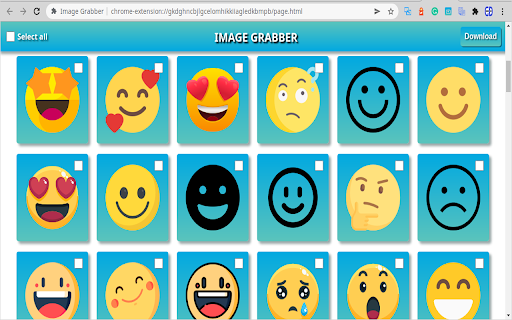
Extract all images from current web page Using this extension you can grab all images from current web page and download them as a single zip-archive. Also, it provides an interface to select which images to download.

svg-grabber - Grab all the SVGs from any website
Preview, download, or copy the code for any SVG icon or illustration, ready to use in Sketch, Figma, or Framer. Instantly access all SVG assets on any website. With svg-grabber, you can preview, download, or copy the code for every SVG icon and illustration—ready to use in design tools like Sketch, Figma, or Framer. ----------------------------- Please note that some logos and artwork available for download are the intellectual property of their respective copyright and/or trademark holders. These assets are provided for your convenience, but you must obtain proper permission from the copyright and/or trademark holders before using them.

Image Extractor
Extracts image names and allows copying image URLs. Image Extractor Chrome Extension The Image Extractor Chrome extension allows users to extract image information from a webpage's content area, including image names, alt texts, and URLs. Users can also download individual images, copy image URLs, and download all images as a ZIP file. - Extract images from the content area of a webpage - Display image names and alt texts - Show a small image preview - Download individual images - Copy image URLs to clipboard - Download all images as a ZIP file 1. Clone or download this repository. 2. Open the Chrome browser and navigate to `chrome://extensions/`. 3. Enable the "Developer mode" toggle in the top right corner. 4. Click "Load unpacked" and select the directory containing the extension files. 5. The Image Extractor extension is now installed and ready to use. 1. Navigate to a webpage with images you want to extract. 2. Click on the Image Extractor extension icon in the Chrome toolbar. 3. In the extension popup, click the "Extract Images" button. 4. The images from the content area will be displayed along with their names, alt texts, and a small preview. 5. To download an individual image, click the "Download" (⬇️) icon. 6. To copy an image URL, click the "Copy URL" (📋) icon. 7. To download all images as a ZIP file, click the "Download All Images" button.

Bulk Image Downloader
Bulk download images from multiple tabs in one click. Supports AVIF, WebP & AI-generated images. Filter by resolution and file type. The fastest way to bulk download images from any website. Save photos from one page or multiple tabs at once — with powerful filters for resolution, file type, and more. Perfect for designers, photographers, researchers, and AI artists who need to save images quickly and efficiently. 🔥 **NEW: AI-Friendly Image Support** — Seamlessly download AI-generated images (data:image/jpeg, data:image/png, data:image/webp) from tools like Midjourney, DALL·E, Stable Diffusion, and more. 🔥 **Modern Format Support** — Full support for next-gen image formats including AVIF, WebP, SVG, and all traditional formats (JPEG, PNG, GIF, BMP). Key Features: ✔ Bulk download images from multiple tabs — choose from: all tabs, current tab, left of current tab, or right of current tab ✔ Preview all images found on the page, including linked images ✔ Filter images by width, height, and file type ✔ Sort images by resolution or tab index ✔ Download selected images to your local folder with one click ✔ Right-click context menu to save any image directly to Downloads, just like Safari ✔ Clean, modern UI for a smooth browsing and downloading experience Simply press the "Download" button, and all selected images are saved to your default Chrome download directory. No extra configuration needed. Versions: 1.1.0 1. Added support for modern image formats: AVIF, WebP, and more 2. Added support for data URI images (data:image/jpeg, data:image/png, etc.) — great for saving AI-generated images 3. Improved UI with a cleaner, more intuitive design 4. Fixed a bug in the "Save Image to Downloads" context menu feature 1.0.3 1. The picture is selected by default 2. Image filtering rules are automatically saved

SVG Gobbler
Find, optimize, organize, edit, and export your SVGs Download SVG content from any website and download, copy, edit, optimize, and/or export. Find SVGs - Quickly find SVGs from any site - Handle CORs restricted SVGs from a page - Find individual sprite SVG instances Export SVGs - Create SVG sprites from icon collections - Export as SVG, PNG, WEBP, JPEG and various other formats - Transform SVGs into minified Data URIs - Transform SVGs into React components with SVGR - Optimize and minify SVGs with SVGO Organize SVGs - Group and categorize SVGs by their primary domain or custom collection name - Move, copy, duplicate, and optimize icons before sharing - Save and store a set of uploaded SVGs for optimization
