
nclioehaoppakmnhcmobfmbehkpfpmaa
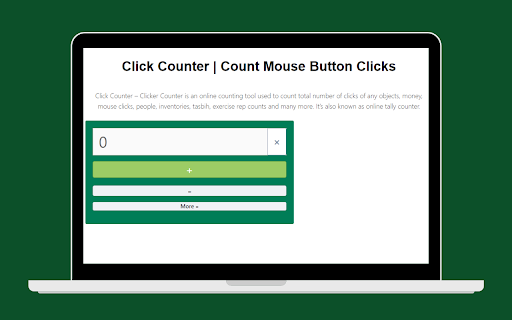
Click Counter – Clicker Counter is an online counting tool used to count total number of clicks of any objects, money, mouse clicks, people, inventories, tasbih, exercise rep counts and many more. It’s also known as online tally counter. Click Counter online tool is intended to build order to count the total number of total clicks without using any time limitation. With the help of this amazing clicks counting tool, you can easily count the number of anything. Unless any other online counter, this tool allows you to edit your counting score if you clicked more or less. It also allows you to reduce the mistaken or false clicks you performed during your counts/clicks. Clicker Counter online tool is very easy to use you don’t need any specific skill set or training in order to count your clicks. Even if you are going to use it for the very first time you can do it with ease. Anyways, a brief description is mentioned below with a pictorial infographic just to make you more comfortable during your click counting.

PlusOne Counter Button
PlusOne Counter Button: Keep track everything you need only with a click of a Button Adds a counter controlled by a button to your Toolbar If you want to keep track everything you need with a counter that can be incremented by clicking a button, this extension is the right tool for you. - The default step is 1. - You'll be able to setup the step by any value, positive or negative; - Reset the counter or do a -1 (or a negative step) by doing Right click on the button; - Hover the mouse cursor on the button to view the last click timestamp; - You can also use keyboard shortcuts to trigger all of the main functions (+1, -1 and reset): To customize keyboard shortcuts, copy this link into the address bar: chrome://extensions/shortcuts Right click on the button and select "Options" to access the options page to access additional features: - Sound: activate the sound option to hear a sound every time you click on the button; - Notifications: you can set a limit and you will receive a notification when the counter reaches that number.

Daily Click Counter
Counts your mouse clicks for today on the current page when enabled. Daily Click Counter is a simple Chrome extension that helps users track how many mouse clicks they make during the day. When enabled by the user, the extension counts mouse click events on the currently active webpage and displays the total number of clicks for the current date. The count is saved locally in the browser and automatically separates totals by day, allowing users to see their daily activity without manual tracking. The extension is intentionally minimal and runs only when the user chooses to activate it on a specific tab. It does not collect, transmit, or share personal data, does not track browsing history, and does not monitor activity outside of the active webpage. All processing and storage occur locally on the user’s device. Daily Click Counter is suitable for users who want a simple way to understand their daily mouse usage while browsing, without background tracking or unnecessary permissions.

Tally counter
Easy & intuitive tally counter for keeping track of anything you want. - lightweight - syncs between all your devices - super easy to use - ability to export data to .csv - reorder items - toggle dark mode - keyboard shortcuts so you don't have to click :-) To set hotkeys / keyboard shortcuts, copy this link into the address bar: chrome://extensions/shortcuts If you want any features added, you find a bug or something is behaving unexpectedly, please contact me at capdavidd@gmail.com. Donations are welcome at https://ko-fi.com/davidcap.

Simple Counter Button
Adds a counter controlled by a button to your Chrome Toolbar If you need a simple counter that can be incremented by clicking a button, this extension is for you. The counter can be set to increment by any value, positive or negative. The default step is +1 for each click. Right-click to quickly make a -1 step or to reset the counter. Additional functionalities (to be activated in the options page): 🔔 Notifications: you can set a limit and you will receive a notification when the counter reaches that number. 🔊 Sound: enable the sound option to hear a sound every time you press the button. 📅 Chronology: see a list with the date and time of the last 100 clicks. Right-click on the button and select "Options" to access the options page. ❗⌨️You can also set a custom keyboard shortcut for clicking the button by going here: chrome://extensions/shortcuts
