
mppedbpcpkaeclkgoppmdpdobhlpifeb
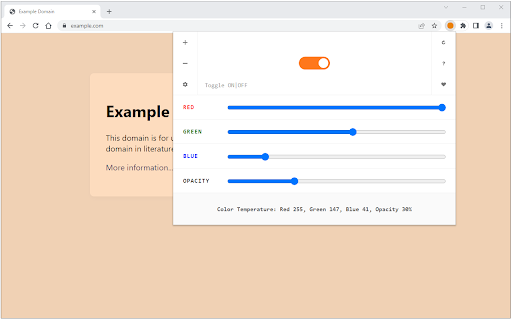
A lite and easy-to-use addon that adjusts the screen color to match the environment! Color Temperature (Change Lux) extension protects your eyes by adding a warm color to websites (i.e. at night time or when the ambient is dark). Using this addon you can avoid excessive blue light and also it makes you sleep much better by protecting you from the blue glow of your computer screen. Some features: 1. Easily change the color temperature of your screen from cool to warm colors (fitted for day or night time). 2. Toolbar panel UI has the required tools to adjust the color temperature. 3. There is also an ON|OFF switch to easily switch the addon ON or OFF. 4. This addon applies color temperature to all websites, but you can add the desired site(s) to a whitelist table to exclude them from color changing. 5. There are also some keyboard shortcuts to enhance adding websites to the whitelist table. 6. Options page for this addon has several settings to adjust. To report bugs, please fill out the bug report form on the addon's homepage (https://mybrowseraddon.com/screen-color-temperature.html).

Midnight Lizard
Custom color schemes for all websites: night mode, dark themes, blue light filter, screen shader, high contrast, grayscale, etc. Midnight Lizard color schemes work across all websites. There are many predefined color schemes and you can install more from midnight-lizard.org ✔ Choose between dark, light, grayscale or colorful color schemes ✔ Modify existing or create new color schemes ✔ Use different color schemes on each website ✔ Adjust brightness, saturation, contrast and hues ✔ Improve accessibility and readability ✔ Increase contrast to make text easier to read ✔ Apply blue light filter to shift all colors towards red light ✔ Keep original images and hues without inversion ✔ Schedule automatic activation and deactivation ✔ Use keyboard shortcuts to toggle extension ⮚ on current website: Alt+Shift+L ⮚ globally: Alt+Shift+M ✔ Use with PDF and local files (enable in browser settings) ✔ Shade bright colors and images ✔ Change any colour you want ✔ Synchronize your settings ✔ Configure background, text, buttons, links, borders, images and scrollbars ✔ Apply globally, per-website or with url match patterns ✔ Switch between websites blacklist and whitelist modes ✔ Use Simplified mode to improve performance on heavy websites ✔ Contribute to our open source project on GitHub.com/Midnight-Lizard ✔ Donate to our OpenCollective.com/Midnight-Lizard Please use browser themes in order to style New Tab page, tabs and toolbars - extensions cannot do that. Also extensions don't work on New Tab page, Chrome Web Store and browser settings.

Night Mode Pro
Switch to night mode and the display is much easier on your eyes! Night Mode Pro is an extension to change the screen's luminosity (Day/Night modes) when you surf the Internet. Besides, you can easily adjust the screen's brightness. Some features: 1. Protect your eyes with Night Mode extension by dimming the light when the environment is dark or vise-versa. 2. Easily change the screen brightness on either Day or Night modes. 3. In Night Mode, the entire page will be fading to dark and all text colors will be adjusted to the dark color as well. 4. In Day Mode, the page and all text colors will be switched to normal. Note 1: to whitelist a website from Night Mode, open the options page and add the URL to the list. Note 2: to report bugs, please fill the bug report form in the addon's homepage: https://mybrowseraddon.com/night-mode.html

Video Filter
Enhance your video color everywhere you watch! Just drag and drop any available filters, connect and tweak to make a magical result. Video Filter works everywhere: YouTube, Vimeo, Facebook, Netflix, HTML5 video and so on. Available filters: * brightness * contrast * gamma * saturate * grayscale * sepia * hue-rotate * flood (SVG display on) * image * blur * opacity * blend * composite * merge * morphology * SVG-code

Night Shift Mode
Take care of your eyes. Change screen brightness to special eye-protective colors from the list or to a color that you prefer. Night shift changes the colors of the screen to warm and eye-protective shades. You can automatically change screen mode by scheduling or selecting a color theme for a certain website. Our extension suggests a palette of colors that are good for eyes in a dark time and also you can pick any color and add it to the settings page. Working on a computer at night time may affect your eyes or can disturb other people in the same room. Night Shift Mode is a good opportunity to reduce screen brightening to take care of your eyes. Dark Mode isn't suitable for all websites, so applying warm colors to all websites will be the best alternative for screen tinting. Our extension offers several benefits for users of notebooks or PCs by reducing the blue light emitted by screens. Here's how it can help: 1. Reduces Eye Strain - excessive blue light can strain your eyes during extended screen use, especially in low-light conditions. Night shift mode adjusts the screen's color temperature to warmer tones, which are gentler on the eyes. 2. Improves Sleep Quality - blue light suppresses the production of melatonin, a hormone responsible for regulating sleep. By reducing blue light exposure in the evening, night shift mode can help you fall asleep more easily and maintain a healthy sleep cycle. 3. Minimizes Digital Fatigue - spending long hours in front of a screen can lead to digital fatigue, causing discomfort and difficulty focusing. Warmer screen tones may help alleviate this, enabling more comfortable extended use. 4. Helps in Low-Light Environments - Night Shift Mode dims harsh light, making it easier to work in dimly lit or dark environments without causing discomfort or disrupting the ambient lighting balance. 5. Potential Long-Term Eye Health Benefits - although research is ongoing, reducing exposure to high-energy blue light may help mitigate risks associated with long-term eye health issues like macular degeneration. 6. Customizable and Easy to Use - most devices allow users to schedule night mode automatically (e.g., sunset to sunrise) or adjust settings manually to suit individual preferences. While Night Shift Mode can be beneficial, it’s not a substitute for regular breaks from screen use, proper lighting, or comprehensive measures like blue light-blocking glasses or ergonomic screen settings.
