
mpedooclpiggpfamidjeemfjoeakebce
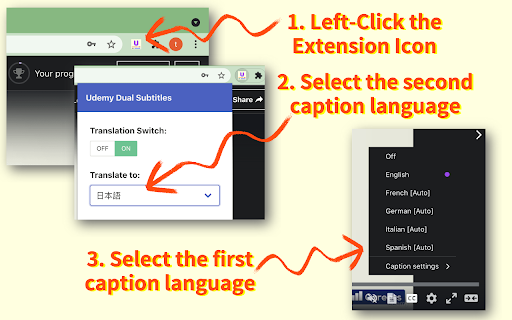

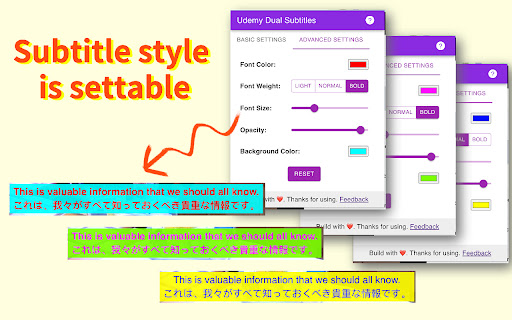
Dual subtitle translator for Udemy. Bilingual subtitles in 50+ languages. Supports Udemy Business, course preview & fullscreen. Udemy Dual Subtitles — the most popular Chrome extension for bilingual subtitle translation on Udemy. Translate Udemy course subtitles into your native language and display two languages at the same time. Over 30,000 learners worldwide use this tool to watch Udemy online courses with dual language captions. Actively maintained for 4+ years with 40+ releases. Udemy Dual Subtitles is a subtitle translator that turns any Udemy course into a bilingual learning experience. It takes the original Udemy captions and adds a real-time translated subtitle underneath — so you can read both languages simultaneously while watching the video. No more pausing to look up words. No more switching between tabs to use a dictionary. Just press play and learn in two languages at once. ✅ Dual Bilingual Subtitles Display translated subtitles alongside the original Udemy captions. See both your native language and the course language on screen at the same time. The original text and translated text appear as two lines — easy to compare and follow. ✅ 50+ Languages Supported Translate subtitles into over 50 languages — one of the widest language selections among all Udemy subtitle tools. Covers European, Asian, Middle Eastern, African, and South Asian languages. See the full list below. ✅ Real-Time Subtitle Translation Translated captions appear instantly as the video plays. No delay, no buffering — just seamless bilingual subtitles synced perfectly with the course content. ✅ Customizable Subtitle Styles Full control over subtitle appearance: font size, text color, background color, font weight, and opacity. Make the dual subtitles comfortable for your eyes. You can even hide the original subtitles and show only the translation. ✅ Download & Export Subtitles Export subtitles in SRT (with timestamps) or TXT (plain text) format. Choose from three export modes: original only, translated only, or bilingual side-by-side. Great for offline review, note-taking, or building a vocabulary list from course content. ✅ Udemy Business Compatible Works perfectly with Udemy Business (corporate/enterprise) accounts. If your company provides Udemy Business for employee training, this extension works the same way. ✅ All Udemy Page Types Supported Compatible with all Udemy page layouts — the classic version, the new Beta version, and course preview pages. We continuously adapt to Udemy's platform updates so you never lose access to dual subtitles. ✅ Fullscreen Support Dual subtitles remain visible in fullscreen mode. No compromise between an immersive viewing experience and bilingual captions. ✅ Smart Language Detection On first install, the extension automatically detects your browser language and sets it as the translation target — no manual configuration needed. It also intelligently detects which subtitle language is currently active on the video player. ✅ Auto-Save Settings Your language preferences and subtitle styles are saved locally and persist across lectures and sessions. Open any new lecture and your dual subtitles appear automatically — set it once and forget. 🎯 WHO IS THIS FOR? 👨🎓 International Students Studying on Udemy but the courses are in English (or another language you're not fluent in)? Dual subtitles let you follow along in your native language while still seeing the original text — perfect for technical courses in programming, data science, web development, design, and more. 👩💼 Working Professionals Taking Udemy courses to upskill but the content is in a foreign language? Don't let language be a barrier. Translate course subtitles in real time so you can focus on the subject matter, not on deciphering every word. 🌍 Language Learners Learning a new language through immersion? Dual subtitles are one of the best tools for language acquisition. Watch real-world course content with both your target language and native language captions, and pick up vocabulary and expressions naturally. 🏢 Udemy Business Teams If your organization uses Udemy Business for employee training, Udemy Dual Subtitles helps multinational and multilingual teams get the most out of every course — no matter what language they speak. 📱 Casual Learners Just want to enjoy Udemy courses without the language struggle? One click and you have bilingual subtitles on any course that has captions enabled. Step 1: Install the extension from Chrome Web Store Step 2: Open any Udemy course and start playing a lecture Step 3: Make sure the official Udemy subtitles (closed captions) are turned on Step 4: Click the Udemy Dual Subtitles extension icon in your browser toolbar Step 5: Select the language you want to translate subtitles into Step 6: Toggle the translation switch ON That's it! Bilingual dual subtitles will appear on the video immediately. Your settings are remembered, so next time you open any lecture, dual subtitles activate automatically. Udemy Dual Subtitles supports translation into over 50 languages, covering European, Asian, Middle Eastern, African, and South Asian language families. Popular choices include: ...and 40+ more languages. The extension interface itself is also localized in 31 languages, so you can use it in your preferred language. Q: Do I need a Udemy Pro or paid account? A: No. Udemy Dual Subtitles works with any Udemy account — free or paid — as long as the course has subtitles available. Q: Does it work with Udemy Business? A: Yes! Fully compatible with Udemy Business (corporate/enterprise) accounts. Q: Why don't I see the dual subtitles? A: Make sure the official Udemy subtitles (closed captions) are turned on first. Udemy Dual Subtitles translates the existing captions — it cannot generate subtitles for courses that have no captions. Q: Can I translate from any language to any language? A: The extension translates whichever subtitle language is currently active on the Udemy player into your chosen target language. So yes — any available source language to any of the 50+ target languages. Q: Can I customize how the subtitles look? A: Yes. You can adjust font size, text color, background color, font weight, and opacity. You can also hide the original subtitle and show only the translation. Q: Can I download the translated subtitles? A: Yes. You can export subtitles in SRT or TXT format — original, translated, or bilingual. Q: Does it slow down the video or cause lag? A: No. The extension uses smart incremental translation — it only translates subtitles near your current playback position, not the entire course at once. This keeps performance smooth. Q: Does it work on Edge or other Chromium browsers? A: Yes. Any Chromium-based browser (Chrome, Edge, Brave, Arc, Opera, Vivaldi) can install and run this extension. Q: Is my data safe? A: Yes. Udemy Dual Subtitles does not collect or sell your personal data. Your subtitle preferences and settings are stored locally on your device. Q: Does it work on the Udemy course preview page? A: Yes. The extension supports course preview pages as well as full lecture pages. Q: What happens when Udemy updates their website? A: We actively track Udemy's platform changes and release updates promptly. The extension has been maintained for over 4 years through multiple Udemy redesigns. • 4+ years of continuous development since January 2022 • 40+ version releases — actively maintained and updated • Compatible with every Udemy page version (Classic, Beta, Preview) • Featured on Chrome Web Store • 50+ translation languages — one of the widest selections available • Fast response to Udemy platform changes — we ship fixes within days • Manifest V3 — built on the latest Chrome extension architecture • Privacy-first — no personal data collection, no tracking Version 4.3.0: • Support for Udemy's new preview page layout • Improved caption language detection accuracy Version 4.2.0: • Adapted to Udemy's new page style changes Version 4.0.0: • Full support for Udemy's new Beta version We actively maintain this extension to keep up with every Udemy platform change — so your dual subtitles always work. 💡 TIPS FOR THE BEST EXPERIENCE 🔹 Always enable official Udemy subtitles first — the extension translates existing captions, it does not generate new ones. 🔹 If a course offers multiple subtitle languages, choose the one closest to your translation target for best accuracy. 🔹 Use the options page (right-click the icon → Options) for advanced subtitle style customization. 🔹 The extension remembers your settings per device — just set it once and forget. 🔹 Works great for building vocabulary: download the bilingual subtitle file after watching a lecture and review it offline. Have a question, found a bug, or want to suggest a feature? We'd love to hear from you! If you find Udemy Dual Subtitles helpful, please leave a rating and review on the Chrome Web Store. Your support helps other learners discover this tool and motivates us to keep improving. Thank you!

Udemy Double Subtitle
Support double subtitles for Udemy: Subtitle Mode: Support off, Single, and Dual Second Language: Supports 12 languages showing dual subtitles, they support Arabic, Chinese Traditional, Chinese Simplified, French, German, Hindi, Italian, Japanese, Korean, Portuguese, Spanish, and Turkmen. V1.1.1 fix for Udemy changing

Udemy Subtitle Translator - Yakuu
Subtitle translator for Udemy. Also, Show YouTube subtitles to the corresponding language, No need for hierarchical menu selection. Enables Udemy course subtitles to be translated and displayed in dual language mode. Translation subtitles now natively support various display modes including full screen and auto-paging Usage of Udemy That's it -- just open any Udemy course and enable captioning. Usage of YouTube Just click the subtitle icon on the video to enable subtitles, you don't have to open the options icon to specify the language each time. How to show the Yakuu icon in the toolbar 1. Select "Extensions" 2. Find the Yakuu extension 3. Select Pin to show Yakuu icon in the toolbar Use the toolbar icon to enable or disable Yakuu extension at any time. All: Supports all languages provided by Google Translate Add the feature of specifying the target language for translation. You can choose which language you want the subtitle to be translated into. Udemy: Supports early subtitle formats. Translation subtitles now natively support various display modes including full screen and auto-paging. Add bilingual subtitle feature, allowing you to switch between single and dual language subtitles at any time.

Udemy translate & speech
A Chrome extension that translates subtitles of Udemy content and reads them out with a synthetic voice. - Automatic translation of Udemy video subtitles to the user's preferred language - Caption display of translated subtitles with adjustable font size - Playback of the translated subtitles using synthesized speech - Customizable settings for language preferences, voice options, and playback speed - Support for Udemy Business domains - Double-click translation toggle functionality - NEW: Independent subtitle display control - show/hide subtitles while keeping audio playback - NEW: Optimized UI with single-line layout for better space efficiency

Skillshare Dual Subtitles - Subttl Translator
Subtitle translator for Skillshare. Displays bilingual subtitles. 🎯 Skillshare Dual Subtitles is a Skillshare subtitle translator. It extends the original Skillshare Subtitle into bilingual subtitles. 🌍 Skillshare Dual Subtitles can translate official subtitles / captions of videos that are hosted on site skillshare.com into almost all widely used languages. To make it work, the video should have AT LEAST one official subtitle / caption. 🛠 The styles of the subtitles are settable. You can set styles for the bilingual subtitles separately, including font size, font color, font weight, opacity, background color, etc. 🚠 The subtitles are filled in a draggable box. Hence you can adjust the subtitles' position as you wish. 👉 Features: ✅ Display bilingual subtitles ✅ Support most languages ✅ Support subtitle styles settings ✅ Subtitle position is draggable ✅ Support full screen ✅ No need to set up every time 🏗 Should you have any questions, contact me at support.skillshare@subtrans.cc
