
mfkicjfhbeejihplmfnodcigdmklgakh
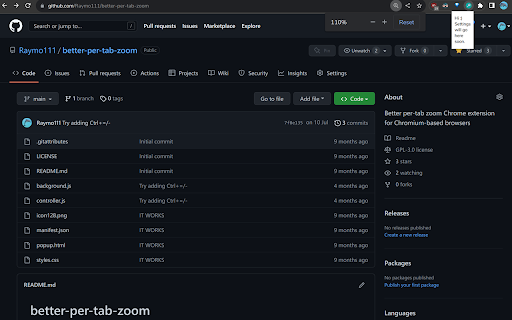
Zoom tabs from the same domain individually. Open Source, offline, and no downloads. Use Ctrl+scroll to zoom per-tab and Ctrl+shift+scroll to zoom per-domain. Ctrl+scroll is always intercepted so websites requiring it (most commonly zooming in Google Maps embeds) doesn't work right now.

Wide Window Zoom
Automatically zooms pages on wide screens and unzoom on narrow screens. Wide Window Zoom is a user-friendly web extension that enhances your browsing experience on ultra-wide screens by automatically adjusting page zoom levels. If you have a large, wide monitor or use multiple displays, this extension is tailored to make web content more legible and visually comfortable. The extension detects when your browser window reaches a certain width threshold. Upon detection, Wide Window Zoom smoothly applies a customizable zoom level to the entire page, ensuring that texts are scaled appropriately for optimal readability and visibility. - Customizable width threshold - Customizable Zoom Level - Seamless Interaction: The extension works seamlessly in the background. - Responsive Design Consideration: The extension avoids increases text sizes without altering responsive websites. - Blacklist: The extension can be disabled on specific websites. Wide Window Zoom is your perfect companion for ultra-wide screen setups, helping you make the most of your expansive display real estate without straining your eyes. Say goodbye to squinting at tiny text or constant manual zoom adjustments and enjoy a more pleasant and immersive browsing experience with Wide Window Zoom!

Magnifying Glass For Reading
Click on the toolbar button to activate the magnifying glass feature on the current page. "Unlock enhanced browsing with Magnifying Glass For Reading, a lightweight addon designed to magnify webpages instantly. Here's why it's a must-have: 1. Easy Activation: Click the toolbar button once to activate the magnifying glass. 2. Zoom In Anywhere: Move your mouse to explore a magnified circular section of the page. 3. Convenient Control: Click anywhere on the page or the toolbar button to hide the magnifier. 4. Customize Your Experience: Adjust zoom level and coverage area in the addon's options page. 5. Toggle On and Off: The toolbar button serves as a handy ON|OFF switch, turning red when active and grey when inactive. Ready to elevate your browsing? Get Magnifying Glass For Reading now! For bug reports and updates, email us on info@webholix.com

Single Tab Zoom
Overrides Chrome's default behavior of applying zoom so that it is only applied to the current tab instead of the entire site.

Easily Custom Page Zoom
Each website (or all websites) may be set with a unique zoom level easily. "Easily Custom Page Zoom" provides you with the option to establish various zoom levels for each website. Furthermore, you can change the X and Y position of each page. - The toolbar popup window can be used to set custom zoom levels for each website. - You can set each page's position using the X and Y positions, and save the settings for individual pages using the save button. - You can also delete each setting by clicking on the close (x) button. - To turn the Addon ON or OFF, you can use two separate buttons at the popup UI. - A "*" can also be used to set a specific level of zoom for all websites.
