
mdpcpdnelomalncmjbdcnledmmfepkco

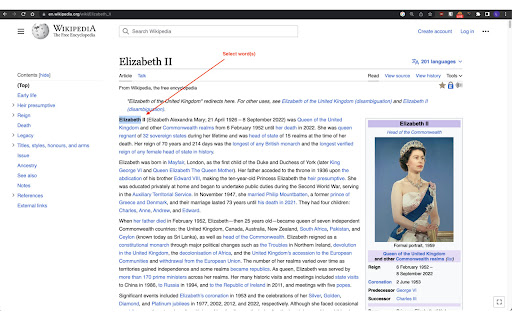
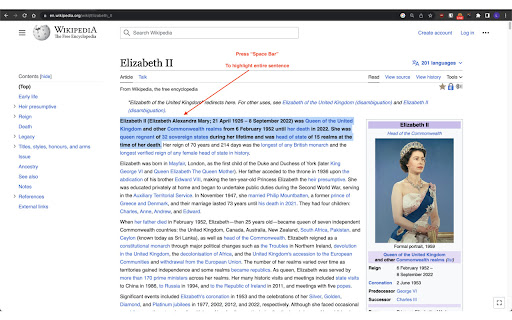
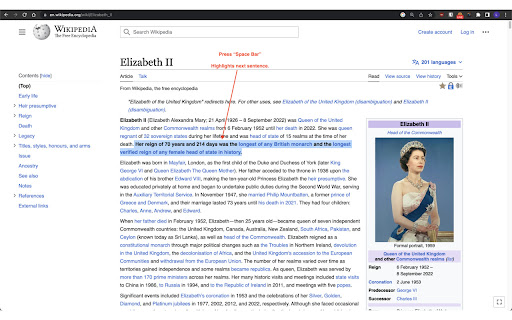
A Chrome extension that selects and highlights sentences as visual cues for digital reading. # Chrome Extension for Seamless Reading using Visual Pointer Cue. Are you tired of scrolling through long digital documents or books and losing track of where you are? Do you ever find yourself re-reading the same sentence multiple times because you lost your spot? We have a solution for you. We developed a **feature that selects and highlights the current sentence being read** as a visual cue for readers. This feature enhances the reading experience by providing clear cues on the sentence you are currently reading, helping you to maintain focus and engagement with the content. To see our feature in action and better understand its benefits, watch our video demonstration. This demo showcases how our sentence selection and highlighting feature functions and how it can significantly improve your reading focus. By clicking on the image above or following this link, you can access our video demo: Our feature is easy to use and seamlessly integrates with existing web applications. To select a sentence in an article, simply highlight a word or phrase, press **space bar**, and our feature will determine the current sentence based on cursor position and surrounding text. The chosen sentence will be highlighted in real-time as you scroll through the document. We are excited to introduce our new feature that selects and highlights sentences as visual cues for digital reading. **Try it now** and see how it can improve your reading experience.

Interactive Reader - One Sentence at a Time!
❀ Highlight, listen to, and take note — one sentence at a time! ① Highlight – Sentence-by-Sentence Focus – The tool highlights one sentence at a time, keeping you engaged. – Use the arrow keys (or "W" and "S") to move through the text smoothly. (If a part of sentence is selected on the page, It will try to highlight that sentence first when you press arrow keys.) ② Listen to (Text to Speech) (Press "Q" key to toggle the utterance) – Open up settings page (by pressing ctrl+period keys) – Find the row that says about "Q key" on the settings page – Select "Pronounce Once/Repeat" to turn on the Text to Speech feature; select "do nothing" to turn it off – Choose "once/always" for "auto" to make it pronounce for the highlighted sentence every time you press arrow keys. ("once" means only this time on the current page, while "always" means to apply for every page hereafter) ★(Tired of pressing arrow keys when making it pronounce? While making sure you have chosen the "once/always" for "auto", also check on the checkbox "Auto-Read-Following-Sentences When Pronounce", it will start to auto-highlight/auto-pronounce the next sentences one after another at the end of (TTS) utterance of the current highlighted sentence. If pronunciation is set to "repeat" mode, then it will auto-highlight/auto-pronounce the next after pronouncing it twice) (If some text is selected on the page, It will read aloud the selected text; otherwise it will read aloud the highlighted sentence automatically.) ③ Take Note – Open up settings page (by pressing ctrl+period keys) – Find the row that says about "Enter key" on the settings page – Select "Popup Notebox" to turn on the Note feature. (It will store the notes to database if you are a logged-in user, otherwise notes are stored temporarily with the maximum number of 200 pieces of notes.) ④ Bookmark (for the position of the sentence) – Leave a page? No problem! The extension remembers the last highlighted sentence so you can pick up right where you left off. – Manually set and get the Bookmark (for the position of the highlighted sentence) by click on the "Set/Get Bookmark" button on the settings page. (It will store the bookmark to database if you are a logged-in user, otherwise bookmark are stored temporarily on the browser-level.) ⑤ Translate to English/Chinese – Users now can use the "translator" feature by pressing "T" key. (If some text is selected on the page, It will translate the selected text; otherwise it will translate the currently highlighted sentence.) ⦿ Extra Features for Personalization ① Turn Webpages into Sentence Cards – Enter a webpage URL, and the extension will fetch sentences from it. Click the icon, and it will display a sentence for you! ② Hands-Free Reading – Press Ctrl + . on a page to open settings where you can toggle Auto-Scroll, make highlighted sentence bold/underlined, Set/Get Bookmarked Sentence Index, and more. ③ Personalized Review – Your saved sentences become flashcards! Open the popup and review them in random order—perfect for reinforcing what you’ve learned. ④ Your Learning Hub – All your highlights and notes are organized on your personal User Homepage. Plus, there's a built-in typing practice tool to help you retain new information—great for language learners! ⦿ For Power Users (Account Required) ① Sync Your Data Anywhere – Save to the cloud and access your notes, bookmarks from any device without number limitation. ② Note-Sentence Mapping – Map existing notes to specific sentences for even better comprehension. (Use Ctrl + M to map, then review the note while navigating the text.)

OneLine
Focus on the words that matter. Have you ever been lost in a sea of words while reading online? OneLine is a reading aid for the web that increases your focus and reading efficiency by highlighting a single row of words. OneLine can be used on any website. If you have trouble reading, OneLine can help. OneLine comes preset with recommended colors proven to increase reading strength for dyslexic readers and allows you to customize the color of the highlighted line. Features: * Three recommended highlight colors proven to increase reading strength * Full RGB color picker * Set and save your favorite colors. Favorites are saved and synced to your Google account. * On/Off Toggle switch Using OneLine: * Click on the highlight icon in Chrome to view OneLine settings. * To change color, click color settings, select the color from the picker or recommended buttons then click the bookmark button to save your favorites. * Move OneLine up and down with the arrow keys (or 'W' an 'S') to keep track of where you are. Report issues on the OneLine website: https://useoneline.com/#contact

Readima
Readima simulates many reading techniques such as Meta Guiding, or RSVP to help you read faster with high comprehension. Readima is a Chrome extension designed to help people improve their speed reading skills through the use of various methodologies, including Meta Guiding and Rapid Serial Visual Presentation (RSVP). With Readima, users can customize their reading experience to better suit their individual needs and preferences, choosing from a variety of options such as font size, color scheme, and reading speed. One of the key features of Readima is its ability to implement Meta Guiding, a technique that involves using a visual cue, such as a cursor or a highlighted line, to guide the reader's eye as they move through the text. This can help improve reading speed and comprehension by focusing the reader's attention on the most important information and eliminating the need for unnecessary eye movements. Another useful feature of Readima is its support for RSVP, which presents text one word at a time, rather than in traditional sentence or paragraph form. This can help to improve reading speed by forcing the reader to focus on each individual word and eliminating the tendency to re-read or skim over words. It can also help improve comprehension by allowing the reader to fully process and comprehend each word before moving on to the next. In addition to these features, Readima also offers a variety of customization options, such as the ability to adjust the font size and color scheme to suit the reader's preferences, and the option to set a specific reading speed to help optimize the reading experience. Whether you're a student looking to improve your reading skills for school, a professional looking to increase your productivity, or simply someone who enjoys reading, Readima is an excellent tool to help you improve your speed reading skills and get more out of your reading experience. ✔ Reading pointer: Readima simulates the best speed reading technique called Meta Guiding. Meta guiding involves visually guiding your eye using some sort of pointer (finger, pen, or this Readima app) for the eye to move faster along the length of a passage of text. The point is to decrease distraction and focus on the specific words to increase your reading speed. Try to keep moving your pointer slightly faster than your comfort zone to increase the reading speed. ✔ Rapid Serial Visual Presentation (RSVP): In RSVP, a series of words appear rapidly in time at the same point in visual space. Indeed, the words may appear as fast as 10 items per second. ✔ Reading Mode: distraction-free & ad-blocking reading viewer focusing on the main content. ✔ Scan & Skim: highlight the first and last sentence of each paragraph in a custom color that the user can choose. This allows the reader to quickly scan through a piece of text and get a sense of the main ideas and key points without having to read every single word. Additionally, by highlighting the first and last sentence of each paragraph, the reader is able to quickly identify where one idea ends and another begins. ✔ Word List Checker: allows you to see new vocabulary in context, which can make it easier to understand and remember. We recommend moving your pointer with almost constant speed. Try to keep moving your pointer slightly faster than your comfort zone to increase the reading speed. Try to read faster so that you catch up with your pointer. If you start losing comprehension, slow your pointer down. Otherwise, consider moving your pointer even faster. What you read is your business. We do not sell, rent, license, or otherwise monetize your data in any way. By installing the extension, you agree to Readima's Privacy Policy. ★ Changelog 1.3.4 | 08 Mar 2026 New Features - Bionic Reading Mode - A new reading technique that bolds the first part of each word to help your eyes glide through text faster - Highlights & Annotations - Mark important passages and add notes while reading. Your highlights sync across sessions - Read Later Queue - Save articles to read later with right-click context menu. Access your reading list from the dashboard - Reading Streak - Track your daily reading habit with streak counters and stay motivated - Focus Mode - Dim distractions and focus on the content you're reading - Text-to-Speech - Listen to articles with built-in TTS support - Auto-Scroll - Hands-free reading with adjustable scroll speed - Reading History - Keep track of articles you've read with automatic history logging - Completely redesigned Dashboard with better organization and statistics - PDF & EPUB reader now properly saves bookmarks - Improved premium subscription management with direct billing portal access - Performance improvements through code refactoring Bug Fixes - Fixed bookmark saving in PDF/EPUB reader mode - Fixed highlight navigation issues - Fixed various UI bugs in the settings panel 1.3.3 | 02 Mar 2026 - Ebook Reader with epub, pdf files - Added a pause button in RSVP fullscreen mode 1.3.2 | 09 Nov 2025 - Fix bugs and activate subscription. 1.3.0 | 01, Feb 2023 - Fix bugs and add improvements 1.2.9 | 18, Jan 2023 - Improve side bar UI - Add Images overview feature. 1.2.7 | 11, Jan 2023 - Turn on/off media and links in the article - Page width and Line space settings 1.2.3 | 20, Dec 2022: - Add Notification for users to view the latest updates right on the extension - Update Activation page UI/UX - Add Word List Checker feature: Allow you to highlight words from a custom list. - Improve side menu user experiences 1.1.1 | 14, Aug 2022 - Fix bug when switching the reading mode 1.0.7 | 05, Aug 2022 - Improve the settings page UI - Update to manifest v3 1.0.6 | 04, Aug 2022 - Add Analytics and improve the speed reading sidebar 1.0.3 | 25, Jul 2022 - Rebranding to Readima - Add theme settings on the right sidebar Any questions and feature requests? Drop us a line at hello@readima.com

Delightful
A little delight goes a long way. Too much delight ruins the fun. Are you bored? Just not feeling it at work? Try Delightful, a browser extension that will brighten your day with delights when you complete a task in your project management software. ★★★ Pro tip ★★★ Watch the room light up with joy when you use this in a meeting. ★★★ Pro tip ★★★ You'll never know what to expect, but you will get a warm fuzzy dopamine hit when you deserve it the most. Delights ★ All of the things ★ Baby Yoda ★ Badger Badger Badger ★ Confetti ★ Fallout Vault Boy ★ Nyan Cat ★ Party Parrot ★ Smug Thug Pew Pew ★ Success Kid
