
mdhellggnoabbnnchkeniomkpghbekko
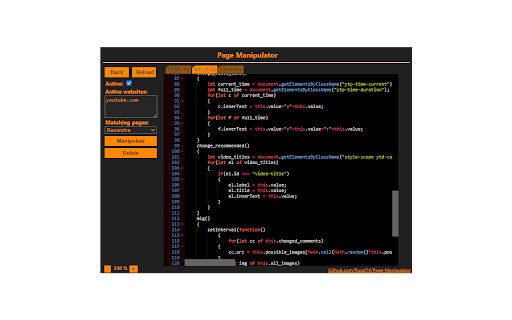


Inject HTML, CSS or JavaScript into any web-page. The changes you make are applied every time you visit the specified website(s). - Automatically inject custom HTML, CSS, and/or JavaScript into the pages you specify. - Run custom CSS before the page is fully loaded so you won't see the original page first. - Inject JavaScript on the go. - Add/Remove/Change the HTML and CSS on the go. - Right click on any element on a page to get the full CSS path. - Automatically saves the changes you make. - Files that contain less than 8000 characters are synced across your Google account. - Files that contain 8000 or more characters are stored locally. - Cheat simple games like the T. rex game. - Make your own dark-theme for any website. - Test a website you're working on. - Whatever you can imagine, be creative ;) - Simple, First open the extension. - Choose 'JavaScript', 'CSS' or 'HTML'. - Create a new file by pressing 'new'. - Write your own code or get some from the examples here: https://github.com/Ruud14/Page-Manipulator/tree/master/examples - Press the 'manipulate' button to test your code. - To make sure your code is run every time you visit a specific page do the following: - Put the URLs of the websites in the 'active websites' input. - Check the 'active' checkbox. - Button functionalities: - The 'Reload' Button: - Will Reload the current page. - The 'Active' checkbox: - on > The code will be run automatically on the pages specified in the 'Active websites' textarea. - off > The code will only run when you press the 'Manipulate' button. - The 'Active Websites' textarea: - You can specify the websites you want your code to run on here. - The 'Matching Pages' dropdown: - 'Exact' > The code will only run when the URL of the page is exactly the same as one of the URLs in the 'Active Websites' textarea. (Including slashes at the end!) - 'Recursive' > The code will also run on all sub-pages of the specified URLs in the 'Active Websites'. - The 'Position on page' dropdown (only with HTML): - 'Top' > The HTML will be added to the top of the page. - 'Bottom' > The HTML will be added to the bottom of the page. - 'Replace' > The HTML will replace the entire body HTML of the page. - The 'Manipulate' or 'Update Manip.' button: - Injects the code into the page or updates the injection. - **This button also works when the 'Active' checkbox is unchecked.** - The 'Remove Manip.' Button: - Removes the manipulation from the page. - If the "Auto ⟳" checkbox is checked, the page will automatically reload after pressing the 'Remove Manip.' button. The 'active' checkbox will also be unchecked. - The 'Delete' button: - Deletes the current file from the storage. - You can right-click any element on a page to get the CSS path of that element. - If the extension button in the top right corner is greyed-out, you can't use it on that page. - Make sure the 'active' checkbox is checked. And the 'active websites' input contains the correct URLs. - For JavaScript: - Make sure your code is run at the right moment. Maybe try adding a delay. - Check the browser console for error messages. - For CSS: - Make sure you are manipulating the right element by using "inspect element". - Try using '!important'. - For HTML: - Make sure you haven't accidentally set the 'position' dropdown to the wrong position. - Removing and updating JavaScript manipulations might not work the way you expect it to. Removing your JavaScript manipulation from a page only removes the element, so dynamic changes made to the page will stay there even when you remove the manipulation. To completely remove everything the manipulation did, you must reload the page. This extension works on most sites, but there are some exceptions! If you'd like to see any specific improvements or found any bugs, let me know here: https://github.com/Ruud14/Page-Manipulator/issues The editor I used since release v0.2.0-alpha is Ace editor. Check it out here: https://ace.c9.io/

Run Javascript
Run custom Javascript, each time you visit a website ⚡ Run custom JavaScript on any website — automatically, every time you visit. Save your scripts per domain. They execute on page load, every single time. No setup, no config files, no extra tools. Just your code running where you want it. 1. Visit any website 2. Click the Run JavaScript icon 3. Write or paste your custom JavaScript code 4. Save — your script auto-runs on every future visit to that domain Toggle scripts on/off per site with one click. Scripts persist across browser restarts. 🎯 WHAT YOU CAN DO ✅ Remove ads, popups, banners, cookie notices, and distracting elements ✅ Inject custom CSS — dark mode, custom themes, font changes, layout fixes ✅ Auto-fill forms, pre-select dropdowns, auto-click buttons ✅ Auto-run scripts on page load without manual intervention ✅ Extract data, scrape content, highlight information on any page ✅ Add features websites are missing — keyboard shortcuts, UI tweaks ✅ Automate repetitive tasks — clicks, form submissions, navigation ✅ Inject custom HTML elements, dashboards, or productivity widgets ✅ Test and prototype frontend code changes on live websites ✅ Debug and inspect page behavior with custom console scripts ✅ Modify DOM elements, rewrite page content, restructure layouts 💻 BUILT FOR DEVELOPERS ✅ Ace code editor with full syntax highlighting and auto-indent ✅ jQuery library included (1.12.4, 2.2.4, 3.3.1) — or use vanilla JavaScript ✅ Execute button for instant testing before saving ✅ Scripts stored per hostname using Chrome storage API ✅ One-click enable/disable toggle per domain ✅ Works on all http and https pages ✅ Manifest V3 — secure, fast, modern Chrome extension architecture ✅ Service worker background script — no performance overhead ✅ Sandboxed execution with duplicate run prevention → Web developers testing and debugging on production sites → Frontend engineers prototyping UI changes live → QA testers injecting test scripts and automation → Digital marketers running A/B tests and analytics scripts → Power users customizing websites to fit their workflow → Students learning JavaScript with real-world web pages → Automation enthusiasts replacing repetitive manual tasks → No data collection, no tracking, no analytics → No account required — works immediately after install → All scripts stored locally in your browser → Open source and transparent → Manifest V3 security standards → No external network requests Lightweight. Fast. Private. Just your JavaScript, running where you want it. Install now → click the icon → paste your code → done.

Custom Style Script
Add Custom JavaScript (JS) Code or Styles (CSS) to any page. Custom Style Script customizes the way a webpage looks or behaves, by adding a small JavaScript or CSS code. You can also specify a URL to add the code or add it to all pages. Key features: 1. Add custom JavaScript codes or styles (CSS) to a specific page or all pages. 2. Clicking on the toolbar icon allows you to disable or enable the addon. 3. Each code item has several options to adjust (see options page for details). 4. You can add several code items and active or inactive them separately. 5. An example of how to add a code is available in the add-on's options page. 6. Before adding the code (JS or CSS) please make sure you have validated the code. 7. Online JS or CSS links (i.e. jQuery or bootstrap) can also be added to any page. See add-on's options page for details. Note: to report bugs, or request a feature, please visit the add-on's homepage (https://mybrowseraddon.com/custom-style-script.html) and fill the bug report form.

Rendering Difference Engine
Identify SEO signals added, removed, or altered in page HTML during JavaScript rendering — without digging into the code. 🔍 The Rendering Difference Engine highlights discrepancies between response HTML and rendered HTML. No more searching for the needle in your haystack. → Findings are grouped and reported based on elements that impact how search engines crawl, understand, and index the URL. → An intuitive, at-a-glance interface includes unique tabs for each SEO factor, showing exactly what changed: ⚙️ Crawling, Indexing, & Metadata 🔠 Headings 🔗 Links 🌅 Media 📄 Page copy → The “Difference” tab shows the rendered HTML and highlights any differences. → You can export code and page copy, as well as highlight impacted links and media directly on the webpage. 💪 Use the findings to facilitate a JavaScript audit and clearly document JS SEO issues for decision makers and developers. Feedback: If you think The Rendering Difference Engine is awesome, help us get the word out by rating it five starts. We welcome your suggestions, requests, and experiences at hello@thegray.company. Privacy: Once the extension is enabled in Chrome, there’s no need to grant any additional permissions. The Rendering Difference engine does not collect or store personal data, or any other data, from the webpages you browse.

Inject Code
Inject your own Javascript, React/JSX, CSS / LESS / SCSS/ SASS into any webpage Features: * Custom code or link to an external library * Filter on specific URL's * Auto run * Filter auto run on specific URL's * Simple interface * Write/Update in separate tab while testing on web page * Toggle horizontal/vertical split view in edit mode * Toggle full screen in edit mode * Choose whether to run in all frames * Manage chrome.cookies API via window wrapper functions
