
mbimaenpniemflhmhbahldkfppflbcjh
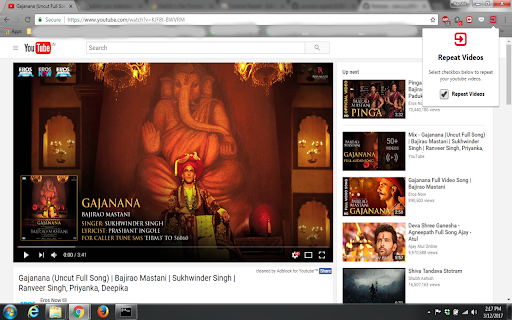
Repeat YouTube videos based on user preference for each tab. Single repeat choice for all YouTube links. - Just save your preference once and then enjoy repeated playback of your favorite songs and videos on YouTube without reloading your webpage or requirement to consume additional Internet usage.

Auto Replay for YouTube™
Automatically repeat your favourite YouTube video. Auto Replay for YouTube™ is an extension that allows you to automatically repeat your favorite YouTube video. This extension also allows you to automatically start and end a YouTube video at custom time slots. To disable the auto loop, please open the toolbar popup and press the - N - button (normal playback). Please note that for the auto loop to work, the current video needs to come to an end (or a custom end time slot). This extension applies the loop setting for all YouTube videos open in tabs. Therefore, it is recommended to open YouTube in one tab only while this addon is active. To report bugs, please use the addon's homepage (https://mybrowseraddon.com/youtube-auto-loop.html) and fill out the bug report form.

Auto Replay for Youtube™
Want to watch a music video on Youtube over & over without having to press the replay button each time after the Youtube video finishes? Install this extension today and you can replay your favorite Youtube videos over and over again. Our software is simple to use, there are 3 steps involved. 1) Install the extension "Auto Repeat/Auto Replay for Youtube™" 2) Press the "replay" icon at the bottom of the Youtube video and it will auto replay the video until you choose to stop. 3) If you want to just repeat a specific segment of a Youtube video, our software also supports this feature. Simply choose the timeframe you want to be replayed over. Best of all, this software is 100% free and will always be supported by our developers so that the extension continues working even when Youtube makes a change to their website. Disclaimer: Please note this extension is NOT made by Google/Youtube and is made by an independent development team. All copyrights belong to their respective owners. Youtube doesn’t endorse or sponsor this Chrome extension. Auto Replay for Youtube™ is not owned by, is not licensed by and is not a subsidiary of Youtube or Google Inc.

Looper for Youtube 2.0
Auto replay videos with only ONE-CLICK on unlimited loop ➿ 1. Install and pin 📌 the extension. 2. Press the loop button ➰ behind the video to turn on/off auto-play. 3. Or click the keyboard shortcut 'P' to start the loop. 4. Set "&loop=10" in the URL to start the loop 10 times. 5. Set "&start=00:10&end=01:00" to start loop from 10s to 1 min. 1. Default auto-loop on every video. ➿ 2. Set loop in a portion/range. 3. Set a value in the URL for the times you want to replay 🔂 the video. 4. Continue to play a whole playlist for loop number of times. ♾ Press one button, to play a video/playlist and set it to repeat itself infinitely.

YouTube Parts Looper & Bookmarker
Sample Use Case ‾‾‾‾‾‾‾‾‾‾‾‾‾‾‾‾‾‾‾‾‾‾‾ Suppose a YouTube video is an album of 5 songs and you only want to listen to the 1st and the 3rd songs in it. Using this extension, you can specify the intervals (segments) of those songs, and only those portions will be played. Specifying Multiple Intervals ‾‾‾‾‾‾‾‾‾‾‾‾‾‾‾‾‾‾‾‾‾‾‾‾‾‾‾‾‾‾‾‾‾‾‾‾‾‾ An input box appears just below the video. There, you should specify the intervals as a comma separated list. Example: "00:00-00:30, 5:00-5:30" (without quotes) specifies two intervals, namely, the first 30 seconds and then the 30 seconds after the 5-minute mark. On clicking 'Apply', these intervals are played one after another. To make it easier to specify the intervals, two buttons 'Start' and 'End' are provided. This is how you should use them: Click 'Start' at time xx:xx. Then click 'End' at time yy:yy. This will automatically copy the interval "xx:xx - yy:yy" into the input box. Repeat this to add several intervals. **NEW:** Keyboard shortcuts. Ctrl+Shift+ for End, and Ctrl+Shift+' for Apply. Also, Ctrl+Shift+; is provided to set end time equal to video's end time. These are configurable in Settings. (Mac users: Cmd instead of Ctrl) Bookmarking ‾‾‾‾‾‾‾‾‾‾‾‾‾‾‾‾‾‾ You can also 'bookmark' the intervals that you have just applied (by clicking the 'Bookmark!' button). Next time you play the same video, those intervals are automatically loaded from bookmarks and only the corresponding portions are played. You can use this feature to essentially create a whole playlist of video segments (by first creating the playlist on YouTube, and then bookmarking the desired portions for individual videos in it). Clicking the button 'All B.s' opens up a side pane where all the previously bookmarked interval lists are shown. If there are multiple lists for the same video, then the most recently added interval-list will load automatically. Here, you can also manually delete a bookmark. **NEW** You can export all these bookmarks using the 'Export' button. This downloads an html file, which you can import into another browser which has this extension already installed. Make sure to move the imported bookmarks into the "YouTubePartsBookmarks" folder there (which should already be present, since the extension is already installed). Looping ‾‾‾‾‾‾‾‾‾‾‾ Finally, there's an option to play the sequence of portions on a loop. Configurable Options ‾‾‾‾‾‾‾‾‾‾‾‾‾‾‾‾‾‾‾‾‾‾‾‾‾‾‾‾ Click this extension's icon and click options. (Alternatively, go to 'Manage Extensions', click this extension's 'Details' and click 'Extension options'.) There you can configure the following: 1. Keyboard shortcuts for the Start and End buttons 2. Set looping as the default behavior 3. (Experimental feature) Allow up to 1 decimal place for seconds in the input. This will let you specify more granular intervals, like "0:0 - 0:0.9" After saving the settings, refresh existing YouTube tabs if any, for the changes to reflect. Miscellaneous ‾‾‾‾‾‾‾‾‾‾‾‾‾‾‾‾‾‾‾ - Timestamps can be in the hh:mm:ss format (e.g. "00:00:00-1:00:00" means the first 1 hour), or the mm:ss format, or just in seconds ("0-3600" also means the first 1 hour). - Intervals are ordered by their starting time. Overlapping intervals are merged. - This extension stores all the saved interval lists in a dedicated bookmarks directory called 'YoutubePartsBookmarks'. Ensure not to delete or modify it. Thanks to users for providing valuable feedback.
