
lnljpghancmmpekngajelaakkgnkndpc

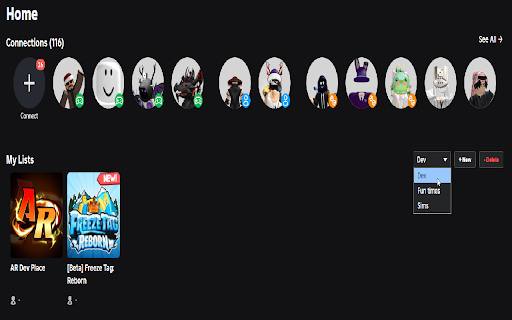
Create custom lists to save, organize, and manage your favorite Roblox games directly on the home page. Take control of your Roblox library with My Roblox Games. Are you tired of having a cluttered "Favorites" list? Do you lose track of games you want to play later? My Roblox Games is the ultimate productivity tool for Roblox players and developers, allowing you to create unlimited custom playlists to organize your gaming experience. Whether you are a player separating "Tycoons" from "Obbys," or a developer creating specialized lists for your active projects and reference material, this extension makes it easy. 📂 Create Unlimited Lists Break free from the single "Favorites" limit. Create as many named lists as you need to organize your games by genre, mood, priority, or project status. 🏠 Seamless Home Page Integration Your custom lists appear directly on the Roblox Home Page, blending perfectly with the native site design. It feels like a feature that should have always been there. ➕ One-Click Saving Found a cool game? A new "Save to List" button is added to every game's details page (next to the play button), allowing you to instantly add it to one or multiple lists. 🔒 Privacy-First Design Your lists and data are stored 100% locally on your browser using Chrome Storage. We do not track your activity, collect personal data, or send your lists to external servers. Go to any Roblox game page and click the new "Save" icon to add it to a list. Visit the Roblox Home Page to see your new "My Lists" row. Use the dropdown menu to switch between your different lists. PERFECT FOR: - Developers: Create specialized lists to track your active projects, organize test places, or save games for design inspiration. - Power Users: Organize hundreds of games without cluttering your Favorites. - Roleplayers: Keep your different game worlds and communities sorted. - Parents: Curate specific lists of safe or approved games for children. Note: This extension is not affiliated with, created by, or endorsed by Roblox Corporation.

RoSwap – Roblox Account Switcher
EN: Instantly switch Roblox accounts in one click. Up to 10 profiles. All cookies stay on your device. RU: Мгновенная смена аккаунтов Roblox в один клик. До 10 профилей. Куки хранятся только на вашем устройстве. ENG About RoSwap: RoSwap lets you jump between your Roblox accounts in a click. Save up to ten profiles, pin the ones you use most, copy a cookie when needed, and refresh a profile, delete unnecessary accounts. Everything is stored locally. Add your current account or paste .ROBLOSECURITY. Click a card to switch — Roblox tabs reload into that account. Notes: logging out in Roblox rotates the cookie and will invalidate the previous profile. Add the second account without logging out (or re-add it later). Privacy & permissions: uses chrome.storage.local; writes/reads .ROBLOSECURITY on www.roblox.com only when you switch; fetches your profile, avatar and balance from official Roblox endpoints. No analytics, no remote code, no third-party servers. Not affiliated with Roblox.

The Filter They Forgot for Roblox
Hide blur or highlight Roblox content your way; filter out what you don’t want, or focus on what truly clicks with you. Tired of endlessly scrolling through RNGs, cash grabs, and low-quality games? Frustrated by cluttered discovery feeds that waste your time? If so, I have something for you. The Filter They Forgot is an extension that can handle this and put YOU in control of what games appear on your Roblox pages. A plugin that gives you easy-to-use filtering tools with three display modes ( Block / Hide , Blur , Highlight ), six different filter types, rating-based controls, unlimited custom lists, and even more on the way. It's like having a personal curator for your Roblox feed, except this plugin doesn't sell your data, all features are free, and no for-profit corporation is behind this plugin. This extension comes ready to use right out of the box, installing with a Basic List of 300+ pre-made filters based on what players actually block most often. From Brainrot and Sprunki to Skibidi Toilet and endless "steal a [enter here the most random word that comes to your mind]" clones. 1. Installation - Click "Add to Browser" in the Extension Store - Extension installs automatically; no configuration required 2. First Launch - Visit Roblox.com and go to Home, Charts, or Discover page - Click the floating panel in the bottom-right corner 3. Activate Default Filter List (Only if it suits you) - The Basic List contains 300+ common filter terms - Click "Activate" next to it in the "All Lists" section - Games start filtering immediately; watch your feed clean up! 4. Customize (As much as you want) - Right-click any game's menu to add it to filters instantly. - Adjust settings in the right panel. - Import community lists from Discord or friends. 5. Enjoy! - Your filters work automatically on all Roblox discovery pages - Changes apply instantly without page refreshes - Settings are saved automatically and persist across sessions To clear any doubts right from the start: Q: Will this get me banned from Roblox? A: Absolutely not! This extension only affects what you see on your own screen, it never modifies game files, or provides any in-game advantages. Q: Can I share my lists with friends? A: Yes! Use the Export function to save your lists as files, then share those files. Friends can import them with the Import function. Q: How do I find a game's Place ID? A: Visit the game page on Roblox. Look at the URL—the Place ID is the long number. Example: `roblox.com/games/12345678/Game-Name` → Place ID is `12345678` Q: Can I edit the default "Basic List" that comes with the extension? A: Of course! You can freely edit the default Basic List using any of built-in tools. You can also export it and use it as a base to create your own custom lists. Q: I accidentally filtered a game I want. How do I undo it? A: You can remove it in three ways: The first is through the 3-dot menu. The second is to open the extension panel, go to Settings → List Filter Mode section, expand the relevant list, find the phrase, and delete it with the trash icon. Alternatively, if you prefer, you can export the list and edit it in any external text editor that supports YAML. Q: Does this affect my Roblox account or game progress? A: No. It only changes what you see on discovery pages. Your account, inventory, progress, and friends remain completely unaffected. Q: Why are some games still appearing even though they match my filters? A: Check if an exclusion rule is protecting them. Exclusions always override filters. Also verify the list is activated in the "Active Lists" section. Q: How much memory/CPU does this use? A: Very minimal! The Performance Monitor displays real-time metrics, with typical usage under 1MB of RAM and only a few percent of CPU with large lists. When the page is idle (not loading new games or changing filters), CPU usage drops to zero. Q: Can I request new features? A: Absolutely! Join the Discord server or leave feedback on the Extension Store. Developer actively reads and implements community suggestions. This extension is not affiliated with or endorsed by Roblox Corporation. It is an independent tool created to improve user experience on the Roblox platform.

Roblox Game Blocker
Block Roblox games by keyword or by specific game ID directly from the website. You can also set a password for safety. Are you a parent looking for a safety measure for your kids? Are you a Roblox connoisseur looking to get rid of brainrot on your feed? This extension is for you. USEFUL FOR: - Blocking games by keyword (such as "brainrot") - Blocking a game that keeps showing on your FYP By using this extension, you will completely hide the game (user will not see it). Blocks games directly from the Roblox website. INSTRUCTIONS FOR BLOCKING KEYWORDS: 1. Click on the puzzle piece. 2. Click "Roblox Game Blocker" in the extensions menu. 3. Type in any keywords that you wish to block. INSTRUCTIONS FOR BLOCKING GAMES: 1. Go to the Roblox website. 2. Hover over any game you wish to block. 3. Click the Red "X" that will show. 4. The game will be blocked. Creating a Password: Click the Unock emoji (🔓) to set a password. Once you set a password, the emoji will go to "Locked" (🔒). You can now give your kid the device, and they won't be able to turn the extension off or delete keywords or games. To unlock, take the device and add the password to enter unlocked mode. Here, you can change the password by clicking the the Key Emoji (🔑). This is an optional feature. v1.0.2: Added a switch to turn the extension on and off at will Added presets for ease.

Roblox Gamepass Creator
Automatically create and list gamepasses for Roblox donation games with custom presets. Roblox Gamepass Creator - The Ultimate Donation Game Tool Tired of manually creating dozens of gamepasses one by one? Roblox Gamepass Creator automates the tedious process, allowing you to set up your donation stand in seconds. Whether you are a regular in "Pls Donate," "Meet People Across The World," or "The Corner," this extension is designed to help you get listed and start receiving tips faster than ever before. FEATURES -------------------------------------------------- One-Click Bulk Creation: Generate a full set of gamepasses instantly using your own custom price presets. Smart Automation: Automatically handles naming, pricing, and making passes "On Sale" without you lifting a finger. "Wipe All" Utility: Roblox has a 50-pass limit for active experiences. Use the Wipe tool to delist old passes and make room for new ones in seconds. Seamless Navbar Integration: A "Create Passes" button is added directly to your Roblox top navigation bar for instant access. Modern, Draggable UI: A sleek, dark-themed interface that stays out of your way until you need it. PERFECT FOR DONATION GAMES -------------------------------------------------- Optimized for the most popular Roblox tipping and social experiences: - Pls Donate - Meet People Across The World - The Corner - ...and any other game that uses Gamepass-based donations! HOW TO USE -------------------------------------------------- 1. Click the "Create Passes" button in your Roblox navbar. 2. Choose "Create from Presets" to use standard donation amounts (2, 5, 10, 25, etc.). 3. Or, enter a custom amount and hit "Start Creation." 4. Watch the automation tool do the work for you! PRIVACY & SAFETY -------------------------------------------------- This tool is a productivity utility for Roblox creators. It uses your existing session to interact with the official Roblox API to manage your gamepasses. No login credentials are ever required or stored. Stop wasting time in menus and start playing! Download Roblox Gamepass Creator today.
