
ljbpakpmiimdmblcjjhhbfabbkmcgmdp

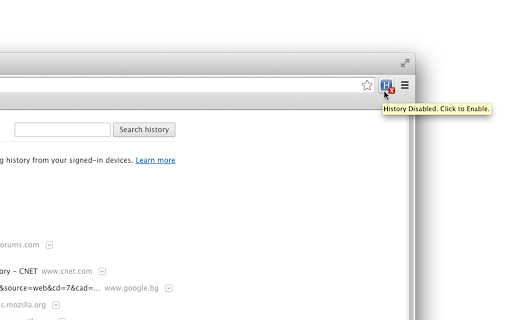
Pause and resume history with a click This extension is just a simple on/off switch. Click to pause history logging. Click again to resume. When activated, it clears the log while you are browsing. That's all it does.

History Cleaner
A single-click browser history cleaner. You can wipe your browser history for a configurable period. This extension is the simplest method to clear your browser history for a specific time frame. You have the flexibility to set a custom period through the options page, as well as define the zone for which you wish to delete the history data. For a more thorough cleaning experience, try out my eCleaner: https://chrome.google.com/webstore/detail/ecleaner-forget-button/ejhlpopncnfaaeicmbdnddebccnkfenn With this extension, you can delete the history from three distinct contexts: 1. Regular websites 2. Protected websites (Websites installed as hosted applications) 3. Extensions zone (Installed extensions and packaged applications) Modes of Operation: 1. Using the User Interface (UI): Click on the browser action, choose the desired cleaning period, and press the "Run Cleaning" button. 2. Headless Mode (Single Click): Select the "Do not show this window" option after opening the interface. From then on, when you click on the browser action, the extension will automatically run the cleaning job in headless mode. Frequently Asked Questions (FAQs): - How can I restore the interface in headless mode? Open the options page and uncheck the "Do not show this window" option.

Close & Clean
Close all tabs and windows and clean up Chrome in one single click Close & Clean is a convenient extension that instantly closes all your open tabs and windows while automatically cleaning your browsing data. With just one click on the toolbar button (or by pressing Ctrl+Shift+X on Windows/Linux or Cmd+Shift+X on Mac), you can clean and close the browser. Choose what to remove on the options page—delete cache, cookies, history, and more! * One-Click Closure: Instantly close all open tabs and windows. * Customizable Cleaning: Select exactly what to remove – cache, cookies, download history, form data, local storage, plugin data, passwords, etc. * Keep Current Tab: Preserve the page you’re on while closing everything else. * Pinned Tabs: Decide whether pinned tabs stay open or get closed—and even merge them in one window if desired. * Confirmation Prompt: Ask for a confirmation (if you want) before the cleanup. Access all settings in the “Options” page and adjust your preferences anytime. 1. Click the “Close & Clean” Button to cleanup whatever you set it to clean and close all tabs and windows you set it to close. By default, it closes all open tabs and clears only the browser cache. 2. Right-click the extension icon → “Options” to decide which data gets removed. You can set the extension to: * Empty the cache * Clear app cache * Remove cookies * Delete download history * Clear file systems * Delete saved (autofill) form data * Clear browsing history * Remove indexed data * Delete local storage data * Clear plugin data * Delete saved passwords * Clear WebSQL data 3. Customizable Icon: Choose from several built-in icons to match your Chrome theme or even set your own 19×19 px icon. - Protect Your Privacy: Quickly remove sensitive data before stepping away from your computer. - Boost Performance: Clearing out cache and other data can help Chrome run faster. - Streamlined Workflow: No more manually digging through browser settings every time you want a fresh slate. 1. Install Close & Clean from the “Add to Chrome” button. 2. Pin the extension to your toolbar if you want it always visible. 3. Click the toolbar button to instantly close your tabs and optionally clear various data. 4. Fine-Tune your preferences in the “Options” page to suit your workflow. Your privacy is our priority. Close & Clean does not track, collect, or store any personal information or browsing data. All cleaning tasks happen locally on your device. No information ever leaves your browser. * tabs: Needed to close your open tabs and windows upon request. * browsingData: Required to clear selected browsing data (e.g., cache, cookies, history) based on your preferences. * storage: Allows saving of your custom settings (e.g., whether to clear cookies, pinned tab preferences, etc.). We use these permissions only to fulfil the extension’s core functionality. No data is transmitted to external servers.

Ultimate Auto History Cleaner
Ultimate Auto History Cleaner keeps your chrome information safe by removing browsing data for you automatically. With the Ultimate Auto History Cleaner Extension each time Chrome starts you can choose to Clear Browsing History, Clear Download History, Clear Cookies, Clear Cache, Clear Saved Passwords, and Clear Form Autofill Data. Ultimate Auto History Cleaner Automatically deletes browsing history and optionally other browsing data. Ultimate Auto History Cleaner automatically deletes the browsing history every time Chrome starts. It uses no additional resources and performs no other background tasks. It can be configured in the Options page to automatically clear other browsing data as well. Thank you for installing this extension. Feel free to give us your positive review about it.

Chrome Omnibox History Hider
Chrome extension designed to prevent search history being forcefully displayed in the omnibox since the Chrome update in 2020. Absolutely infuriating feature that Google provide no means to disable. That's where this extension comes in. Search history itself is unaffected and still accessible via the "usual" methods. This extension simply prevents previous searches being displayed in the omnibox.
