
lgdojbjinbmgdadlekaegholeddmcjmd
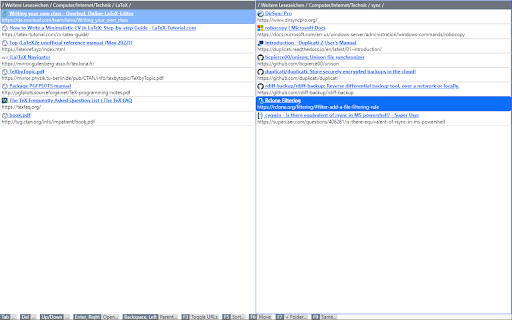
Show 2 independent bookmark folders side by side. Hot Keys for: move, delete, create folder, edit item, sort current folder. Manage bookmarks using an orthodox file manager user interface and control by keyboard mainly. The URL of each item is displayed completely in a second line after the title. In order to see more bookmarks, the display of URLs can be toggled by hot key. Operations like move, delete, ... are invoked by keyboard/function keys. After delete and move a message is shown for 10 seconds. Features: • Move • Delete (with Undo within 10 seconds) • Create Folder • Edit Folder/Link Name/URL • Sort • Toggle display of URLs • Goto same Folder in other Pane • Options - Sort by URL/Title - Keep Sorted after Move/Create Folder (otherwise items are inserted at cursor position)

Bookmark Dupes
This project is under the GNU Public License 2.0. After installing bookmarkdupes, the usage is rather simple: To open bookmarkdupes, click the extension symbol (duplicate stars) or use the link in the options page of the extension. **Do not enable “Expert Mode”** (unless you fully understand the consequences, see separate section). Then select what you want to display: After this, you will be offered the list of bookmarks with checkboxes; in case 1 the numbers indicate the order in which matching bookmarks were added according to the internally stored date. There are also buttons to select/unselect convenient sets of checkboxes. Finally, there are buttons to remove the selected bookmarks. **Be aware that removing bookmarks is irreversible!** *It is recommended to make backups of your bookmarks first!* Currently, there is no working version of the extension available for android (see section **Known Bugs**). When you reorganized/added/removed bookmarks, make sure to update the displayed list (by pressing the corresponding button) before removing bookmarks! The extension requires the following permissions for these reasons: 1. “bookmarks” to read/modify bookmarks 2. “storage” to store/restore the customized rules in expert mode. Unfortunately, “storage” is not one of the optional permissions which might be required only if that feature is actually requested by the user. When selecting the checkbox for expert mode, details can be configured to ignore certain bookmarks when calculating the list or under which cases bookmarks are considered to be dupes of each other. In non-expert mode, two bookmarks are considered to be duplicates of each other if their URL coincides. In expert mode there are custom rules by which the URL which is actually used for comparison is to be modified. The details are as follows. For every bookmark the rules are applied in the given order. There are 2 types of rules: Filter rules and URL modification rules (there are also disabled rules which are only listed but have no effect). For both types of rules 4 regular expressions can be specified which are used to determine if the rule applies: If the corresponding regular expression is nonempty, the corresponding condition must be satisfied or the rule will not apply. (In the case of filter rules, at least one of these 4 regular expressions must be nonempty or that filter rules will not apply either.) The 4 regular expressions refer to the bookmark's name or url, respectively, and the regular expressions must either match or not match, respectively. - The term “regular expression” refers to a javascript type regular expression. - The bookmark's name refers to the full bookmark path as it appears in the browser with folder names separated by the null character. For instance, if you have in “Bookmark Menu” a folder “Collection” which contains your bookmark "Example", the bookmark's name becomes `Bookmark Menu\0Collection\0Example` (where `\0` denotes the null character which can be matched by the regular expression with `\0` or `\x00`). - The bookmark's URL refers to the bookmark URL after possible modifications by previous modifier rules. If a filter rule applies, the corresponding bookmark is ignored, i.e., it will not be considered as a duplicate and will neither appear in the list of empty folders nor of all bookmarks. If a URL modification rule applies, a text replacement will occur: All parts matching a specified regular expression are substituted by a replacement text (which might be empty). The rules for this correspond to the javascript String.prototype.replace function with the global modifier. In particular, the replacement text can contain symbols like `$&` or `$1` to refer to the whole matched text or to the match of the first brace in the regular expression, respectively. The following 5 replacement texts have a special meaning which goes beyond the standard javascript replacement rules. Note that this special meaning is only active if this is the full replacement text. In other words, to get the special meaning, the replacement text must not contain anything else than these 4-6 characters. (This does not really restrict the functionality, because one can combine several rules to work around that limitation if necessary.) 1. `\L$&` is the match in lower case. 2. `\U$&` is the match in upper case. 3. `$URL` is the url before any other rules have been applied. 4. `$NAME` is the bookmark's full name/path with folders separated by the null character, e.g. “Bookmark Menu\0Collection\0Example” 5. `$TITLE` is the bookmark's title without the path; for instance, for the bookmark name “Bookmark Menu | Collection | Example” it is “Example”. ## Examples for special tasks which can be done in Expert Mode 1. Consider two bookmarks as duplicate if their URL differs only in `https:` vs. `http:` at the beginnning. 2. Consider two bookmarks as duplicate if their URL matches up to the first `?` symbol, i.e. only their additional information differs. 4. Add all bookmarks to the list of duplicates, whether duplicate or not. 5. Add all bookmarks from the folder `Bookmark Menu | Remove` to the list of duplicates (no matter whether they actually are duplicates). 6. Consider two bookmarks as duplicate if they have the same name (instead of the same URL). 7. Consider two bookmarks as duplicate if they reside in the same folder. ### How to do the above tasks in Expert Mode 1. Use the replacement rule: “Replace URL matches” `^http:` “by” `^https:` Explanation: By replacing everywhere the URL beginnning with `http:` by `https:`, it does not matter whether the actual URL started with `http:` or `https:`. Of course, we could have exchanged the roles of `http` and `https` in our rule. 2. Use the replacement rule: “Replace URL matches” `\?.*` “by” ` ` (empty string) Explanation: Simply omit the ? symbol and all other symbols following it in all URLs. 3. Use the filter rule: “Name matches” `\0Mr\. Dupe\0` or `\0Mr[.] Dupe\0` Explanation: If a bookmark is in a folder named “Mr. Dupe”, its full name (path) will contain the text “\0Mr. Dupe\0”; so match that text. Since the “.” symbol has a special meaning for regular expressions, we have to quote it. This can be done by either `\.` or by looking for a character class `[…]` which contains only the single symbol `.`. 4. Use the replacement rule: “Replace URL matches” `.+` “by” `constant` Explanation: Pretend that every bookmark has the URL `constant` by replacing all characters (`.+`) of the original URL by that text. 5. Use the replacement rule: “Name Matches” `^Bookmark Menu\0Remove\0` “Replace URL matches” `.+` “by” `constant` As in 4, but only for bookmarks whose full name starts with the matching path. This works only if the folder contains at least 2 bookmarks (because otherwise `constant` is not a duplicate URL). Of course, one might use an actually duplicate URL instead of `constant` to work around this limitation. 6. Use the replacement rule: “Replace URL matches” `.+` “by” `$TITLE` Explanation: Replace all bookmark URLs by the corresponding bookmark title when looking for dupes. 7. Use the replacement rule “Replace URL matches” `.+` “by” `$NAME` followed by a further replacement rule “Replace URL matches” `[^\0]*$` “by” ` ` (empty string) Explanation: First replace the URL by its full name path, and then omit the last component of this path by cutting of the longest sequence of non-`\0`-symbols at the end. - Essam Ambr aka (JaMaYcKa) (Arabic translation) - Henaro aka Ironwool (Russian and Ukrainian translation; redesign icon in svg; provide favicon) - Sopor (Swedish translation) - Juan Salvador Aleixandre Talens (Spanish translation) - YFdyh000 (Simplified Chinese translation)

Bookmarks Commander
A dual-pane Norton Commander liked bookmarks manager that supports sorting, dark theme, search, and duplicate detection This is a two-panel bookmarks manager for your browser. It works similar to the famous Total Commander. You can move items between the panels or view two different directories simultaneously. Instruction: Click on the toolbar button once to open the commander in a new browser tab. By default the left panel has focus. Use arrow up and arrow down keys to navigate. Use Enter to move to a directory. To move the other panel simply press The left or right arrow key. Shortcuts: [open links]: Press Enter key to open on the same tab. Press Ctrl + Enter or Command + Enter to open in a background tab or use double-click to open on the same tab. Press Ctrl/Command while double-clicking to open in a background tab. [select multiple bookmarks]: Ctrl/Command with left-click to select more items. [copy links to the clipboard]: Ctrl + C or Command + C to copy selected links to the clipboard. [copy titles to the clipboard]: Ctrl + X or Command + X to copy selected titles to the clipboard. [directly navigate to a bookmark]: Press the first character of the title multiple times to navigate between items starting with this particular character [move one step up]: Use backspace to navigate to the parent directory [move between left and right panels]: use Tab key to toggle between panels. Use Ctrl + 1 or Command + 1 to move to the left tab. Use Ctrl + 2 or Command + 2 to move to the right tab. You can alternatively use arrow-left and right to move between panels. [move selected bookmarks and folders to the other panel]: Use Ctrl/Command + right arrow key to move selected items to the right panel when the left panel is focused. Use Ctrl/Command + left arrow key to move selected items to the left panel when the right panel is focused. [sort items]: Ctrl/Command + J for A-Z and Ctrl/Command + Shift + J for Z-A [find duplicated bookmarks]: Ctrl/Command + Shift + F; use the "duplicates" keyword on the search bar to find all duplicated bookmarks in the current directory and subdirectories. [move bookmarks between different browsers]: Ctrl/Command + Y to export selected bookmarks to the clipboard, then use Ctrl/Command + P to import them to the new machine. This way you can transfer bookmarks between two browsers. [configurations]: Use Ctrl/Command + S to access configuration panel. You can change the font size and font family of the interface or change the color scheme (theme) of the interface (dark, light, or based on your OS color scheme) or toolbar icon's color. It is also possible to use the new "VIM" mode to support VIM-compatible navigation (still in progress). Notes: 1. When an operation is not allowed, the button is disabled. 2. You can see all the shortcuts by placing your mouse over the buttons. 3. You can drag and drop bookmarks between panes 4. You can use right-click context menu to open links in new windows

Bookmark Manager per Domain and Page
A Bookmark Manager to list all bookmarks for the domain or page of the current URL as hyperlinks. This Bookmark Manager is special, it displays only bookmarks belonging to the current domain. ie. https://gist.github.com or https://docs.github.com/en will be displayed if you have it as a bookmark and navigate to https://www.github.com Open any URLs from Domains that you have saved within *.domain.com* We will show you only the ones from that domain. The extension does not work across domains from the same brand, such as pinterest.de or pinterest.at, etc. we might add this functionality in a near future update if there is demand. So if you are looking for that best next app to open pages in a new tab, while simply organizing your url in this awesome quick software, with our bookmark manager you will not need more bookmarking apps on your sidebar, forget all the other addons. Save webpages that you find popular, then navigate there with speed, have a look at your bookmarklet and use our free extension to view your custom starred urls, search through them with ease. Updates / Change log: 22.06.2024 / V 1.0.7 - Responsive pop-up added, Extension Icons added, fixed folder view, deleting and editing the URL 25.05.2024 / V 1.0.6 - Updated Manifest to v3 19.07.2021 / V 1.0.5 - Removed "Storage" permission, not needed. 22.12.2020 / V 1.0.4 - Added FOLDER view buttons 14.12.2020 / V 1.0.3 - We added DELETE and EDIT buttons

Bookmanize - Advanced bookmark manager
Advanced bookmark manager provides tagging, instant sorting, and filtering among all bookmarks on a full list view. Bookmark manager with a clean user interface where all bookmarks can be easily accessed in one full list view with tagging, instant sorting, and filtering. Organize your bookmarks with custom tags and faster navigates between them. We are an independent team of developers who love what they do:) If you want to improve or expand anything - email us bookmanize@gmail.com Support us with a cup of coffee - https://www.buymeacoffee.com/bookmanize ★ All bookmarks on one screen ★ Fast access to all main functions ★ Instant searching, filtering, sorting, adding, deleting bookmarks ★ Drag n drop bookmarks and folders All the features that the default bookmarks have (add, delete, sort, drag and drop bookmarks) in a more user-friendly interface with high performance for a large number of bookmarks Note: Your data (history and bookmarks) is not saved or stored anywhere else but on your computer. Hotkeys: - ctrl+shift+f or command+shift+f — focus the search field
