
legnlfnnpadijhghmeagaafplkeljhki
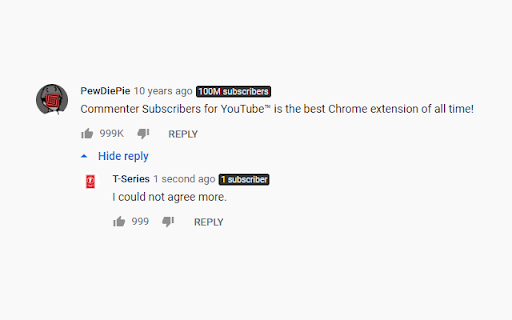
Displays the number of YouTube™ subscribers next to each comment under every video. This extension will automatically display the number of subscribers next to every account or channel who comments on a YouTube™ video. After installing, please refresh all YouTube™ tabs for the extension to take effect. ★ This extension is open source and on GitHub! ★ Feel free to add any issues/suggestions to the issues section of the repository. https://github.com/mattyhempstead/yt-comment-sub-count/issues -- ⓘ This Chrome extension is about Subscriber Count on Comments for YouTube™ and has no affiliations with the popular video hoster Youtube™. All copyrights belong to their respective owners. Youtube™ doesn’t endorse or sponsor this Chrome extension. Subscriber Count on Comments for YouTube™ is not owned by, is not licensed by and is not a subsidiary of Youtube™ or Alphabet Inc.

Highlights for YouTube
View highlights on the video player, that are generated from timestamps found in the description and top comments. ✨ UPDATE: Added controls for navigating between highlights. 🎬 See chapters or interesting moments without the need to scroll to the comment/description section. You can toggle the highlights directly from the video player options. ⚠️ Not all videos will have highlights on them since they are generated from timestamps. 🔗 Open Source: View code and report issues on GitHub: https://github.com/Ermag/yt-highlights-chrome 💭 Feedback is greatly appreciated!

tuBee
tuBee is a new YouTube video booster tool, to support YouTuber's to improve their YouTube channel visibility, audience, subscriptions, likes and comments. The platform provides its own financial management system to earn within the platform, and invest on boosting each registered video in the platform. This way, YouTuber’s will not need to invest money from their pocket, and the platform itself handles earnings and promotions for each registered video individually, and automatically. tuBee provides very easy and mostly automated system to earn just by viewing some ads, articles, videos, or blogs. There are very little task left to the user like just clicking 'Earn' button. Rest of the work then begins automatically, and the user can sit back and watch the progress of earning. The platform 100% automated with promotions / investments and user does not need to involve on it. User can view the investment history handled by the tuBee at any time, from the 'Account History' menu. Something important that everyone need to know about tuBee is, that the platform does not allow user to withdraw any earned income using PayPal or other way. The total earned income is dedicated to invest on user's YouTube channel promotion. The primary purpose of the tuBee platform is to support small YouTuber's to grow their channel audience in minimum period, without violating any YouTube guide lines. Members who earn more and keep their balance up, are listed in top seller’s category, and are prioritized when giving all the rewards inclusive of watch time, subscribers, video likes and comments. Also the platform provides its own affiliate program and coupons to increase the audience of platform while giving rewards to users.

Grow your YouTube with SEO | Tube Transcripts
Transcripts help YouTube rank your videos better & make the subtitles pleasant to read. (unlike YouTube's auto transcripts 😳) ✅ Broader audience ✅ SEO optimized ✅ Correct punctuation ✅ More accurate than Auto transcripts ✅ Easier to read for viewers YouTube is a search engine- just like Google. It tries to gather as much information as possible about your video, so it knows where to rank it and who to recommend it to. The thing is: it's harder to know what videos are about, compared to text. By adding a transcript to your video, you're giving YouTube more (easily processed) information. With transcripts, YouTube will know what you're talking about in your video. The more YouTube knows, the more accurate their recommendations. That means they'll show your video to the right audience- which means a higher CTR and average view duration for your videos. Better Analytics for you, and more satisfied viewers for YouTube.

YCS - YouTube Comment Search
Search comments, replies, chat replay, video transcript for the current video on YouTube by contents, authors, time. The YCS (YouTube Comment Search) is a chrome extension. Search comments, replies, chat replay, video transcript for the current video on YouTube by contents, authors, time. Features: ✅ Quick search by timestamp, author, content ✅ Export comments, replies, chat replay, video transcript ✅ Flexible (fuzzy) search ✅ Multilingual search ✅ Search by Emoji ✅ Works in incognito mode ✅ Unlimited load comments ✅ Time stamps - show comments, replies with time stamps ✅ Author - show comments, replies and chat comments from the author ✅ Likes - show comments, replies by number of likes (sort largest to smallest) ✅ Replied - show comments by number of replies (sort largest to smallest) ✅ Members - show comments, replies and chat comments from channel members ✅ Donated - show chat comments from users who have donated ✅ Show random comment ✅ Small size, low use CPU and memory Instructions: 1. Open video on YouTube 2. Find the YCS extension under the current video and click the button "Load all" or choose to load the categories 3. Write the search query, press Enter or click the button Search 1) How to like, reply to a comment? In the search results, click on the date (like, "2 months ago") of the comment, reply and will open a new window with an active comment or reply under the video, where you can do any action. 2) How do I find all timestamped comments and replies on a video? Click on the "Time stamps" button under the search bar. 3) How can I find addressed to user's comments, replies? Write " @ " in the input field. 4) How can I view the contents of the video transcript at a specific minute? You can write a search query for Trp. Video, in the " mm:ss " format. For example: " : " - all the text of the video transcript. " 15: " - all the text in the 15th minute. And etc. 5) How can I view the comment for a found reply? Click on the " ▼ " button. 6) How can I see the all replies to the found comment? In the header of the found comment, you can find the reply icon and the count, to see the replies click on the " + " button. 7) How to use search in YouTube shorts? Open a YouTube video short. Click badge YCS (right of the address bar) and click on the button Open YT short. You can use the search engine (YCS), while loading comments, chat, transcript video.
