
ldlghkoiihaelfnggonhjnfiabmaficg

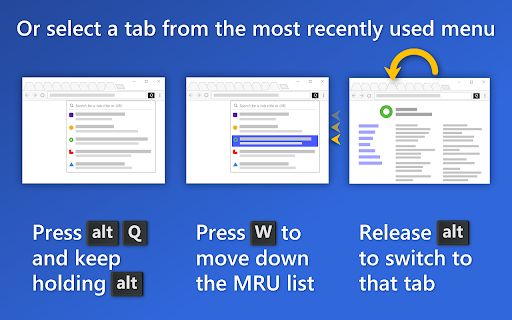

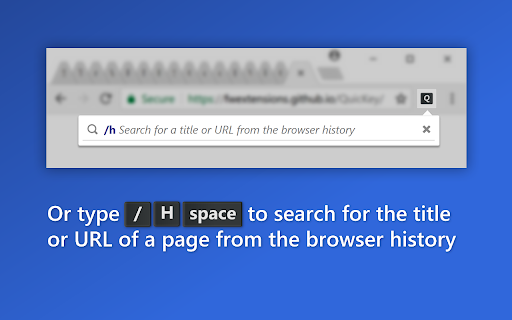
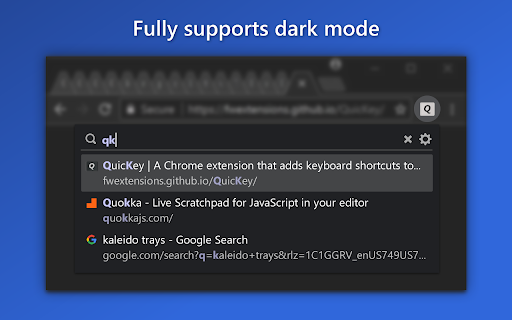
Now you can press a single shortcut key (ALT-Q by default) to navigate recent tabs in a popup window, just like the ALT-TAB menu! Keep holding ALT while pressing Q to move the selection, then release ALT to switch to the selected tab. *️⃣ Switch between the most recently used tabs ⚠️ NOTE: If you've been using QuicKey before 2.0, you'll need to set keyboard shortcuts for the new commands that show the popup window, as they won't be set by default. Opening QuicKey displays a list of the last 50 tabs you've visited, in order of recency. (When you first start using QuicKey, though, it won't know what's recent, so the list will be empty.) Click a tab to switch to it, or use one of the keyboard shortcuts below to navigate the recently used tab history. 🔶 To pick a recent tab from the MRU list in the popup window: • Press ALT-Q (CTRL-W on macOS) but keep holding the modifier key. • Press Q or ↓ to move down through the list of recent tabs. • Press SHIFT-Q or ↑ to move up. • Release ALT (or CTRL) to switch to the selected tab. • You can also highlight an item with the mouse, then release ALT/CTRL to go to that tab. 🔶 To quickly switch between the two most recent tabs: • Press ALT-Z (CTRL-S on macOS). You can also view each tab as you navigate through the recents list, taking as long as you want on each, and then release the modifier key to stay on that tab. Make sure the shortcuts are set by right-clicking the QuicKey icon and selecting Options. Then click "Keyboard shortcuts", scroll down, and click "Change browser shortcuts". Look for the "Switch to the previous/next tab" commands and set these suggested shortcuts: ALT-A and ALT-S, respectively (CTRL-D and CTRL-S on macOS). 🔶 To navigate while viewing each recent tab: • Press ALT-A (CTRL-D on macOS) to display the previous tab, but keep holding the modifier key. The popup window will stay open on the right side of the screen. • Press A again to move down the list, displaying each tab in turn. • Press S to move back up. • Release ALT (or CTRL) to stay on the current tab. • Press ALT-A again to switch back to the tab you initially started on. *️⃣ Search for a tab quickly Unlike other tab switchers, QuicKey uses a Quicksilver-style search algorithm to rank the results, where contiguous matches at the beginning of words are higher in the list, as are matches against capital letters. So you should only have to type a few letters to quickly find the right tab. 🔶 To search for a recent tab in the popup window: • Press and release ALT-W (CTRL-W on macOS). • Type one or more search terms, separated by spaces. • Use one of the shortcuts below to navigate the list. • Press ENTER to switch to the selected tab. • ↓, SPACE or CTRL-N/J: move down the list • ↑, SHIFT-SPACE or CTRL-P/K: move up the list • PG DN: page down the list • PG UP: page up the list • END: go to the bottom of the list • HOME: go to the top of the list • ENTER: switch to the selected tab • ESC: clear the search or close the popup window or menu Recently used tabs get a slight boost in the search results ranking, so getting back to a tab you were just using should require typing fewer letters. Typing a space lets you enter multiple tokens in the query, all of which must match either the tab's title or URL, in any order. If you type more than 25 letters, which should be plenty to find the right tab, QuicKey switches to an exact string search to stay fast. *️⃣ Customize shortcuts and other options To customize how QuicKey behaves, click the gear icon in the popup window or menu, or right-click its icon on the toolbar and select Options. There you can: • Customize keyboard shortcuts • Change the popup window's behavior • Hide closed tabs from the search results • Limit tab navigation or search to the current browser window • Mark tabs in other browser windows with an icon • Show the number of open tabs • Restore the last search query when reopening the popup window or menu • Use pinyin to search for Chinese characters When a QuicKey update adds new settings, the gear icon will display a red dot to let you know. *️⃣ Limit navigation to the current browser window If you have multiple browser windows open, you may want to navigate among only the recent tabs that are in the current window. To enable this behavior, open the Options page to the General tab and select "Limit recent tabs to the current browser window". Pressing the shortcuts for "Switch instantly between the two most recent tabs" or "Switch to the previous tab" will then switch only between recent tabs in the current window. You can also limit searching for tabs to the current browser window. *️⃣ Close and reopen tabs To close the selected tab, press CTRL-W (CMD-CTRL-W on macOS, CTRL-ALT-W on Linux). Or hover over a tab and click the X button on the right side of the list. When you open QuicKey, the 25 most recently closed tabs are listed below the recent tabs and shown in a faded state with a clock icon. They are also returned when you type a query, though their rank in the list of results is lower than open tabs. Click a closed tab to reopen it in its original location and with all of its browsing history intact. If you don't want any closed tabs to be shown, open the QuicKey options page, then uncheck "Include recently closed tabs in the search results" in the General section. You can also remove the selected closed tab from the browser's history by pressing CTRL-W (CMD-CTRL-W on macOS) or by clicking its X button on the right side of the list. You can move tabs to the left or right of the current tab, making it easy to pull tabs from other windows into the current one, or to rearrange tabs without using the mouse. • Press CTRL-[ to move the selected tab to the left of the current one. • Press CTRL-] to move it to the right. The CTRL key should be used on both Windows and macOS. Note that you cannot move tabs between normal and incognito windows. *️⃣ Distinguish tabs with identical titles A tab that has the same title as other open tabs will display a number to indicate its left-to-right position among those other tabs. For instance, if you open tabs for two different Google Drive accounts, they'll both be titled "My Drive - Google Drive". But the one on the left will show a "1" next to its title in the list and the one on the right will show a "2". This makes it easier for you to select the tab you want when you know how they're organized in your window. To find a bookmark, type "/b" and a space in the search box, then part of the bookmark's name or URL. • Press ENTER to open it in the current tab. • Press CTRL-ENTER (CMD-ENTER on macOS) to open it in a new tab in the current window. • Press SHIFT-ENTER to open it in a new window. As soon as you type "/b ", your bookmarks will be listed in alphabetical order, in case you want to browse through them. Since bookmarks can be organized into folders, the folder path is shown before each bookmark's title. The folder path can be hidden by unchecking "Show the folder path to each bookmark in its title" on the Options page. *️⃣ Search the browser history To find something in the last 2000 pages of your browser history, type "/h" and a space in the search box, then part of the page's name or URL. The same CTRL-ENTER (CMD-ENTER on macOS) and SHIFT-ENTER shortcuts will open the visited page in a new tab or window. As soon as you type "/h ", the pages from your history will be listed in order of recency, so you can get back to a page you had recently visited without having to remember its name. *️⃣ Delete bookmarks and history items To delete the selected bookmark or history item, press CTRL-W (CMD-CTRL-W on macOS). Or hover over an item and click the X button on the right side of the list. You'll be asked to confirm the deletion of bookmarks. To switch to incognito tabs as well as normal ones, right-click the QuicKey icon and select Options from the menu. Scroll to the very bottom of the General section and then click the "Change incognito settings" button. On the extensions page that opens, scroll down to the "Allow in incognito" option and click the toggle button next to it. Tabs in incognito mode display the incognito icon under the page's favicon, so you can distinguish a normal tab from an incognito one with the same title. You can also copy the URL and title of the selected tab, bookmark or history item: • Press CTRL-C (CMD-C on macOS) to copy just the URL. • Press CTRL-SHIFT-C (CMD-SHIFT-C on macOS) to copy both the item's title and its URL, one per line. When first installed, QuicKey asks for these permissions: ➤ "Read and change your browsing history on all your signed-in devices" QuicKey uses this permission to let you search the titles and URLs of the open tabs, as well as pages from your history. The "all your signed-in devices" part is there only so that recently closed tabs can be restored with their full history. The only time QuicKey changes your browsing history is when you choose to delete a history item. ➤ "Read and change your bookmarks" QuicKey uses this permission to let you search the titles and URLs of your bookmarked pages. The only time it changes your bookmarks is when you choose to delete one. QuicKey can't access or manipulate the content of any pages you visit and doesn't transmit any information other than some anonymized diagnostic data. If you right-click the QuicKey icon on the toolbar, there's a message saying "Can't read or change site's data", which is a bit misleading, since it can't read or change *any* site's data, not just the current one. *️⃣ Support and source code Open the Options page and click the About section to get quick access to these links: View the release history at https://fwextensions.github.io/QuicKey/releases See the source code at https://github.com/fwextensions/QuicKey

Shortcut Tab Switcher
Shortcut Tab Switcher: tab switcher for handy switching with customizable keyboard hotkeys. Instant switching! 🚀 💡 Shortcut Tab Switcher revolutionizes the way you switch between tabs and provides final answer to the age-old question - how to switch tabs with keyboard! This advanced chrome shortcut keys flow is making your browsing experience smoother and more efficient than ever before. 🔑 Key Features: 1️⃣ Customizable hotkey to switch tabs: Quick switch tabs popup with your preferred tab hotkeys (Alt/Control+Q to open popup by default). 2️⃣ Auto refresh: Refresh pages after navigation by holding the selected tab switching shortcut. 3️⃣ BackKey functionality: Easily return to the previously opened tab. 4️⃣ Intuitive UI: User-friendly and memory-efficient interface. 5️⃣ Dark Mode support: Comfortable viewing in low-light environments. 6️⃣ Browser reload resistance: Restore all tab shortcuts after restarting the browser (or re-open them using the All Shortcuts page). ⚡ Boost your productivity with effortless quick tabs navigation With Shortcut Tab Switcher, you'll master the art of keyboard shortcut to switch tabs in no time. Our extension seamlessly integrates with Chrome, providing a natural and intuitive way to navigate your tabs. Say goodbye to tedious mouse clicks and hello to swift, effortless browsing! 🎯 Top Use-Cases: 1️⃣ Quickly switch between important chrome tabs using change tabs popup 2️⃣ Switching between chrome windows (assign unique tab switching shortcut to the first tab of every window and use them as change window shortcuts) 3️⃣ Instantly open recent tab (default combination: Alt+Q to open Popup and then 'q') 🎨 Customization at Your Fingertips We understand that every user is unique. That's why Shortcut Tab Switcher offers fully customizable Chrome shortcut keys to switch tabs. Tailor your experience with personalized Chrome shortcut keys that suit your preferences and work style. 💪 Pro Tips for Power Users ➤ Hold the tab key for 1 second and the opened tab will be automatically reloaded after it's open. ➤ Restore closed or missed tabs using All Shortcuts page (just open missed tab again using stored tab URL and your Shortcut Tab Switcher will be automatically mapped to re-opened tab) 💼 Perfect for Professionals Whether you're a developer juggling multiple code tabs, a researcher comparing numerous sources, or a social media manager handling various platforms, Shortcut Tab Switcher is your new best friend. Master the shortcut for switching tabs and watch your productivity soar! 🔍 How It Works Shortcut Tab Switcher utilizes advanced tab management techniques to provide a seamless tab-switching experience. Here's a simple breakdown: • Install the extension. • Set up your preferred tab-switching shortcut. • Use the hotkey to switch tabs effortlessly. • Enjoy increased productivity and smoother browsing! 🗂️ Setting the Tab Key ➤ Click the extension icon to set the Tab Key for the selected tab. 🖱️ Opening the Switch Tabs Popup ➤ Press Alt/Control+Q to open the Switch Tabs Popup with your saved shortcuts. 🛠️ Troubleshooting the hotkeys popup If the popup is not shown: 1. Go to the Chrome Shortcuts settings page (chrome://extensions/shortcuts#:~:text=Switch%20Tabs%20Shortcut) and ensure that our app has an assigned key-binding (Alt/Control+Q by default, but if it is taken by another app, it needs to be configured manually). 2. Refresh the page to ensure the app script is loaded (this might occur after the first app installation). 3. Note that the popup can't be shown on system pages like chrome://, file:// and ChromeStore website which is a limitation of the Chrome browser. On these pages, the app will automatically open the previously opened page. 🎨 Customizations and Options Need more customizations? Right-click on the extension icon to: ▸ 🔖 View and manage saved shortcuts on All Shortcuts page. ▸ ❓ Quickly access How-To guides. ▸ ⚙️ Go to App options. 🔧 Available Options: - Day/Night Mode: Switch between light and dark themes. - Back Key: Set a key to open the previously opened tab. - Reload on Navigate: Choose if you want to automatically reload all tabs when opened (by default, this is enabled only when holding the hotkey for 1 second). - Max Keys in Popup: Limit the number of keys shown in the quick hotkeys popup. - Order By: Control the order of hotkeys in the popup (Most Used/Title/Key). 🌐 Compatibility Shortcut Tab Switcher is keyboard-driven tab switching solution for all Chromium-based browsers, including Google Chrome, Microsoft Edge, and Brave. 📧 Still Have Questions? Contact us at dreambuilder.first@gmail.com. Thank you for using our app! 🚀

TabMate
TabMate helps you manage the tab clutter. Easily switch between tabs, save & restore set of tabs or windows, and more. TabMate helps you manage tab clutter and be more productive. Stash a set of tab/windows that you want to save for later and easily restore them when needed. Use quick switcher to search among open tabs and stashes and switch to them. Drag and drop the tabs to rearrange them with in windows or stashes. Name stashes so you can easily remember the purpose for each set of tabs. Easily send tabs to named stashes through right click context menu. Common usages: - Quickly search and switch between all the open tabs and stashes - Save the pages you've visited during your research session and restore all of them later. - Logically group all the pages you visit often and load each group when needed. - Easily manage existing open tabs by saving unnecessary tabs as a session.

Super Focus Tabs
Quickly find out tab/page. Reduce much more time while working with multiple tabs/pages. + Quickly find out tabs. + Quickly closing current tab by pressing double esc + Quickly find the page in your bookmark/history. + Quickly save the page by using shortcut key. + Quickly go back to previous active tabs by shortcut key. + Quickly go to latest created tab. + Support auto close unused tabs. + Support real time update. + Support page screenshots. + Support list view, thumbnail view and tree view, preview. + Support tabs, bookmarks, history, saved pages. + Support sorting, filtering, grouping, etc. + Support many functions such as saving and closing all tabs, merging windows, closing the duplicated pages, etc. + Many options for you to customize. Reduce much more time while working with chrome. Let try and experience.

Quick Tabs
A keyboard centric most recently used (MRU) ordered page list plugin with seek and switch functionality inspired by IntelliJ IDEA [![Version][version-badge]][qt-store] [![Rating][rating-badge]][qt-store] [![Users][users-badge]][qt-store] # INTRODUCTION Quick Tabs is a tab management browser extension for the Google Chrome web browser based on the "Recent Files" quick selector built into the excellent IntelliJ IDEA by Jetbrains. Quick Tabs allows you to move quickly between recently used tabs without requiring the use of your mouse, locate and switch to tabs as you need them with minimal keystrokes even when you have large numbers of open tabs. Visit the [Quick Tabs](https://chrome.google.com/extensions/detail/jnjfeinjfmenlddahdjdmgpbokiacbbb) google extensions page to install and try it out ... # FEATURES * Lists all the open tabs in Chrome across all of your open windows * Tabs are listed in most recently used (MRU) order and excludes the current tab (since you're switching tabs) * Fuzzy search your bookmarks: * Bookmarks are automatically searched when only a few tabs match your search string * Add a space at the start or end of your search string to search bookmarks along with tabs * Start your search with `/b` or add **two spaces** at the start or end of your search string to search only bookmarks * delete bookmarks directly from the search results by clicking the 'x' * Fuzzy search your browser history: * Start your search with `/h` or add **three spaces** at the start or end of your search string to search browser history * Find noisy tabs by searching for `` - search bookmarks * `/h ` - search browser history * `/w ` - search the tabs in the current window only * `/p ` - search pinned tabs only * `/g ` - search tabs that belong to the same tab group as the current tab (or no tab group if it's not in a group) ### Search Types You can now change the search type for a single search, this can help if you have a specific search string in engine combo in mind. * `/fuzzy ` - use the fuzzy search engine for this query only * `/fuse ` - use the fuse search engine for this query only * `/regex ` - use the regex search engine for this query only * `/subs ` - use the subs search engine for this query only ### Tab Management Tab management commands all accept RegExp search queries. * `/close ` - search for and close tabs * `/merge ` - merge tabs into the current window * `/split ` - split tabs and move them into a new window * `/reload ` - reload all the tabs in the search result * `/mute ` - mute the tabs in the search result * `/unmute ` - unmute the tabs in the search result * `/group ` - create new tab groups or move tabs into groups using the search results # PERMISSIONS Quick Tabs requires the following: * **Read and change your browsing history**: _read only_ access is required to record your open tabs and search browser history. * **Read and change your bookmarks**: _read/write_ access is required to search, display and remove (by clicking the 'x' in the results list) bookmarks. # SCREENSHOTS #### Quick Tabs ready for action.  #### Tab and bookmark search.  #### History search.  Search your browser history by starting your search with '/h ' or adding 3 spaces to the end of your search query. #### Decide what to show.  #### Custom CSS styling.  In this case https://userstyles.org/styles/99938/better-styling-for-chrome-extension-quick-tabs by @Bunnyslippers. See the [./3rdParty/css](./3rdParty/css) directory. # SOURCE The source code for this extension is available on [github](http://github.com/babyman/quick-tabs-chrome-extension), please feel free to inspect it before you install this extension, especially as I am asking permission to interact with your computer and its private data. You can also install it manually if you want to be certain that the source code on github is directly what you install. Note, this will NOT automatically update the extension when bugs are fixed and features are added. In your terminal, `cd` to the folder you want to clone it to, and run `git clone https://github.com/babyman/quick-tabs-chrome-extension`. Then in Google Chrome, click `Window - Extensions`, click the checkbox called "Developer Mode", and click the "Load unpacked extension" button. Navigate to the cloned project, and select the "quick-tabs" folder. You now have the plugin loaded as a developer. Again, this will NOT automatically update the extension when bugs are fixed and features are added. # FEEDBACK AND BUGS Please report all your valuable feedback, feature requests and bug reports on the github [issues page](http://github.com/babyman/quick-tabs-chrome-extension/issues) for this extension. # AND FINALLY If you find Quick Tabs useful and want to buy me a coffee, I really like coffee :D ... [](https://ko-fi.com/V7V71963F) # RELEASE NOTES 2024.11.26 - merged PR #377 to resolve Quick-Tabs no longer works for "installed" pages, thank you @Wizek (and @rb-109). PR #379 add middle click to close tab, thanks @va9iff. 2024.11.24 - merged PR #383, fix history rendering issue introduced in the manifest 3 migration, thank you again @hababr! 2024.11.19 - close #382, ctrl+e conflicts with Chrome shortcut keys 2024.11.9 - merged PR #381, upgrade to use manifest version 3, a HUGE thank you to @hababr for making this happen! 2021.6.29 - merged PR #349, support deleting bookmarks from the results list, thanks @shihshen. PR #351, assign a window specific class to result list items, thanks @kjelly. 2021.6.16 - merged PR #344, added support to order tabs by URL, thanks @armstrongli. PR #347 added new native chrome css, thanks @piyush1104. 2021.3.21 - merged PR #341, Tab order update delay of 0 ms is not respected, thanks @legate. Fix an issue loading saved shortcut keys and set the badge background color to red when debug == true, fix a 10-year-old Yellow Argon Web Store keyword violation because Quick Tabs has nothing to do with `search` or `tab`  2021.1.31 - merged PR #333, option to enter custom debounce delay value, thanks @goran-zdjelar, add duplicate tab keyboard shortcut, add 2 new group commands `/g` to search current tabs group only and `/group` to create groups and move tabs into groups 2020.9.8 - merged pull request #330, fix for issue that some undefined elements, thanks @jaekyeom (refs #326). 2020.6.30 - upgrade jQuery (fixes #318) 2020.6.3 - fix bug #315 adding spaces to search bookmarks and histories no longer working 2020.5.31 - merge pull request #314 to fix undefined tabs, thanks @NicoWeio (refs #251, #310, #275, #313). Added back the space prefix to search bookmarks and history, fixes #311, support searching pinned tabs only `/p `, fixes #290 2020.3.10 - combined the code that handles the `no tabs match` keyboard and empty tab list triggers to behave more consistently, fixes #302 2020.1.26 - bug fix, "Can't switch to "discarded" tabs" fixes #300 2020.1.25 - merge pull request #211, "add option to order tabs in window order" thanks @gregsadetsky and request #301, "Fix command key combination issue in popup" thanks @powpowshen also switch search type used by commands from substr to regexp, see #299. 2020.1.18 - bug fix, "when no tabs match" stopped working, fixes #298 2020.1.13 - call .stopPropagation() in click event handlers, refs #295, add debouncing to improve the responsiveness of the UI when entering queries, refs #297 2020.1.8 - refined tab moving options, see 'Only move tabs when switched via the extension popup', fixes #296 2020.1.5 - add support to keep window tabs in MRU order with the 'Move tab to leftmost position on switch' option see #174 2019.12.29 - **Quick Tabs turns 10!**, added new commands '/close', '/merge', '/mute', '/unmute', '/split' and '/reload', '/w' to search tabs in the current window only, also allow specifying the search engine as part of the query (/fuzzy, /fuse, /regex, /subs). Merged code for option to hide pinned tabs, thanks @hbj. 2019.12.2 - fix #277 and #291 for real this time! 2019.11.30 - Updated the bookmark and history searches to use '/b ' and '/h ' as query prefixes, still use ' ' and ' ' as query postfixes. Fixed a bug with the pg up/down list scrolling. Fixed issue that prevented prev-tab key working in popup windows (issue #277). 2019.11.27 - fix tab focus issue #273, thanks @fwextensions for the pointer 2019.11.23 - merged pull request to allow configuration of the "tab order update delay", see ticket #90 (thanks @AlexeyKabelitskiy) 2019.4.22 - merged pull requests to ensure https:// is used for default google search (thanks #ericlaw1979), apply {{urlStyle}} to recently closed tabs (thanks @boika), improve tab switching (thanks @MartinLichtblau) 2019.2.27 - merged pull request that fixes #229 #245 #246 (and perhaps #232), also changes that improve switching tabs behaviour, thanks @MartinLichtblau. Added 'theRealPadster.css' large icon theme, thanks @theRealPadster. 2019.1.30 - merged pull request to prevent tabs opened in the background jumping to the head of the recently used list (#219, thanks @MartinLichtblau) 2019.1.20 - merged pull request to fix result highlighting issues that included curly braces (#242, thanks @DoctorGester) 2019.1.10 - merged pull request to improve fuzzy search results (#241, thanks @MartinLichtblau) 2018.11.26 - fixed invalid css (#200, thanks @boika), added license file (#212), updated shortcut config documentation (thanks @Kevin-Prichard) and added support to retain the popup search string (thanks @MeetM) 2017.10.8 - fixed scrolling issue (fixes #195) 2017.10.7 - merge title tooltip fix, thanks @Rohaq. Also merged in jQuery update and some code cleanup, thanks @toanju. Changed the scrolling code to use noobscroll.js 2017.5.10 - fix issue where current tab is displayed on initial popup rendering (fixes #170) 2017.5.3.1 - bookmark search bug fix 2017.5.3 - substring bug fix 2017.5.2 - change the search implementation to allow users to select between fuzzy, fuze, regex or substring tab searching (fixes #167, #97) 2017.4.25 - possible workaround for existing Chrome bug (refs #91, #168), thanks @TimNZ 2016.9.20 - switched the tab search library to fuse.js (thanks to @rajington), fix window focus problem when using keyboard only (#101, #145 thanks @pearj) 2016.7.16 - change default extension key to ctrl+q on Linux since ctrl+e does not work, thanks @zweicoder (fixed #138), open a website address from the search box in the popup (#108), it takes a second to reorder tabs in a list after switching between tabs (fixed #103) 2016.3.20 - fix data: favicon handling bug (#124) 2016.3.15.1 - fix URL encoding bug 2016.3.15 - switch template engine to mustache.js to simplify render code (remove iframe/sandbox and speed up overall popup render), fix option key save bug (#119), add option to prevent auto searching bookmarks (#115). 2016.3.12 - fix issue where popup window height would increase on window redraw css fixes, thanks @easyfuckingpeasy. Typo fix, thanks @elimisteve 2016.3.10 - fixes 2015.10.13 - removed default key mappings for next/previous to prevent unexpected chrome behaviours (#99) 2015.10.9 - update the next/prev popup window shortcut keys to use the same mappings as the command keys 2015.10.7 - work around Window list positioned oddly (#91), thanks @todoakaio. Added media indicator favicon, search for "
