
kmaonaglfeahijclhdllebhfhmgfdpbh


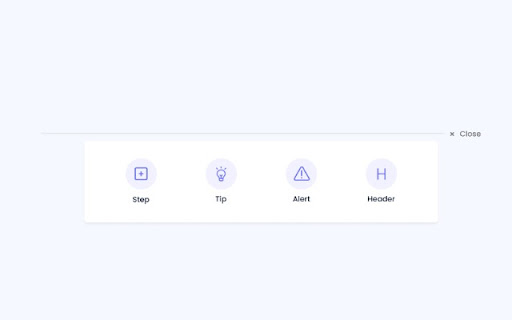
Kopyst simplifies guide creation, shares expertise, and develops training modules through guided steps. Kopyst functions as an assistant designed to streamline document creation. It's perfect for those looking to create user manuals, SOPs, and training documents effortlessly, it eliminates unnecessary complexities. Simply install the Chrome extension and let Kopyst work its magic. It captures your screen & actions, transforming them into clear, step-by-step videos & documents without leaving your browser or resorting to tedious screenshot capturing, word editing, and sharing. You can collaborate with your team using Kopyst Workspace by instantly sharing these documents via links. Along with step-by-step guides, its video recording feature is ideal for creating tutorials, explainer videos, bug reports, and more. Instant Documentation: Walk through your workflow with Kopyst, recording your steps in text or video. Easy edit, blur sensitive information: You can easily edit recorded documents and also can use the feature of blur information and update the document accordingly. Easy Sharing and Collaboration: Create and collaborate on documents with ease. Video Recording: Record your screen, with camera & audio. Video sharing: Share your recordings instantly with a link generated once you are done with creating a video. Start, pause & stop functionality: You can easily start, pause, and stop the Documentation Process. Install: Simply add the Kopyst Chrome extension to your browser. It's quick, easy, and requires no technical know-how. Interact: Open up the application or webpage you need to document. Start Kopyst with single click, Perform the tasks just as you would normally. Document: As you interact, Kopyst works in the background, automatically drafting a document for you. Every click, every step is captured and formatted into a professional document. Share and Collaborate: Once your document is ready, Kopyst makes it effortless to share it with team members. Invite collaborators to view or edit, ensuring everyone is on the same page. 7 Use Cases for Your Business Software Onboarding: Guide new employees through software us SOPs: Standardize workflows with easy-to-follow guidelines Customer FAQs: Boost customer self-service with detailed FAQ Product Walkthroughs: Create dynamic tutorials to engage customers Quality Control: Document inspection protocols for consistent quality Remote Training: Streamline training with detailed task materials Troubleshooting Guides: Simplify technical support with handy guides

BPM RunWalkYou Ext
---------------------------------------------------------------------------- You will be able to do BPM running (walking) with your favorite YouTube videos. (Supports playback speed adjustment.) ・If you can use the chrome extension on your mobile device, you can easily perform BPM running (walking) on YouTube videos. ・You can keep the BPM you want to run even if you go to the next song in the playlist.

Tanuki Utilities
Provide useful utilities for GitLab users. * Change the GitLab favicon to a project icon; you can easily distinguish many GitLab tabs. * Move "Copy reference" button on top bar; the button is always shown for your easy access. This extension tries to change favicons in the **all** sites by default. You can specify which GitLab site (e.g. gitlab.com or your self-hosted site) you would like to change favicons. #### Change the GitLab favicon to a project icon

Salesforce Shortcuts
Quickly open the most used URLs in your Salesforce Orgs. How to use it: 1) Open the extension using the "Alt + S" keyboard shortcut ("Option + S" on macOS). 2) Select your Salesforce Org with up and down arrows 3) Press "Control + 1" to open its Home page 3.a) use "Control + 2" to open Setup, or "Control + 3" to open Developer Console You can change the default "Alt + S" shortcut by opening the following URL in your browser: chrome://extensions/shortcuts 100% safe and private. No tracking and no permissions required to run. Also, completely free. There is also a version of this plugin that allows changing the colour of Salesforce Favicons: https://chromewebstore.google.com/detail/salesforce-shortcuts-with/pegpfhbecbiefakehnmehoaembjmican Features: - Allow exporting and importing of settings Improvements: - Ask for a review on 200th usage Features: - It is now possible to configure the plugin to search through all the orgs even if a tag is selected Improvements: - Minor styling improvements in Help page Fixes: - Fixed the issue where the Alt keyboard shortcuts are ignored when not using the Numeric Pad Fixes: - Fixed the issue where the Alt keyboard shortcuts sometimes didn't execute the correct shortcut Improvements: - New "Help" page with basic instructions on how to use the plugin - New "Settings" page where a different shortcut activation key can be selected (Control vs Alt/Option) Improvements: - Width of the Name cell will remain constant independent of the Name length - Improved spelling in some labels Improvements: - Reduced the size of the drop down icon in Tag selector - Added more robust handling of Salesforce domains to prevent adding duplicate orgs Features: - Orgs can now be assigned different colors - Holding down "CTRL" will show shortcut numbers instead of icons for easier use of keyboard shortcuts Improvements: - 12 new icons are available for custom shortcuts - When 7 or more shortcuts are displayed in the home page they are now not as narrow as before Improvements: - Explanation for "System" theme is provided Fixes: - Fixed the scrollbar look in Dark mode Improvements: - Moved "Delete Org" button to Reordering screen to prevent accidental deletions - Display plugin version in Settings - Added "Arrow Up" and "Arrow Down" icons for Custom Shortcuts - Added help text next to "Shortcut URL" field to make it more clear how it functions Fixes: - Fix the flickering when opening pages - Focused buttons couldn't be executed when pressing "Enter" key before. Now they can, but in order to open the selected Org "Ctrl + Enter" has to be pressed. Features: - Allow adding custom shortcuts that are applied across all Orgs - When Org is selected, pressing the "Enter" key will execute the first action - Allow reordering of Orgs

PromptSync
Ask ChatGPT, Bard AI, and Bing Chat with one single prompt! Unlock the power of four dynamic chat platforms with a single prompt! Introducing PromptSync, your all-in-one solution for chatting with ChatGPT, Bard AI, and Bing Chat, through a convenient Chrome extension. Multi-Platform Chat Engage in conversations effortlessly with ChatGPT, Bard AI, and Bing Chat from a single prompt. Get diverse perspectives and responses to your queries. Customizable Experience Tailor your chat experience to your liking! Enable or disable individual chat platforms according to your preferences through the settings menu. Efficient Workflow Streamline your workflow by accessing multiple chat services without switching tabs. Save time and stay productive as you harness the combined intelligence of four powerful chat systems.
