
kkknhbbfjlibfjagilggkcelmcobgefa
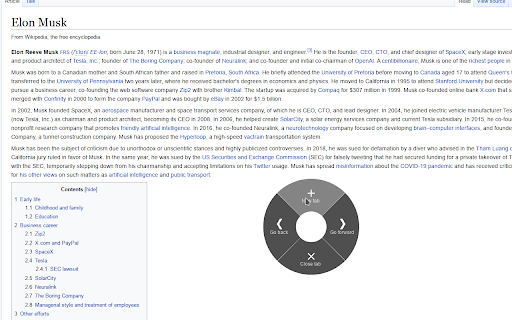
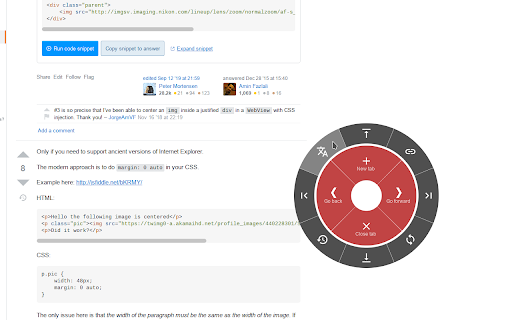
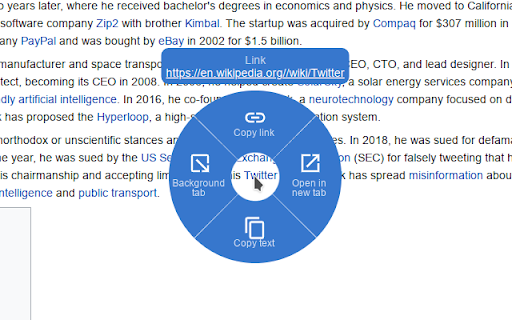
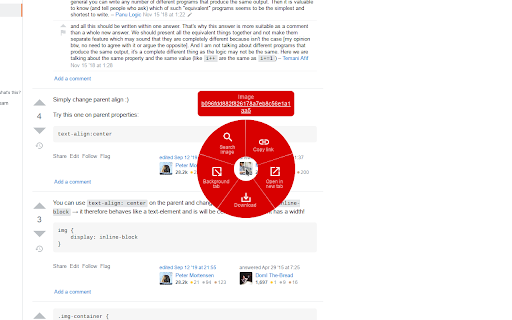
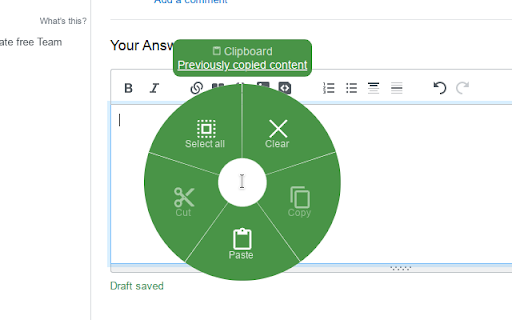
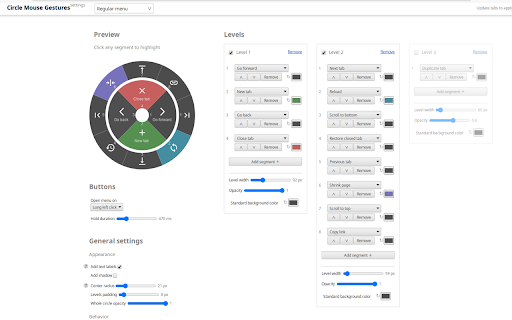
Circle menu with actions on right mouse click This extension introduces convenient circle menu (so-called pie menu) to improve interaction with your browser. Just hold down the right mouse button, highlight one of the preset actions and release the button. Circle menu recreates the way mouse gestures were represented in good old Opera 12 browser, and allows to clearly see all available gestures, with no need to remember them all. Circle Mouse Gestures is supposed to provide a better implementation of mouse gestures and drag gestures, while replacing the regular context menu at the same time — but regular context menu is always there whenever you need it. Perfect for fullscreen browsing! Extension features: - Regular actions, such as 'Go back', 'New tab', 'Scroll to top' etc. - Separate gestures for links, images, input fields etc. - Support for rocker gestures and mouse wheel gestures - Supports horizontal wheel gestures - great for mouses with horizontal scroll wheel, such as MX Master 3 - Support for trigger on long left click - Great customization options - add actions levels, set their width and color for each action Additional tools: - Link preview (like in Safari on mac) - Tab switcher (vertical/horizontal/grid), with ability to quickly switch, search and close tabs - Bookmarks viewer (list/grid), with ability to search and open bookmarks - Image viewer, with ability to zoom and rotate given image - Page shrinker, which adds horizontal space to page for easier reading on some websites

Mouse Gestures - Power Mouse X
Enhance mouse capabilities using gestures, combos, Quick search, Drag options and Next page predictions. #Customizable Mouse gestures, with over 40 actions to choose from including: Go to predefine site Go to the top or bottom of the page Go to the previous page Paste a predefined text Go super back (X7) Refresh page Go to the next page Mute \ Unmute tab Open new tab Minimize window Close tab Duplicate tab And many more... We use the more efficient, single motion, gesture mechanism. To use mouse gestures just hold the mouse right button and drag the mouse to one of the eight directions. #Combo buttons allow you to quickly: Open new tab - left mouse click while holding the right button Close tab - double click the right or middle mouse button Go to the top / bottom of the page - press and scroll the mouse wheel Zoom in / out - press and scroll the mouse wheel (require setting change) Scroll the tabs - scroll the mouse wheel while holding the right mouse button #Quick tab and web search: Press space bar while holding the right mouse button to open the search bar. Type the site name or search query just as you would on the URL bar. Press enter when the suggestion matches your search. Get an even quicker search by typing while holding the right mouse button (without pressing the space bar before), now when you have a match just release the right button and it will go to the site \ search the query - No need to press enter. Type + before the search in order to open the site in a new tab or Shift + Tab to search and navigate to a tab. #Drag options: Drag a link, selected text or an image to open the "drag options" menu. You can use this menu to open links and images in a new tab, search the web for the selected text and more. #Predictions Are you one of the people that have a "next page" button on their mouse? Power Mouse X will try to predict your next page even if you haven't visited it. use your special button to go to the next video on your YouTube playlist or the next search result page. #Configure side buttons Give your side buttons new functionalities. Q: Why doesn't the extension work on the starting page? A: Browsers do not allow extensions to work on non-URL pages such as startup page, setting page, PDF viewer etc., same goes to the Chrome Web Store. Q: Do you collect user data? A: NO! Q: Can I adjust the length of the mouse gestures? A: You can and you probably should! go to settings to do that. Q: Where can I learn how to use the extension? A: Visit "https://PowerMouseX.com/en/how to" for a complete user guide.

Mouse Gestures – Right-Click Gestures & Drag Actions
Mouse Gestures extension for Chrome. Control your browser with right-click mouse gestures and drag-and-drop actions. 🚀 Mouse Gestures for Chrome Mouse Gestures is a powerful Chrome extension that lets you control your browser using simple right-click mouse gestures and drag-and-drop actions. With intuitive mouse movements, you can browse faster, reduce clicks, and stay focused. Hold the right mouse button and draw gestures to perform common browsing actions: Go back / forward Close or refresh tabs Scroll pages quickly 🔀 Drag-and-Drop Actions Drag page elements to trigger actions: Drag links to open in new tabs Drag selected text to search Drag images to open or save Create your own mouse gestures Assign different actions to each gesture Sync your mouse gesture settings securely with Google Drive: Backup your configuration to your own Google Drive Restore settings across devices Manual sync, fully controlled by the user Your data is stored only in your own Google Drive and is never accessed or used for any other purpose. Google Drive sync is optional and only used for configuration backup and restore. 🌍 Designed for Productivity This Mouse Gestures Chrome extension is ideal for users who want: Faster navigation Fewer keyboard shortcuts A cleaner browsing workflow Right-click context menus may conflict with gestures on Mac and Linux. When this extension is enabled, double-click the right mouse button to open the context menu. This extension is independently developed and maintained. No ads. No paid features. Free to use. If you find it helpful, please consider leaving a review ⭐⭐⭐⭐⭐ — it really helps improve visibility on the Chrome Web Store.

Scroll Preview
Scroll Preview integrates a whole-page preview with scrollbar that inspired by Sublime Text's mini map. HOW IT WORKS • Alt + A — get a new scrollbar with rough preview • drag/click the scrollbar — just like how you used to • Alt + Shift + A — get a refined preview (please wait patiently) • tired of key pressing? — turn on Automatic or Conditional mode in option page UPDATES • Floating handle • Conditional mode for articles • Setting synchronization FEATURES • Captures whole-page snapshot (Alt+A) • Adds an additional easy-to-drag scrollbar which works nicely with the native one • Integrates snapshot with scrollbar for better previewing • Refreshes snapshot while window is resized • Allows hide/show toggling (Alt+A again) • If you found blank areas shown in snapshot, let the browser re-scan the page to refine it. (Shift+Alt+A) • Applies anti-aliasing on snapshot. • Jumps to where you click on the snapshot. • Magnifier on snapshot (works great with click-to-jump). • Always-on mode (Options > Basics > Automatically) • Option page (chrome://extensions/ > Scroll Preview > Options) • Auto-hide • Blacklist / Whitelist

Mouse Gesture
Mouse gestures, super drag, image preview, link preview, and more. The open source and free mouse gesture extension provides you with a brand new browsing experience! With simple mouse gestures, you can quickly perform various browser operations without using the keyboard or clicking toolbar buttons. Mouse gesture extension is now available for Chrome/Edge browsers for Windows, Linux, and MacOS. On Linux and macOS systems, double right-click to show browser context menu Key Features: 1. Smart Gesture Recognition: Correctly recognizes gestures even when they're not perfectly drawn 2. Rich Preset Gestures: Includes 16 common operations like navigation, tab switching, and more 3. Super Drag: Easily drag links and images to open in new tabs 4. Image Preview: Hover over images to view larger previews 5. Multi-language Support: Automatically adapts to browser language, supports English and Chinese 6. Dark Mode: Supports light/dark theme switching 7. Customizable: Personalize gesture action, trail color and width Customization Click the extension icon to access settings: - Enable/disable mouse gestures - Enable/disable gesture trails - Customize trail color - Adjust trail width - Toggle super drag feature - Enable/disable duplicate tab detection - Enable/disable Auto Close Duplicate Tabs - Switch language - Change theme All features are optimized for a smooth user experience. Works without waiting for page load completion, perfect for modern browsers. Built-in Gestures: • Left: Go back • Right: Go forward • Up: Scroll up • Down: Scroll down • Down-Right: Close tab • Left-Up: Reopen closed tab • Right-Up: New tab • Right-Down: Refresh • Up-Left: Previous tab • Up-Right: Next tab • Down-Left: Stop loading • Left-Down: Force Refresh • Up-Down: Scroll to bottom • Down-Up: Scroll to top • Left-Right: Close Tab • Right-Left: Reopen Closed Tab • and more Super Drag Features: • Drag links to open in new tabs • Drag images to view in new tabs • Drag selected text to search • Customizable drag directions for foreground/background tab opening Duplicate Tab Detection Automatically detects and notifies when you have duplicate tabs open: • Smart detection that compares URLs accurately • One-click option to close all duplicates • Auto Close Duplicate Tabs • Toggle feature on/off in settings • Prevents browser clutter and improves performance Popup View Quickly preview links and search content with modifier keys without leaving your current page: - Real-time link previews: Hold trigger key (default: Shift) while hovering over links to preview target pages in popup windows - Text selection search: Select text and press the trigger key to instantly search the selected content - Highly customizable: - Choose trigger keys (Control, Alt, Shift, or no key) - Adjust hover delay (100-5000ms, default: 200ms) - Set maximum preview windows (1-10) - Customize window dimensions - Configure window positioning (cursor position, screen center, or corner) - Customize search engine (supports Google, Bing, etc. using {q} placeholder) - Multi-window support: Open multiple preview windows simultaneously for increased information gathering efficiency - Smart window positioning: Intelligently adjusts window position based on screen boundaries to ensure full visibility - Clean interface: Distraction-free preview windows for optimal browsing experience Privacy-focused: • No data collection • No browsing history tracking • No user behavior monitoring • All settings are stored locally in your browser • No data is transmitted to external servers
