
keogokidepigdncilipepmfiignpdoen

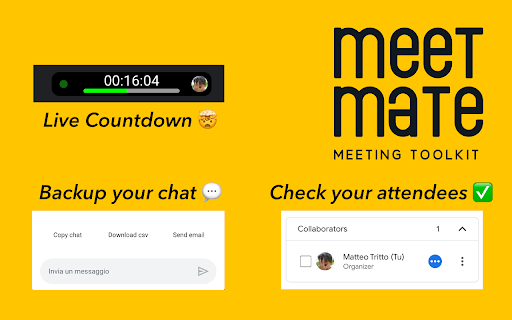
MeetMate is the ultimate Chrome extension for remote meetings that enhances your Google Meet experience with useful features. With MeetMate, you can easily keep track of who has spoken during a meeting, save your chat history to access later, and export your chat for easy sharing. The speaker tracker feature in MeetMate adds a checkbox next to each participant's name, allowing you to keep track of who has spoken during the meeting. The chat history saver automatically saves your chat history, so you can access it even if you leave the meeting. You can also export your chat history to an email, CSV file, or copy it to your clipboard, making it easy to share important information from the meeting with others. In the MeetMate's new version we're thrilled to introduce a powerful new feature – the integrated timer. Now, alongside existing functionalities, you can effortlessly keep track of the meeting duration. The timer is prominently displayed in the meeting interface, providing a countdown for precise time management. Whether you're calculating the total duration of a meet or counting down to its scheduled end, this feature is designed to enhance your overall meeting experience. MeetMate is incredibly easy to use. Simply install the extension from the Chrome Web Store: When you join a meeting on Google Meet, click the user on new dynamic island on meeting page to give access to your calendar and transform timer in countdown. For security reason you need to click user button every some hours if you still want to use countdown instead timer. If you click dynamic island again you can have some more information about your time. Chats, on the other hand, will be saved every 30 seconds automatically without you having to click anything, but if necessary you can also use the buttons to copy, save to scv or send the script by e-mail MeetMate is a must-have extension for anyone who frequently attends remote meetings on Google Meet. Whether you're a student, a professional, or anyone in between, MeetMate will help you get the most out of your meetings by providing you with valuable tools to stay organized and productive. Download MeetMate today and take your Google Meet experience to the next level! We want to assure you that your privacy is important to us, and we do not collect any personal information or send your data to any server. All data saved by MeetMate is stored exclusively on your browser.

Otter.ai: Record & Transcribe Meetings - Google Meet & Web Audio
Live transcription, summary, AI chat for meetings or website audio — Zoom, YouTube, online lectures, and more. No bot in Google Meet Otter.ai Chrome Extension offers real-time transcription, AI-powered summaries, and ChatGPT-style Chat to online meetings and any tab with audio—all inside Chrome. Compatible with Zoom, Microsoft Teams, and Google Meet. No-bot in Teams or Google Meet. Also compatible with YouTube, Coursera, online lectures, podcasts, and any website on Chrome browser. KEY FEATURES - Live transcription & captions – High accuracy so you never miss a word - Smart meeting summaries – bullet points, action items, and insights after the call. - AI chat with your meeting – Ask “What’s the deadline?” or “Summarize next steps” and get instant answers. - No-bot in Google Meet – no extra participant joins your call. - YouTube captions – Great for high-quality transcripts and language learning. - Works everywhere – from webinars and online classes to Twitter/X Spaces and LinkedIn Live - Search & share – locate any sentence later; export to Google Docs, Slack, CRM HOW TO PIN THE EXTENSION AND LOG IN: - After downloading, tap the extension icon, then tap the pin icon to add it to your browser bar. - You need to log in to use Otter. Tap the pinned Otter logo in your browser bar to log in to or sign up for an Otter account. HOW TO USE WITH GOOGLE MEET: - Remain logged in to use Otter. - After you join a Google Meet meeting, an Otter extension pop-up will open and ask if you want to - Record the meeting on your device, with no bot in the meeting. - Send AI Notetaker to the meeting as a normal participant. - You can see live transcript in the meeting. HOW TO USE WITH ZOOM: - Open a Zoom URL in your Chrome browser. - An Otter extension pop-up will open and ask if you want to send AI Notetaker the meeting to get an automatic meeting summary - However, if AI Noteteker is already scheduled to attend the meeting, you will not receive this pop-up. - You need to sync your calendar to enable Otter AI Notetaker to automatically join and record future meetings on your calendar. HOW TO TRANSCRIBE AUDIO ON THE BROWSER: - Open the website you want to transcribe the audio of, such as YouTube, online lectures, etc. - On this website, open the Otter Chrome Extension, and click “Record”. - If you mute or pause the audio or video you want to record and transcribe, the audio will not be recorded. - An overlay with live transcript will appear on the website that is being recorded. You can minimize the overlay.

Noota - Screen Recorder & Meeting Assistant
Noota Chrome Extension | Record, transcribe & summarize meetings and calls in one click, right from your browser. Stop switching between tools. Capture everything that matters and keep all your conversations in one place. ⚡ Key Features • Record meetings, your screen, or any browser tab without a bot. • Click to call from any website and start recording conversations instantly, no copy-paste. • Get AI-generated reports, transcripts, scorecards, and ready-to-send follow-up emails automatically. • Use Ask Noota, your AI chat, to ask anything about your conversations and instantly generate insights and structured resources. • Access all your recordings in one place, ready to review. • Get a clear view of your upcoming meetings with your integrated calendar and decide when to invite your bot to join. 💼 For recruitment teams: unlock additional features with Noota Talent module • Take your recruiting workflows further, directly from your browser. • Use Noota anywhere, directly inside your ATS and keep all your conversations synchronized without switching tabs. • Import candidates from Indeed or your internal job boards into Noota in one click. • Everything about your candidates, in seconds: experience, education, emails, calls… and act instantly in one click. • Get a clear view of all your open jobs, with candidates and interviews fully connected. • Evaluate candidates with AI-powered scoring, match them to your open roles, and identify the best fit instantly. • Generate clear insights to support faster and better hiring decisions. • Access all your interviews with AI reports, scorecards, clips, transcripts, and follow-up emails. With our Chrome extension, Noota is always one click away, right inside your workflow.

MeetSaver – Save Google Meet Chats Automatically
Automatically save and export meeting chats from Google Meet. Keep chat history, collect shared links, and detect tasks. MeetSaver is the ultimate Google Meet chat saver extension that automatically saves, organizes, and lets you export chat messages from your meetings. Google Meet does not store chat history after meetings end - but MeetSaver fixes that. Capture every message, link, and task in real time and access them anytime. ⚡Automatic Google Meet Chat Saving - Automatically save Google Meet chat messages in real time - Never lose important conversations after meetings end - Works seamlessly in the background ⚡Smart Link Collector - Detect and collect all links shared in Google Meet chats - Access them later in one organized place ⚡Task & Action Detection - Identify tasks, action items, and follow-ups from chat messages - Stay organized and never miss important work ⚡Organized Meeting History - Chats are grouped by meeting - Easily search and review past conversations ⚡Export & Copy Chats - Quickly export Google Meet chats - Copy messages for notes, reports, or documentation New shortcuts keys for MeetSaver - Ctrl+Shift+X : Open task input - Enter : Save task & reopen for next - Shift+Enter : Save task & close - Ctrl+Shift+L : Preview last 3 tasks inline - Esc : Close input / minimize pill WHY USE MEETSAVER? - Google Meet chats disappear after meetings - which means lost links, missed tasks, and forgotten decisions. MeetSaver helps you: Save google meet meeting discussions automatically Track important links and resources Capture tasks and follow-ups Improve productivity and collaboration MeetSaver is built with privacy in mind: ✓ Chats are stored locally in your browser. ✓ Your data stays 100% under your control. ✓ Minimal permissions

Trackr : Meet Attendance Tracker
Automatically track Google Meet attendance — join times, leave times, duration, and more. 100% free. Trackr : Meet Attendance Tracker — The most powerful free attendance tracker for Google Meet. Automatically records every participant's join time, leave time, duration, rejoins, and chat messages — no setup, no accounts, no limits. Unlike paid alternatives like AttendList (€3.99/mo) or basic extensions with limited exports, Trackr gives you everything for free — forever. Automatic Attendance Tracking Trackr starts recording the moment you join a Google Meet. Every participant is logged with precise join/leave timestamps, rejoin events, and total time in call. No buttons to click, no manual roll calls. Smart Participant Detection Built-in bot filtering automatically excludes Otter.ai, Fireflies, Gong, Read.ai, Fathom, and 10+ other meeting bots from your attendance records — so your reports only include real people. 5 Export Formats (All Free) Export attendance data as CSV, PDF report, Excel (.xls), Google Sheets, or Email — more formats than any competitor. Every export includes late arrival flags, absent attendee lists, and attendance rate percentages. Live Sidebar Panel Inside Google Meet See attendance in real time without leaving your meeting. The embedded sidebar shows who's present, who left, who arrived late, rejoin counts, and a full join/leave timeline — plus a live chat capture tab. Cross-Session Participant Analytics Track attendance patterns across multiple meetings. See each person's total meetings attended, cumulative time, average attendance rate, and last seen date — perfect for identifying attendance trends over weeks. Dashboard with Charts & Analytics A full-page dashboard with meetings per day, average duration, participant trends, and meeting breakdown charts. Search, filter, rename meetings, and manage your entire attendance history. Expected Attendees & Roster Management Add your class list or team roster. Trackr highlights who showed up and who's absent with color-coded chips and an instant absent summary. Save and load rosters across meetings. Late Arrival Detection Customizable late threshold (3, 5, 10, or 15 minutes). Late arrivals are flagged in reports, exports, and the live sidebar — automatically. Attendance Rate % See exactly what percentage of the meeting each participant attended, color-coded: green (80%+), yellow (50-79%), red (below 50%). Meeting Nicknames Rename any meeting after the fact for better organization — turn "abc-defg-hij" into "Monday Standup" with one click. Privacy-First Architecture Zero network requests. Zero data leaves your browser. No cloud storage, no accounts, no analytics, no telemetry. All attendance data stays in Chrome's local storage on your device. Period. 10 Languages Supported English, French, German, Spanish, Italian, Portuguese, Romanian, Russian, Turkish, and Ukrainian. Free forever — no premium tier, no hidden limits, no "upgrade to unlock" 5 export formats vs 1-2 in competing extensions Live sidebar inside Google Meet — competitors don't have this Cross-session analytics — see patterns across all your meetings Chat message capture — competitors miss this entirely Bot filtering — clean reports without Otter, Fireflies, or Gong noise Roster management — know who's absent at a glance Works offline — no server dependency, no downtime How to Use: Install Trackr — tracking starts automatically Join any Google Meet — attendance is recorded in the background Click the extension icon to see live data, or open the Dashboard for full history Export your report in any format Stop doing attendance manually. Install Trackr and let it handle the rest.
