
kelahdmegihhooaelnaahkeggodajdjf
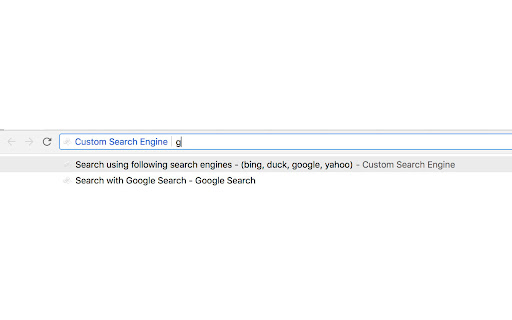


To use, type 'ms' plus keyword for custom search engines & search term into the url bar. (e.g. ms google ). # Description: ----------------- This add-on allows users to define their own custom search engines and use it from address bar of the browser. You can save the custom engine details to a file and also load it from there. It allows easy sharing of custom defined engines too. You can also make use of multiple search engines in one go. To use multi-search feature type "ms key1,key2,key3 ". For detailed information please review information at home page/support page url (due to a chrome store policy needed to truncate the description) - https://rsins.github.io/ravi-firefox-custom-search-engines/custom-search-browser-add-on-readme # Permissions Required: ------------------------ * storage - Save and load Preferences * raw.githubusercontent.com - Load "popular search engines" from https://raw.githubusercontent.com/rsins/ravi-firefox-custom-search-engines/master/SampleCustomEngines/PopularSearchEngines.txt

Omni - Meta Search Engine
Omni allows you to search anything in one click Delivered with actual useful search engines :D - Google - Wikipedia - Collins dictionary - Youtube - The Conjugator - Le Conjugueur - El Conjugador - WordReference - Forvo

Multiple Search Engines - MSE
Update to version 1.2.5 (Fixed bugs, edited imdb search URL and added new search engines). Following search engines has been added as default: #Wikipedia English, Español and Norwegian – Knowledge #Amazon Global and UK – Commerce #AliExpress Global – Commerce #Ebay Global – Commerce #Finn.no – Norwegian Commerce #Gulesider.no – Norwegian Search tools #Proff.no – Norwegian Search tools #IMOB – Movies #Linkedin – Social #Facebook – Social #X - Twitter – Social #Youtube – Social #Google Search #Gmail – Personal and business #Cisco – Community #Stackoverflow – Community This extension provides the user a quick way to search for selected text in multiple search engens. Supports grouping engines, own search URL, search in incognito, dark mode, search everywhere and more. How to use it? Right-click on the highlighted text and select (Search "word" for) from the context menu. It’ll open search results in the current tab active, in the new tab or incognito. Based in your settings on the selected search engines. How to open in new tab? From option page click on "Advanced config", or from context menu (right-click menu) choose last one "Options", will open option page. Then select "Open links in new tab". How to Search everywhere? From option page click on "Advanced config", to activate it. You can select all 3 options. * Show 'Search everywhere' option. * Show 'Search everywhere' option within groups. * New! "Search everywhere" in new window (Overrides incognito settings). How to import or export settings? From option page click on "Import/Export Config". How to create a Search URL of your own? From option page click on "Create own Search URL", to show you step by step how to create it. How do I edit the Search Engines' list? From option page click on "Edit the Search Engines", to find out how to edit it. Super easy to use! If you have any problems, issues, or questions how to use it, feel free to contact me or visit https://hawar.no/2023/02/multiple-search-engines/

Search Engine AI Chat Web Video Image Social
NEED HELP? Learn More.. https://www.searchall.net/chrome-extension/ -------------------------------------------------------------- *** New search engines added

Search Site WE
Search within the current subdomain or within the entire domain. Search Site WE provides facilities to search within the current subdomain or within the entire domain, using a selected search engine. TOOLBAR BUTTON AND POPUP PANEL After installation, there will be a new green 'magnifying-glass' button on the main toolbar. To search within a site, first click on the toolbar button to show the popup panel, then type the search terms into the text box, and then click on either of the search buttons. Normally, the text box is filled with the text from the previous search. However, if text in the page is selected before opening the popup panel, the text box will be filled with the selected text. To search within a site, first select some text within the web page, then right-click on the selected text and choose the 'Search Site WE' menu item, and then click on either of the search sub-menu items. In the Options page, there are options to specify the default search settings. To open the toolbar button popup panel, press Alt+K. Distributed under the GNU General Public License version 2. See LICENCE.txt file and http://www.gnu.org/licenses/
