
kbfceooaaajnllddlnimiddlfdhieldp
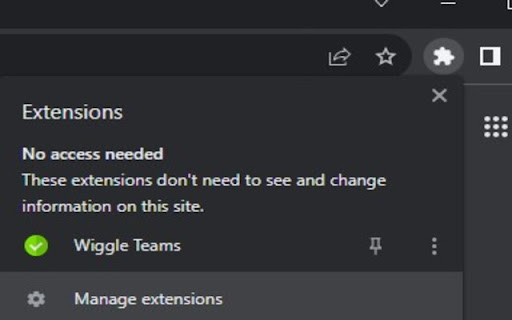
Ensures your Microsoft Teams status stays active by simulating random user activity. Wiggle Teams is a Chrome extension designed to help Microsoft Teams users by keeping their status active in the web browser. Here's what it does and why you should consider installing it: 1. Prevents Your Status from Going Idle: If you're a Microsoft Teams user who often finds themselves busy with other tasks, Wiggle Teams will keep your status active by periodically interacting with the Teams webpage in your browser. No more worrying about being marked as away! 2. Simple and Efficient: With Wiggle Teams, maintaining an active presence on Microsoft Teams is effortless. Once installed, it works automatically in the background, without any manual intervention or impact on your browsing experience. 3. Privacy-Focused: This extension respects your privacy. It doesn't collect, store, or share any of your personal information. All functionality is contained within your browser, focused solely on enhancing your productivity with Microsoft Teams. 4. Compatibility Note: Wiggle Teams is designed to work with the Microsoft Teams web client. Ensure that Teams is not open simultaneously in multiple browsers or the desktop app, as it may impact the functionality. Why Install Wiggle Teams? If you're looking to maintain your presence on Microsoft Teams without constant manual interaction, Wiggle Teams is a straightforward and efficient solution. It's free, privacy-focused, and dedicated to improving your Teams experience. Install Wiggle Teams today and discover the convenience of automatic status management on Microsoft Teams!

Wiggle
Make your screen wiggle! This simple extension can make things like text, images, videos, and buttons on a webpage "shake". This gives you a more fun experience while mindlessly scrolling through the web.

Always Online — Teams & Slack Status Keeper
Keep your Microsoft Teams & Slack status active and green. Smart presence with weekly schedule and meeting-aware pause. Stay visible on Microsoft Teams AND Slack — without constant clicks. Always Online keeps your presence active and your status green on both Microsoft Teams and Slack by intelligently preventing idle detection. Perfect for remote workers, hybrid teams, and anyone juggling multiple chat platforms. A single subscription now covers both Microsoft Teams AND Slack. Existing customers get Slack support unlocked automatically — at no extra cost. Open the app you have, the extension follows you. ✓ Keeps your status "Available" / "Active" automatically on Teams + Slack ✓ Prevents "Away" / "Idle" when reading, on calls, or working in other tabs ✓ Per-platform live status: see at a glance which apps are connected ✓ Works discreetly in the background with minimal resource usage ✓ Smart meeting-aware mode — won't override "In a meeting" status ✓ Force "Available" mode when you absolutely need to appear online ✓ One-click toggle from the toolbar ✓ Powerful weekly scheduler with custom time slots ✓ Privacy-first: no tracking, no analytics, no data sharing Set custom schedules that fit your real routine — for both Teams and Slack: • Define multiple time intervals per day • Different schedules for each day of the week • Automatic activation during work hours • Auto-pause outside scheduled times • Flexible support for shift workers, freelancers, and global teams Configure once. The extension respects your schedule on every supported platform automatically. The extension sends gentle activity signals to Microsoft Teams web and Slack web to prevent each platform's idle timer from changing your status. It doesn't modify settings, messages, or any user data. Your schedule and preferences stay 100% on your device. No upsells, no per-seat-per-platform pricing. Your subscription is keyed to your work email, so: • Same license works on Teams + Slack • Multiple workspaces? Same license, one email • Was a Teams Always Online user? Your existing license now covers Slack too — for free 1. Install the extension 2. Open Microsoft Teams (teams.microsoft.com) and/or Slack (app.slack.com) 3. Click the extension icon → start your 7-day free trial 4. Configure your weekly schedule (or use Manual mode for 24/7 always-on) 5. Done — the extension auto-detects which platforms you have open • No personal data collected beyond your work email (used only for license verification) • No analytics, no tracking, no third-party data sharing • Works on Chrome and all Chromium browsers (Edge, Brave, Opera, Vivaldi, Arc) • Compatible with Microsoft Teams web + Slack web • All schedule and preference data stored locally in your browser • Open privacy policy: https://api.alwaysonline.app/privacy teams always online, slack always online, microsoft teams status active, slack presence keeper, teams keep alive, slack keep alive, teams green status, slack online, presence simulator, prevent teams away, prevent slack away, force teams available, slack stay active, chrome extension teams, chrome extension slack, hybrid work tools 2026 Use ethically and in compliance with your organization's policies.

Microsoft Teams Status Manager with Weekly Scheduling
A Chrome extension that lets you schedule your Microsoft Teams status. Microsoft Teams Status Manager helps you take control of your availability in Microsoft Teams. With this extension, you can easily schedule your status in advance—whether you want to appear available, busy, or away at specific times. Schedule your status for specific days and times — stay in control of your availability without manual updates. Smart meeting detection — automatically respects your “In a meeting” status so scheduled changes won’t override it. Clean, minimal UI — simple and intuitive design that makes scheduling quick and effortless. Automated updates — let the extension handle your status so you can focus on your work. Customizable preferences — tailor your schedule to match your work hours, breaks, and weekends.

Always On Teams
Prevents the system from sleeping and keeps Microsoft Teams active. Redesigned popup UI — New gradient status card, cleaner layout, and a pulsing status indicator that shows at a glance whether the extension is active. Segmented timer control — The duration picker is now a segmented button row (None / 1h / 2h / 4h / 6h / 8h) replacing the dropdown. Auto-launch Teams toggle — New setting to automatically open a Teams tab when the extension starts, so you never need to open it manually. Edit schedule button — When a schedule is enabled, an "Edit" button appears inline so you can modify times and days without toggling the schedule off first. Weekdays / Clear shortcuts — Two quick-action buttons inside the schedule modal to select all weekdays at once or clear all day selections. Teams-closed notification — If you close your last Teams tab while the extension is running, a browser notification now alerts you that activity has stopped. Stop reason display — The popup now shows why the extension stopped (e.g. "Teams tab was closed") instead of just showing "Not running." Day chips — Days in the schedule modal are now displayed as circular chip buttons for easier selection. Fixed a runtime.lastError: The message port closed before a response was received error that appeared in the console when starting or stopping. Fixed an issue where user settings (timer, schedule, theme) were reset every time the extension was updated or reloaded. Fixed the schedule check alarm being reset on every browser startup, which could cause timing drift. Fixed a conflict where an active timed session could be interrupted and stopped by the schedule checker. Fixed the extension not properly restoring its running state after the service worker was restarted by the browser. Fixed the previous stop reason remaining visible in the popup after restarting the extension. Fixed clicking setting descriptions accidentally toggling the Auto-launch or Schedule switches. Always On Teams keeps Microsoft Teams active by simulating mouse movement and preventing the system from sleeping. The popup lets you start or stop the extension, choose how long it runs, schedule activity for certain times, and toggle dark or light mode. Key Features Timer – select “No Limit” or a duration from 1–8 hours so the extension stops automatically when the time ends. The dropdown options are defined in the locale messages file and the popup sends either a start or startTimed message based on your choice. Scheduling – enable a schedule with start/end times and pick which days it runs. These settings are read by checkSchedule in the background script to automatically start or stop Teams activity. Dark/Light Mode – a theme toggle button switches between dark and light styles. The button listener updates the CSS classes and saves the preference. Teams Detection – the “Open Teams” button appears if no Teams tab is open, letting you launch it directly. Troubleshooting Tips Teams tab closed – The extension only works when a Microsoft Teams tab is open. Click “Open Teams” if the toggle button is disabled. Scheduled times – If the extension stops unexpectedly, check your scheduling settings to ensure the current day and time fall within the enabled range. Browser issues – If features aren’t responding, try refreshing the tab or restarting the browser. Disabling other extensions temporarily can help rule out conflicts. Reset settings – Removing and reinstalling the extension clears stored preferences (timer, schedule, theme) if problems persist. For questions or feedback, contact Jobless Devs at devsjobless@gmail.com.
