
kagpmnfgpdecdkbhongbgkgppnpimime
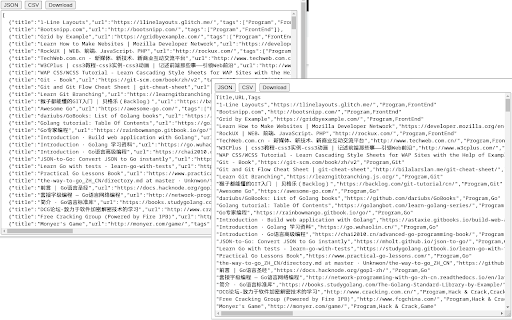
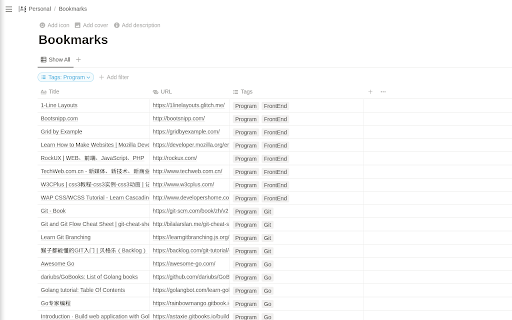
Browser can export bookmarks as HTML file and there are extensions that can export bookmarks as JSON file, but their export files keep folder structure/hierarchy. Sometimes, the flat file structure (without folder hierarchy) is easier to read and import into other program. For instance, flat JSON and CSV files can be easily imported into database or tools like Notion, Excel. To keep folder structure info, this extension exports folder(s) as tags, it's easy to tell what folder(s) a particular bookmark item was in by looking at tags.

Bookmark Import/Export
Import and export your bookmarks easily 🚀 Bookmark Import/Export: Your Ultimate Bookmark Management Tool! 📚 Effortlessly transfer, backup, and organize your bookmarks across browsers and devices. Our powerful extension makes managing your digital library a breeze! ✨ Key Features: 📤 Export bookmarks to JSON, HTML, and CSV formats 📥 Import bookmarks from JSON, HTML, and CSV files 🔍 Advanced Export for fine-tuned control over your bookmarks 🎨 Clean, intuitive user interface for seamless navigation 🌙 Dark mode support that automatically matches your system theme 🌍 Multi-language support: Available in English and Spanish, adapting to your browser's language ⚡ Lightning-fast bookmark processing with improved performance 🔗 Seamless integration with Chrome's bookmark system 📁 Preserve your entire bookmark structure, including folders and subfolders 🔒 100% offline functionality - your data stays on your device 🛠️ How to use: 1. Click the extension icon in your toolbar 2. Choose between "Export" and "Import" tabs 3. For basic exporting: Select your preferred format (HTML, JSON, or CSV) and click "Export". 4. For advanced exporting: Click "Advanced Export" for more options and control 5. For importing: Click the "Import" button, select your bookmark file (HTML, JSON, or CSV), and watch as your bookmarks are instantly added! 💼 Perfect for: - Switching between browsers without losing your carefully curated bookmarks - Creating regular backups of your digital library - Sharing your favorite sites with friends and colleagues - Organizing your professional and personal browsing efficiently 🔒 Privacy-focused: We respect your data. Bookmark Import/Export works entirely offline, ensuring your browsing history and bookmarks remain private. 🆘 Need help or have suggestions? Visit our support page: https://github.com/AndryOre/bookmarks-import-export/issues 💡 Pro tip: Regular backups can save you from losing important bookmarks. Set a reminder to export your bookmarks weekly! Download Bookmark Import/Export today and take control of your digital bookmarks! 🌟

Extension Exporter
Export name and URL of all installed extensions into an HTML file. Extension Exporter is a Chrome extension designed to export the names and URLs of all your installed extensions into an HTML file. This extension is the reimagined edition of the previously available extension named 'Export links of all extensions,' which was removed from the Chrome Web Store due to security concerns. This extension is fully open-source to ensure transparency and safety. The icon has also been redesigned from the original. ★★★★★★★★★★★★★★ ★ New in Version 3.0.1 ★ ★★★★★★★★★★★★★★ - CRX Download Links Removed – Due to Chrome security changes and CORS restrictions, direct CRX downloads from the exported HTML file are no longer possible. - Alternative Download Methods – A note has been added explaining how to manually download CRX files using the text-only listing or the CRX Extractor/Downloader extension. Why This Changed – Chrome prevents CRX downloads outside the extension context, making direct links in the exported HTML file unusable. ★★★★★★★★★★★★★★ Features: - Export Installed Extensions: Organize installed extension names and homepage URLs into an offline HTML file (no dependencies). - Local Execution: All code runs locally without connecting to remote servers. - Easy-to-use: Click the extension button to instantly generate the HTML file. - Cross-browser compatibility: Currently functions on both Chrome and Edge browsers. - Separate Enabled and Disabled Extensions: Clearly distinguish between enabled and disabled extensions. - Text-only Listing: Offers a text-based listing with both copy-to-clipboard functionality and a print option. - Toggle Stats: View extension stats using Chrome-Stats.com or Edge-Stats.com. These sites provide statistics on the usage, popularity, and ratings of Chrome and Edge extensions, aiding users in assessing their reliability and performance. - Toggle CRXcavator Report: Access CRXcavator reports for extensions, providing detailed security assessments, including information on the remote servers to which the extension connects, to evaluate the security risks associated with browser extensions. - Help: Detailed help section explaining the functionality of each button and option available in the extension exporter tool. Open Source: This extension is fully open-source to ensure both transparency and security. You can view and even contribute to the source code by visiting our GitHub repository: https://github.com/asheroto/Extension-Exporter Contributing Guidelines: We value community contributions and encourage you to get involved. For issues, feature requests, or code contributions, please visit our GitHub repository. - If you come across any issues, open a new issue on GitHub. - To suggest new features, you can also submit an issue. - If you wish to contribute code, we accept Pull Requests. Be sure to read our contributing guidelines for the required code style. Detailed instructions on how to contribute can be found on our GitHub page. Thank you for helping to improve our Chrome extension.

Export Bookmarks Chrome
Easily manage, transfer, copy and back up your saved websites with the Export Bookmarks Chrome extension! 🥱 Are you tired of losing track of your favorite websites? Export Bookmarks Chrome is here to save the day! With our extension, you can: 📂 Easily export and import your bookmarks between different devices and browsers 🔄 Quickly transfer your favorites to another Chrome account ✨ Streamline your browsing experience and eliminate the hassle of transferring each saved link manually 1️⃣ Install the Extension: Add this extension to your Chrome browser. 2️⃣ Export and save: Click the extension icon, choose favorites you want to transfer and select "Export Bookmarks". After that save the exported file to your computer. 3️⃣ Import: Click the extension icon and select "Import Bookmarks." 4️⃣ Select Your File: Choose the saved file and follow on-screen instructions to complete the process. Voilà! Сhrome bookmarks transfer is complete. 💨 Effortless Export: Quickly export your saved websites to the format which is suitable for import in any browser. This feature allows you to manage your links more effectively and ensures that you can easily share or store your collection in a format that suits your needs. 🔄 Seamless Import: Save you time, effort and enjoy the convenience of importing bookmarks from popular web browsers such as Chrome, Firefox, Edge, Vivaldi, and many others 🛡️ Backup Your Data: Protect your valuable bookmarks with regular backups. 💫 Customize Your Exported Bookmarks: Choose which google bookmarks to export with a simple selection and keep your work, personal, or favorite links organized. Need to transfer just a few folders? No problem! This tool is designed for those who need flexibility, with options to export favorites from Chrome without exporting everything. 🧠 Simple and Intuitive: Enjoy a user-friendly interface designed for hassle-free navigation, making it easy for users of all skill levels to manage their bookmarks effortlessly. 🚀 Efficient and Reliable: Enjoy high-speed performance, efficient data management, and the security of knowing your favorites are safe from data loss and protected by robust encryption. 🤝 Multi-Browser Compatibility: With seamless compatibility across various browsers, Export Bookmarks Chrome empowers you to manage your links across multiple platforms without trouble. 📈 Enhanced Productivity: Save valuable time and boost efficiency with streamlined management features, allowing you to organize, access, and share your favorite links like never before. ❓ How to export bookmarks from chrome? 💡 It's easy! Just click the extension icon, pick the bookmarks you want to move, select "Export Bookmarks". ❓ How to transfer chrome favorites? 💡 Click the extension icon, pick the links you want to transfer, select "Export Bookmarks," and save the file, after that you can upload chrome bookmarks to any browser. ❓ How do I import my bookmarks? 💡 Сlick on the extension icon, navigate to "Import Bookmarks," and select the file containing your saved bookmarks. Just follow the on-screen instructions for a seamless experience. ❓ Is my data safe? 💡 Absolutely! Your data is secure with industry-standard encryption measures, ensuring your favorites are always protected. ❓ How to exports bookmarks from chrome to safari? 💡 Export your Safari links as an HTML file, then use our extension to import them directly into Chrome. ❓ I have some ideas and feedback for Export Bookmarks extention can I share them with the developers? 💡 Absolutely! Our team welcomes input from our users. Feel free to send us your suggestions, ideas, or feedback - we truly value your insights. 🚀 Never lose a link again! Download Export Bookmarks Chrome today and enjoy a faster, simpler way to manage and access your essential websites. From exporting to importing to syncing across devices, our extension brings together all the tools you need for quick, reliable, and secure access to your saved links. 👋 Say goodbye to manually transferring links - get started with Export Favorites Chrome and transform your browsing experience!

Json Bookmarks
Import and export bookmarks between browsers with a json file This add-on exports and imports bookmarks using a json formatted file for:
