
jmihjpkeaeknejefhonkbgldenaplegj
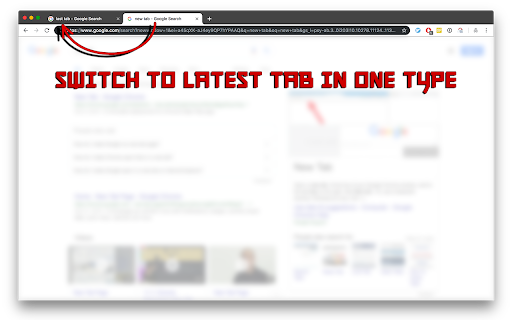
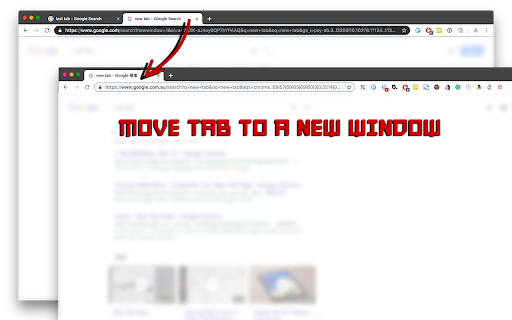
A Chrome tab switcher which enables a shortcut to switch the current tab to latest one. A FREE and SIMPLE tab switcher which enables a shortcut to switch the current tab to previous one. In addition, an extra shortcut to switch the current tab across different windows is also available. - The default shortcut to switch tabs is [Alt + q] (Option + q) on MacOs. - The default shortcut to switch windows is [Alt + w] (Option + w) on MacOs. *P.S.* You can change the key mapping through the *chrome://extensions/shortcuts*.

Tab Switch Extension
Are you tired of losing track of your tabs or constantly switching between multiple open tabs? Meet Tab Switcher, the ultimate and also simple solution for managing your tab history and enhancing your productivity for faster tab switch. Key Features: 🔄 Seamless Tab Navigation Easily switch between your most recently used tabs with customizable keyboard shortcuts. Whether you're juggling research tabs or managing multiple projects, Tab Navigator helps you stay organized. 🔍 Dynamic Tab History Keep a detailed history of your recently activated tabs. With Tab Navigator, you can see where you've been and quickly jump back to any tab, saving you time and effort. 🗂 Customizable History Settings Allow or Disallow Duplicates: Choose whether to keep duplicates in your tab history. Perfect for users who want a clean, concise history or those who need every step of their browsing journey. Move Duplicates to Top: If you revisit a tab often, Tab Navigator can automatically move it to the top of your history, ensuring quick access to your most-used tabs. 🔧 User-Friendly Options Tailor the extension to your needs with an intuitive options page. Set your desired history limit, control duplicate handling, and personalize your browsing experience with ease. 🚀 Boost Your Productivity Say goodbye to the frustration of lost tabs or repetitive tab switching. Tab Navigator streamlines your workflow, helping you focus on what matters most. How to Use: Install the extension and customize your settings via the options page. Use keyboard shortcuts to quickly switch between your recent tabs. You can change shortcut too.

Auto Tab Switcher
Automatically switches to the next tab every few seconds Transform your browser into a powerful automated display system with Auto Tab Switcher—trusted by professionals worldwide for monitoring dashboards, running presentations, and managing multi-screen information displays. ═══════════════════════════════════════════ ### 🎯 PERFECT FOR ✓ Monitoring multiple dashboards (analytics, server status, sales metrics) ✓ Digital signage and information displays in offices or public spaces ✓ Presentations and demos that cycle through content automatically ✓ Security monitoring across multiple camera feeds or systems ✓ Trading floors displaying rotating market data and charts ✓ Reception areas showing company information, news, or announcements ✓ Multi-display setups requiring synchronized or independent control ═══════════════════════════════════════════ ### 🎉 WHAT'S NEW IN VERSION 1.2.0 This update adds the most requested feature: keyboard shortcuts for instant pause/resume! #### ✨ KEYBOARD SHORTCUT CONTROL **⌨️ Instant Pause/Resume with a Keystroke** - NEW keyboard shortcut: `Ctrl+Shift+P` (Windows/Linux) or `Command+Shift+P` (Mac) - Perfect for interrupting short delays (2-3 seconds) where clicking would be too slow - Context-aware: Global Mode pauses all windows, Window Mode pauses current window only - Fully customizable via Chrome's keyboard shortcuts settings - Smart protection: only works when auto-switching is enabled - Toggle behavior: press once to pause, press again to resume - Manual pause takes priority over activity-based pause ### PREVIOUS UPDATE - VERSION 1.1.0 Major feature release with powerful new capabilities and critical bug fixes! #### ✨ NEW FEATURES **🪟 Per-Window Control Mode** - NEW Window Mode allows independent control of each browser window - Enable auto-switching on specific windows while others stay manual - Each window maintains its own separate timer and settings - Perfect for multi-monitor setups with different rotation needs **⏸️ Pause on Activity Detection** - NEW intelligent activity detection automatically pauses tab switching - Detects when you manually switch tabs, navigate URLs, or focus windows - Configurable pause duration (5-300 seconds) to match your workflow - Resumes automatically when you stop interacting—no manual restart needed **🔍 Professional Diagnostics System** - NEW dedicated diagnostics page with detailed activity logging - 30-minute rolling buffer captures all extension events with timestamps - Export logs as text, JSON, or copy to clipboard for support requests - See exactly what the extension is doing with mode and window context - Privacy-focused: all diagnostic data stays local, never transmitted **🎓 Interactive Onboarding Tour** - NEW 5-step guided tour for first-time users - Visual demonstrations of Global Mode vs Window Mode - Feature highlights and best practices - Skip option for experienced users #### 🐛 CRITICAL BUG FIXES ✅ **Timer Synchronization Issues - FIXED** - Fixed timer animation not updating in real-time - Resolved race conditions where tabs continued switching after disable - Eliminated scenarios where countdown showed incorrect values - Service worker suspension and recovery now handled correctly ✅ **Badge Display Problems - FIXED** - Badges now correctly display per-window status instead of globally - Status indicators properly refresh when creating new tabs - Badge updates correctly when tabs move between windows - Each window shows accurate state (ON/PAUSED/OFF) ✅ **Environment Detection - FIXED** - Corrected critical inverted isPacked() logic bug - Production builds now correctly allow 5-second minimum (was 60s) - Development builds properly enforce 60-second minimum (was 5s) - Environment-aware delays working as designed ✅ **Service Worker Reliability - FIXED** - Improved state persistence across service worker suspensions - Better handling of window closures in Window Mode - Enhanced error handling and recovery throughout codebase - Eliminated module-level state issues causing unreliable behavior #### 💎 USER EXPERIENCE IMPROVEMENTS - Modern UI with improved visual feedback and animations - Real-time countdown with animated circular progress ring - Clearer mode indicators (🌐 Global / 🪟 Window) throughout interface - Better error messages and input validation with live feedback - Enhanced settings page with mode preview visualization - Custom confirmation modal for critical mode changes - Quick mode switching from popup without opening settings ═══════════════════════════════════════════ ### ⚡ KEY FEATURES **🔄 FLEXIBLE OPERATING MODES** - Global Mode - Control all windows simultaneously (perfect for synchronized displays) - Window Mode - Independent per-window control with separate timers (ideal for multi-monitor setups) - Switch between modes instantly based on your needs **⏱️ PRECISION TIMING CONTROL** - Configurable intervals from 5 seconds to 1 hour - Reliable chrome.alarms API ensures consistent switching (even when browser is idle) - Environment-aware delays for development vs. production use - Hybrid timing system for both short (

Quick Tab Switch
⚡ Instantly switch between your two most recent tabs with Alt+Q. Like Alt+Tab for windows, but for Chrome tabs! Perfect for comparing pages, copying information between tabs, or quickly going back and forth while working. No mouse needed, no clicking through tabs. ✨ Features: • Simple Alt+Q shortcut (⌥Q on Mac) - fully customizable • Switch between your last 2 used tabs instantly • Works on all websites and pages • Lightweight and fast - no performance impact • Zero permissions required - completely private 🚀 How to use: 1. Install the extension 2. Press Alt+Q to jump between your two most recent tabs 3. Customize the shortcut at chrome://extensions/shortcuts if needed 💡 Perfect for: • Comparing information between two pages • Copying data from one tab to another • Quick research and fact-checking • Bouncing between work documents • Any workflow requiring back-and-forth navigation ⚙️ Advanced Setup: Want to use Ctrl+Tab instead? You can modify Chrome's settings file: • Windows: Win+R → "notepad %LOCALAPPDATA%\Google\Chrome\User Data\Default\Preferences" • Linux: gedit ~/.config/google-chrome/Default/Preferences • Change all occurrences of "Alt+Q" to "Ctrl+Tab" • Disable Chrome sync to prevent overrides If the above way doesn't work for you, follow the instructions on this Gist: https://gist.github.com/ilyachase/49c7a6d1aa543d16568520560cfaf226 This extension is free and always will be. However, if you want to buy the author a coffee, it will be much appreciated 🤗 https://buymeacoffee.com/ilyachase

Tab Switcher
A Chrome extension that allows users to switch between their most recently used tabs. Tab Switcher is a Chrome extension that allows you to switch between your most recently used tabs using keyboard shortcuts. Chrome does not have flexible built-in functionality that allows you to cycle between the most recently used tabs with keyboard shortcuts. The native tab switching in Chrome allows users to: - move to the next or previous tab in the order they appear in the tab bar (e.g Ctrl + Tab and Ctrl + Shift + Tab on MacOS) - move to a one of the first 8 tabs or the final tab. (Alt/Ctrl + [1-9] to switch to a specific tab by its position in the tab bar (1 for the first tab, 2 for the second, and so on, 9 for the last). This extension provides additional keyboard based tab management by keeping a user defined history of tabs and switching among them in the order they were last accessed. ## Features Switch to the previous tab (e.g using `Alt+P`) Switch to the next tab (e.g. using `Alt+N`) Toggle between current and most recent tab (e.g. using `Alt+S`) The number of tabs in the switching history can be configured by the user (defaults to 5). If you are looking for a tab and it has fallen out of the history size then you can use another shortcut (e.g Shift your existing shortcuts) to double the size of the search history. i.e. if the configured history size is 5 then using `Alt+Shift+P` will cycle through twice as many as the default size (10 in this case). There is also a command to cycle forward through twice as many as the default size but due to a Chrome limit of a maximum of 4 preloaded shortcuts per extension you will need to set the keyboard shortcut for this yourself (e.g. as `Alt+Shift+N`). ## Configuring Shortcut Keys The default keys may not be suitable for everyone, so here's how to change them: Go to the Chrome Extensions page (chrome://extensions). Click on "Keyboard shortcuts" from the left menu. Find "Tab Switcher" in the list and click on the pencil icon next to each action to set a new shortcut key.
