
jimbejfllgpmhahdeleeojfdinlpgllk
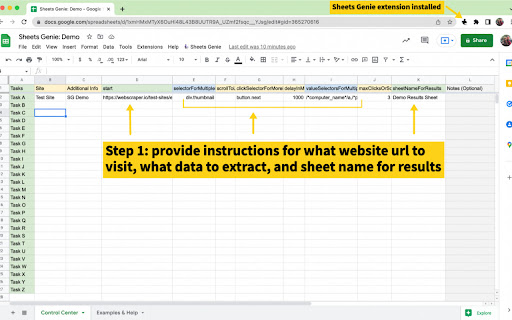

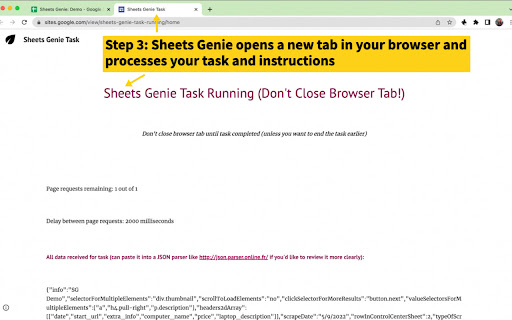

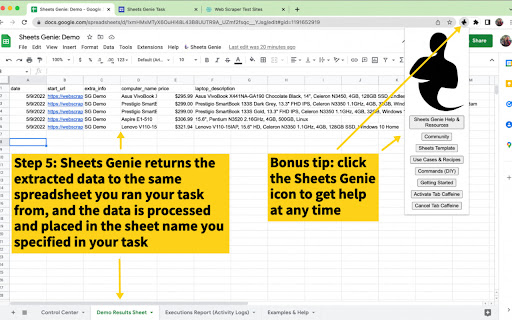
The Sheets Genie Chrome Extension let you turn Google Sheets into a web scraping and business automation powerhouse, doing things with Google Sheets you never dreamed possible. For it to work, you must have first installed the SG Add On: For step by step guidance on data extraction with SG, and to see what you can do, you can check out the following training on Udemy, which is taught by SG's developer, Dave Fonvielle: https://www.udemy.com/course/web-scraping-scrape-data-to-google-sheets-with-sheets-genie/ If you don't want to enroll in the course, that's fine. You can see all the necessary videos for free as part of the "free preview" without signing in or anything. Here the big picture with SG, since it's more than "just" web scraping... Sheets Genie automates business tasks with one click so that you: -- scale up your business activities and productivity -- save time and effort Among other things, it helps you: -- get data into your spreadsheets quickly and easily and then process it in useful ways -- automate and scale your use of other online tools -- automate tasks behind logins (since you can be already logged into your accounts in your browser when you run it) As far as extracting data from websites goes, Sheets Genie has been called a "Google Sheets Web Scraper" because it helps you with website scraping and data extraction in the following ways: -- No messy CSVs or other export / import situations, where you first have to export your scraped data, then import it into another spreadsheet tool, because… -- It not only scrapes your information for you, but it scrapes it directly to your target spreadsheet -- You have absolute control over where your data is placed in your spreadsheet, including even the exact sheet and column, and sometimes, even row -- If you have a column of urls, you can automatically scrape all those links, and then have the scrape results automatically placed in your spreadsheet -- If appropriate, this includes the option to place the results exactly in the row where the link was found, kind of like enriching that row with additional information -- you can also automatically exclude any results that contain certain values that you don't want in your sheet for whatever reason

TableSherpa: Web to Sheets Exporter
Export tables on the web to Google Sheets with a single click. Unleash the full potential of your ChatGPT interactions & other Webpages! With TableSherpa, effortlessly export and organize tabular data into Google Sheets, CSV, or Excel. 📈 Effortless Export: Convert your ChatGPT session's tabular data into your desired format, be it Google Sheets, CSV, or Excel, in just a few clicks. 🔗 Seamless Google Sheets Integration: Directly send data to a new Google Sheets document. Ideal for collaboration, visualization, and centralized data management. 💽 Flexible Download Options: Want to manage your data offline? Save it as a CSV or Excel file for convenience and portability. 🔍 Enhanced Data Organization: Avoid manual data entry hassles. TableSherpa guarantees a structured and error-free data transfer. Equip your Chrome with TableSherpa and redefine your data extraction experience from ChatGPT & other webpages!

SuperPowers AI
Sign in with email or phone, stream a browser tab/window into SuperPowers, and control tabs with magic clicker and magic scraper. Automate your devices like OpenClaw with unlimited computer-use!

Easy web scraper by Databar
A simple, no-code extension to collect data from any website. The simplest way to collect data from any website. How it works: 1. Open any webpage and click the Databar extension 2. Select the data you want by clicking on elements 3. Watch as matching data is automatically detected across the page 4. Export your dataset or send it to your favorite tools Features: > Visual point-and-click selection — no CSS or XPath needed > Smart detection finds similar elements automatically > Extract nested data with sub-fields > Auto-scroll captures data from infinite scroll pages > Export to CSV instantly > Connect to Google Sheets, n8n, or your CRM Supercharge with Databar: > Send data directly to your Databar workspace and enrich it with 100+ third-party APIs — add contact info, company data and more to build complete datasets. > Built for individuals and teams. Free to use. Please ensure your use complies with the terms of service of any website you scrape. Users are responsible for using this tool ethically and legally.

Add to Sheets - Save to Google Sheets in 1 click
Right-click to add any content to Google Sheets. Quick Row Entry & No-code Automations for finding data, emails and links on sites. ➤ Add to Sheets lets you save text, links, page URLs, and images directly to Google Sheets without switching tabs or opening the spreadsheet. Just right-click and save. Or, use keyboard shortcuts to save even faster. Work the way you browse: ★ Right-click capture – Send selected text, links, or images straight to a specific spreadsheet and column. ★ No-code Automations – Build automations that pull data from any page into Google Sheets when you use on a website—no code. Start with a template, map columns, and run. ★ Email Address and Link Finder – Instantly collect every email address, link, or image URL from a page and add them to your sheet. ★ Quick entry for full rows – Add complete rows of data with automatic form generation. Creates input fields based on column headers with keyboard shortcuts for fast bulk data entry into spreadsheets and templates. ★ Fast keyboard shortcuts – Save without breaking your flow using custom key commands. ★ Flexible column setups – Create and organize multiple column configurations into groups to match different projects or workflows. ★ Save unlimited rows to your spreadsheets. Add to Sheets works for everyone, everywhere. Here’s a few examples: -- Saving Notes from Emails -- Quickly save important information from emails, such as contact details, addresses, and meeting notes, directly to your Google Sheets. This works well with web-based email clients like Gmail. -- Find All Email Addresses, Links, and Images -- Easily find all email addresses, links, and image URLs on websites and save all matches directly to Google spreadsheets in seconds. -- Wedding Planning -- Easily manage guest details, track RSVPs, and save vendor contacts. Save inspiration images and links from social media and wedding websites. -- Budget Tracking -- Monitor your spending by quickly adding prices and details from online shopping into a budget spreadsheet. Use the quick row entry to update rows in templates. -- Travel Planning -- Organize your trip details, including flights, accommodations, and activities, by saving the information directly from travel websites like Google Flights and Airbnb. -- Track Your Fitness Progress -- Save workout routines, nutrition plans, and progress photos from fitness websites to for easy tracking. -- Recipe Collection -- Create your digital cookbook by saving recipes from cooking sites directly into your Google Sheets. -- Personal Shopping -- Compare products and prices by adding information from different online stores to a single spreadsheet for easy access. -- Marketing, Social Media & Event Organization -- Keep track of all event-related information, social media post ideas, venue options, catering menus, and guest lists, in one organized sheet. -- Saving Content -- Save useful articles, ChatGPT conversations, PDF content, interesting quotes, and web content that you want to read later or reference. -- CRM for Sales Professionals -- Quickly save LinkedIn and Salesforce profiles, emails, leads, and key contact details directly to your CRM spreadsheets. Add to Sheets is privacy-focused and does not store any of your Google Sheets data on our servers. All of your data is stored locally in your browser and is not shared with any third parties. We purposely don't have any analytics or tracking in the extension to ensure your privacy. The extension uses an embedded Google File picker to allow you to select what Sheets to allow access to. Until you do that, the extension doesn't have any access to your files. The Sign In integration with Google has been verified and gone through their review process to only request/use minimal permissions for the extension to function as expected. The extension only has access to the files that you allow it to have access to. 1. Open Google Sheets: Start by opening Google Sheets in your browser. 2. Access the Extension: Click on the Side Panel icon on the right side of the screen within Google Chrome. If the icon is not visible, go to "Extensions" at the top-right corner of your browser and select "Add to Sheets." 3. Sign In: Log in using your Google account. This step is necessary for the extension to interact with your Google Sheets. 4. Grant Permissions: When prompted, allow the extension permission to access the Google Sheets you want to use. This ensures the extension can modify and add data to your sheets as needed. 5. Configure the Column: Choose the spreadsheet and sheet where you want to add data. Set up a specific column and label it for easy identification in the context menu. 6. Save Content: Highlight or select the content you want to add on any webpage, right-click, and select "Add to Sheets." Then, choose the appropriate destination. Currently, Add to Sheets is available for Google Chrome, Brave, and Microsoft Edge. We would like to support other Chromium-based browsers (like Arc and Vivaldi) in the future. If you have any questions about this, please let us know. Questions or feedback? Reach out to us on X at @addtosheets (https://x.com/addtosheets) and be a part of our community. You can always leave a review if you have any thoughts or suggestions. Or, reach out to us at contact@addtosheets.com. Read the blog to learn more: https://www.addtosheets.com/blog/ Find out what's changed in the official subreddit: https://www.reddit.com/r/addtosheets/ Add to Sheet's use and transfer of information received from Google APIs to any other app will adhere to Google API Services User Data Policy (https://developers.google.com/terms/api-services-user-data-policy#additional_requirements_for_specific_api_scopes), including the Limited Use requirements.
