
ipggldepadhaaemacanbgcbmpegjleml
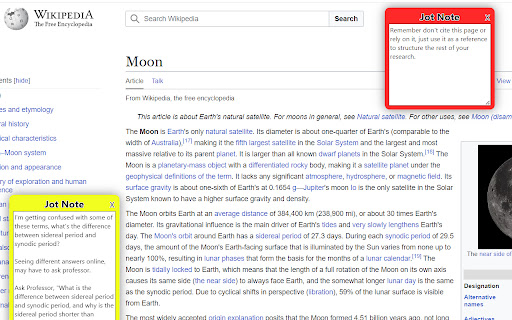


Place notes on any page online! Add Jot to Chrome to quickly create and customize notes while your browsing. Jot allows users to easily create, style, organize, and export notes all with no account required. Make use of these convenient keyboard shortcuts: * Create a Jot note: Ctrl+Shift+z * Hide all Jot notes on the active tab: Ctrl+Shift+h * Show all Jot notes on the active tab: Ctrl+Shift+s These actions, as well as pasting a copied note, can also be performed by right-clicking anywhere within a webpage and navigating to "Jot - Browser Notes". Each Jot note can have its appearance and performance customized. Right click on a Jot note to change its color, add tags to it, change its order relative to other Jot notes, or select how it moves when the tab is resized or scrolled. This menu is also where you can copy a note to easily paste elsewhere. A pasted note will have the same appearance and behavior as the note it was copied from. Adjust the size of a Jot note by dragging the bottom right corner of its textbox. Edit its title by clicking the note's existing title and typing. If you pin the Jot extension, selecting the Jot icon in the top right of your browser opens the Jot popup. Here you can add an additional note to the active tab that will only appear in the popup. You can also show, hide, and delete all Jot notes on the page. You can also manage any notes on the page with tags from within the Jot popup. The Jot notes' options page allows you to select options for your Jot notes, manage all of your created Jot notes in one place, remove all of your note data from the extension, download your notes and import notes previously exported from the Jot notes extension.

Sticky Web Notes
Ever wanted to save notes on the documentation you are reading, or just on any website which you think you will be coming on back… Ever wanted to save notes on the documentation you are reading, or just on any website which you think you will be coming on back later? Or wanted to recall the stuff when you visited that page last time? Sticky Web Notes is at your rescue! • Double click any webpage to add sticky notes. • Notes will be persisted by browser. • See All your notes on across all the webpages at same place. • Download notes per webpage. • Contribute to the project on Git hub: https://github.com/yourengineerbro/StickyWebNotes

Tab Notes
Tab Notes will helps you to make notes on the browser. It is easy to use and quick to access Tab Notes lets you compose notes like articles using a variety of typography styles. You can also draw shapes to accompany your notes. Notes will automatically be saved and synced with each new tab. Tab Notes offers you a wide variety of built-in themes. If you are not satisfied with the built-in themes, you can create custom themes as well. ⚡ Quick and easy to access notes while clicking on a new tab 🗂️ Store multiple notes ✍️ Variety of typography styles are available to write notes 📐 Draw shapes to accompany your notes 🤹 Code block support 🎨 Variety of built-in themes and option to create your own theme 💾 Auto saving notes 🔄 Real time tab sync

Input Ninja
Action flows to create Trello cards, Notion pages, GitHub & Jira Issues, use ChatGPT, templates, notes, todos etc with one key press Input Ninja allows you to create action flows that automate your routine operations such as creating Trello card, Notion pages and recrords, GitHub or Jira issue, using ChatGPT etc... and combining all of this in a different orders. You can also quickly search through your notes, templates or todos at any moment on any web page. You can then choose to simply view or paste the note directly into the place your cursor caret is at the current moment, which is extremely useful when you deal with emails or messaging on LinkedIn or other social platforms. You can also add a new note quickly right on spot by going to Context Menu -> Input Ninja -> Add New Note. For example: You can make it so that on a press of a button you will create a Trello card in specific board assigned for a specific team member with a screenshot attached. If you want to make your note to act like a template, just use a place holders with an identifier within square brackets. For example: Please let me know if you are interested in a position of [Position Name] in our company. In case of templates, when you select it in the search box, you will be prompted to fill the place holder fields with values which will be later put in place of place holders and paste into the field that is currently focused. For social media platforms like LinkedIn, the values for First Name and Last Name will be automatically filled where possible. You can mark your note as Sensitive in the settings, which will show * instead its content in the search box. This is useful for saving passwords, personal information etc... . * Share your notes within your team * If you are working in a team you can choose to have shared notes or templates, which makes it very convenient to have a central knowledge base accessible by every team member. 1. Sales. If you are working in Sales you are dealing with a lot of repetitive emailing containing product pitches, feature descriptions, customer onboarding info and so on. By putting all of your templates and notes into Input Ninja you will be able to have them at your fingerprints and access instantly at any moment. Which will drastically improve your productivity and decrease the annoyance of dealing with constant searching and context switching. 2. Recruiting. You can use Input Ninja to save your open positions info, as well as frequently used answers for the candidates engagement. This will allow you to have all these information at hand any moment. And by extension save a lot of time which you can use to reach out to even more candidates. 3. Personal Day to Day use. If you found yourself searching through your notes frequently to find some data needed when you are working in the browser, Input Ninja can be a huge time saver for you. You can use it to quickly access your payment information to fill-in when ordering online. Or just quickly view/edit your todo list for the day. You can also find it convenient to have a possibility to quickly add a note from a selection on the web page. Input Ninja gets you to the next productivity level.

Thymeline
Add events to your timeline the easy way Keep track of everything important about your projects all in one place. Meet Thymeline, the free Chrome extension that will magically transform your project chaos into an organized masterpiece. Created for Project Managers. Here is how Thymeline saves you time. No APIs. No integrations. As simple as copy & paste. Easily copy relevant information from any of your existing tools or apps without any hassle. Once you download the chrome extension... Step 1: Visit any website. Step 2: Highlight any text. Step 3: Click on the Thymeline Chrome extension Step 4: Add to existing Thymelines. That’s it! Thymeline can handle as many projects as you’re juggling. Create as many Thymelines as you need! Multiple projects, multiple Thymelines, we can handle it. Keep track of it all in a simple interface. Share with others Share your Thymelines with others on your team with view or edit privileges, keeping everyone on the same page. Want to keep it private? You can do that too.
