
inbhchglkbolpccfahkefnbnajndmone
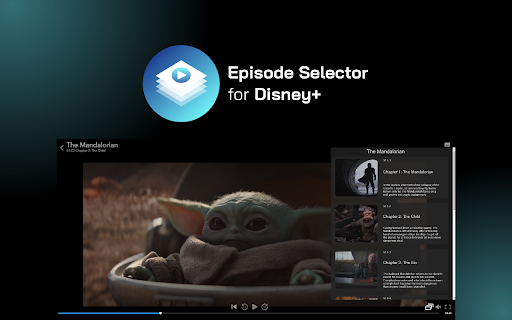


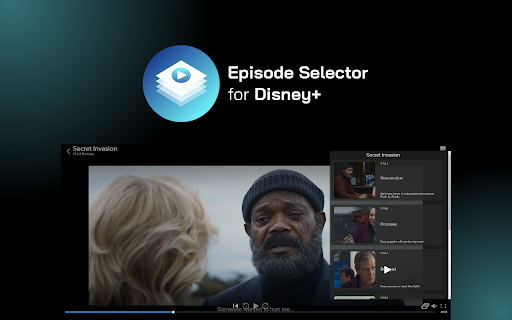
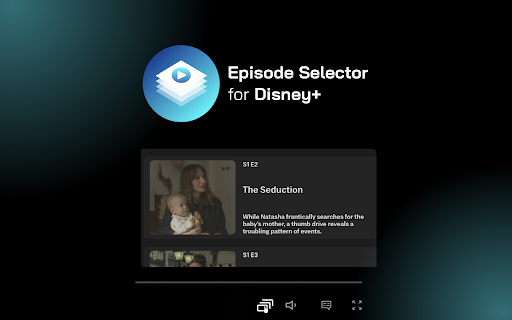
Extension adds an episode list button to select the episode while watching Disney+ series. Go to the next episode smoothly with Disney+ Episode Selector. No more searching for the series through the home page, no more going back and forth to change the episode. This extension improves Disney+ navigation by adding new Netflix-like button. Now you’ll be able to see the episode list and choose one of them. 1. Add the extension to your Chrome browser. 2. Go to Disney+ and pick a TV show to watch. 3. Navigate to the playback options (at the bottom of the player), and you should see new Select Episode icon. 4. Click on the select episode button to navigate through the episodes. The list will show available episodes. Entertainment shouldn't be complicated. Enjoy watching your favorite series with easy access to more episodes. ❗**Disclaimer: All product and company names are trademarks or registered trademarks of their respective holders. This extension holds no association or affiliation with them or any third-party companies.**❗

Best Volume Booster for Chrome
Struggling with quiet audio? Try Best Volume Booster for Chrome and amplify your experience! Have you ever watched a video or listened to your favorite tunes and felt like the sound was too quiet? 😕 You turned up the volume to the maximum and still weren't satisfied? 📉 Here's probably the Best Audio Booster for Chrome - the solution to the problem of silent audio tracks in all online media! 🚀 What is Best Audio Booster for Chrome? Best Audio Booster for Chrome is an innovative extension for the Chrome browser 🌐 that allows you to increase the maximum volume of audio and video played in Chrome browser. Easily adjust the volume using the 🎚️ slider or predefined buttons in the extension pop-up menu to achieve optimal sound levels. 🔊 You can also save the settings for any website you want! Functions: 🔹 Volume Boost: Adjust the volume according to your needs. 🔹 Predefined Levels: Choose from preset volume settings for quick adjustments. 🔹 Save function: Save your settings for any website. 🔹 Compatibility: Specially designed for Chrome browser. 1. Install the extension from the Chrome Web Store. 2. Open your favorite media in Chrome 🎬 3. Click the extension icon in the browser bar. 🖱️ 4. Use the slider or pre-defined buttons in the extension's pop-up menu to increase the volume. 🎧 ❗**Disclaimer: All product and company names are trademarks or registered trademarks of their respective owners. This extension has no affiliation or connection with them or any third party companies.**❗

Hulu Episode Selector: Hulu episode list.
Extension adds an episode list button to select the episode while watching Hulu series. Go to the next episode smoothly with Hulu Episode Selector. No more searching for the series through the home page, no more going back and forth to change the episode. This extension improves Hulu navigation by adding new Netflix-like button. Now you’ll be able to see the episode list and choose one of them. 1. Add the extension to your Chrome browser. 2. Go to Hulu and pick a TV show to watch. 3. Navigate to the playback options (at the bottom of the player), and you should see new Select Episode icon. 4. Click on the select episode button to navigate through the episodes. The list will show available episodes. Entertainment shouldn't be complicated. Enjoy watching your favorite series with easy access to more episodes. ❗**Disclaimer: All product and company names are trademarks or registered trademarks of their respective holders. This extension holds no association or affiliation with them or any third-party companies.**❗

Subtitle Reader works with Disney+
Independent software - not affiliated with Disney. Turn Disney+ subtitles into audio with text-to-speech in 13 languages. Subtitle Reader for use with Disney streaming - Listen to subtitles with text-to-speech ⚠️ Independent software - not affiliated with, endorsed by, or sponsored by The Walt Disney Company or Disney+. Disney and Disney+ are trademarks of their respective owners. Transform your Disney Plus viewing into an auditory experience. Subtitle Reader uses text-to-speech to convert subtitles into spoken voice, adding a new accessibility layer for language learners, multilingual audiences, and anyone who prefers listening to reading. Install the extension in Chrome Control everything from the popup panel Adjust volume and pitch Switch between male and female voices Reset to defaults with one click Toggle the extension on/off instantly Ideal for language learners, accessibility needs, or anyone who wants a new way to enjoy Disney Plus Enjoy Disney+ in a new dimension where subtitles become audio - making your viewing more inclusive and immersive.

Customized subtitles, works with Paramount+ [QVI]
Independent software not affiliated with Paramount. Customize Paramount+ subtitles with fonts, colors, size and backgrounds. SubStyler for use with Paramount streaming - Customize subtitles and captions ⚠️ Independent software - not affiliated with, endorsed by, or sponsored by Paramount Global or Paramount+. Paramount and Paramount+ are trademarks of their respective owners. Wake up your inner artist and express creativity by customizing Paramount Plus subtitle style. Even if you usually do not use captions, you may start after exploring all the settings this extension offers. Now you can: Add text outline and select its color Add text background, choose its color and adjust opacity Feeling artistic? All colors can be selected from a built-in color picker or entered as RGB values, creating almost endless style possibilities. Take subtitle customization to the next level with SubStyler for Paramount. Too many options? No worries - start with basic settings like text size and background. All you need to do is add the SubStyler extension for Paramount, open the control panel, and adjust subtitles to your own preferences. It is as simple as that. This extension is part of the Quality Viewership Initiative, a collaborative effort to enhance the understanding of audience engagement. It collects anonymous, aggregated viewing insights to support creators and studios in improving the quality of their content. You can stop sharing your information at any time by switching the toggle on the options page.
