
iknjnejdhiihfdoocnefildgbjgaeocf

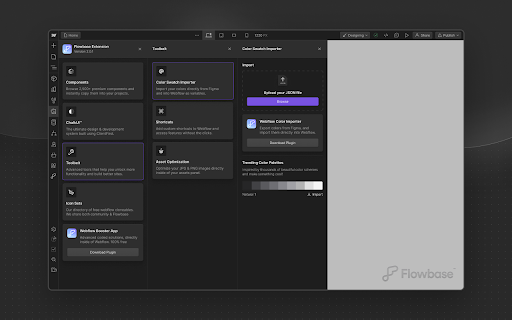
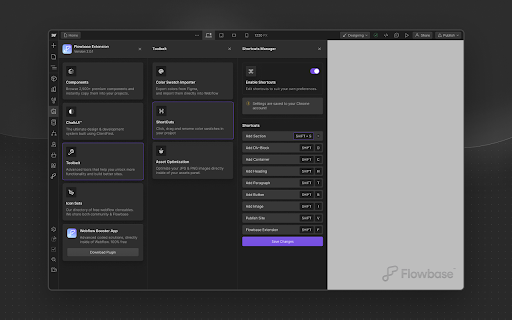
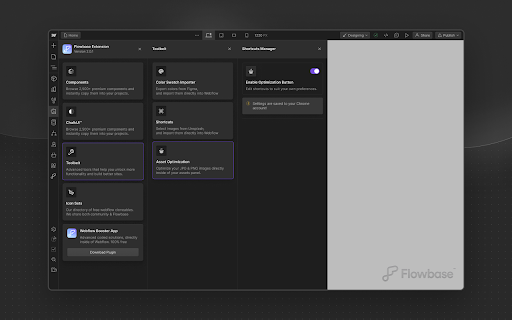
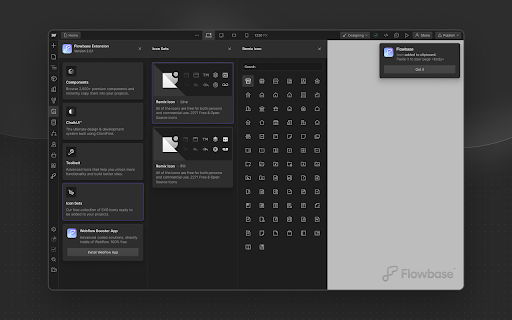
Unlock advanced features directly inside of the Webflow designer. Copy from thousands of components, free icon packs and much more! The Flowbase Chrome Extension unlocks powerful features directly inside your Webflow Designer. Instantly copy from thousands of components, wireframes, icons, and more—without ever leaving the Designer. ✓ 3,500+ components at your fingertips – Instantly copy and paste high-quality layouts like navigations, footers, headers, and more—without ever leaving the Webflow Designer. ✓ Thousands of SVG icons – Add icons in seconds and easily customize them using Webflow’s native color tools. Apply hover effects and color changes with complete control. ✓ Complete Webflow Wireframe System – Build faster and more consistently with a robust library of utility elements and wireframe components—designed to help you create clean, scalable websites with ease. Build better, build faster with Flowbase.

Hotkeys for Webflow
Adds hotkeys and dashboard for Webflow. Hotkeys for Webflow offers two main functionalities. 1. Adds shortcuts for your most commonly used elements, like Div, Button, Heading, etc. 2. Your activity is visualized in the dashboard. When you create elements using shortcuts provided by this extension, your actions are recorded and contribute to your activity metrics. Here is a small overview of the most commonly used shortcuts: SHIFT + 'D': Insert a Div Block SHIFT + 'B': Add a Button SHIFT + 'U': Add a Paragraph (P is already used by Webflow) SHIFT + 'C': Create a Collection List SHIFT + 'T': Insert a Text Block SHIFT + 'H': Add a Heading SHIFT + 'I': Insert an Image SHIFT + 'L': Add a Text Link SHIFT + 'K': Create Rich Text SHIFT + 'F': Insert a Form SHIFT + 'Q': Add an HTML Embed SHIFT + ':': (colon) Finsweet Custom Code

Webflow Collection Reorder
Effortlessly rearrange CMS collection items in Webflow with a simple drag and drop interface. ## Overview Welcome to the Webflow Collection Sorter Chrome extension! If you use Webflow to build websites, you know it can be tedious to manually sort the items in a CMS collection. That's where our extension comes in. With Webflow Collection Sorter, you can easily and quickly rearrange the order of your CMS collection items using a simple drag-and-drop interface. No more wasted time trying to manually sort your collection items - just install the extension and organise your content. 1. Once you have installed the Chrome extension, you will see a new "Sort" button on the collection listing page in Webflow. 2. Before you can use the Sort button, you need to make sure that your Collection has a "Sort Order" number field. Note that the field type should be “Number” and the field name should exactly be “Sort Order”. If this field is not present, you will need to add it in order to enable the "Sort" button. 3. Click the "Sort" button to open the modal. The modal displays only the Name, Slug, Sort Order, and Creation Date fields. 4. You can sort the collection items by dragging and dropping them into the desired order. When you are finished, click the "Save" button. 5. The "Sort Order" field will be updated for each collection item to reflect the new order of the items. 6. To view the updated order on the front-end of your website, make sure that your collection is sorted by the "Sort Order" field. This will ensure that the order is displayed correctly on the front-end pages.

xSync by xAtom
A Chrome extension to prevent class duplication when pasting in Webflow. 🚀 Introducing xSync: Revolutionize Your Webflow workflow! A Chrome extension to prevent class duplication when pasting in Webflow. Leave behind the hurdles of duplicating classes. Let xSync handle it for you, empowering you to focus and complete what you started. xSync eliminates the hassle of duplication and disarray, ensuring your projects are perfectly synchronized every step of the way. No more duplicated classes or disconnected variables – with xSync, your workflow becomes as smooth as silk. 1. Installation Made Easy: Get started by installing the xSync Chrome Extension – the first step towards an exciting experience. 2. Accessible Anywhere: Pin xSync to your toolbar for quick and easy access whenever you need it. 3. Activate with Ease: Toggle the switch in your toolbar to activate xSync and unleash its full potential. 4. Precision Copying: Seamlessly copy elements from Webflow Project A with pinpoint accuracy. 5. Effortless Merging: Merge worlds effortlessly by pasting elements into Webflow Project B with pasting it. 6. Experience the Magic: Watch as everything aligns perfectly with the "syncing" message – it's like magic for your workflow!

Wizardry Technique Converter
Keyboard shortcuts for EM, REM, and Percentage conversions in Webflow PX TO EM / REM - SHORTCUT type in any px value without the px unit example: 967 space enter
