
ijhldhllagnncjaagnhnlodcgjeiohjo
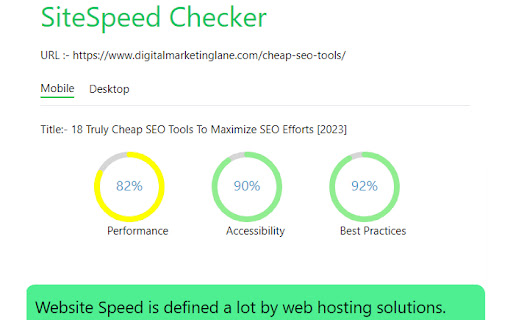
Displays page load speed using Google PageSpeed Insights API Site Speed Checker is a powerful SEO Chrome extension that helps you measure the loading speed of any website. With Site Speed Checker, you can quickly determine how fast a website loads, and identify any issues that may be slowing it down. 1. Measure the loading speed of any website with just one click 2. See detailed information about the website's loading time, including the time to first byte, total load time, and more 3. Identify any issues that may be slowing down the website, such as large images or slow server response times 4. Compare the loading speed of different websites to see how they stack up against each other 5. Use the extension to optimize your own website's loading speed and improve user experience Whether you're a website owner, marketer, or developer, Site Speed Checker is an essential tool for optimizing website loading times and providing a better experience for your users. Try it today and see how it can improve your website's performance!

Pagespeed Test - cmlabs SEO Tools
Pagespeed Test is a tool to helps you monitor the webpage performance on desktop and mobile devices based on several metrics. Introducing PageSpeed Test, a cutting-edge and free tool designed to revolutionize your website's performance monitoring. This tool empowers you to examine your website's speed metrics, ensuring optimal user experience across desktop and mobile platforms. PageSpeed Test leverages the power of Lighthouse integration to offer a comprehensive assessment of various performance indicators; performance, accessibility, best practices, SEO, and PWA (Progressive Web App). Download and try now! This tool is available for free. With this tool, you can assess website performance based on several metrics: 1. Performance Ensure that your web pages are optimized for users so that they can see and interact with your website. Several metrics affect web page performance ratings, including: Core Web Vitals, in the performance assessment, you'll see some metrics such as: (a) First Contentful Paint or FCP: the time it takes for the first text or image to appear on a website. (b) Largest Contentful Pain or LCP: how long it takes the website to load the largest elements on the page such as images or long text. (c) Cumulative Layout Shift or CLS: measures the stability of the content on the website. (d) Time to Interactive or TTI: The time it takes the website to load most of the content until the website can respond to user input quickly (ideally less than 50ms). (e) Speed Index: The time that shows how fast the loading process is until all pages can be displayed clearly in the viewport. (f) Total Blocking Time or TBT: The total time the page was unable to respond to user input. 2. Accessibility To assess how easily users can access your page, especially for users with physical or cognitive disabilities. This tool will check your HTML tags, alt tags, ARIA landmarks, and others. 3. Best Practice To examine some areas for improvement of your overall website and keep your website secure, create a good user experience, avoid using outdated technology, and more. 4. SEO This tool also allows you to see if your web pages have been optimized to rank better in organic search. 5. PWA This tool also provides validation results for the Progressive Web App (PWA) aspects to ensure the website can be accessed quickly from various locations and types of devices. 1. Go to PageSpeed Test Page Starting from adding the URL to be checked for page speed, displaying the results of the page speed check, to the page speed checking history that you have done before. 2. Enter Website URL Make sure you have entered the URL in the correct format (e.g. https://example.com). Next, click the "Generate" button to give the command to this tool to start checking page speed on the website. 3. PageSpeed Check Result Analysis You need to wait a while until the PageSpeed Test assessment process is complete. Some of the metrics you can find in your results are: (a) Performance: Showing the test results of core web vitals metrics, time to interact, total blocking time, to speed index. (b) Accessibility: It is assessed based on how easily the website can be accessed by users. (c) Best Practice: Contain information on whether your website has implemented best practices in website creation. (d) SEO: The following report will contain information on whether your website has been optimized on search engines or not. (e) PWA: You will see whether your website has met the Progressive Web App (PWA) criteria. If the website has not implemented PWA optimally, this can be a sign that you have found a space that needs to be improved on your website. 4. View PageSpeed Test Usage History The last thing you can do using PageSpeed Test is look at your history of using the tool. In the list, you will see a list of website URLs that you have checked using the PageSpeed Test tool from cmlabs. 5. Login After 5 Times of Use If you have used it 5 times, our system will automatically display a message stating that you have reached the usage limit. You can log in by clicking the login button on the warning message that appears. We value your feedback! If you have any suggestions for improving Pagespeed Test or encounter any issues while using the tool, please don't hesitate to let us know. Our support team is here to help. Reach us by email at:

Page Load Timer
Shows page load time in the toolbar and alerts when performance drops. This extension measures page load time and displays it in the toolbar automatically. It also shows alert whenever page performance goes down. Navigation Timing API is used for precise measurement. How to use: 1. Add plugin to browser. 2. Pin the plugin to the toolbar. 3. Now open any website and it will automatically show the page load time on it's logo itself. 4. You can view and download the report for the last 100 opened webpages. 5. Feature to whitelist and blacklist website is available under settings which will help to run plugin only on particular website and show time for them. 6. User can set the max load time as well. If load time of page exceeds max load time, it will show alert. Please follow this video for live demo- https://www.youtube.com/watch?v=txDT87bUJg8 If you have any query or face any problem, please send us an email at support@selectorshub.com

Website page speed test
One-click website page speed test — instantly view page load time details and understand overall website performance. 🚀 Test website page speed easily Do you want to know how fast your webpage is? The Website page speed test is the perfect tool for testing your site’s page load speed. With just one click, you can get detailed insights of your website performance. This easy-to-use tool helps you improve the web page performance test and make your site faster. A fast-loading webpage is essential to keep visitors engaged and satisfied. A fast webpage is crucial for a better user experience. Here’s why website speed test is important: ➡️ Faster webpages improve user satisfaction ➡️ Page load speed affects SEO rankings ➡️ Slow webpages lead to higher bounce rates ➡️ Faster sites result in more conversions ➡️ Search engines prioritize fast-loading sites in their rankings 🧩 Core features of the website page speed test extension 1️⃣ Instant load time in the Chrome toolbar Quickly check the current page timing analytics of any site via the extension icon in the toolbar. 2️⃣ Full load time breakdown Analyze key stages with this site speed test: ➤ DNS ➤ Connect ➤ Request & Response ➤ Content loading ➤ External resources ➤ Execute scripts 3️⃣ One-click data copy Easily export your web page speed test results into docs or spreadsheets. 📈 A simple and effective way to understand and improve your website loading speed. By using this tool, you can identify problem areas on your site and make adjustments that enhance the overall performance of your site. Whether you're running a blog, an e-commerce platform, or a corporate website, this tool is essential. 📊 How the tool works If you want to check speed of a website, then: 1️⃣ Install the extension in one click and pin it to your Chrome toolbar 2️⃣ Open the webpage you want to test 3️⃣ After the site displays completely, check the webpage load data on the extension icon 4️⃣ Click the icon to view a detailed website performance breakdown 5️⃣ Copy all data instantly to your document or Excel file 6️⃣ Use these insights to fix specific issues and improve site performance 7️⃣ Run the website speed test regularly to track changes and optimize further 🛠️ This step-by-step flow helps you stay in control of your page speed and overall website efficiency. 📍 Benefits of using the website efficiency test tool The tool provides many benefits: 🔹 Easy one-click performance checks 🔹 Helps identify slow loading elements 🔹 Boosts and check website speed and SEO 🔹 Improves user experience and reduces bounce rates 🔹 Tracks site performance test results over time 🔹 Provides clear recommendations for improvement 🔧 How to improve page load speed Once you’ve run the test, here’s how to improve page load speed: 🔸 Optimize images 🔸 Minimize JavaScript and CSS files 🔸 Enable browser caching 🔸 Use a Content Delivery Network (CDN) 🔸 Reduce server response time 🔸 Compress resources like images and videos 🔸 Switch to a faster hosting provider Each of these steps helps to reduce the page performance, improving both user experience and SEO. ⚡ Why page performance affects conversions A slow site can negatively impact your business: 📍 A page load time delay of just 1 second can reduce page views by 11% 📍 A delay of 2 seconds can increase bounce rates by 32% 📍 A 4-second delay can lead to a 75% drop in conversions 📊 Who benefits from the website page speed test? Anyone can benefit from the site speed test tool: 💡 Web developers optimizing site performance 💡 Business owners ensuring fast loading times 💡 SEO experts looking to boost rankings 💡 Marketers aiming to improve conversions 💡 Content creators ensuring media loads fast 💡 E-commerce platforms improving customer experience 💡 Bloggers who want fast loading times to attract more readers Q: How often should I check page speed? A: Test your site regularly, especially after major updates or changes to ensure optimal performance. Q: Does this tool suggest improvements for page load time? A: Yes! The website speed test helps you quickly identify the exact reasons behind slow website performance. By breaking down key metrics like page load time, DNS, and content load stages, this website performance test reveals where delays occur. This allows you to fix issues fast and improve your site speed with targeted optimizations. Q: Is this tool free to use? A: Yes! The website tester is available for free with no hidden costs. The website page speed test is an essential tool for anyone who wants to improve their website’s speed. Regular testing ensures that your webpage remains fast and optimized for both users and search engines. Start using the tool today to improve site performance and get better results!

Website SEO Checker
Get free on-page SEO report by 100+ parameters with the best website SEO checker ☑️ Overview – quickly check essential SEO data: URL structure, metadata, indexation, and canonical settings. ☑️ Content – analyze headings, keyword density, text length, and text-to-code ratio for better structure. ☑️ Links – identify external, internal, and subdomain links, plus dofollow/nofollow status and anchor text. ☑️ Hreflangs – instantly verify hreflang setup and language targeting for international SEO. ☑️ Images – detect missing alt/title tags, broken images, and check sizes with on-page highlighting. ☑️ Structured Data – instantly identify and validate Schema.org markup for better SEO performance. ☑️ PageSpeed – measure mobile and desktop performance with actionable optimization insights. ☑️ GSC+GA4 Insights – assess search performance & indexing plus user behavior and conversion metrics. ☑️ Issues & Monitoring – detect SEO issues, track technical changes, and monitor page updates over time. Deep dive into Sitechecker Chrome Extension’s capabilities to unlock the full potential of your SEO workflow. 1️⃣ Get a quick technical overview of any page to ensure it meets SEO best practices. • Inspect URL structure, status code, and page size. • Review meta title, description, and H1 heading. • Analyze indexation settings, including robots meta tags, X-Robots-Tag directives, and robots.txt rules. • Validate canonical tag settings to prevent duplicate content issues. 2️⃣ Analyze content structure to improve keyword relevance and readability. • Review heading hierarchy (H1–H6) and highlight them on the page. • Copy the entire heading structure in one click for easy documentation. • Measure text length in words and characters. • Calculate text-to-code ratio to optimize content efficiency. • Get keyword density insights for single, two, and three-word phrases. 3️⃣ Audit all links on a page to improve internal linking and track external references. • Detect external, internal, and subdomain links. • Check dofollow/nofollow status and analyze HTTP response codes. • Review anchor text usage and link destinations. • Search for specific links and highlight them directly on the page. • Copy all detected links in one click for easy analysis and outreach. 4️⃣ Ensure proper hreflang implementation for international SEO. • Detect missing or incorrect hreflang attributes. • Validate language targeting and regional settings. • Check backward links to confirm proper hreflang setup. 5️⃣ Optimize images to improve SEO and user experience. • Identify missing alt and title attributes. • Detect broken images and oversized files. • Highlight image details directly on the page for easy fixes. 6️⃣ Validate structured data for better search visibility. • Detect Schema.org markup and review structured data implementation. • Identify missing or incorrect structured data elements. • Ensure key rich snippet attributes are correctly applied. 7️⃣ Measure page speed and get actionable insights for optimization. • Check page loading speed for desktop and mobile. • Identify slow-loading elements affecting performance. • Get recommendations to improve Core Web Vitals. 8️⃣ Unlock real-time GSC + GA4 insights to track performance, user behavior, and conversions. • View clicks, impressions, CTR, and average position over 7/30/60/90 days. • Analyze top search queries and how they drive traffic. • Inspect URL crawling, indexing status, and mobile usability issues. • Measure user behavior with engagement metrics like bounce rate and average session duration. • Track conversions with key events and key event rate. • Break down performance by traffic source (Google Organic, Direct, Social, Bing, etc.). 9️⃣ Monitor SEO issues and track page changes over time. • Detect technical errors, broken links, and missing metadata. • Track content updates and structural modifications. • Get alerts for critical SEO changes.
