
igjamfnifnkmecjidfbdipieoaeghcff
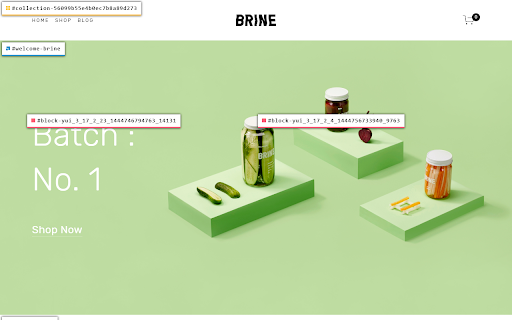

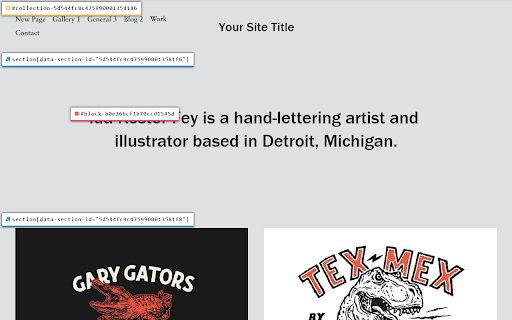

Find the ids of collections, sections, and blocks on your Squarespace page. Works with both 7.0 and 7.1. Don't waste time searching through the code with dev tools looking for an id. Click on the icon to see every id from collections, index pages, sections, and blocks on your Squarespace page. Then, you can simply click on the id to copy it and use it in your own code.

Muzli - Design inspiration hub
Your daily dose of design with industry news, tools, and inspiration - all in one place. Muzli takes the center stage as it replaces your default tab and becomes your simple and beautiful design oriented home page. Loved by hundreds of thousands designers worldwide, Muzli is the leading go-to browser extension for creative professionals. Once installed, Muzli becomes your visual hub for the latest and most cutting-edge Design, UI, UX, and interactive content. It serves daily content from all major design and inspiration sources that ensures you will never miss the next big thing. Plus, our hand-picked, professionally curated "Muzli Picks" journal ensures you're treated to the crème de la crème of design inspiration. You can always make Muzli personalised, by choosing from over 160+ creative design sources that cater to your unique interests, so you can always find the content that resonates with you the most. We always try to deliver a design-centric browsing experience that ensures you will always keep up with the creative realm and make your exportations feel seamless.

Savvy by Squarestylist
AI-powered CSS and JavaScript help for Squarespace designers Savvy is an AI-powered coding assistant that helps Squarespace designers write custom CSS and JavaScript code. HOW IT WORKS 1. Open the Savvy side panel on any Squarespace page 2. Click the pointer tool and select an element 3. Describe your desired customization and attach images for reference 4. Copy the generated code to Squarespace 5. Ask Savvy to refine when needed FEATURES • Visual Element Selection: Click any element on your Squarespace page to select it • AI-Powered Code Generation: Describe your design goals and get production-ready code • Works with Custom Domains: Use Savvy on the default Squarespace domain or any connected custom domain • Fully Scoped Code: Every code suggestion is scoped to your selected element's section or block to avoid unintentional site-wide style changes • Smart Code Suggestions: Savvy uses Squarespace's native style variables, so your custom code adapts automatically when you change colors, fonts, or site styles • Save Snippets: Store your favorite code snippets for reuse across projects • Chat History: Keep track of all your conversations and solutions SQUARESPACE-SMART • Recognizes Squarespace block types • Understands Squarespace's unique CSS structure and code patterns • Uses native style variable so code adapts to theme changes • Suggests reusable code that works across sections PERFECT FOR • Squarespace designers who want to customize beyond the built-in options • Web developers looking to speed up their Squarespace workflow • DIY website owners who need help with custom styling REQUIREMENTS • A Squarespace website (works with both 7.0 and 7.1) • A Savvy account (free tier available)

Font Finder
An easy-to-use font inspector to get CSS styles of the selected element FontFinder is created for designers, developers, and typographers. It allows a user to analyze the font information of any element and copy any pieces of that information to the clipboard. Font Finder examines all the selected characters to detect the font used to display this particular character. 1. Analyze any font on the active page. 2. Copy any piece of the element's information to the clipboard 3. Any active element can have any piece of the font's options (such as color, size, or family) adjusted inline Access these options by right-clicking the context menu over the selected text or right-clicking on the page and inspecting the element. Information Captured: 1. Font color (RGB and HEX) 2. Background color (RGB and HEX) 3. Font family (including actually rendered font!) 4. Font size 5. Line height, vertical alignment, letter, and word spacing 6. Font weight, style, variant 7. Text transform, decoration, align and indent 8. Element's type, class, and ID 9. Displays remote and local tags next to the rendered font Tools: Replace or change font family. Use custom fonts. Get the list of all fonts in the current frame. Notes: You can change the window opening mode to embedded mode from the right-click items over the toolbar button. This mode helps use the extension in full-screen mode.

WhatFont
The easiest way to identify fonts on web pages. Say goodbye to the complexity of developer tools for identifying fonts. With WhatFont, discovering the fonts used on websites becomes as effortless as hovering over text. Want more details? A simple click on any element reveals the styles applied, making it easier than ever to uncover the secrets behind beautiful typography. Recommended by Wired WebMonkey, Lifehacker, and SwissMiss. History: • 3.2.0 - Improved toolbar icon compatibility • 3.1.1 - Removed unnecessary developer logging • 3.1.0 - Added multiple color format support • 3.0.1 - Restored escape key to exit • 3.0.0 - Completely Rewritten: The entire extension has been rebuilt for better performance and usability. - Updated Permission Model: We've revised permissions to better respect user privacy while maintaining functionalities. - Refreshed Appearance: The look has been updated for a more modern feel. - Isolation from Host Website Styling: Ensures WhatFont's appearance is unaffected by the website it's used on. - Adaptive Toolbar Icon: The toolbar icon now changes based on the system's appearance settings. - Support for New CSS Color Values: Enhanced support for the latest CSS color values. • 2.1.0 - A new design thanks to Siddharth Mate • 2.0.3 - Retina toolbar icon • 2.0.2 - Fix option page for button styles • 2.0.1 - Use native screen capturer • 2.0 - Improved sharing • 1.7 - Added font services detection for FontDeck (Thanks to Mark Perkins) - Improved font detecting algorithm - Improved overall performance • 1.6.1 - Added color detection for text • 1.6 - Added a tweet button for instant sharing through Twitter - Improved style reseting • 1.5 - Overall restyling • 1.4.4 - Supported light icon for dark themes • 1.4.3 - Fixed a bug related to Typekit service detection • 1.4.2 - Reduced loading time - Supported HTTPS protocol • 1.4.1 - Fixed stylesheet bug • 1.4 - Restructured source code - Supported font services detection for Typekit and Google Font API - Fixed toolbar button bug. Second click is now "Exit WhatFont"
