
ifnlkhhhhklpmjjbdpnpenpgbndniedg
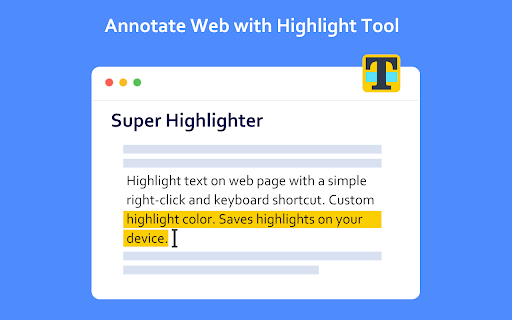
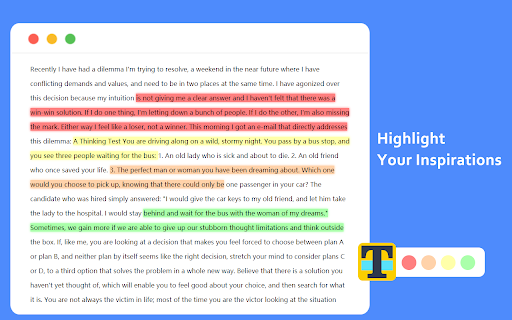
Highlight text on web page with a simple right-click and keyboard shortcut. Custom highlight color. Saves highlights on your device. Highlight text on websites with a simple right-click or keyboard shortcut. Saves highlights on your device. Easiest way to highlight text on any webpage! Simply select text, then right click it to select the "Highlight" option. Alternatively, use the default keyboard shortcut 'Alt+H'. You can customize the colors of the highlighter, and you can switch these colors through shortcut keys. You can customize shortcut keys and use all functions without mouse. All highlighted texts are saved so that your highlights are not lost when exiting a page! Simply re-opening that page will bring back all the highlights.

SmartCopy All-in-One Copy Tool
One-click to bypass webpage copy restrictions, Smart copy of website tab. with auto-copy of selected text and super copy features. SmartCopy is a powerful Chrome extension designed to enhance your browsing experience. It can help you crack the webpage prohibition of copying, prohibiting right-clicking, prohibiting selection, prohibiting pasting with one click, intelligently copying the website tab title and URL, and providing automatic copying of selected text and super copy functions. In addition, it also includes a complete clipboard history system, allowing you to view and reuse previously copied content at any time. Copy current tab: copy the currently browsed tab information with one click Copy all tabs: Copy all tab information of the current window at once Multiple Format Support: Supports multiple copy formats, including: - Title - URL - Title only - URL only - Markdown format - HTML link - [Title] URL - CSV format - JSON format - HTML Table - Automatically copy selected text: Once enabled, just select the text on the web page to automatically copy it to the clipboard - Minimum character limit: You can set the minimum number of characters for automatic copying to avoid accidental copying - Copy format selection: support copying in plain text or Markdown format to meet the needs of different scenarios - History management: save all the content you copied so that you can view and reuse it at any time - One-click repeat copy: click on the item in the history to copy it again - Clear history: Clear all history records with one click Super Copy can automatically break the restrictions of copying, right-clicking, selecting, pasting, etc. on web pages, allowing you to freely copy content on most restricted pages. 1.4.1 Switches and default behavior - Global default off: After the extension is installed, the super copy function is turned off by default. - One-click switch: You can turn on/off this function at any time by clicking the "Enable super copy function" switch. - Floating button display control: Users can customize whether to display the floating button of the super copy on the page in the advanced settings - Hidden by default: The floating button is set to not be displayed by default to avoid interfering with normal browsing - Global effect: This setting is effective for all websites. Once set, it will be applied globally - Drag to adjust: When the floating button is displayed, you can drag the button to adjust its position - Global Memory: After switching the super copy switch, the extension will automatically remember your global settings and will remain effective after refreshing the page or restarting the browser. - Site Personalization: Supports turning on or off super copy for specific websites, which takes priority over global settings. - Alt+1: Copy the current tab - Alt+2: Copy all tabs - Alt+3: Toggle automatic copy function - Alt+4: Open clipboard history - Automatic language detection: automatically switch the interface language according to the browser language - Multi-language interface: supports simplified Chinese, traditional Chinese and English interface - Manual switch: You can manually select your preferred interface language in the settings - Full internationalization: all interface elements, prompts and notifications support multi-language display 1. Click the extension icon to open the pop-up window 2. Select your preferred format in the "Default copy format" drop-down menu 3. Click the "Copy Current Tab" or "Copy All Tabs" button 4. The content will be automatically copied to the clipboard and a success notification will be displayed 2.2 Using the automatic copy function 1. In the extension pop-up window, toggle the "Automatically copy selected text" switch 2. Select your preferred copy format: - Plain text: Copies the original text content without retaining formatting - Markdown: Convert the selected content to Markdown format, retaining basic formatting and links 3. When you select text on a web page, the text is automatically copied to the clipboard in the selected format 4. A notification will appear to confirm that the text has been copied SmartCopy now provides an enhanced automatic copy function for selected text, allowing you to copy content more intelligently and flexibly when browsing the web: - Multiple format support: You can choose to copy content in plain text or Markdown format - Intelligent format retention: In Markdown mode, the basic format of the original text will be retained as much as possible 1. Enable the function: Enable "Automatically copy selected text" in the extension pop-up window 2. Select the format: In Advanced Settings - Automatic Copy Settings - Select Text Copy Format - Select "Plain Text" or "Markdown" in the drop-down menu 3. Copy content: Select any text on the web page and the system will automatically copy it to the clipboard in the selected format 4. View the results: Paste into any editor to view the copied content - Preserve the basic structure and format of the web page - Automatically convert HTML to Markdown format - Automatically process common web page formats, such as titles, lists, quotes, code blocks, links, images, unordered lists, ordered lists, separators, tables, etc. - Content creation: retain formatting and links when collecting materials from web pages to improve work efficiency - Information organization: Organize web page content into Markdown notes to keep the structure clear - Document writing: quickly extract content from web pages into Markdown documents to reduce formatting work 1. Click the "Clipboard History" button in the extension popup 2. On the History page, you can: - View all copied content - Click the Copy button below the item to copy the content again - Click the Delete button to remove a single item - Click the "Clear History" button to delete all history records 1. Click the "Super Copy" button in the extension popup 2. Use the switch button to enable or disable Super Copy. 3. If you want to display a floating button, you can turn on the "Display floating button on the page" option in "Super Copy Settings". 4. If you need to set it up separately for a specific website, just switch the Super Copy under that website. 5. The settings will be automatically memorized without manual saving. - Alt+1: Copy the current tab (using default format) - Alt+2: Copy all tabs (using default format) - Alt+3: Enable/disable automatic copy function - Alt+4: Open the clipboard history page Click the "Advanced settings" link at the bottom of the extension popup to access more settings options: - Minimum number of characters: Set the minimum number of characters for the automatic copy function - History limit: Set the maximum number of clipboard history records to save - Floating button display: Controls whether to display the super copy floating button on the page - Added three new interface languages: English, Simplified Chinese, and Traditional Chinese - Support automatic detection of browser language and switching interface - Support manual selection of preferred language in settings - All interface elements, prompts and notifications support multi-language display - Enhance the stability and compatibility of HTML to Markdown - Improved handling of complex HTML structures - Fixed the issue that HTML to Markdown conversion failed on some websites - Optimize the quality of Markdown format output - Improved the display logic of successful copy notification - Fixed the issue where variables in the prompt message were not replaced correctly when "Copy all tabs" was selected - Optimize the internationalization of notification messages - Improved Super Copy compatibility on more restricted sites - Optimize the dragging experience of the super copy floating button - Improved memory of site specific settings - Added floating button display switch: Added "Super Copy Settings" section in Advanced Settings, where users can customize whether to display the floating button - Default hidden design: The floating button is set to be hidden by default to avoid interfering with the normal browsing experience - Global validity mechanism: This setting is valid for all websites, and it is applied globally once it is set - Multi-language support: fully supports simplified Chinese, traditional Chinese and English interface - Real-time effect: setting changes take effect immediately, without restarting the extension or refreshing the page Q: Why is the text not copied automatically after I select it? A: Please confirm the following points: - Auto-copy is enabled (check the switch status in the extension popup) - The selected text exceeds the minimum character limit (the default is 5 characters) - You are not selecting text in an editable area (such as an input box) A: In the extension pop-up window, after enabling the "Automatically copy selected text" function, you can select "Markdown" format in the drop-down menu in Advanced Settings - Automatic Copy Settings - Selected Text Copy Format, and then the selected content will be automatically copied to the clipboard in Markdown format. A: Markdown format copy will preserve the following formatting as much as possible: Q: Why doesn't the HTML to Markdown function work on some websites? A: The HTML to Markdown function depends on the HTML structure of the webpage. In the latest version, we have greatly improved the compatibility, but you may still encounter problems on some special websites. If you find that the conversion effect is not ideal on a certain website, you can try the following methods: 1. Make sure you are using the latest version of the SmartCopy extension 2. Try to select a smaller range of text to copy 3. For complex web page structures, you may need to select and copy them in sections 4. If the problem persists, please report it to us through the feedback channel and we will continue to optimize this feature. Q: How to completely clear the clipboard history? A: On the Clipboard History page, click the "Clear History" button, then click "OK" in the confirmation dialog box. This will permanently delete all history. A: No. Clipboard history is only saved on the current device and will not be synced to your other devices. Q: How to control the display of the super copy floating button? A: You can control the display of the floating button by following the steps below: 1. Click the extension icon to open the pop-up window 2. Click the "Advanced Settings" link at the bottom 3. In the "Super Copy Settings" section, find the "Show floating button on page" switch 4. After turning on this switch, all web pages will display the super copy floating button 5. After turning off this switch, the floating buttons of all web pages will be hidden 6. The settings will be automatically saved and take effect immediately Note: The floating button is hidden by default to avoid interfering with your normal browsing experience. SmartCopy respects your privacy: - All data is stored only on your local device - No data is sent to external servers - No personal information or browsing history is collected - Request only necessary permissions to achieve its functionality 6. Feedback and Support If you have any questions, suggestions or feedback, please leave a message. Thank you for using SmartCopy!

Highlight Text Online
Use Highlight Text Online extension to highlight and save key info on any website. A smart and simple web highlighter tool. Tired of losing track of important information while reading online? With Highlight Text Online, you can effortlessly mark, organize, and revisit essential content across any website. Whether you're a student, researcher, blogger, or everyday reader, this web highlighter extension helps you stay focused and organized. Highlighting content isn't just for books and PDFs anymore. Bring the power of physical highlighters to your browser with this intelligent and free text highlighter online tool. 📍 Why Choose Highlight Text Online? Whether you're looking to highlight text online free, save quotes, or study effectively, this tool offers a clean and reliable solution. It's more than just a highlighter app—it’s your digital memory aid across the web. Use it to: 1️⃣ Mark key paragraphs in blog posts 2️⃣ Save snippets from research articles 3️⃣ Emphasize takeaways from tutorials 4️⃣ Store quotes from forums 5️⃣ Organize ideas from news sources Key Features 💎 Easily highlight web content across all websites 💎 Save and revisit website highlights anytime 💎 Create multiple colors for categorization 💎 Export or copy marked text 💎 Compatible with dynamic and static pages 💎 Supports login-free usage — highlight text online free with no setup! Perfect for Research, Reading, and More 📌 This highlighting tool is ideal for: ➤ Students studying from online material ➤ Researchers collecting data from academic sources ➤ Writers gathering inspiration ➤ Professionals annotating reports ➤ Anyone who wants to highlight notes and never lose important information again Seamless Copy and Paste Support Want to move your underlines elsewhere? No problem. This extension allows you to: ✅ Copy and paste emphasis directly ✅ Organize them in your notes ✅ Sync them into your documentation ✅ Your highlight text copy and paste online workflow has never been easier! Cross-Site Marking Made Simple Unlike other basic tools, this highlighter for websites keeps your underlines saved across sessions and revisits. You don’t lose your data when the page reloads or when you close the tab. Perfect for users who regularly return to the same sites. Organize With Color and Context Structure your marks by color-coding: 🔹 Yellow for definitions 🔹 Green for action items 🔹 Blue for quotes 🔹 Red for critical info It’s a highlighting app that brings structure and meaning to your browsing. Free and Easy to Use No account required. No ads. Just install and start using this highlight extension right away. It’s a reliable and easy-to-use text highlighter online free tool available today. Web Highlighter That Works Where You Work This highlighter online tool supports: ▸ News websites ▸ Online textbooks ▸ Forums ▸ Documentation portals ▸ Learning platforms Wherever you read, you can use this highlighting tool to capture and store what matters most. Make Studying and Learning More Effective Use it to improve your academic performance. Showcase, review, and recall faster while studying. It’s a must-have web highlighter for learners at all levels. 🧠 Minimalist Design, Maximum Utility The extension is designed with simplicity in mind. Lightweight, no bloat, just pure tagging power. Perfect for anyone who wants a clean, effective highlighter extension that doesn’t get in the way. Used and Loved by Users Across the Globe 🌍 From everyday readers to knowledge workers, Highlight Text Online is quickly becoming a favorite highlight tool for modern browsing. Stay organized, stay efficient, and stop losing key content in the noise of the web. Q&A Section Q: Can I mark on any website? A: Yes! This web highlighter works on most websites and dynamic pages. Q: Is it really free? A: Absolutely. Highlight text online free without registration or payment. Q: Can I copy and paste my notes? A: Of course! The tool supports highlight text copy and paste online functionality. Q: Will my emphasis stay saved? A: Yes. Your web highlights are preserved across sessions. Start using Highlight Text Online today and upgrade how you read, study, and organize knowledge. The internet is full of information—now you have a powerful way to highlight webpages and make the most of it. 📚

Amazing Screenshot and Annotate Tool
Capture screenshot of web page easily and conveniently, and the powerful graffiti allows you to edit screenshot as you like Amazing Screenshot screenshot and annotation tool is a simple, free screenshot capture extension that allows you to easily implement screenshots and annotation functions with just one click. Meet the requirements of high-quality, high-resolution screenshots, support PNG, JPG, PDF formats, built-in rich annotation tools, allowing you to easily edit screenshots, and you can also use it as a graffiti tool to edit web content at will . ✍Screenshot function: ☑︎ Screenshots of some areas ☑︎ Screenshot of the entire page ☑︎ Screenshot of the visible area ☑︎ Support saving screenshots in PNG, JPG, and PDF formats. ☑︎ Screen capture keyboard shortcuts ✍Screen shot annotation function: ☑︎ write text ☑︎ Obfuscate sensitive information ☑︎ Use arrows and stickers ☑︎ Include rectangular boxes or lines ☑︎ Picture cropping ☑︎ Insert picture ☑︎ Support saving screenshots in PNG, JPG, and PDF formats. privacy: We will not collect, store, use, transfer or sell your personal privacy information.

GlowText: Web Text Highlighter
Highlight and save interesting or useful text from any webpage with a single click. ## Transform How You Capture, Organize, and Revisit Web Content GlowText is a powerful yet intuitive Chrome extension designed for readers, researchers, students, and professionals who need to capture, highlight, and organize important information from across the web. With GlowText, you can transform how you interact with online content by creating a personalized knowledge repository of your most valuable web discoveries. GlowText makes capturing important text from any webpage as simple as selecting it. When you find valuable content: 1. Select any text on a webpage 2. Choose from our range of vibrant highlight colors from the floating toolbar that appears 3. The text is instantly saved and highlighted for future reference No complicated menus, no disruption to your reading flow—just seamless highlighting that works the way you expect it to. GlowText is engineered to be incredibly lightweight, ensuring it never slows down your browsing experience or interferes with your workflow. ### 🎨 Multiple Highlight Colors for Visual Organization Our extension offers a rich palette of highlight colors to help you visually categorize information according to your own system: - **Free Plan**: Access our essential Gray, Brown and Yellow highlight colors perfect for basic categorization - **Plus Plan**: Unlock Blue and Orange color ranges for enhanced visual organization - **Pro Plan**: Gain access to our complete professional palette including Red, Pink, Purple, and Green color families Each color family includes five carefully designed shades, giving you precise control over your visual organization system. GlowText doesn't just save your highlights—it remembers them. When you revisit a page where you've previously highlighted content, your highlights appear exactly as you left them. This creates a personalized reading experience that continues across browsing sessions, making the web feel like your own annotated library. ### 📱 Keyboard Shortcuts for Power Users Speed up your workflow with our convenient keyboard shortcuts: - **Cmd+Shift+S (Mac) or Ctrl+Shift+S (Windows/Linux)**: Quickly save selected text with your default highlight color - Additional shortcuts available for applying specific highlight colors These time-saving shortcuts allow you to capture important information without interrupting your workflow. The GlowText popup interface gives you an organized view of all your saved highlights: - View all your highlights in chronological order - See the source website for each highlight with direct link access - Filter and search through your highlights to find exactly what you need - Delete individual highlights or clear all when needed ### 📤 Export Your Knowledge Collection Your knowledge collection doesn't stay locked in the extension. Export your highlights: - **CSV Export**: Perfect for spreadsheet analysis or database imports - **JSON Export**: Ideal for developers or integration with other tools These export options ensure your collected knowledge remains portable and accessible wherever you need it. ### 💾 Local Storage for Your Highlights GlowText securely stores your highlights in your browser's local storage: - Your highlights are saved directly on your device for quick access - No reliance on external servers for your data - Privacy-focused approach keeps your highlighted content under your control ### 💼 Plans to Match Your Needs GlowText offers flexible subscription options to match your highlighting needs: **Free Plan:** - Store up to 50 highlights - Access to Gray and Brown color palettes (20 colors) - Enhanced export functions - Perfect for casual users or those wanting to try the service **Plus Plan:** - Store up to 500 highlights - All Free colors + Yellow and Blue palettes (25 colors total) - Enhanced export options - Ideal for students and regular readers **Pro Plan:** - Store up to 1000 highlights - Complete color palette access (45 premium colors) - Priority support - Advanced organization features - Designed for researchers, professionals, and power users GlowText is built with performance and reliability in mind: - **Ultra-Lightweight Design**: Minimal memory usage and processing power requirements ensure your browser stays fast and responsive - **No Workflow Disruption**: Works silently in the background without slowing down your browsing experience - **Compatible with Most Websites**: Works on blogs, news sites, documentation, and more - **Privacy-Focused**: We only access the content you explicitly highlight - **Offline Capability**: Save highlights even when not connected to the internet - **Regular Updates**: We continuously improve the extension based on user feedback We've carefully optimized every aspect of GlowText to ensure it never gets in your way - you'll forget it's even running until the moment you need it. ### 📘 Perfect for Students Students will find GlowText invaluable for: - Highlighting important passages in online textbooks and course materials - Creating study guides directly from web resources - Organizing research material by topic using different colors - Exporting highlights for inclusion in papers and study notes - Collaborating with classmates by sharing exported highlights - Capturing key insights from industry articles and reports - Highlighting important sections in documentation - Creating resource collections for projects - Maintaining a searchable database of industry knowledge - Sharing relevant findings with team members ### 🧠 Enhanced Learning and Research Researchers and lifelong learners leverage GlowText to: - Track evolving understanding across multiple sources - Create visual connections between related concepts using color-coding - Build a personal knowledge base of important discoveries - Revisit and refine understanding of complex topics - Export findings for integration into larger research systems ### 🌐 Works Across the Web - News and media sites - Blogs and online publications - Documentation and knowledge bases - Online books and PDFs - Forums and discussion boards - Social media platforms - And much more! ### 🔒 Your Privacy Matters We take your privacy seriously. GlowText: - Only accesses the specific text you highlight - Doesn't track your browsing history - Stores your highlights securely - Gives you complete control over your data - Makes it easy to export and delete your information 1. **Install the Extension**: Add GlowText to Chrome with a single click 2. **Select Text**: Highlight any text on a webpage that you want to save 3. **Choose a Color**: Pick a highlight color from the floating toolbar 4. **Access Anytime**: View all your highlights through the extension popup 5. **Export When Needed**: Download your collection in your preferred format No account creation or login required to get started - just install and begin highlighting! ### 🔧 Customize Your Experience GlowText can be tailored to match your workflow: - Enable/disable the highlight feature with a single toggle - Choose your default highlight color for keyboard shortcuts - Manage notification preferences - Customize the display of your saved highlights We're committed to making GlowText better with every update. Our development roadmap includes: - Cloud synchronization across multiple devices - Additional export formats - Enhanced organization options including tags and folders - Note-taking capability attached to highlights - Advanced search and filtering - Mobile application integration - API access for developers Our support team is ready to help you get the most out of GlowText: - Comprehensive documentation and tutorials - Email support for all users - Priority support for Plus and Pro subscribers - Regular updates based on user feedback - Community forums for sharing tips and tricks ### 🌈 Join the GlowText Community Join thousands of users who have transformed how they capture and organize web content. Whether you're a student trying to keep track of research, a professional staying updated on industry trends, or simply someone who loves to read online, GlowText provides the tools you need to highlight, organize, and revisit the content that matters most to you. Install GlowText today and start building your personal web knowledge repository! - **Compatible Browsers**: Google Chrome, Microsoft Edge, and other Chromium-based browsers - **Version**: 1.0.0 - **Size**: Under 2MB - **Permissions Required**: - Storage: To save your highlights - ActiveTab: To interact with the current webpage - Identity: For user authentication (optional) - Notifications: For highlighting feedback (optional, can be disabled) For support, feature requests, or bug reports, please contact us at: johnkim@enbil.net Visit our website for more information: https://glowtext.app ## About the Developer GlowText is developed by a passionate team of web enthusiasts who believe in making the internet more useful, personalized, and organized. Our mission is to create tools that enhance how people interact with online content, turning passive reading into active knowledge building. For detailed information about how we handle your data and the terms of using GlowText, please visit: https://glowtext.app/privacy https://glowtext.app/terms - **Featherweight Performance**: Carefully optimized to use minimal resources, GlowText runs so efficiently you'll forget it's installed - **Instant Functionality**: No account creation, no complicated setup – install and start highlighting immediately - **Non-Intrusive Design**: Our toolbar appears only when you need it and disappears when you don't - **Works Your Way**: Adapts to your reading and research habits instead of forcing you to change them - **True Privacy**: Your highlights stay on your device – we don't track or store your browsing history or selections Unlike many browser extensions that slow down your web experience, GlowText was built from the ground up with performance as a core principle, ensuring that your browsing remains lightning-fast even with the extension enabled. #GlowText Chrome Extension v1.0.2 - Update Summary - Manual Sync Feature: Added a "Click here to sync" button that allows users to manually sync their login state from the GlowText website to the extension - Automatic Detection: Extension now automatically detects when you're logged in on glowtext.app and prompts to sync - Better Cookie Handling: Improved direct API access using website cookies for more reliable syncing - Plan-Based Access: Search functionality is now exclusive to Pro and Plus users - Visual Indicators: Free users see the search box as disabled with a clear tooltip explaining it's a premium feature - Bug Fix: Fixed issue where upgrade prompts incorrectly showed to Pro/Plus users who already have search access - Smaller Logo: Reduced header logo size from 40px to 32px for a cleaner look - Modern Toggle Switch: Redesigned the highlight toggle with visible ON/OFF labels and purple accent color - Better Visual Feedback: Improved hover states and transitions for better user experience - Fixed ESLint warnings and cleaned up unused code - Resolved issues with login state not syncing properly between website and extension - Fixed upgrade notification showing to users who already have premium features - Better error handling for sync operations - Improved message passing between website and extension - Enhanced storage management and state updates
