
ifimcneililngppkpddcliecbpcgdjag

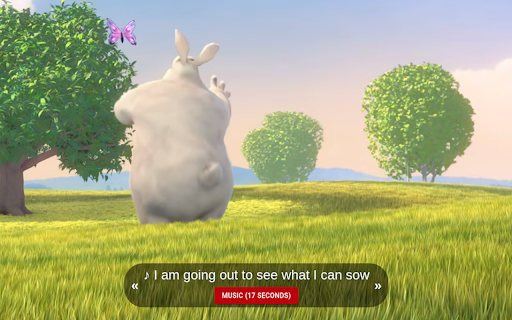
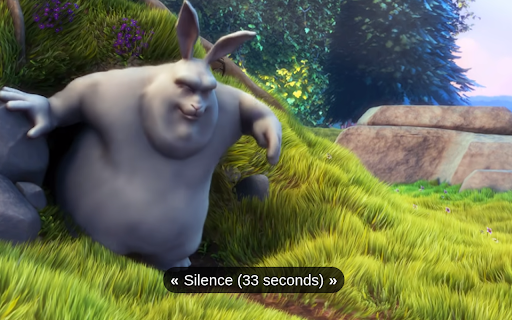
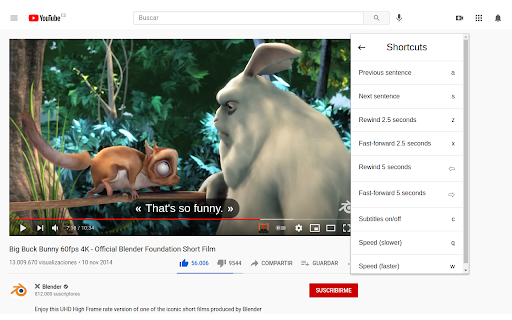
Add your own subtitles almost anywhere you want such as Disney, Netflix, YouTube and many more! Add your own subtitles on almost any video/movie streaming platform you can think of, such as Amazon Prime, Netflix (with some restrictions), Disney+ (with some restrictions), Youtube, Twitch and many more! Unfortunately, Movie Subtitles does not have a subtitle search. You have to download the subtitles online before you can use them in the extension. There are many websites that offer free subtitles. Two of the most popular ones are opensubtitles.org and yts-subs.com. Once you’ve got the subtitles you're good to go! Movie Subtitles was originally developed to facilitate language learning and comes with many useful features for that purpose, such as the ability to jump between dialogues, skip silence and many more! Features: - Skip silence (scenes between dialogues) - Skip music (if supported by the subtitle file) - Synchronize subtitles - Adjust subtitle style - Select/Copy subtitle text (in edit mode) - Upload subtitles in 40+ languages - Supported formats (.txt, .srt, .sub) - Shortcuts (not on Netflix) Movie Subtitles is an open-source project. If you have any ideas for improvement, found a bug, or want to contribute in some other way, you're welcome to do so! https://github.com/gignupg/Movie-Subtitles If you want to use Movie Subtitles to skip certain scenes of a movie, such as violent scenes, sexual scenes etc. check out the article on Medium I wrote about this topic: https://gignu.medium.com/how-to-skip-violent-scenes-and-adult-content-in-movies-3c7d89b813ad - The extension was built using Ixieyang's React Boilerplate https://github.com/lxieyang/chrome-extension-boilerplate-react License: This project is licensed under the MIT License

Prime Video Subtitles Translator
Activate this extension to easily translate and sync Prime Video subtitles into any language with adjustable timings Looking for shows on Prime Video but can't find them in your language? This new Prime Video Subtitles Translator can help! It overlays subtitles in your desired language as the video plays, supporting many languages, so you can enjoy content from around the world. With this extension, you no longer have to worry about subtitles being out of sync. Enjoy foreign films and series with translated subtitles, allowing you to focus on the storyline without being distracted by the spoken words. Key Features of this chrome extension: Real-Time Subtitle Translation: Has built-in real-time translation for the subtitles of Prime Video into your desired language as you continue watching. Accurate Timing: Makes sure that the subtitles are in perfect harmony with the video or that they do not have early or late subtitles. User-Friendly Interface: Simple solutions that do not require much effort to install and use, improving your video quality. How to Use: 1. Install the Extension Type the name of the Prime Video subtitle translator extension into the Chrome Web Store and look for it. Click on the “Add to Chrome” button and it will be added on the top of the Chrome browser to install it. 2. Activate the Extension Once installed, locate and hover over the icon of the extension on the top of the Chrome browser. Check that the extension is on and is in a state where it can be used for the task at hand. 3. Select Your Preferred Language Launch the Prime Video application on your device and let the show or movie of your choice start to play. When the browser pop-up drops down, click on the extension icon and choose your favorite subtitle language in the list. 4. Enjoy Your Show The subtitles are going to be translated in real-time when you watch English movies or TV shows with the help of this application. Take a break and watch your favorite show with the comfort of enjoying it in your own language. Why It Is Useful? Here is the list of the reasons why this Chrome extension is beneficial: With its help, you will be able to watch various content on Prime Video without any language limitations. The use of real-time subtitle translation can be used in watching any show or movie in a preferred language. It helps that subtitles are always in perfect time with the dialogues; this way, you can enjoy what you’re watching and branch out to foreign films without much trouble. Ideal for those who enjoy international materials but have a difficult time understanding the language barrier. This is very useful for language learners, expats, international audiences, and anyone interested in watching shows and movies in their original language. It is a must-have for those who wish to have a smooth streaming of shows or movies on the Prime Video. FAQs 1. Where can I get the extension and how do I put it on my browser? To use the extension, follow the steps below: Open the Chrome Web Store, search for the Prime Video subtitle translator extension, and click on Add to Chrome to complete the installation. 2. There is no information about the language support for this extension on the Chrome Web Store. It supports numerous languages, and the extension list is growing. You can find the list of languages supported for translation in the extension options or on the extension page at the Chrome Web Store. 3. What is the procedure I have to follow so that the subtitle changes to a different language? After installing the extension, set your preferred show or movie on Prime Video and start streaming. Navigate to the extension icon located in the Chrome toolbar and then, from the options provided, choose the appropriate subtitle language that you prefer. 4. Will the subtitles appear right on the video or will they be delayed or appear before or after the video playing time? Yes it is, the extension is designed to make sure that subtitles are as precise as possible such that the subtitle and the video are in sync instead of having subtitles appear before or after the video. 5. Is it possible to listen to music with the extension on other streaming services? As of now, the extension is compatible with only Prime Video or Amazon Video as a streaming service. Some features may be available in the next releases of this application, such as support for other streaming services.

MoST Subtitles
Unofficial chrome extension for showing more subtitles at viki.com. The code is largely inspired by chrome-subtitles and subber,… Unofficial chrome extension for showing more subtitles at viki.com. The code is largely inspired by chrome-subtitles and subber, but more minimal and targeted toward use at viki.com. It is commented and open-source, too. More most-like. In early versions, only Korean was supported, but it is now possible to view as many languages as you want! In the options page, simply add more blocks, for example `.most-de { bottom: -100px; height: 100px; }` for German subtitles just below the player. Visit https://github.com/JoelSjogren/most to fork, contribute, report bugs and request features!

HTML5 media speed controller + subs
Speed controls and subtitles for HTML5 media. Use to control speed on HTML5 video and audio streams. Can add SRT files as WEBVTT tracks, style the subtitles and set the delay so that they are in sync (tip: use the console log to help you) (Press the underscore button on the UI to start/complete the process of adding subtitles). This extension is safe to use in incognito mode as the only data it stores is the settings; I recommend enabling it for file URLs. You can add a colour matrix and other video CSS, but there is one enabled by default that makes greens and pinks more realistic. Changelog: 15/10/2023: Picture-in-Picture button added to bar; more efficient code used to search for streams. 05/01/2023: Faster code used when searching for streams. 01/12/2022: Colour matrix added as a blob URL rather than by inserting a tag into the web page. 25/11/2022: No longer shows the native HTML5 video controls when playbackRate is changed. 24/10/2022: Improved element handling (e.g. searching for tags); better hiding of HTML elements other than the video hide controller now causes the extension name to be printed before the hiding status. 16/10/2022: Video controls will show up more often when toggling hide controller. 05/10/2022: Fixed issue with timeout of mutationObserver that delayed or even prevented the activation of the speed controller. 13/08/2022: Removed spam of "Current site is blacklisted from speed controller." in the console and now shows you which blacklist entry is relevant. 26/05/2022 - Converted all "event.path" into "event .composedPath()" 09/04/2022 - Can now attach to media hidden in shadow DOMs, can accept .vtt subs if a .vtt fle is selected, and smoother dragging. 15/06/2021 - Amended remaining time for some live streams (see 09/01/2020), to better reflect how much time ahead of the current time has buffered. 17/03/2021 - Made video CSS '!important'. 08/03/2021 - Updated to manifest v3. 24/02/2021 - Bugfix for last update. 24/02/2021 - Fixed issue where the bar would appear closer to the top-centre than the top-left on some videos. 02/02/2021 - Changed options page to a standalone one from from a popup. 28/01/2021 - Minor amendments to mouse and keyboard events. 27/01/2021 - MAJOR UPDATE! Improved encapsulation, i.e. methods/functions are now much better linked to their own bars (when there are multiple bars) (replaced many global variables), but keybindings will likely affect all bars at once. One can double click on the bar (not on a button thereon) to return it to its default position. Improved dragging of the bar. Fixed bugs relating to subtitles processing. Plus various other amendments. 25/01/2021 - Now when the bar auto-hides, if you place the cursor where it was, it will reappear if it was clickable (unless perma-hidden). 21/01/2021 - Alt+Shift+1-6 now gives speeds 11-16x, and Alt (+ Shift) + 0 gives 10x. 15/01/2021 - Fixed options page bugs, and styling (for compatibility with dark mode). 18/10/2020 - Amended focus/hover handling; now reads tags in SRT text written right to left; and SRT timecodes for 100 hours+ now supported. 15/10/2020 - Fixes disappearing bug when the subs box, link div and controller bar are focussed/hovered over. 07/10/2020 - Fixed incorrect switch button text when the video (currentSrc/)src changes, and also sets the playback rate to 1 when this happens (to avoid issues on some sites when they detect an attempt to speed through ads); amended link button code; made main bar padding and margins proportional. 04/10/2020 - Works on all URI schemes (including ftp etc.); adds a new 'link' button ("🔗") that shows the src of the current media (may be 'blob://*') (Double click on the src text field to select all.) 13/09/2020 - Fixed site blacklisting. 23/08/2020 - Amended default subtitle text-shadow CSS and changed default font-size to 148% 21/08/2020 - Replaced default subtitle text-shadow CSS with proportional values. 19/08/2020 - Replaced deprecated 'mousewheel' event listener. 18/06/2020 - Remaining time indicator now updates when just the duration changes. 17/06/2020 - Remaining time indicator now updates even when the video is paused. 16/05/2020 - Minor fix to cleanup code. 14/05/2020 - Better handling of subtitle tags, improved cleanup, and other minor fixes. 07/05/2020 - Keeps video controls showing when video is isolated. 05/05/2020 - The 'Toggle hide controller' key now attempts to display only the video with its controls enabled as well as toggling keys, this can help where the progress bar is normally inaccesible. The close button now only hides the bar, it can be brought back with the 'Toggle hide controller' key. Plus other minor fixes. 23/01/2020- Prints current 'translate( (left/right)%, (top/bottom)%) )' to the console after having moved the subtitles. 09/01/2020 - Amended remaining time indicator for some live streams (tells you how far behind the last buffered frames you are), and fixed the remaining time and switch button text. 17/04/2019 - Fixed a bug where keys set as shortcuts could not be typed in text boxes. 13/04/2019 - Now removes obsolete instances and fixes bug were arrow keys were disabled in the YouTube search bar. 01/04/2019 - Disables undesired default shortcuts. 25/03/2019 - Amended default colour matrix (makes black truly black). 20/03/2019 - Amended default colour matrix. 03/03/2019 - Fixed subtitle text area updating on file selection. 02/03/2019 - Fixed subtitle toggling. 02/02/2019 - Amendment to subtitle balancing. 01/02/2019 - Fixed subtitle balancing. 26/01/2019 - Only specified shortcuts will override native shortcuts.

EasySubs – Learn languages by watching films and series
Customizable subtitles and a popup dictionary to master your vocabulary while watching YouTube or Netflix. Open-source and free. Improve your language skills by watching TV shows and movies with subtitles. Enjoy seamless experience – point over a word to get it translated, the video playback will be automatically paused. You can even translate the whole phrase by clicking on it. Do you have a subtitle file in your native language? Upload it and easily sync it with the video if needed. – TRANSLATION: Hover over or click on subtitles for single-word or full-sentence translations. – WORD PRONUNCIATION: Improve your listening and speaking skills with correct pronunciations. – VOCABULARY EXPORT: Export words to language learning services like Anki, LinguaLeo, and Puzzle English. – UPLOAD YOUR OWN SUBTITLES: Supports .SRT and .VTT formats. – SMART AUTO-PAUSE: Hover over a word, and the video will pause automatically. – SUBTITLE PROGRESS BAR: Navigate subtitles easily. Click to rewind the video to the desired point. – MANUAL SUBTITLE SYNC: Adjust subtitles if they’re out of sync with the video. – REWIND AND FAST-FORWARD BY SUBTITLES: Use the right arrow key to replay the last sentence. – SHOW ALL AVAILABLE SUBTITLES: Access all subtitles and audio tracks on Netflix, regardless of region. – YouTube (videos and originals) – Netflix – Coursera – KinoPub …and more coming soon. Please note that some services may not be available in your region or may require a subscription (e.g., Netflix). We are not affiliated with these services. ❤️ QUESTIONS AND FEEDBACK EasySubs is a completely free, open-source Chrome extension with no ads or hidden costs. If you like it, please leave a positive review – it helps a lot. – Send your feedback to support@easysubs.cc – Ask your question in our Telegram group: @easysubs_ext – Contribute to the project – find more details on our GitHub page: https://github.com/Nitrino/easysubs
