
hohiagapgmecaoofekehpolmngnfggnn

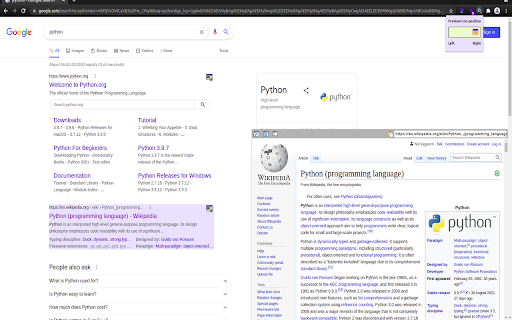
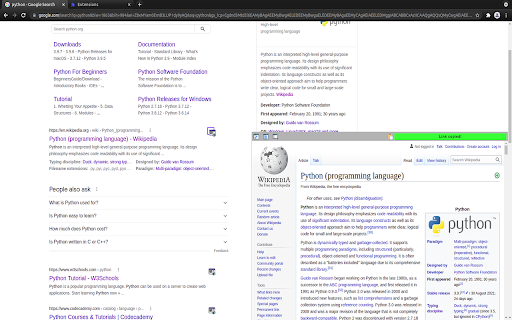
Quickly get a peek inside the search results in the search page itself Enhance your search engine by getting instant preview of the results. The extension enables you to open a window inside the search page in which the results could be viewed easily. Open the pages in new tab that you really want to see and keep your machine and browser happy. Requires minimum of Chrome version 88.0.4324. In other words, you should have updated chrome at least once since January 2021. What does it do? - Enables you to see the search result from the search page tab itself. How to use it? - It's very simple and straightforward: 1. Search for anything 2. A small icon will appear for each search result 3. Click on it and a window expands from the bottom to display the particular link 4. Done Why to use it? - Simple, easy and straightforward usage - Uses the Manifest V3, which is more secure and privacy oriented than previous version and is recommended by Google - Tiny. Less than 25 KB - It's free Which search engines does it support? - For now only Google. Others will be added soon UPDATE version 1.1: - Now, keep the preview button to right or left according to your wish. Just click on the extension icon in the browser and a small popup will appear, asking you to set the position - The link currently opened will be highlighted, making it easier for the users to identify it in search result page

Link Previewer
Quickly preview the content of a link by just hovering it. This extension will help you preview the content of a link by just hovering it. This will save you more time on browsing some sites when looking for something in the web. New Version: 2.8 - Fixed the issue where the link previewer box gets obscured or appears outside the browser window when the link being previewed is located on the bottom or corner side of the browser. - Added new size option for the link previewer box: "Responsive Size". The size will automatically adjust based on browser's current size. - Added an option to save or not to save the previewed links to browser history. - Improved the "Trigger Mode" feature. You can now assign a key button to trigger the link previewer box when using the "Manual" option. If not set, then the "SHIFT" button will be the default button. Previous Version: 2.7 - Added "Autosave" feature in settings. All changes will now automatically be saved without the need of the "Save" button. - Added "Instant" and "0.25 seconds" options in buffer time. You can now preview the link much quicker. - Added "Trigger Mode" feature. You can now select if the link previewer box will appear by hover or pressing a key. - Added "Pin on Preview" feature. The link previewer box will automatically pinned when previewing. - Added "Disable Scroll on Preview" feature. You have the option to temporarily disable the browser scrolling feature when the link previewer box appears. - Added "Screenshot on Preview" feature. The link previewer box will automatically screenshot it's content when previewing. - Added "Blocklist" feature. You can now disable the extension on specific websites. - Added "Search Link" feature. You can now easily switch website to preview by just typing it's URL. - Added "Shortcut Key" for closing the link previewer box. Just Press "ESC" button to close the link previewer box. - Minor improvements in link previewer box UI. - Minor fixes and improvements. Features: > Automatic or Manual (Pressing a Key, Customizable) Opening of Preview Window > Website Security Detection (HTTPS/HTTP Connection Detection) > Draggable Preview Window (No Limit Dragging) > Resizable Preview Window (Flexible Sizes) > Pinnable Preview Window (Automatic or Manual Pinning) > Optionally Disable Browser Scroll While Previewing > Easy-to-Close Preview Window (Default Hover Out, Press 'ESC' key, or Click 'Close' button) > Preview Window Buffer Time (From 'Instant' up to '5' seconds delay) > Easy-to-Activate/Deactivate (Easy Toggling) > Mobile/Desktop/Large Desktop/Extra Large Desktop/Flexible Sizes > Simple/Flat/Modern Styles > Show/Hide Website URL > Website Searching > Website Content/URL Copier > Website Content Refresher > Website Content Screenshot (Automatic or Manual Screenshot) > Website Blocklisting (Disable the Extension on Certain Websites) > Control Common Website Security Settings More features to be implemented and improved to provide you with better functionality.

Hoverflow
Hover to preview any link, without leaving your tab. The fastest and easiest way to browse wikis, docs, the web. Nested: Preview links within links, find information without breaking flow. Fast: Loads the mobile version of websites for fast and focused browsing. Secure: Disabled by default, enabled where you want it. One-click enable on any tab, click again for granular settings. Works great with Wikipedia! We've automatically enabled it there for you to try out, but feel free turn it off anytime via the popup menu.

GPeeker
Preview a web page from another web page without actually navigated. Features: * Press your favorite hotkey while hovering a link to open a popup with a preview of that link. * The ability to make GPeeker ignore specific domains. This extension allows you to preview any link without actually navigate to it. Just hover your mouse to the desired link, press the Shift key, and boom! You will see a popup with all the content from this link. Press Shift again, and boom! You will navigate to this page. Of course, You can customize the Shift key.

Scroll Preview
Scroll Preview integrates a whole-page preview with scrollbar that inspired by Sublime Text's mini map. HOW IT WORKS • Alt + A — get a new scrollbar with rough preview • drag/click the scrollbar — just like how you used to • Alt + Shift + A — get a refined preview (please wait patiently) • tired of key pressing? — turn on Automatic or Conditional mode in option page UPDATES • Floating handle • Conditional mode for articles • Setting synchronization FEATURES • Captures whole-page snapshot (Alt+A) • Adds an additional easy-to-drag scrollbar which works nicely with the native one • Integrates snapshot with scrollbar for better previewing • Refreshes snapshot while window is resized • Allows hide/show toggling (Alt+A again) • If you found blank areas shown in snapshot, let the browser re-scan the page to refine it. (Shift+Alt+A) • Applies anti-aliasing on snapshot. • Jumps to where you click on the snapshot. • Magnifier on snapshot (works great with click-to-jump). • Always-on mode (Options > Basics > Automatically) • Option page (chrome://extensions/ > Scroll Preview > Options) • Auto-hide • Blacklist / Whitelist
