
hnlpidgbnmikgkmccephgaljihheckii
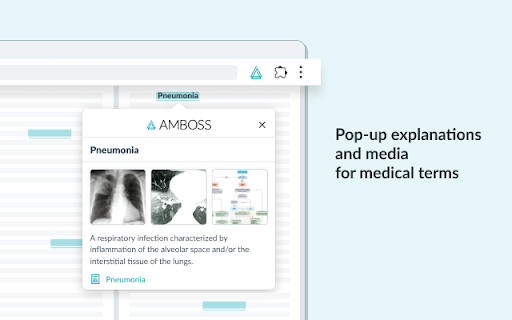
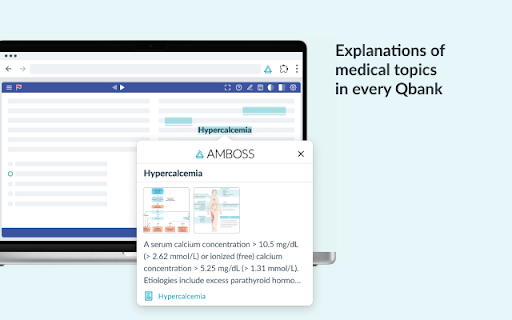


Pop-up explanations for medical terms on any website, including question banks and medical journals. The AMBOSS Chrome extension loads pop-up explanations and multimedia for medical terms and concepts wherever you are on the web. Whether you are on a webpage to study or look for something in the hospital, you can now get additional medical knowledge without leaving the site you are currently on. In addition, you can click on the terms and open the respective AMBOSS article to go deeper or find more multimedia content. Enhance the medical content on your Chrome browser with AMBOSS: - Get the exact knowledge you need at the right time, regardless of the website you are visiting. - Underlined terms let you learn and explore concepts without switching browser tabs or windows, even during Qbank session revisions. - View relevant multimedia on the page you are visiting. - Get in-depth knowledge on a topic whenever needed by connecting the AMBOSS articles to your browser. - Available in English and German. ➤ How it works: The AMBOSS Chrome extension finds medical terms and adds explanations in the form of pop-ups to the selected webpage. Where available, the extension loads related images for the highlighted medical term. The extension works on any website opened in Chrome, including Qbanks. For free - Pop-up explanations of medical terms on any website you visit, including Qbanks - Thumbnails of media content inside the pop-ups With an active AMBOSS subscription - Option to go deeper into medical terms by opening the linked AMBOSS article. In every article, you can find more information and related terms. - Amplify each of the related media images, including overlays, to learn to identify the respective medical conditions. ➤ Works where you browse The AMBOSS Chrome extension is designed to work seamlessly in your Chrome browser. You can use it on any website, including the most popular Qbanks for exams like the USMLE, COMLEX, MCAT, and PANCE, and other medical resources.

UWorld Answer Viewer
An extension to render content from UWorld practice tests in simple HTML Renders html in an easy to view popup. Once an "explanation" tab is visible, click the icon to view it. This does not show you answers before they are visible on the page.

Med Study Pop-up by Picmonic
Quickly view high-yield details on any medical topic you're studying. Includes summaries, fact lists, and access to mnemonic videos. Quickly view high-yield details on any medical topic as you study. Includes summary snapshots, high-yield fact lists, and quick access to 3-minute picture mnemonic (Picmonic) video, quizzes, and related media images, that will help you remember the most important information for any topic. Just hover over topics with blue underlines and you’ll see the pop-up window. Download this FREE Chrome extension (pops-up a window inside any Chrome browser).You do not need a Picmonic account to use it! Created and maintained by top medical scholars. Most relevant for students and educators in the following healthcare disciplines:

LibKey Nomad
LibKey Nomad automatically provides instant links to articles from journals subscribed to by your library – and Open Access sources – connecting you to literature discovered on the web. LibKey Nomad works with your library to determines the fastest path to content across thousands of publishers and millions of articles. LibKey Nomad also adds support to PubMed, Wikipedia and hundreds of other scholarly publisher websites and research databases. After installation, LibKey Nomad prompts you to select your institution. Simply select it and LibKey Nomad will then notify you of available articles wherever you may roam. LibKey Nomad is a great addition to other research aids you may be using, such as BrowZine, EndNote Click, Lean Library, and more.

uWorld Heatmap
Enhance your learning journey by tracking your progress with the dynamic visual aid of a heat map and staying motivated with our streak counter. Keep up the great work in your studies! User Guide - install the extension - refresh chrome (may need to restart chrome) - navigate to the "Previous Tests" page on https://apps.uworld.com/ - best practice: select 100 for "Items per page" at the bottom right - click on the extension image in the top bar - refresh chrome and the extension until data populates
