
hnbdgfongnkfgnbpamndfiiedhapfecn
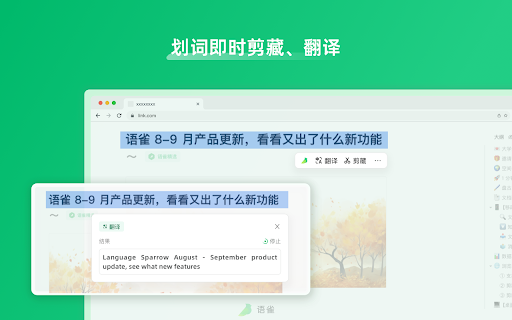

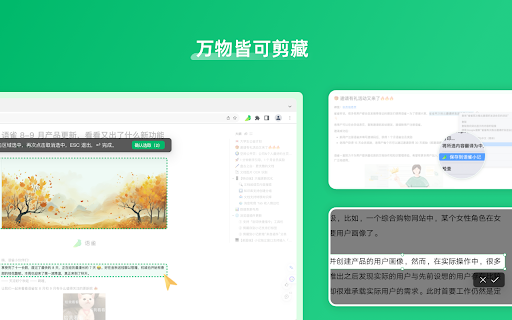
语雀浏览器知识管理插件,支持剪藏页面文本和图片,截图OCR识别文字,可划词剪藏、翻译,侧边栏写笔记,并存到语雀。 这是一款语雀的浏览器插件,日常在浏览器看到精彩片段时,就可以顺手捕捉、剪藏到语雀,方便日常收集灵感、信息使用

Screenshot Tool - Screen Capture & Editor
Innovative screenshot tool lets users screen capture and edit screenshot. Full page screen capture. Take stunning screenshots of entire websites and capture page elements. Offline. No registration. Screenshot tool - captures entire websites and user areas. Ready-made screenshots can be quickly edited (crop, paint over, add arrows, captions or text). Screen Capture tool for making a full page or partial capture with further editing, download, or text adding. Make a full webpage screen capture or just any part of it with an opportunity to edit, save and download screen capture to your PC. The app is launched from a browser that totally saves your time. Simply click the extension icon to choose from options whole page capture or a selected part. You will not see any additional windows with websites here. Why waste time if you just want a screenshot? Want to share your screen for cases like reporting technical issues, making product demos or how-to tutorials? Here are reasons to choose Screenshot and Screen Capture: ✔️ Screenshot of the full page, not just the visible area or selected area; ✔️ Screenshot on One-Click; ✔️ Storage and processing without a server; ✔️ Save PNG files or Copy it to the clipboard with One-Click; ✔️ No login or registration required; ✔️ There are no restrictions on the size or size of the file; ✔️ Edit and discard changes your screenshot; ✔️ Add graphic and text elements such as pointer, arrow, square and other shapes; Click on the extension icon (in the upper right corner of the browser) then choose one of the options capture and watch the Screenshot Tool capture each part of the page and then transfer the finished screenshot to a new tab, where you can edit the image and upload it as a file to your PC. Notes Remember to reload the page after you install extension before trying to take a screenshot of it (Chrome should initialize the extension for each page). The extension Screenshot tool is completely free and easy to manage for users. If our extension is useful to you, please give us 5 stars!

MarkSnip - Webpage to Markdown Clipper
One-click Markdown web clipper. Save articles, docs, code & tables as clean Markdown for AI agents & LLMs. Supports Obsidian & more. Save any webpage as clean, formatted Markdown with one click. MarkSnip lets you copy or download Markdown from any tab — perfect for Obsidian, Notion, AI agents, LLM workflows, coding assistants, and personal knowledge bases. Whether you're a developer saving API docs, a researcher collecting papers, or a student building a knowledge base — MarkSnip gives you clean Markdown without the usual cleanup. Clip a full page, selected text, or multiple tabs, then copy, download, preview, or send it where you need it. ✔ One-click full page or selection clipping ✔ Smart article extraction powered by Mozilla's Readability.js ✔ Accurate HTML-to-Markdown conversion via Turndown with GFM support ✔ Code blocks preserved with auto-detected language tags ✔ Math & LaTeX support — MathJax and KaTeX equations converted cleanly ✔ Pretty-printed, aligned Markdown tables ✔ Multiple export formats: Markdown, Plain Text, or HTML ✔ Hashtag handling — keep, remove, or escape for Markdown compatibility ✔ Built-in CodeMirror editor with syntax highlighting in the popup ✔ Live rendered Markdown preview before you copy or download ✔ Word, character, token, and reading-time stats at a glance ✔ Edit titles, toggle front matter, and toggle image downloads inline ✔ Light, Dark, and System themes ✔ Special themes: Claude, Perplexity, Avatar: The Last Airbender, Ben 10 ✔ Five accent colors: Sage, Ocean, Slate, Rose, Amber ✔ 10+ editor themes including Dracula, Monokai, Nord, Material, and more ✔ Compact mode for a smaller popup footprint ✔ Save clips to in-browser storage — no external account needed ✔ Search and filter your saved clips instantly ✔ Export your entire library as a ZIP of .md files ✔ Auto-save on popup open or save manually ✔ Configurable retention to keep your library lean ✔ Create URL-pattern rules that override any setting per site ✔ Custom front matter, back matter, image style, download folder, and more per rule ✔ Enable or disable rules individually ✔ Visual indicators in the popup when a rule is active ✔ Download images alongside your Markdown files ✔ Multiple image styles: standard, base64-embedded, Obsidian wiki-links, or stripped ✔ Custom folder prefixes and flexible naming options ✔ Add YAML front matter and back matter to every clip automatically ✔ Template variables: {pageTitle}, {pageURL}, {byline}, {excerpt}, {date:FORMAT}, and more ✔ Variable transforms: :kebab, :snake, :camel, :pascal ✔ Quick toggle to include or exclude templates per clip ✔ Download multiple tabs or a pasted URL list as Markdown files ✔ Visual link picker — select specific links from any page for batch processing ✔ Save as a ZIP archive or individual files ✔ Real-time progress tracking with cancellation support ✔ Send clips directly to your Obsidian vault via the Advanced URI plugin ✔ Configure target vault and folder ✔ Automatic Obsidian-style image formatting ✔ Context menu and keyboard shortcut access ✚ Alt+Shift+M — Open MarkSnip popup ✚ Alt+Shift+D — Download page as Markdown ✚ Alt+Shift+C — Copy page as Markdown ✚ Alt+Shift+L — Copy page URL as Markdown link ✚ All shortcuts are customizable through your browser's settings ✔ Right-click any page, selection, link, or image for quick Markdown actions ✔ Download or copy selections, tabs, or all open tabs ✔ Copy any link or image as Markdown ✔ Send to Obsidian directly from the menu MarkSnip includes an optional Agent Bridge CLI for local AI and automation workflows. A user-installed companion app (Windows, macOS, or Linux) lets local tools read Markdown from the active tab directly — no manual download step. ✔ Local-only — communication stays on your machine ✔ Opt-in — disabled unless you enable it ✔ Fresh or edited output — tools can request a live capture or reuse your popup-edited Markdown ✔ Connection status tracking with auto-reconnect Ideal for AI coding agents, LLM pipelines, and automation scripts. Feed clean documentation into ChatGPT, Claude, Cursor, or any LLM directly from your browser. ## Perfect For ✔ Developers — Save API docs, GitHub READMEs, and Stack Overflow answers with code intact ✔ AI & Coding Agents — Use MarkSnip as your AI context downloader for LLM workflows ✔ Researchers — Archive articles, papers, and tables with structure preserved ✔ Students — Build study guides from course materials and online resources ✔ Writers — Collect and organize reference material ✔ Knowledge Workers — Send clean content into Obsidian or any PKM system ✔ Data Analysts — Preserve schemas, SQL references, and table formatting ✔ Fine-tune Markdown output: heading style, list markers, link style, code fences, emphasis, and more ✔ Import and export all settings as JSON ✔ Reset to defaults with one click ✔ Built-in searchable user guide All clipping and conversion happens locally in your browser. MarkSnip never sends your page content to external servers — copies go to your clipboard, downloads save to your device, Obsidian integration uses a local URI scheme, and the optional Agent Bridge runs entirely on your machine. MarkSnip is open source and forked from the excellent MarkDownload by deathau, updated for Manifest V3 with additional features and workflow improvements. Libraries used include Readability.js, Turndown, highlight.js, and CodeMirror. Source: https://github.com/DhruvParikh1/markdownload-extension-updated Issues & feedback: https://github.com/DhruvParikh1/markdownload-extension-updated/issues

Annotation, Full Page Capture & Snipping Tool
Instacap is a screenshot editor & annotation tool for full page screen capture, pdf annotation & more—for instant visual feedback Screenshot editor & annotation tool for fast & simple visual feedback. Use Instacap’s annotation & snipping tool for full page screen captures, pdf annotation and visual comments for clear in-context discussions. ⚡️ Annotation Tool & Screenshot Editor—annotate and edit screenshots by adding text, circle, arrow, drawing and more via a simple UI ⚡️ Full Page Screen Capture & Snipping Tool—Capture a scrolling full page screenshot or crop the image to any size ⚡️ Screenshot Blur Tool— Add image blur to block out parts of the screen capture don't want to share securely and easily ⚡️ Instant Visual Feedback—Instantly share a link to your screen capture for quick visual feedback and annotations ⚡️ Instant Loom Video/Audio —Instantly share a screen recording or video for quick visual feedback and annotations ⚡️ PDF Annotation—Upload and annotate PDF's, images and other files for clear in-context discussions

Online OCR
🧾 online ocr helps you turn scanned pages, photos, and screenshots into editable content without retyping. When you need online ocr tool for homework, research, or office docs, everything stays in one simple workflow. It works well for quick tasks and for longer sessions when you have many pages to process. 📄 If a file looks readable but content won't highlight, ocr online makes it usable again. Drop in a scan and get copy-ready lines you can search, edit, and paste into notes or documents. This is useful for archived PDFs, classroom handouts, and anything that arrived as an image-based file. 🔧 Key features you can rely on * ocr reader online with quick select and copy actions * ocr text recognition online for screenshots, receipts, and notes * ocr online free ocr text recognition for printed pages and clear scans * online ocr tools for PDFs and images in a single view 🧰 Built to stay lightweight, so you can focus on the characters instead of settings. Review the recognized content right away, make quick fixes, and reuse it in your preferred editor. You can also keep separate outputs for different projects to stay organized. 1. extract text from images and review the lines 2. extract text from pdf when the PDF is a scan 3. copy text from pdf into your editor or doc 🧠 Better recognition starts with smart handling of letters, spacing, and layout. That is why the engine leans on intelligent character recognition ideas, so paragraphs stay readable after online ocr converter runs. For clearer results, try straightening the page and keeping shadows away from the content. 🧩 Export options for everyday tasks 1️⃣ create text file from png for archiving 2️⃣ pdf file to text for editing and quoting 3️⃣ extract text from an image for quick reuse 🖼️ Use it on whatever you capture during the day: class notes, meeting photos, book pages, or quick screenshots. You can pull text from image and move it into your own writing without switching apps. It's also helpful when you want to compare snippets from multiple sources side by side. 🧷 Practical conversions for fast reuse ➤ convert image into text when you need editable content ➤ jpeg to text converter for common screenshot formats ➤ text from website screenshots for references and citations ➤ Paste cleaned text into your notes with fewer distractions 📐 Working with formulas or worksheets? Use convert math equations pdf to be able to copy when the page is stored as an image. For longer documents, ocr pdf online helps you reuse content without manual typing, and online ocr service keeps the flow consistent from page to page. 📍 PDF-focused workflows for real documents ▸ pdf ocr online to make scanned pages searchable ▸ ocr pdf document online for forms and handouts ▸ pdf to texte when you need plain words output ▸ scansione ocr when you work across languages ▸ Keep page order and check headings after export 🛡️ Keep your workspace tidy and focused. Many users choose onlineocr as a fast option for day-to-day online ocr of pdf tasks, with clear output you can review before sharing. Use it for study notes, admin paperwork, or research excerpts when you want words you can actually work with. 🧠 Helpful for study, work, and organization ◆ Save readable notes from printed handouts ◆ Capture receipts and invoices for expense tracking ◆ Turn old archives into searchable words you can quote ◆ Build a personal knowledge base from scans ◆ Move snippets into to-do lists and outlines ◆ Prepare drafts from scanned references faster ❓ Q&A ❓ Do I need a complicated setup? 💡 No, open the extension and run online ocr website in a couple of clicks. ❓ Can it handle both images and scanned PDFs? 💡 Yes, upload what you have and the tool will recognize the words. ❓ What file types can I use? 💡 Common PDFs and image formats are supported, including convert image into text flows. ❓ Is there a quick try mode? 💡 free online ocr is available for simple, lightweight needs. ❓ Any tips for tricky scans? 💡 Improve lighting, straighten the page, and try again for cleaner lines. 💡 Tips for cleaner results • Use sharp images and good lighting • Crop margins so lines stay straight • Check names and numbers once after export • Keep the original scan as a backup • Avoid heavy compression when saving images • Break huge documents into smaller parts 🚀 Add online ocr to Chrome and turn scans into content whenever you need to copy, search, and reuse information. Pin it to your toolbar for one-click access and keep your workflow moving. Ideal for daily scanning routines.
