
hcbddpppkcnfjifbcfnhmelpemdoepkk

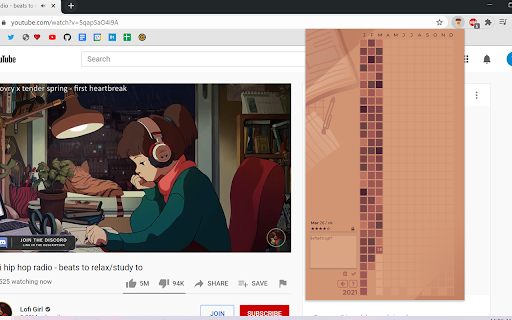
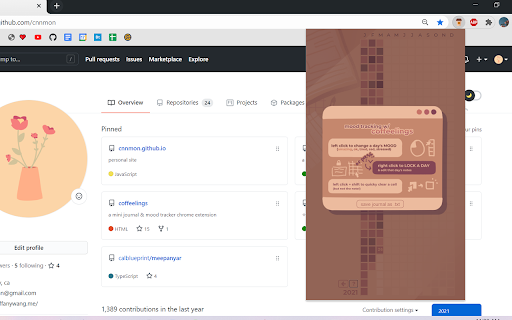
A mini journal tucked into your browser. Your own personal mini journal & mood tracker. Choose a coffee roast to match your mood, write up journal entries, and interact with a calendar that grows a little bit every day.

Weava Highlighter - PDF & Web
Best highlighting tool for Website and PDF. FREE and easy to use. Highlight & organize your research with Weava online Web & PDF highlighter. Simplify your research process. Focus on Productivity. Don't waste time on keeping track of sources, copying & pasting, or making citations. On average, our users report that the Chrome extension helps them save 3.8+ hours each week. That's a lot of hours that you instead can spend on the things that really matters to you. WITH WEAVA YOU CAN: ➤ Highlight websites and PDFs with multiple colors, and make annotations. Revisit them with a single click. ➤ Organise your highlights into folders and sub-folders. ➤ Create citations automatically for your highlights. ➤ Access your highlights anywhere. Your highlights and notes are saved in the cloud. ★ TRUSTED BY 2,000,000+ USERS: Weava is trusted by students, researchers, business professionals, and people who simply just want to do better and more efficient work. The tool adapts to your needs and research style, giving you the flexibility to review your articles & sources every time you research online. ★ WEAVA PREMIUM: If you want to supercharge your research and maximize efficiency, Weava Premium is your answer. Here are some of the things that you can do with Premium: ➤ Customize any color you want ➤ Create unlimited sub-folders to organize highlights ➤ Unlimited storage in the cloud to store your files ➤ Clip images and save them in the workspace ➤ Collaborate with your friends or team in real-time ★ FREQUENTLY ASKED QUESTIONS & CUSTOMER SUPPORT: For frequently asked questions (FAQs) and customer support, please see: https://weavatools.atlassian.net/servicedesk/customer/portals ★ IMPORTANT THINGS TO NOTE: ➤ Please note that Weava only visually renders the highlights from your current active folder. ➤ You can enable/disable the highlighter pop-up with the keyboard shortcut Alt+S (Option+S on Mac). And you can customize your keyboard shortcuts in your Google Chrome settings (chrome://extensions/shortcuts) ➤ While the tool works on most websites, please note that some websites have conflicting code that results in the Weava highlighter not functioning properly. ➤ Weava fetches and visually renders your color highlights based on the respective URL you first made the highlight on (for websites and online PDFs). Please note that, while your highlights and annotations are always saved in the sidebar and dashboard, if the website URL for some reason changes, then the visual rendering of your highlights are not visible unless you update the URL in the "Edit Source" functionality on the dashboard. ➤ You can 1) highlight local PDFs directly from your computer. 2) Online PDFs, and 3) upload PDFs directly to Weava. Uploading PDFs will ensure you the smoothest experience. ➤ You are currently unable to directly highlight on PDFs inside certain 3rd party software, such as in Google Classroom, Blackboard and Canvas. Instead you would need to first download the PDF and then use it with Weava. We hope to have better solutions towards this in the future. ★ CHROME EXTENSION PERMISSIONS EXPLAINED: Weava's requested permissions are needed for the tool to function properly. However, the exact phrases provided by Chrome for these permissions are misleading and make them sound more invasive than they actually are — and you will generally see the same exact warnings on practically all Chrome extensions. Here's a further breakdown of the required permissions to run Weava: ① "Read and change all your data on the website you visit" ➤ "Read": The Weava Chrome extension has passed all of Google’s automated and manual security checks and is safe to use. The extension reads the current URL of the page you make highlights on - and is also checking if you have existing highlights on this URL so that it can visually show these to you. That's it. ➤"Change": Weava needs to modify the website you are visiting in order to show you the Chrome extension highlighter pop-up on top of it. Weava also needs this permission to be able to change the text background color accordingly whenever you make a highlight. ② "Modify data you copy and paste." ➤ Weava needs this permission simply to create and save the highlights you are making. Without it we would just be a nice color tool but without the capabilities to save the exact content you highlighted and show this to you in the sidebar and dashboard. ③ Separately, in the Weava Chrome extension settings, you can enable "Allow access to file URLs" which gives Weava permission to read PDF local file paths so that you can highlight PDFs directly from local files on your computer. Similarly to highlights on websites, it ONLY reads the file path of the file you are highlighting on and it is only doing this in order to be able to save the highlight and to fetch and visually render these highlights on subsequent visits. By installing the extension, you agree to Weava's Terms and and Privacy Policy (https://weavatools.com/terms-and-privacy).

Focus To-Do: Pomodoro Timer & To Do List
Focus To-Do combines Pomodoro Timer with Task Management, it is a science-based app that will motivate you to stay focused and get things done. It brings Pomodoro Technique and To Do List into one place, you can capture and organize tasks into your todo lists, start focus timer and focus on work & study, set reminders for important tasks and errands, check the time spent at work. It's the ultimate app for managing Tasks, Reminders, Lists, Calendar events, Grocery lists, checklist, helping you focus on work & study and tracking your working hours. Focus To-Do syncs between your phone and computer, so you can access your lists from anywhere. How it works: 1. Pick a task you need to accomplish. 2. Set a timer for 25 minutes, keep focused and start working. 3. When the pomodoro timer rings, take a 5 minute break. Key Features: - ⏱ Pomodoro Timer:Stay focused and get more things done. Pause and resume Pomodoro Customizable pomodoro/breaks lengths Notification before the end of a Pomodoro Support for short and long breaks Skip a break after the end of a Pomodoro Continuous Mode - ✅ Tasks Management: Task Organizer, Schedule Planner, Reminder, Habit Tracker, Time Tracker Tasks and projects: Organise your day with Focus To-Do and complete your to do, study, work, homework or housework you need to get done. Recurring tasks: Build lasting habits with powerful recurring due dates like "Every Monday". Reminders: Setting a Reminder ensures you never forget important things ever again, you can set up recurring due dates to remind you each and every time. Sub-tasks: Break down your task into smaller, actionable items or add a checklist . Task Priority: Highlight your day’s most important To-Do with color-coded priority levels. Estimated Pomodoro Number: Estimate the workload or set a goal. Note: Record more detailed about the task. - 📊 Report: Detailed statistics of your time distribution, tasks completed. Support the calculation of the total time of Focus Time. Gantt Chart of the Focus Time. Statistics on completed To Do. Statistics on time distribution of project. Trend chart of the completed To Do and the focus time. - 🖥📲 All-Platform synchronization: View and manage your goals wherever you are for better goal achieving. Support seamless synchronization within iPhone、Mac、Android、Windows、iPad、Apple Watch. - 🎵 Various Reminding: Focus Timer finished alarm, vibration reminding. Various white noise to help you focus on work & study. Contact Us: focustodo@163.com, reply within 24 hours. Website: http://www.focustodo.cn Pomodoro ™ and Pomodoro Technique ® are registered trademarks of Francesco Cirillo. This app is not affiliated with Francesco Cirillo. Users have been focused on our app for 200 million hours, join us and we help you to be focused and increase your productivity, reduce procrastination and anxiety.

fluany
Fluany is a flashcards platform that helps you memorize and study anything. Quickly and easily while you do your work. Fluany is a flashcards platform to memorize and study anything, fast and easy while you're surfing the Internet. With our extension, you have an incredible tool to improve your learning and consolidate your knowledge quickly and efficiently. With a minimalist and easy-to-use interface, fluany displays your flashcards in a New Tab, making your study more dynamic and interactive. You can learn a lot while you work, or spend hours on social networks. Create your study lists, customize, add questions, terms or expressions you want to memorize, choosing the interval at which a question/term should appear for you. Friendly and intuitive interface. Start practicing in a few clicks. Your time is precious and with fluany, you can study while you work, talk with your friends or even watching videos. The fluany enters into your routine forcing your mind to learn.

Tab Manager Plus for Chrome
Quickly find open tabs, see all windows in one view, find duplicates and limit tabs per window. The best Tab Manager for Chrome. The Marie Kondo for your Chrome Tabs! Do all these open tabs bring you joy? Let's organize them ^_^ The best tool to find, close, or switch to the tabs you want, when you have many tabs and windows. In a world of ever-expanding tabs in the browser - this is a helpful addition to keeping them organized and for quick switching between them! If you like it, please leave a review! We read all the reviews ❤ A simple and super-fast Google Extension to help you get the best overview over many tabs. It helps filtering your tabs, moving them, re-arranging them. Once you open Tab Manager Plus, you can type right away. The main focus in this app is speed - so you can find the tab you're looking for - right away! ➤ Display all Tabs & Windows quickly in current window ➤ Highlight duplicate tabs ➤ Select Tabs using Right Click, Ctrl, Cmd or Shift ➤ Quickly filter tabs by title and url ( just type - right away! ) ➤ Switch to found tab with "Enter" ➤ Move multiple highlighted tabs with "Enter" ➤ Switch to your latest opened tab with Shift+Ctrl+Space / Shift+Cmd+Space ➤ Limit open tabs - Tab Manager will open a new tab in a new window once your limit is reached ➤ Create new Tabs & Windows ➤ Move Tabs between Windows ➤ Delete Tabs & Windows ➤ Pin/unpin Tabs ➤ Supports incognito mode, if you enable it ➤ 6.0.0 ( 1st October 2024 ) - You can now open single tabs from your saved sessions - Experimental: Try to restore window names and colors after a browser restart - Fix: Vertical layout takes now the full width in popups - Fix: Vertical view has now nicer separators when used in full window, that take the whole screen width - Fix: Sometimes favicons would not load properly - Fix: Make sure session tabs are fully restored before closing the popup - Fix: Moving many tabs could stop early because of popup closing in the meantime - Fix: Closing many tabs could stop early because of popup closing in the meantime - Fix: Discarding many tabs could stop early because of popup closing in the meantime - Fix: Selecting a color for a window would hide all other windows until the next open - Fix: Windows that were saved out of bounds of the current monitor, could not be restored - Fix: Windows that were too big for the current monitor, would not be restored - Fix: Don't animate scrolling if animations are disabled - Fix: Dragging tabs would sometimes drop them in the wrong location, now they will be added to the closest tab in the new window - Fix: Favicons sometimes stuck, based on browser cache - Fix: Also use favicon url based on pending url if tab is loading - Fix: Don't attempt to show empty favicon - Fix: pending urls not being read when calculating window title - Fix: window title not updating after tabs fully loaded - Fix: IPs being shown as weird numbers in window title/name - Fix: title being based on whole url, instead of hostname while tab was loading - Fix: Try to find nicer window title if it matches hostname - Fix: Group by top-Ips, like 192.168.*.* - Fix: If you selected incognito tabs and normal tabs based on a search, and tried to move them to one window then it would fail because they can't be mixed together. Now it will open 2 windows - one with normal tabs, one with incognito tabs. ➤ 5.2.1 ( 22nd September 2024 ) - Fix: White page crash when tab had no hostname / title ➤ 5.2.0 ( 22nd June 2020 ) - Improves search! Searching for "google mail" will highlight tabs that have both words included #107 - Improves search! Searching for "google OR mail" will highlight tabs that have either of the worlds included #106 - Fix: Searching for the same string length would not trigger another search, but that could have stopped an accent selection #93 - Shift-right click will now select tabs in between the last selected tab #104 #94 - Design Fix: default font size set to 16px - Default popup size increased to 800x600 - Default design changed to blocks - Improvements: Background clean up added, to keep resources low - Improvements: Don't render windows in the background while the color/title selection is active - Improvements: Warn when trying to backup empty sessions #98 - Fix: Doesn't allow users to export empty session files, shows a warning instead - Fix: Don't show import/export options for sessions if the feature is not enabled #98 - Fix: Make it more obvious that you can type right away #86 - Fix: Pluralization fixes when only 1 tab was selected #87 ➤ 5.1.5 ( 17th June 2020 ) - Dark mode has now dark input fields, to ease the eye strain - Slight design and color adjustments - Fix: Properly close title/color popup after pressing enter/escape ( instead of closing the TMP popup ) - Fix: When selecting a tab in dark mode, the text was unreadable - Fix: Changed the way how tabs are counted - sometimes it was possible to open more tabs per window than allowed ➤ 5.1.4 ( 17th June 2020 ) - Moving multiple tabs would sometimes not work when using the button or [Enter] key. This should be fixed now ➤ 5.1.3 ( 7th November 2019 ) - Fix: Popup width adjustable again instead of stuck to 800px - Fix: Only open the popup from context menu if current browser supports it ➤ 5.1.2 ( 4th November 2019 ) - Overhauled and more friendlier context menu. You can now open the popup from the context menu, if opening as own tab is the default. You can now also access the changelog from the context menu - Increase popup size/width steps to 25 - Fix: Hide saved windows when a filter is active - Fix: Don't break rows on tabs based on the hidden tabs - Fix: Sometimes when using the keyboard the tabs would not highlight properly. This should be resolved now. - Fix: Background color for dark mode. - Performance improvements, such as not rendering hidden tabs to the DOM ➤ 5.1.1 ( 1st November 2019 ) - Fix: The "highlight duplicate tabs" button may have disappeared - it should be back now ➤ 5.1.0 ( 31st October 2019 ) - You can now see which tabs are playing sounds and/or music. For this you need to have the "animations" option turned on. The tabs with active sounds will pulsate - You can see now which tabs have been discarded by the browser to save memory - the icons will lose their color if they are in a discarded / memory-saving state - You can also discard tabs well. Simply select one or more tabs, and press the "discard tabs" button in the bottom right corner - New keyboard possibilities : Use the arrow keys to jump between tabs and windows. Use shift+arrow keys to select tabs. Press Escape to delete a search / unselect everything at once. - The big block view has now bigger icons. Easier to read on TVs and big resolutions - Small design fixes for dark and compact modes and the options page - Fix: Sometimes switching to a tab would not focus the new window properly - Fix: Sometimes "open in own tab" would not focus on the tab correctly if it was already open - Fix: Sometimes the bottom search bar would disappear / be pushed below. This should be resolved now - Scroll to the new window when restoring it from saved windows - Scroll to the new saved window when saving it - When drag and dropping a tab outside of Tab Manager Plus into another program or the browser ( which is not really intended/supported ) it will now paste the URL on drop - Under the hood : A rewrite of the extension and upgrade to the latest React version. A big change under the hood with slight performance improvements - General performance improvements - More options texts regarding shortcuts ➤ 5.0.8 ( 29th October 2019 ) - You can now backup and restore your saved windows - You can now select multiple tabs by using right mouse click while holding shift/ctrl or command. Select the first tab with a right click, and then select the last tab with shift+right mouse click, to select all the tabs in between. - You can now set in the options if you'd like to have the Tab Manager open as a popup by default, or in its' own tab - Design fixes to have the right amount of tabs per row displayed in the block view - Stops auto-scrolling to the first active tab, if the user has already started scrolling - Some small fixes to make sure we load correctly also on slower machines - Fixes to dark mode in its' own tab - the background was not displayed in the full window - Removed buggy animation transitions that would get stuck on hover ➤ 5.0.7 ( 28th October 2019 ) - Dark mode - you can now enable the dark mode in the options! - Close the popup when clicking on a tab, window or restoring a session, but don't close it when we're in a Tab Manager page of its own ➤ 5.0.6 ( 25th October 2019 ) - Fixed issue where current tab wouldn't be closed when pressing the "close tabs" button - Backwards compatibility with older browser versions ➤ 5.0.4 ( 23rd October 2019 ) - Save/restore windows ( beta ) - you can now save and restore windows into your local storage. Please note : History of the tabs will not be preserved. ( Disabled by default ) - Fixes for search box displays on some configurations - Adjustments for wide screens - Various other small fixes - Close popup after pressing enter ➤ 5.0.3 ( 15th August 2019 ) - Added context menu to open Tab Manager in its' own tab - Small fixes for icon borders not rendering properly - Fixes for the search bar when the popup is too narrow - Added popup title and favicon - Disable popup auto-closing until we have a better solution - Fixed Firefox error where a new window would not be created ➤ 5.0.2 ( 6th August 2019 ) - Hotfix for Chrome to support the browser based api ➤ 5.0.1 ( 6th August 2019 ) - Fixes to rate and review buttons - Added donate option - thank you for keeping this extension alive! - Changed description of colorize button to include hint that the window name can be changed as well - Changed colorize button to settings - Adjusted fonts, so they look nicer - Font changes in options menu - Added title detection for the about: protocol - Launched for Firefox as well! ➤ 5.0.0 ( 5th August 2019 ) - Added rate and review buttons - Updated depreciated chrome api calls to newer ones - Prepared Firefox compatibility ➤ 4.9.9 ( 27th February 2019 ) - If the current tab is not in the initial popup screen, then we'll scroll down to it - "Minimize inactive windows" will only minimize windows on the same monitor ( requires additional permission ) - Small fixes to window titles from last update ➤ 4.9.8 ( 27th February 2019 ) - Add option to enable/disable window titles - Smarter window title detection, especially for super-long titles ➤ 4.9.6 ( 24th January 2019 ) - Nicer wrapping of windows - Show the tabs with the highest count first in the title - Fixes in list views for high width popups, sometimes the titles were cut off ➤ 4.9.5 ( 23rd January 2019 ) - Unnamed windows will show now the top domains in it instead - Added a close option to the naming and color popups ➤ 4.9.4 ( 28th June 2018 ) - Fixes to stuck tab counters - Auto-close forgotten tab managers after 100 seconds - Various bugfixes and style changes ➤ 4.9.3 - Fixes for older Chrome versions ➤ 4.9.1 - You can now auto-hide Chrome windows that aren't active, having only one Chrome window in focus at a time - There's now a separate section for minimized windows - so it's easier to spot them - Clicking on a window will activate that window ( instead of having to click on a tab ) - Fixes to window coloring - sometimes the colors would be lost / applied to the wrong window - New options page ➤ 4.9.0 - Allows you to give windows colors - You can now minimize and maximize windows from Tab Manager - Minimized windows are now shown as faded out and at the end of the list - You can now set the width and height of the popup in the options The main purpose of Tab Manager Plus is to find "lost" tabs easily. You can open the Tab Manager with a keyboard shortcut - Ctrl+M / Cmd+M or by clicking on the icon - and then you can type right away! The Tab Manager will then show you all tabs that match your search terms - by tab title, and by url. If you've found your tab, and it's the only one selected - press "enter" - and you will jump right to it! If you don't like one of the layouts, there's in total 4 more views available : ★ Block view ( Shows you groups of icons - each window is one group ) ★ Big block view ( same as above, but with bigger icons ) ★ Horizontal view ( every window is one line, and every tab is represented by an icon ) ★ Vertical view ( a list of all your tabs - with readable titles ) You can move tabs between windows in every view - and you can select tabs with your right mouse button ( or CTRL+click on Mac ). Once you have selected a few tabs, simply press the "enter" key, and all tabs will be moved to a new browser window. Are you stuck with lost duplicate tabs? Simply press the "duplicate tabs" icon, and Tab Manager will highlight the Duplicates for you. You can then press "Enter" as well, and they will be moved to a separate window. ➤ Don't like animations? You can turn off / turn on animations in the options. ➤ The window is too big - the tabs take too much space? Switch to a compact view in the options - it's less beautiful, but more space efficient. ➤ In each window you will find 2 action buttons. One + icon, that opens a new tab in that window, and a x icon, which closes the whole window. If you don't like these 2 buttons, then you can disable them in the options as well. If you want to have an overview over your incognito tabs as well - make sure to go into the extension settings, and to enable the extension in Incognito mode. Depending on how many scripts are running inside your tabs, cleaning out duplicates from time to time can also speed up your computer by reducing the CPU load. Please take care of your computer. - We don't share ANY data with anybody. Everything happens offline and in your browser only. - This version does NOT have any malware or hidden ads. We made this, because we were fed up with the previous version that was infested with malware and ads. - We love Tab Manager - we hope you love it, too. ★★★★★ If you like it, please leave a rating. ★★★★★ If you have suggestions, leave a comment in the support box. This app is not affiliated with Google or Google Chrome. Google Chrome is a registered trademark of Google, Inc. Tab Manager Plus does not monitor your links or page visits, and does not track any of your searches or filters. ★★★★★ Please enjoy this free Chrome Extension :-)
