
gmimjhaoklngbnihfmcnidljnodmfmbd
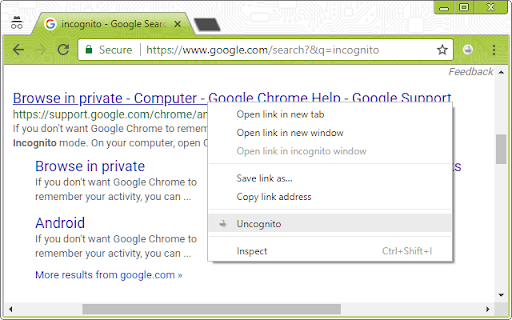
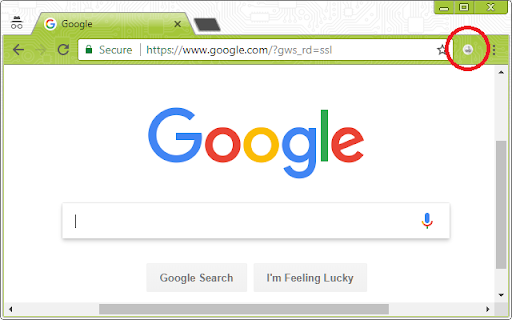
Switches incognito tabs and links into normal tabs This extension has two features: 1. Allows the user to use a context menu option to open a link from an incognito tab in a normal window, much like the built-in option to open a link in an incognito window 2. Allows the user to use the extension button to switch a current incognito tab into a normal tab, while simultaneously closing that incognito tab The normal tab will try to open in an existing normal window first, before creating a new window if none is available. Note: the 'Allow in incognito' option for this extension on chrome://extensions/ must be enabled for this extension to work! =================== Update History ------------------- Version 1.3 -Fixed an issue with the context menu option Version 1.1 -Fixed a bug where if there are no existing normal windows, the context menu option doesn't work and the extension button doesn't close the incognito tab. -Removed unnecessary permissions so that no permissions are required. ===================

Automatic Incognito Mode via Regex
With this extension, you can define custom patterns to match URLs to open in incongnito mode. For instance, to always open banking-related websites in Incognito mode, you can use a regex like: ".*(bank|banking).*." (without the quotes) You can play arround with regex on: https://regexr.com/8ab88 How to: Thanks @Taz Edwards: 1. Leave your existing bookmark(s) as-is in your normal, non-incognito window 2. Pin this extention to your browser window 3. Click the extention silhouette and click options 4. Add the domain in 'pattern' with the syntax changes as described and click the + sign 5. Click your normal bookmark but not from a tab you want to keep since this extention will remove that tab and create a new incog window Recent Changes: 24.12.2024 - Added Quick Regex validation in options page: - Updated to Manifest V3 - added examples - settings may be synced now on your account - improved stability via retry

Incognito Tab Mover
Bidirectional tab mover: Normal ↔ Incognito. Use Alt+M for single tab or Alt+Shift+M for all tabs (Option+M/Option+Shift+M on Mac). 🔒 Incognito Tab Mover: Elevate Your Private Browsing Experience - Version 2.1 Bug Fix Update: Fixed critical issues where extension would fail silently, keyboard shortcuts worked incorrectly, and users received no feedback when operations failed. Navigating the web privately is vital when you need a clean slate or wish to keep your browsing sessions confidential. However, we've all been there—opening a tab in incognito mode for privacy, only to realize it's something we need for the longer term. Traditionally, you're left with two less-than-ideal choices: bookmarking the page for future reference or the tedious task of manually copying and opening it in a regular browser window. Introducing "Incognito Tab Mover"—the seamless bridge between privacy and productivity. Our extension effortlessly transfers tabs from incognito to regular windows with simple keystrokes: ALT+M (Option+M on Mac) for a single tab or ALT+SHIFT+M (Option+Shift+M on Mac) to move all tabs at once! URLs are smoothly transitioned while session history remains untouched, preserving your privacy. Tab Groups Note: When using Chrome's tab groups, the extension moves the individual tabs but doesn't preserve the group structure. For best results with tab groups, use Alt+Shift+M to move all tabs at once. The extension works with both expanded and collapsed tab groups, and no drag-and-drop action is needed. ⚠️ Important: You must enable "Allow in Incognito" for this extension to function. Find this option in extension settings after installation. Embrace the convenience of "Incognito Tab Mover" and transform how you manage your tabs. With privacy at its core, this tool is the perfect companion for anyone looking to streamline their browsing without compromising security or convenience. With both individual and bulk tab movement options, Incognito Tab Mover transforms how you manage your browsing. This perfect companion streamlines your workflow without compromising security or convenience.

Incognito Mode Reset Button
Clear history, cookies and cache of a running incognito session while leaving all tabs open! Google Chrome’s incognito mode is useful for a whole lot of things, also beyond the cliché dirty stuff one might prefer to be hidden from one's browser history: - Signing in on websites with different accounts or letting others do stuff without leaving marks on your browser - Wanting more control of what shouldn’t go into consideration for personalised experiences on websites - Other temporary research and things there’s just no need for to be remembered by the browser - Tricking websites into treating you like a stranger If you make use of the incognito mode extensively in your normal browsing experience, you might find yourself in situations where you’ve got a lot of tabs open in incognito mode that you don’t want to close yet, but you also want to visit a new website or do something where the initial incognito experience without the websites knowing anything about you should be replicated. This is what this extension was made for: The Incognito Mode Reset Button deletes all data - history, cache, cookies, ... - that have been amassed within a running incognito session over time without having to close all incognito tabs. There’s currently no way to do this - you either have to close all incognito tabs and open a new incognito window, or you have to accept that websites have collected stuff about you within the borders of incognito mode. The Incognito Mode Reset Button can thus make your incognito browsing experience even more powerful! Please enjoy this extension and leave a review or comment if you like! Please note: You need to give this extension the permission to work in incognito mode for it to be even displayed there and take use of it.

Recent Tabs and History (Wrona History Menu)
Restore, filter or remove recently closed tabs, windows and history including those from other devices. - Restore recently closed tabs, windows and history (including other devices) - Remove history entries - Blacklist: Don't show certain history-polluting sites in the "recently visited" section - Infinite Scroll - Dark Mode (synced to system theme) - Free Software (GNU GPL V3)
