
gggmapcdjdamfacnmfiganpmelkohhpp


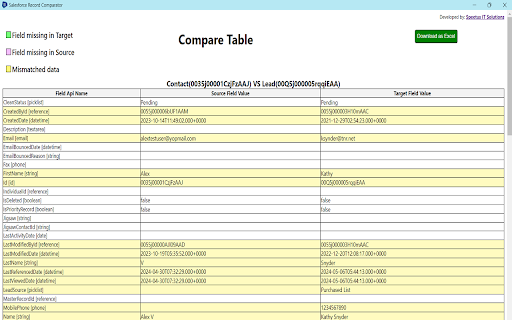
Record Comparator is an extension designed to compare any record of any salesforce org. Steps to compare two records: 1. Go to the record detail page, 2. Open the extension and click on "Select Source". 3. Similarly, go to the another record detail page. 4. Open the extension and click on "Select Target". 4. Click on the Compare button, now you can compare all fields of the both the records.

Apex Debugger
Debug Salesforce apex code with ease Apex debugging with ease. Improved debug logs for Salesforce. Press Shift+d from any salesforce page to open Logs. Click on extension to configure keyboard shortcuts. IMPORTANT! If your org has "Require HttpOnly attribute" option enabled (in Setup -> Security -> SessionSettings) you need to set session ID variable manually. For this click on the extension icon and fill in the last field. Disabling ""Require HttpOnly attribute" adds security risk and should not be done in production orgs. IMPORTANT2! Manifest 3 support from version 0.8. I do expect some bugs. Please report in GitHub. • Search in logs • Filter logs • Delete all logs • Add current User • Indent structured data such as sObject, List, XML or JSON • Improved view with custom themes • Any Id in logs is a link to respective Object page (Class, Trigger, Validation Rule e.t.c) • Lightning compatible PS If you want to report an issue please use GitHub issues (https://github.com/motiko/sfdc-debug-logs/issues). Or contact me by email. I don't see notifications from Chrome Web Store reviews.

Conga Platform Extension
Extension for Conga Platform 1) Shows the instance Name based on login, Copy the token directly by click on instance name 2) Use Extension to query data from platform or see all fields for records with inline editing 3) Import data for update, insert or deletion from platform 4) Telemetry data in Dev Console 5) New API view to filter, track history and call API without token management Disclaimer : This chrome extension is an independent project developed by Harsh Shah and not endorsed or provided by Conga directly. Conga is not responsible for this extension

Salesforce Permission Comparator
Helps to compare the permission between any user, profile, permission set or permission set group. Salesforce Permission Comparator Chrome Extension is designed to streamline to compare the salesforce permissions.This extension offers a comprehensive suite to compare the permissions among the users, profiles, permission sets and permission set groups. With intuitive functionalities and seamless integration into your Salesforce workflow, this extension empowers developers to compare the Object level Permissions, User permissions, Setup entity permissions such as Apex class, Apps, Connected Apps, Visualforce Page etc. In this document, we'll provide a concise overview of the extension's key features. Here you can select any user, profile, permission set and permission set group of at most 3. For example you can also selected 1-user, 1-profile, 1-permission set. Means that any combination as per your use case. 1. Search:- Here you can search any user, profile, permission set and permission set group. 2. User Tab:- It contains the list of user with classified active and inactive users. 3. Profile Tab:- It contains the list of all standard and custom profiles. 4. PermissionSet Tab:- It contains the list of permission sets. 5. PermissionSetGroup Tab:- It contains the list of Permission Set Groups. Here you can see the permissions for selected user, profile, permission set and permission set group. The checked checkbox denoted as access and its vice-versa for unchecked checkbox. This section basically classified into below three sections. 1. Object Permission:- It shows you all standard and custom object permissions showing as Read, Edit, Created, Delete, ViewAllRecords and ModifyAllRecords. 2. User Permissions: Basically It shows all the user-level permission such as general user permission etc. 3. Setup Entity Permissions:- It shows you setup entity user permission. Basically we show you below four permissions which are- 1. Apex Class 2. Apps 3. Connected App 4. Visualforce Page. Note: To perform all the activity mentioned above, tool will be used to access the active session id from browser for respective salesforce org.

Record and Metadata Comparator for Salesforce
Compare Record data values and object metadata in Salesforce Compare Object Metadata and it's record values in Salesforce (now supports Lightning!) and see all differences in just four clicks! Credits: 1. sorenkrabbe for his extension "salesforce-inspector" available @ https://chrome.google.com/webstore/detail/salesforce-inspector/aodjmnfhjibkcdimpodiifdjnnncaafh I have used the code shared by him to improvise and develop this extension. I would share the code of this extension on github soon. 2. Maninder Singh for enabling the extension to work in Lightning -https://www.linkedin.com/in/mansinghinder/ This extension compares any two objects or its records (could be from same org or different orgs) and highlights all the differences found. It can show you the following Please watch the video tutorial available @ http://youtu.be/mkarbbYWveY to understand the exact functionality and its uses. 1. Open up the custom object definition or it's list view or any of it's record in salesforce. This is your source record. Click on the extension icon and then click on the "Select Source Record" button. 2. After that, open up the custom definition of the same object or it's list view or the record (could be from same org or different org). This is your target record. Click on the extension icon and then click on the "Select Target record" button. 3. The extension would create a popup and in that show you all the differences that were found. Steps to compare Record Values: 1. open any record from a standard/custom object in one org. This is your source record. Click on the extension icon and then click on the "Select Source Record" button. 2. After that, open up any other record for the same object (could be from same org or different org). This is your target record. Click on the extension icon and then click on the "Select Target record" button. 3. The extension would create a popup and in that show you all the differences that were found. Do recommend the extension with you friends and colleagues if you like it. Also, if you like the extension, please don't forget to Rate it on the Chrome Extension Webstore. Thanks again and I hope this extension saves your time and makes you more productive! For any queries: rajivashokbhatt+metadatacomparator@gmail.com
