
gekbhjoiibbppcdciojghnmkemdkakdb
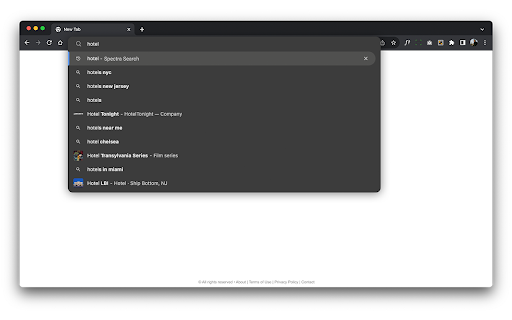
Add the Spectra Search extension and click the icon on your toolbar to access the last 16 visited websites. Explore Your Browsing Past with Spectra! By clicking “Add to Chrome”, you accept and agree to install the Spectra extension, set the Chrome™ default search to Spectra, and to the Terms of Use, and Privacy Policy. Search engine provider will be provided by Yahoo. Type "spectra" in the address bar to view your and discover your spectacular browsing history.

PDF2DOCS
Get access to a free and fast PDF converter with a new tab page search. With PDF2DOCS any PDF task is a breeze! This converter extension enables you to convert and edit PDF files into various file formats right from the new tab, with a click of a button. The Extension includes New Tab Search, and will change your default search engine. What can you do with PDF2DOCS? Convert PDF files to most popular file formats like MSWord, Powerpoint, Jpeg, Gif, and more. Edit and touch up PDF files Add shortcuts to everyday favorite sites you use for faster access Search the web with Bing for rich quality search results Permissions required by the extension: - Configure your new tab page to PDF2DOCS - Access to read and change your data on sites: https://*.pdf2docs.com/*, Please read carefully: By clicking “ADD TO CHROME” you accept and agree to install the PDF2DOCS Extension, to set the Chrome™ New Tab to PDF2DOCS, and to the Terms of Use and Privacy Policy. PDF2DOCS extension sets your default search engine to Yahoo. Uninstalling the extension” 1) Click on the menu icon in the upper right-hand corner of the browser. 2) Go to "Settings" and click on "Extensions". 4) Scroll through the list and click the trash can icon to the right of the extension you want to uninstall. 6) Close your browser. 7) The extension should be removed once you reopen your Chrome browser. For customer service support, please contact us at support@pdf2docs.com.

Quest PDF
Quest PDF is a Chrome extension that helps you quickly find PDF files online by focusing your search specifically on PDF documents, making it easier to locate reports, manuals, and research papers without sifting through irrelevant results. Simply use ‘p’ + Space or ‘p’ + Tab in your Chrome address bar to start your search for PDF files instantly. By clicking the “Add to Chrome” button, you accept and agree to install the ‘Quest PDF’ Chrome extension and set Chrome™’s default search to that provided by Yahoo!®. You also agree to the Terms of Use and Privacy Policy. Please note that the search provided by Yahoo!® is active only when the user types ‘p’ + Space or ‘p’ + Tab in the address bar.

Search Pro
Rapidly search the web with Search Pro! By clicking “Add to Chrome”, I accept and agree to install the Search Pro Extension, to set the Chrome™ Default search to Yahoo, and to our Terms of Use - https://www.searchologic.com/terms-conditions, and Privacy Policy -https://www.searchologic.com/privacy-policy. You may uninstall the extension at any time. To remove our extension from Google Chrome: 1) Click on the three vertical dots icon in the upper right-hand corner of your Chrome browser. 2) Go to "Settings.” 3) In the left menu that appears, click on "Extensions.” 4) From the list of installed Extensions, locate the extension you would like to uninstall.

SearchThatWeb
Enjoy a quick and distraction-free search experience Enjoy a quick and distraction-free search experience, with SearchThatWebThis is a search-focused extension that offers a default search that is simple and fast. By clicking “Add to Chrome”, you accept and agree to install the SearchThatWeb extension, set the Chrome™ default search to SearchThatWeb, and to the Terms of Use, and Privacy Policy. The SearchThatWeb extension sets your default search provider to Yahoo. For assistance from our customer service team, please email us at support+searchthatweb@nonline-search.com
