
gddpfdjbnkcicmmcapdcbeeodgljekml
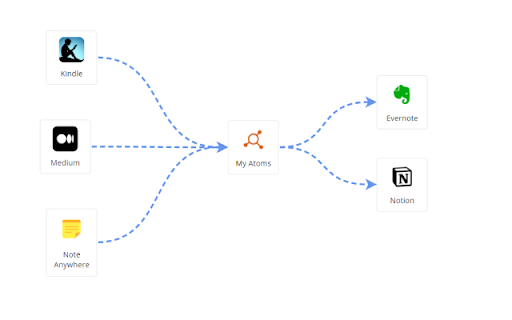

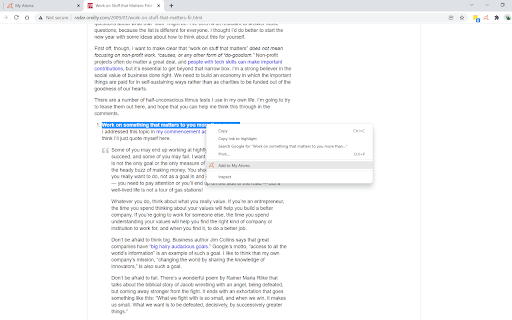
Sync your highlights on Kindle & Medium to My Atoms, select text on any web page and send to My Atoms With this extension, you can: - Select text on any web page and send it to My Atoms - Sync Kindle highlight/notes to My Atoms - Sync Medium highlights to My Atoms

Stickr - Sticky notes for Web
Sticky notes for websites. Stick anywhere on the page! Stickr lets you easily add sticky notes to any webpage. - Quickly add a blank note with Alt+N (Windows) or Option+N (Mac), and many more shortcuts to handle your notes. Click on the extension icon for more info. - Place notes anywhere or pin them in front. - Your notes will stay saved for when you return. - A dashboard to view and manage all your notes in one place. - Save notes for the current page or across the entire website. - You can even select text on a page and right-click to turn it into a note! - Choose from different colours to customise your note.

SideNotion
Turn Notion into your online lecture sidekick. Record lecture screenshots in one command 📷 Speed up, pause, capture videos, without leaving Notion or your keyboard ⌨️ Works for any website 🌐 Saved to your Notion document automatically 📝 Number 1 Product of the Day on ProductHunt https://www.producthunt.com/posts/sidenotion

Research Notes
Bookmark, tag or add notes to pages, highlight and save quotes or images, save selected Google searches, filter out search results. KEEP NOTES AND ORGANIZE PAGES Bookmark, tag or add notes to pages. SAVE & HIGHLIGHT QUOTES Save quotes or other text snippets from pages (or PDFs), highlight quotes on the page. SAVE IMAGES Save images with pages - either pictures directly from the page or copy-pasted screenshots via a tool like Snipping Tool or Paint. TAGS WITH VALUE Advanced tagging: you can add values to the tags. For example, to record a page’s author, add a tag like “Author: ”. Or, when searching for products and comparing good websites with alternative offerings, add tags to pages such as “Product: ” or “Price: ”. You can group and sort by tags and values separately on the all notes -page. RESEARCH UNDER SEPARATE TOPICS All your pages and searches will be saved under topics that you define. This helps keep your different research topics - be it work, school or hobbies - separated from each other. SAVE YOUR GOOGLE OR GOOGLE SCHOLAR SEARCHES When studying a topic in-depth, save searches to remember what search terms you’ve used, which ones got great results and how far into the results you have looked. By default, search saving is turned off, it can be activated for each Google search tab separately. HELPFUL SEARCHING OPTIONS Cross out and hide search results that are not useful. Instantly add notes and tags to results straight in your Google search. OVERVIEW OF SAVED RESEARCH A special all notes -page gives a comprehensive overview of your topics, pages and searches. See your researched pages either in list or table format. Filter pages by text, tags, notes or bookmarks. PRIVATE The information that you create while working with the extension - addresses, searches, notes, tags, etc - is stored exclusively in your own browser and is not shared with anyone. We only collect anonymous analytics information about this products usage to get an overview of what features are used. DO YOU HAVE QUESTIONS OR RECOMMENDATIONS? We are open to feedback about this product, about existing features or new ideas - just send as an e-mail (feedback@onlineresearchnotes.com) or drop by in our Discord server (https://discord.gg/pE9BMg2m). And please do inform us also about any possible bugs that may be lurking. FREE This extension is free to use.

Ultra Button
A button for everything. You can now access most of chrome features in one Ultra Button. Functions Including: Bookmarks, Extensions, Downloads, History and Tabs. Mouse Middle Button Behaviors Bookmarks: Open bookmark in background Extensions: Remove extension Downloads: Remove download record History: Open history in background Tabs: Close tab or window ~~~~~~~~~~~~~~~~~~~~~~~~~~~~~~~~~ The icons in this extension were downloaded from Noun Project. https://thenounproject.com/ v 0.9.0 add download notification You can enable it in the options v 0.4.1 add session control You can now restore closed tab or windows
