
gdcmijmdlfjoaonkfahljagjhlgjjcjk
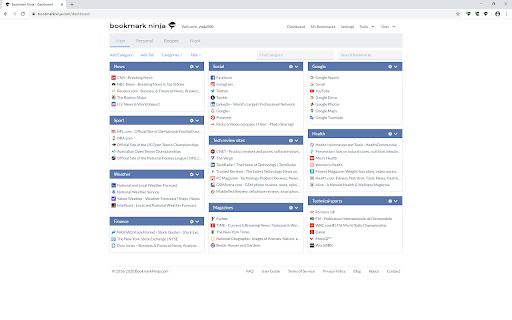
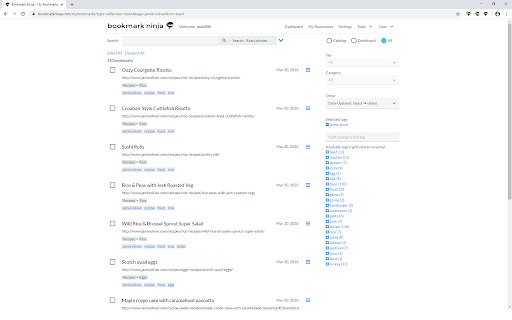

Bookmarks all tabs in the browser with once click - Access your bookmarks on any device (desktop, notebook, mobile) in any browser - All bookmarks are private by default, sharing is available optionally - Import your current bookmarks from your browser or any other bookmark manager - Quick access support for frequently used bookmarks - Support for handling and organizing large number of bookmarks with advanced tag management - Clean and simple UI with optional Dark Mode for a user friendly experience

Better Bookmarks | Streamline Your Favorites
Effortlessly organize bookmarks with advanced sorting, powerful search, bulk actions, and seamless import/export. Better Bookmarks is the perfect solution for users looking to efficiently organize, manage, and retrieve their bookmarks. With its sleek design and advanced features, Better Bookmarks replaces your browser's default bookmark manager, providing enhanced controls, faster search capabilities, and seamless functionality. Say goodbye to cluttered bookmarks and hello to streamlined organization. (1) Advanced Sorting Options (2) Powerful Custom Bookmark Search (3) Bulk Operations for Editing, Moving, and Deleting (4) Enhanced Bookmark Folder Organization (5) Optimized Bookmark Index View (6) Comprehensive Import and Export Options (7) Dark and Light Themes (8) Secure Bookmark Deletion with Undo Function (1). Advanced Sorting Options Organize your bookmarks your way: • By Date: Keep your most recent bookmarks on top. • By Name: Arrange them alphabetically for easy navigation. • Chrome Default Order: Maintain the default sorting for a familiar browsing experience. (2). Powerful Custom Bookmark Search Locate bookmarks instantly with our advanced search functionality. • Real-Time Results: Get results as you type for faster retrieval. • Efficient Search Filters: Narrow down your search to pinpoint the exact bookmark. (3). Bulk Operations for Efficient Management Manage multiple bookmarks effortlessly with powerful bulk actions: • Select Multiple Bookmarks: Easily select and perform actions on several bookmarks at once. • Open in New Tabs/Windows: Open multiple bookmarks simultaneously in new tabs, new windows, or private mode. • Edit Bookmarks: Update bookmark titles and URLs to keep them accurate. • Move Bookmarks: Reorganize bookmarks into appropriate folders quickly. • Delete Bookmarks: Remove unwanted bookmarks individually or in bulk. • Export Bookmarks: Save your bookmarks in HTML or CSV formats for backup or sharing. • Copy URLs to Clipboard: Select multiple bookmarks and copy their URLs to the clipboard for easy sharing with anyone. (4). Enhanced Bookmark Folder Organization • Folder View: See all folders along with the number of bookmarks in each. • Parent Folder Display: Every bookmark shows its parent folder name for better context. (5). Optimized Bookmark Index View • Comprehensive Overview: View all bookmarks in a neatly arranged list with folder names, URLs, favicons, and titles. • Better Navigation: Quickly identify and access bookmarks related to specific projects or categories. (6). Comprehensive Import and Export Options • HTML and CSV Formats: Import/export bookmarks for backups or sharing. • Seamless Sync: Sync bookmarks via your Chrome profile—no additional login required. • Data Safety: Always have a backup to ensure your bookmarks are secure in case of accidental deletion. (7). Dark and Light Themes Choose between dark and light themes to suit your preferences and reduce eye strain during extended use. (8). Secure Bookmark Deletion with Undo Function Accidentally delete a bookmark? No problem! Easily restore deleted bookmarks with the undo function. ⭐ Active Support Center At Better Bookmarks, we care deeply about our users. We continually improve the extension based on your feedback. Feature Suggestions: Share your ideas and requests for new features. Support Assistance: Need help? Our team is ready to assist you. ↪ Submit a Request: https://betterbookmarks.io/contact/?reason=feature ⭐ Privacy Policy Your privacy is our priority: • No Data Tracking: We don’t track your browsing data, website usage, or any personal information. • Local Storage Only: All data is securely stored in your browser. We don’t access or share your data. • Anonymous Analytics: We use Google Analytics solely for anonymous error reporting to improve extension quality. Have questions or concerns about your privacy? Contact us anytime: ↪ Contact Us: https://betterbookmarks.io/contact/?reason=general

Bookmarks Commander
A dual-pane Norton Commander liked bookmarks manager that supports sorting, dark theme, search, and duplicate detection This is a two-panel bookmarks manager for your browser. It works similar to the famous Total Commander. You can move items between the panels or view two different directories simultaneously. Instruction: Click on the toolbar button once to open the commander in a new browser tab. By default the left panel has focus. Use arrow up and arrow down keys to navigate. Use Enter to move to a directory. To move the other panel simply press The left or right arrow key. Shortcuts: [open links]: Press Enter key to open on the same tab. Press Ctrl + Enter or Command + Enter to open in a background tab or use double-click to open on the same tab. Press Ctrl/Command while double-clicking to open in a background tab. [select multiple bookmarks]: Ctrl/Command with left-click to select more items. [copy links to the clipboard]: Ctrl + C or Command + C to copy selected links to the clipboard. [copy titles to the clipboard]: Ctrl + X or Command + X to copy selected titles to the clipboard. [directly navigate to a bookmark]: Press the first character of the title multiple times to navigate between items starting with this particular character [move one step up]: Use backspace to navigate to the parent directory [move between left and right panels]: use Tab key to toggle between panels. Use Ctrl + 1 or Command + 1 to move to the left tab. Use Ctrl + 2 or Command + 2 to move to the right tab. You can alternatively use arrow-left and right to move between panels. [move selected bookmarks and folders to the other panel]: Use Ctrl/Command + right arrow key to move selected items to the right panel when the left panel is focused. Use Ctrl/Command + left arrow key to move selected items to the left panel when the right panel is focused. [sort items]: Ctrl/Command + J for A-Z and Ctrl/Command + Shift + J for Z-A [find duplicated bookmarks]: Ctrl/Command + Shift + F; use the "duplicates" keyword on the search bar to find all duplicated bookmarks in the current directory and subdirectories. [move bookmarks between different browsers]: Ctrl/Command + Y to export selected bookmarks to the clipboard, then use Ctrl/Command + P to import them to the new machine. This way you can transfer bookmarks between two browsers. [configurations]: Use Ctrl/Command + S to access configuration panel. You can change the font size and font family of the interface or change the color scheme (theme) of the interface (dark, light, or based on your OS color scheme) or toolbar icon's color. It is also possible to use the new "VIM" mode to support VIM-compatible navigation (still in progress). Notes: 1. When an operation is not allowed, the button is disabled. 2. You can see all the shortcuts by placing your mouse over the buttons. 3. You can drag and drop bookmarks between panes 4. You can use right-click context menu to open links in new windows

Bookmark All Tabs
A Chrome extension that allows you to bookmark all open tabs with one click. Choose to save to a new or existing bookmark folder. Bookmark All Tabs is a simple and convenient Chrome extension that allows you to bookmark all open tabs with just one click. Key Features: 1. Save Tabs to Folders: Choose to save tabs in a new bookmark folder or an existing one. 2. Auto-Title Folders: Automatically title the folder with the current date, time, or the most common words found in the tab titles. 3. Access Recent Folders: Select a recently opened bookmark folder for quick saving. 4. View and Select Tabs: View all open tabs in a list and pick the ones you’d like to bookmark. 5. Copy URLs and Titles: Copy URLs or titles of selected tabs to the clipboard for easy sharing or organization. How to Use: 1. Open the Extension: Click the extension icon in your browser. 2. Choose a Folder: Select an existing bookmark folder or create a new one. For new folders, you can auto-title them with the current date, time, or common words from tab titles. 3. Bookmark Tabs: Once a folder is selected, click "Bookmark All Tabs" to save the tabs. We hope you find Bookmark All Tabs to be a useful and time-saving extension. Thank you for using it!

Bookmanize - Advanced bookmark manager
Advanced bookmark manager provides tagging, instant sorting, and filtering among all bookmarks on a full list view. Bookmark manager with a clean user interface where all bookmarks can be easily accessed in one full list view with tagging, instant sorting, and filtering. Organize your bookmarks with custom tags and faster navigates between them. We are an independent team of developers who love what they do:) If you want to improve or expand anything - email us bookmanize@gmail.com Support us with a cup of coffee - https://www.buymeacoffee.com/bookmanize ★ All bookmarks on one screen ★ Fast access to all main functions ★ Instant searching, filtering, sorting, adding, deleting bookmarks ★ Drag n drop bookmarks and folders All the features that the default bookmarks have (add, delete, sort, drag and drop bookmarks) in a more user-friendly interface with high performance for a large number of bookmarks Note: Your data (history and bookmarks) is not saved or stored anywhere else but on your computer. Hotkeys: - ctrl+shift+f or command+shift+f — focus the search field
