
fongdcpejhfehpdcahcjncgfhkepoico
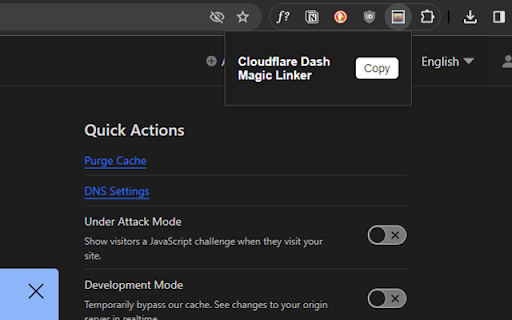
Create magic deep links for the Cloudflare dashboard. Chrome extension for copying magic deep links into the Cloudflare dashboard Easily copy deep (or magic) links into the Cloudflare dashboard and Zero Trust dashboard. For example, https://dash.cloudflare.com/00000000000000000000000000000000/example.com/email/routing/settings is converted to https://dash.cloudflare.com/?to=/:account/:zone/email/routing/settings This tool makes it easy to copy these links without having manually replace the values. Magic links are useful when sharing URLs into the dashboard with coworkers, for blog posts, etc. Supports: - :account - Account ID for the Dashboard and Zero Trust - :zone - Zone domain name - :pages-project - Pages project name - :pages-deployment - Pages deployment ID - :worker - Worker support Always make sure to test your links before sharing them. Open source GPL-3.0 licensed on GitHub: https://github.com/mackenly/cloudflare-magic-linker Not associated or endorsed by Cloudflare. Cloudflare™️ is a trademark of Cloudflare, Inc.

Cloudflare Magic Link Generator
Generate and copy Cloudflare Magic dashboard links from the right-click context menu. Generate and copy Cloudflare Magic Dashboard links from the right-click context menu.

Cloudflare Buddy - DNS Record Manager
Quickly create, edit, and delete DNS records for your Cloudflare domains — A, AAAA, CNAME, MX, TXT Quickly create new DNS records for your domains that are added on Cloudflare. Simply add your API Token with correct permissions and you are good to go. You can add 'A' and 'CNAME' records. How to get Cloudflare API Token: 1. Login to your Cloudflare account 2. Visit https://dash.cloudflare.com/profile/api-tokens 3. Click "Create Token" button 4. Scroll down to "Create Custom Token" and click "Get Started" button 5. Give your API Token a name so you can identify it later 6. From "Permissions" select "Zone" -> "DNS" -> "Read" and add one more as "Zone" -> "DNS" -> "Write" 7. From "Account Resources" keep "Include" -> "All Accounts" or specify account that you want to manage. 8. You may keep other settings as is or change them according to your needs. 9. Proceed to next steps and copy the API Token. Note: Your API Token is saved on your browsers local storage and not uploaded anywhere else.

CaveHLS
CaveHLS - Play all you like! CaveHLS is a powerful and versatile Chrome extension that enables you to play online videos in various formats, such as HLS, MPEG-DASH, MP4, M3U8 and more. Built with Plyr, our player support features such as speed/volume control, picture-in-picture mode and full screen mode Enjoy content from any sources with advanced features bundled in the extension such as: • Add additional or set request headers • Add addtional or set response headers • Build request/response headers using our fully tested templates • Embed our web player available at: https://player.cavehls.net into your own sites and enjoy all mentioned advanced featured (given that the extension is installed) With CaveHLS, you can enjoy online videos in any format, from any website, with a smooth and seamless experience. Learn more at: https://cavehls.org

HTTP Nowhere
This extension upgrades non-secure connections (HTTP) to secure (HTTPS). If the web site does not correctly support HTTPS, Chrome will refuse to connect (with the usual interstitial warning page). Thus, this extension will make it hard to view some web sites. For maximum safety, you should also turn on Chrome’s Secure DNS (DNS over HTTPS) feature. There is no way (yet?) for an extension to turn this on for you, so you have to do it manually. To do so, go to the dots menu → Settings → Security, and then scroll down to Use Secure DNS. Select a provider or fill in your own. (You can also get to this setting by navigating to the URL chrome://settings/security?search=dns.) HTTP Nowhere is designed to be as simple as possible, and has no functionality other than upgrading connections. This is easy to see in the very short and simple implementation. It needs no special permissions or access to the web pages you view. There is nothing to configure; HTTP Nowhere is either on or off.
