
fnacfbhdnejbjiglnlfgeaaifcmmmncb
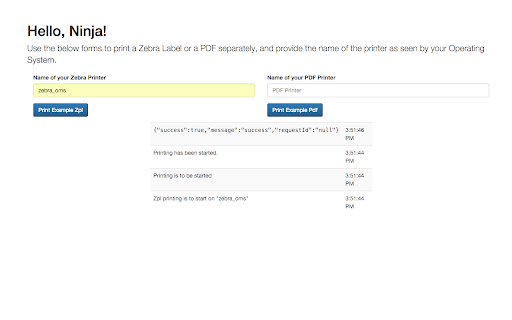
Ninja Printer is a browser based solution for printing from authorised website(s) using Google Chrome. Technically the solution is based on the NativeMessaging feature of the browser and runs a simple Java application in the background to execute printing on the local machine. Currently it only supports Windows and OSX, but it should be easy to adjust other unix-like systems. One of the main design goals was to be able to pick the printer to be used from the web application, meaning obviously that the application needs to be aware of the available printers on the users machine. NinjaPrinter ships with support for 2 different type of documents: ZPL (label) and the PDF, but extending it should be fairly straight forward.

Print for Google Chrome
Print the current page with a single click. Quickly print website content, articles, photos, and more. Print is a powerful and lightweight browser extension designed to make printing web pages, email content, photos, PDFs, and your original business cards as easy as a single click. With the customizable Print button in the toolbar, you can tailor your printing experience to your preferences. Whether you are using a desktop or touchscreen device, this extension ensures a seamless and quick print process. Install today and streamline your one-click printing for your browser. The Print friendly extension is ideal for students, teachers, professionals, business owners, and anyone who frequently prints documents. Whether you need to print study materials, business reports, invoices, or web articles, this extension makes it simple and convenient. Additionally, it is perfect for those who want to save paper by optimizing print color and reducing waste. The print button works with all major printer brands, including Brother, Canon, Epson, HP, Samsung, and Xerox. The Print browser extension is print friendly & PDF can be saved from the currently open tab. Browser extension features: ◆ Seamless Integration: Place a customizable print button directly in your web browser for quick and easy access. ◆ Fast Printing: Designed for speed, this lightweight browser extension ensures rapid printing of any web page. ◆ Customizable Icon Style: Choose from a variety of button designs, including Original, Human Feet, Animal Feet, and Google Material Design styles. ◆ Touchscreen Friendly: Optimized for both touchscreens and desktops, making it versatile and user-friendly. ◆ Multi-Functionality: Double-click the print icon to save files in MHTML, HTML, or PDF format, and choose to print in color or black and white. ◆ Compatibility: Fully functional on Windows, Mac, Linux, and Google Chromebooks. ◆ Define custom keyboard combinations to activate the print function ◆ Support for Dark Mode Project Information: https://www.stefanvd.net/project/print/browser-extension Required Permissions: ◆ "contextMenus": This is to add the "Print current page" menu item in the web browser context menu. ◆ "activeTab": Allow the print function to be accessible on the currently visible tab page. ◆ "storage": Save settings locally and sync with your web browser account. >> Unlock an option feature to protect your eyes at night and focus on the video player, such as YouTube™, by installing Turn Off the Lights browser extension for YouTube and Beyond. https://chromewebstore.google.com/detail/turn-off-the-lights/bfbmjmiodbnnpllbbbfblcplfjjepjdn

VM Zebra Printer
Allows Valet Manager websites to print labels and tags to network connected Zebra Printers. Allows Valet Manager websites to print labels and tags to network connected Zebra Printers. This extension acts as a relay between Valet Manager websites and local network connected Zebra Printers. Without this extension, you can not print vehicle windshield stickers or coupons from Valet Manager websites. Requires a network connected Zebra ZT230, ZD500R, ZD420, GK420, or similar model printer. Updates: - Improve connection for ZD500Rs

Print Edit WE
Edit web pages prior to printing. Delete, hide and format elements. Edit text. Remove adverts and sidebars. Print Edit WE provides facilities to edit the contents of a web page prior to printing or saving as HTML or MHTML. Elements in the web page can be formatted, hidden or deleted and text can be edited or inserted. Unwanted content, such as adverts and sidebars, can easily be removed. Note, to use the Save As HTML feature, the Save Page WE extension (version 14.0 or later) must be installed and enabled. To start editing the page, click on the Print Edit WE button on the main toolbar, or select Print Edit WE > Start Editing on the context menu. A blue 'EDIT' (editing) badge will appear on the button. The 'Web Style' feature is disabled by default, so that the page displayed looks similar to how the page would look if printed normally. When the 'Web Style' feature is enabled, the page displayed will look similar to how the page looks during normal browsing. The 'Text Pieces' feature is disabled by default, so that only whole blocks of text can be selected. When the 'Text Pieces' feature is enabled, individual pieces of text can be selected and edited and line breaks are displayed. The 'View More' feature is disabled by default, so that only elements that are normally visible are displayed. When the 'View More' feature is enabled, elements that are normally invisible are also displayed and can be selected and edited. An edited web page can be saved as a single HTML file, which can be viewed or re-edited using Firefox or Chrome. An edited web page can also be saved as a MHTML file. Click the 'Preview' button to see how the edited web page will look when printed. Close the preview window to return to editing. The buttons available on the Print Edit WE toolbar are: • Select - select all or graphic or page-break elements, or re-select elements from previous command. • Deselect - deselect all currently selected elements. • Hide - hide currently selected elements. • Delete - delete currently selected elements. • Hide Except - hide all elements except those currently selected. • Delete Except - delete all elements except those currently selected, with varying restrictions. • Format - apply format properties to currently selected elements. • Text - edit a text piece or insert new text before or after element. • Undo - undo the action of previous edit command. • Undo All - undo the actions of all previous edit commands. • Save - save web page as a single HTML or MHTML file. • Text Pieces - allow selection and editing of individual text pieces. • View More - view invisible elements in the page. • Web Style - alternately remove or apply CSS print stylesheets. • Preview - open the Print Preview window. • Close - finish editing. • Tools - access to the Fix Page Breaks features and to the Options dialog. • Help - show the Help panel. The Delete Except button has three menu items: • Restricted - higher level elements retain their size and relative position. • Without Float - higher level elements retain their size and relative position, but cannot float right. • Unrestricted - higher level elements are resized and repositioned freely, but cannot float right. In this context, “higher level elements” means the ancestors (parent, grandparent, etc) of the currently selected elements. The mouse actions are: • Move - move highlight box to highlight element. • Click - select or deselect highlighted element. • Right-Click - inspect format properties for highlighted element. • Drag - select all elements within capture box. • Shift+Drag - select all graphic elements within capture box. • Ctrl+Drag - deselect all elements within capture box. Distributed under the GNU General Public License version 2. See LICENCE.txt file and http://www.gnu.org/licenses/

AZLabels - Thermal Labels For Amazon
AZLabels allows you to print thermal labels straight to your thermal printer from Seller Central. Tired of downloading PDFs, snapshotting the same section over and over, or using ancient software that takes forever? Print in one click. Set your preferred label size once and never worry about getting the right size again. Download the simple Chrome extension and you'll be printing labels in under two minutes. Need help with anything? Our team is available to support with any problems you might have.
