
fakeocdnmmmnokabaiflppclocckihoj
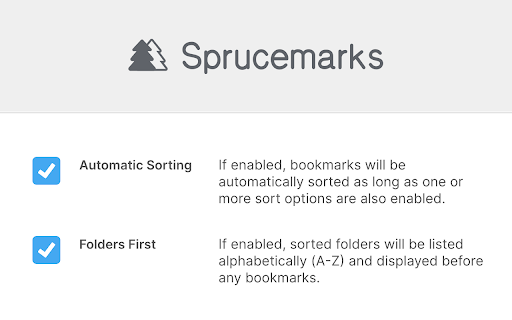
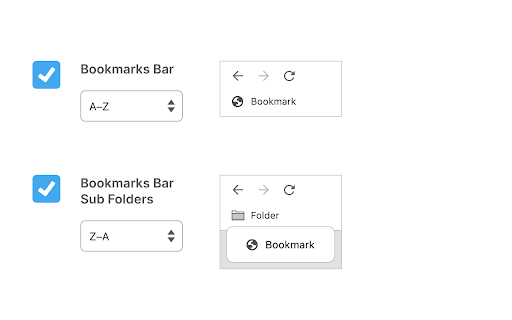
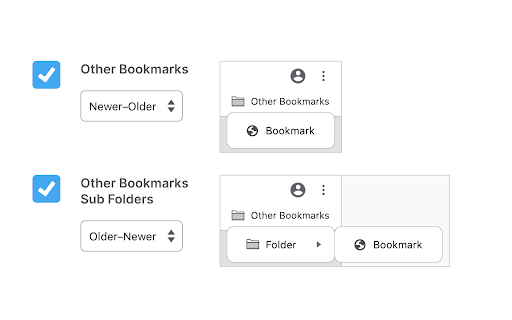
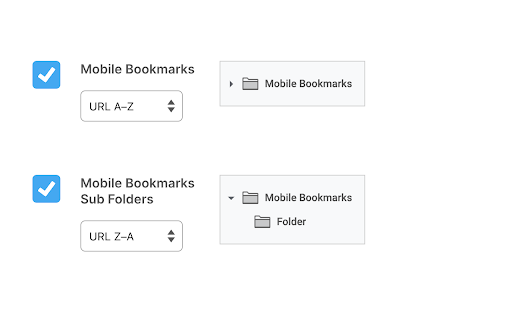

• Organize your Bookmarks Bar, Other Bookmarks, and Mobile Bookmarks. • Group folders together or have them sorted alongside bookmarks. • Each area can have its own sort order. • Save your options once and have your bookmarks sorted now and automatically into the future. • Review and improve your bookmarks collection with a suite of tools. Check for and optionally remove empty folders, duplicate bookmarks, and similar bookmarks. View and optionally clear your bookmark history. Sprucemarks can be used alongside other bookmark extensions but you must be careful that both extensions do not try to sort the same areas. Each extension may have its own sorting logic which may lead to endless sorting as each extension reacts to changes by the other. LIMITATIONS FOR CHROME Chrome may display bookmarks out of order if you have a mix of local and synced bookmarks. To avoid this issue, use only local or synced bookmarks, not both. Sprucemarks respects your privacy. https://nightmode.fm/software/sprucemarks/privacy This software is provided under a no-contact and no-support model. Do not contact the author, for any reason, even if you think it would benefit the author.

Booksorter
Sort your bookmarks automatically by selecting a sorting rule for each folder. With this extension, you will no longer need to manually sort your bookmarks every time after you add a new item or modify an existing one. Start by choosing a bookmark folder and how you want it sorted (by name, by url, by date, etc). This extension will then start tracking those folders for any change made, and whenever you add or modify a bookmark within them, their contents will be automatically sorted according to the rule you created. Features: - Sort your folders automatically whenever they are changed - Or sort the folder only once, without tracking for further changes - Sort by Title, URL, Date or even randomly - Inverted order (Z to A) is also possible - Sort subfolders automatically with Recursive Sorting - Choose whether you want subfolders sorted normally or left at the top/bottom - Enable manual sorting when you reorder bookmarks within the folder Changelog: v1.4.0: - Added sorting method: Unsorted. Use it to sort your bookmarks while keeping your folders sorted manually, or vice-versa - Added "Skip Base Folder" option to Recursive Sorting to only sort subfolders v1.3.0: - Remember last used sorting options v1.2.0: - Updated to ManifestV3 v1.1.0: - Added Recursive Sorting to also automatically sort subfolders. - Improved sorting performance when only moving one bookmark.

Starmarks Bookmark Manager
Unleash the power of your bookmarks! Effortlessly filter, sort, and organize your favorite websites with Starmarks. • Smart collections for advanced categorization • 5-star ratings and visit tracking for all your most-loved bookmarks • Drag select and edit multiple bookmarks at once • Full backup support with data export and download • Dark mode theme option for a sleek browsing experience Transform your bookmarking experience and never lose track of an important website again!

Bookmarks Commander
A dual-pane Norton Commander liked bookmarks manager that supports sorting, dark theme, search, and duplicate detection This is a two-panel bookmarks manager for your browser. It works similar to the famous Total Commander. You can move items between the panels or view two different directories simultaneously. Instruction: Click on the toolbar button once to open the commander in a new browser tab. By default the left panel has focus. Use arrow up and arrow down keys to navigate. Use Enter to move to a directory. To move the other panel simply press The left or right arrow key. Shortcuts: [open links]: Press Enter key to open on the same tab. Press Ctrl + Enter or Command + Enter to open in a background tab or use double-click to open on the same tab. Press Ctrl/Command while double-clicking to open in a background tab. [select multiple bookmarks]: Ctrl/Command with left-click to select more items. [copy links to the clipboard]: Ctrl + C or Command + C to copy selected links to the clipboard. [copy titles to the clipboard]: Ctrl + X or Command + X to copy selected titles to the clipboard. [directly navigate to a bookmark]: Press the first character of the title multiple times to navigate between items starting with this particular character [move one step up]: Use backspace to navigate to the parent directory [move between left and right panels]: use Tab key to toggle between panels. Use Ctrl + 1 or Command + 1 to move to the left tab. Use Ctrl + 2 or Command + 2 to move to the right tab. You can alternatively use arrow-left and right to move between panels. [move selected bookmarks and folders to the other panel]: Use Ctrl/Command + right arrow key to move selected items to the right panel when the left panel is focused. Use Ctrl/Command + left arrow key to move selected items to the left panel when the right panel is focused. [sort items]: Ctrl/Command + J for A-Z and Ctrl/Command + Shift + J for Z-A [find duplicated bookmarks]: Ctrl/Command + Shift + F; use the "duplicates" keyword on the search bar to find all duplicated bookmarks in the current directory and subdirectories. [move bookmarks between different browsers]: Ctrl/Command + Y to export selected bookmarks to the clipboard, then use Ctrl/Command + P to import them to the new machine. This way you can transfer bookmarks between two browsers. [configurations]: Use Ctrl/Command + S to access configuration panel. You can change the font size and font family of the interface or change the color scheme (theme) of the interface (dark, light, or based on your OS color scheme) or toolbar icon's color. It is also possible to use the new "VIM" mode to support VIM-compatible navigation (still in progress). Notes: 1. When an operation is not allowed, the button is disabled. 2. You can see all the shortcuts by placing your mouse over the buttons. 3. You can drag and drop bookmarks between panes 4. You can use right-click context menu to open links in new windows

online / offline Bookmark Manager
I am a software developer and this is a project that I created as part of my profile. I update this from time to time - as I learn new skills. I also fix reported bugs. This extension does not upload any data online - neither does it fetch / download anything. Feature summary: - 1. USE SHORTCUT - Ctrl+Shift+F - it is default for this extension (set shortcut in chrome if it not working). To open a link in new tab, hold Ctrl key while clicking on the link. 2. This is just an editor - it doesn't mess up your data or store it anywhere - nothing is uploaded online. Turn on sync in your browser if you want to see your mobile bookmarks here. 3. You can change theme using icons on top left - you can also CREATE a new one from there. You can only edit the themes you yourself create. 4. Hover on icons for tips. 5. Interface is easy to understand and support drag/drop. You can go into edit mode (by clicking pencil icon on top right) - then you can select multiple things and then drag drop them at the same time. 6. You can drop folders on left panel / menu - then you can open them in full view as shown in screenshots. Then you can also move things into those folders using drag / drop or you can set a home folder. 7. Use right click options - you can rename, hide names to show only icons on bookmark bar. 8. No undo yet - you can undo anything by going to chrome's bookmark manager and then using Ctrl + Z. Will maybe add undo sometime in late 2024. 9. Please report bugs and share any feedback. Some detailed explanations: - The extension is mostly useful if you have a lot of bookmarks. I appreciate feedback (especially positive ones) - I do get to things eventually. Please report bugs - via comments/emails. BASIC IDEA: To view and manage bookmarks on full screen. It shows and edits in chrome bookmarks - move / rename / delete etc in a full tab view like a website. HOW I USE THIS: I personally use it to view my mobile and other bookmarks occasionally and to hide some of their names so that they show as simply icons on the bookmarks bar(use right click). Also I have pined a few folder onto side - then I just DRAG and DROP bookmarks onto the pinned one - to quickly move things. Also when searching for some projects, I tend to create its separate folder. Pin it to side and set it as home. Whenever if I have to check links later, just press shortcut and all the links show up on screen in full page. SYNC DATA across devices: It does not interfere with chrome's built-in data synch-up process. So you can bookmark something on phone and after google syncs your data it will show up in the extension. GROUP: To show folders together and bookmarks sorted alphabetically (by url). It has a button on top right. DUPLICATES: Button on top-left side to check if you have any. RIGHT CLICK: things such as rename, delete, hide name in bookmark bar, show in parent folder (can be useful when clicking something you found through search). DRAG/DROP: You can use it to move bookmarks/folders to another folder. Or pin a folder to side bar (maybe set it as home later - right click). ROW-WISE / COLUMN-WISE: Button in top right. Its used to switch the direction in which the bookmarks are arranged. Whether the rows are filled first or are the columns filled first. Tips: 1. Use Ctrl + F (chrome's feature) to find bookmarks from time to time. 2. Use Right click menus. They have features like show in folder (in search). 3. Edit Mode : Button in top right. It just allows you to select and apply simple operations - move, delete - to multiple bookmarks/folders at once.
