
eneajgkmdhmjmloiabgkpkiooaejmlpk
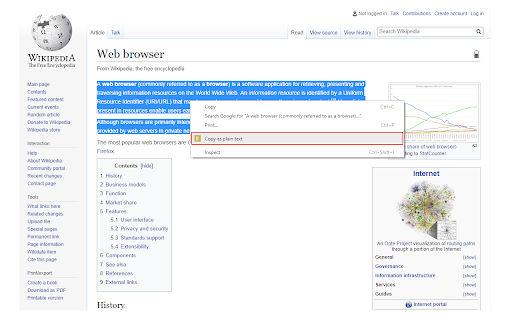
Easily copy the selected text without formatting to the clipboard via the right-click menu. Copy As Plain Text is a lite extension that lets you easily copy any text without formatting to the clipboard via the right-click context-menu item. Simply browse a website and select a desired text, then right-click and select - Copy as plain text - from the context-menu. The selected text will be copied to the clipboard without any formatting. Alternatively, you can press the toolbar button to copy the plain text to the clipboard. Please note that, to paste the clipboard you can use (Ctrl + V) or right-click and select - Paste - from the context-menu. To report bugs, please fill out the bug report form on the addon's homepage (https://mybrowseraddon.com/copy-as-plain-text.html).

CoTS: Copy on Text Selection
Copy on text selection in current page automatically. Double-click to select and copy text automatically. Ctrl + click to paste. Do you routinely copy text from one webpage to another page or app? Are your fingers strained and hurting from all that copying and pasting? Or, do you just want or need a helping hand? Well then this is the perfect extension for you! Copy text on a webpage simply by selecting it! With a bonus "Ctrl + click" to paste text! - *New* "Copied" confirmation bubble. - Select text on page with mouse or touchpad and release to copy text selection automatically. - Double-click text to select that word, sentence, or paragraph and copy automatically. - Ctrl + A to select all then click with mouse to copy and deselect. - Hold alt while selecting to disable copy on select functionality in real-time. - Ctrl + click to paste clipboard text. - Dark mode on/off. If you need to select text to replace while "copy on text selection" is turned on and you don't want to overwrite your clipboard in doing so: - Hold alt + select text to disable "copy on text selection" in real-time. Note that after you make your text selection, the mouse button must be released before the alt key. - Alternatively (although alt + select is better IMO), you could select the text that you want to replace first and then select text from another page with copy on select functionality. Then come back to the page where you already have the text selected that you want to replace and paste. - You could also select text to copy and then when you go to select other text to replace and ctrl + v before releasing the mouse button (because the mouse up triggers the copy of the selected text). This works between different pages and also within the same page. - Triple-click to select sentences or paragraphs and copy selection automatically. For now, you can either hold mouse down and select the sentence or paragraph, or triple-click and then click again to copy (so quadruple-click basically). - For the CoTS feature to work, either after installing the extension or toggling the feature on, you may need to refresh any pages/tabs that were previously open. - The features included in this extension may not work on some deeper level div, textbox, iframe, or other protected elements. - When using "ctrl + click" to paste, you may get a pop-up from the site you're on saying that it is requesting access to your clipboard. This happens because the extension is handling the paste action (on ctrl + click) to paste your clipboard content into the site's page. Your clipboard information is not uploaded or sent to any site (that you're not already pasting to) and is not sent to the developer or uploaded to any other servers.

Copy & Paste Without Formatting
Always copy as plain text. Remove all formatting when copying text on the web. "Copy & Paste Without Formatting" is a helpful little tool that makes sure text is copied to your clipboard without retaining any formatting. This tool adjusts the default behavior of copying, allowing you to always copy as plain text. Activate or deactivate this feature with a simple click on the extension icon. Requires a one-time payment. - Copy Without Formatting: Strips all formatting including headers, bold, italic, links, lists etc. Since text is copied as plain text, it will paste as plain text in any context including windows outside of your browser. - Preserves Newline Formatting: While stripping other formatting, it preserves newline breaks, keeping the essential structure of your copied text intact. - Toggle On/Off Easily: Toggle the plain text copying feature on or off with a single click on the extension icon.

Copy & Paste as Text - Neatly formatted
Copy and paste any content in a clean, well-structured plain text format. Easily convert formatted text, tables, lists, and other formatted content into neat, structured plain text with just a few clicks. ✨ Simply copy-paste from Excel, Word, or web pages! Our extension does the rest, transforming it into clean text. 🔠 Preserve Structure of your data. Rows and columns are converted into well-organized plain text. ⌨️ Keyboard Shortcuts Use standard copy (Ctrl+C) and paste (Ctrl+V) shortcuts for easy and efficient operation. 🚀 Fast and Intuitive No learning curve! Just copy, paste, and get the text you need. Say goodbye to messy text conversions and hello to clarity with "Copy & Paste as Text". Start transforming your tables and formatted text into clean plain text today!

Auto Copy
Automatically copy selected text to the clipboard. Has many configurable options for controlling the behavior. When text is selected using the mouse it will automatically be copied to the clipboard. *** With Version 5 you may have to update your settings. Please check them to make sure things are working as expected. *** *** Once this extension is installed you must reload any open tabs in order for it to work *** Features: - Notification on copy - Options are sync'd across browsers - Remove selection on copy - Enable / disable in text boxes - Enable / disable in content editable elements - Paste on middle click - Use modifier key(s) to enable / disable auto copy - Use modifier key(s) to copy as a link - Always copy as a link - Copy without formatting - Trim whitespace - Copy delay - Clear clipboard - Include informational comment with optional formatting items - Use modifier key(s) to enable / disable informational comment - Blacklist websites to automatically disable the extension - Works with all URL types Go to the options screen to configure the features you'd like to use. Note: - This extension now works all URL types. In order for it to work with file:/// URLs you must check 'Allow access to file URLs' on the Extensions page. Content-scripts are automatically disabled in the Extension Gallery. Therefore, the extension will not work on this page or any page in the Gallery, so please test it on another page. See website for release notes.
