
ehpgmafhbcgjlpoadjepkiokghjnhmil
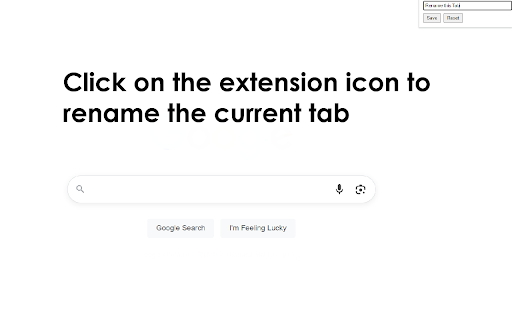
Quickly rename the current tab title. Modern knowledge workers juggle dozens—sometimes hundreds—of open tabs each day. While browsers offer basic tab-management tools, they rarely tackle the most fundamental cognitive burden: remembering which tab is which. A rename-tabs extension lets you edit the title of any open tab, so instead of twenty pages that all read “Dashboard – Company Name,” you see clear, task-oriented labels such as “Q2 Metrics,” “Client A Brief,” or “Invoice Template.” That seemingly simple change delivers a surprising range of benefits, from faster navigation to better focus and lower memory load. Below are the key reasons a rename-tabs plugin deserves a permanent slot in your productivity toolkit. Instant Visual Landmarks for Faster Navigation Default page titles are often generic, truncated, or identical across multiple tabs. Renaming converts those cryptic snippets into meaningful labels you choose, creating visual landmarks your brain can scan in milliseconds. Instead of hovering over favicons or cycling with Ctrl + Tab, you jump directly to “Marketing Plan DRAFT” or “Vendor Contract v3,” shortening retrieval time on every context switch. Compounded over a full workday, that recovery adds up to minutes—or even hours—of reclaimed time. Cognitive Off-Loading and Reduced Mental Fatigue Working memory is finite; the more details you try to juggle, the quicker you tire. By externalizing tab context into explicit names, you off-load that information from your brain onto the interface. This “second brain” approach frees cognitive bandwidth for higher-level thinking, research, or creative problem-solving. The effect is subtle but significant: fewer “What was I doing in this tab?” moments and a smoother mental flow, especially during long stretches of deep work. Enhanced Focus During Presentations and Screen Sharing Nothing derails a client demo faster than fumbling through a sea of ambiguous tabs while your audience waits. Renaming helps you script your flow: arrange tabs in order and label them “Step 1,” “Step 2,” “Live Demo,” and “Q&A Resources.” When sharing your screen, viewers see crisp, purposeful titles instead of half-visible URLs or irrelevant brand slogans, projecting professionalism and keeping the meeting on track.

Tab Renamer
Instantly distinguish your tabs with custom names and emoji favicons that stick. Instantly distinguish your tabs with custom names and emojis that stick. Sometimes when I'm working I have 8 similar tabs and I can't remember what's what. This extension helps me wrangle the chaos. If you have vertical tabs, this extension works a treat. Until renaming tabs is a native feature, I give you this. - Rename any tab instantly — your custom name sticks no matter what the page does - Set emoji — pick any emoji to replace the boring default favicon - Persists across reloads and restarts — your names and emojis survive page refreshes, browser restarts, and back/forward navigation - Quick access — press Alt+R or right-click any page to rename - Privacy-first — all data stays local in your browser - Open source - because why wouldn't you make a simple app like this open source, and free.

Tab Renamer
Rename your browser tabs easily Rename your single browser tab easily. It's so simple that you can just rename your active tab, and not lose it after refreshing the page. PS: It does not work with closed tabs right now, but future version will cover this missing part.

Tab Rename Wiz - Modify Tab Titles & Icons
AI-powered tab renaming for cleaner, smarter browsing.

Rename Tab Title
Renames the Tab Title Renames the Tab Title (Firefox 115+) Click the icon on the ToolBar (or) use the shortcut Cmd/Ctrl + Shift+ E (can be customized from chrome://extensions/shortcuts) You'll get a popup, enter the new title a)Click on Save (or) Press Enter to Save or Esc to close the popup without saving title (closing the Popup without saving makes the title non persistent) --- b) Click on "Edit All" in the popup to manage saved titles or use regex feature In Urls section, select the URL from dropdown located at the bottom of the page Edit the Title in textbox Click on save (or) Press Enter to save the title. Click on delete to delete the title. In Regex section, add/update regex and the corresponding title and press "Save" eg: /.*google.*/ matches all the websites which has the term google in the url, /*/ matches all websites *some websites keeps updating the title on some events (eg: gmail.com updates title whenever hangouts gets initialized and whenever someone pings) this addon doesn't work in such cases as i didn't add the polling. If have any workaround for this please do mention in the comments.. thanks If you have any suggestion for shortcut. Please mention it in the comments and the reason why it is better. For Firefox : https://addons.mozilla.org/en-Us/firefox/addon/rename-tab-title/ Thanks to @miniware for the patches
