
egelicndigijclebpggemngfhpnkeglk
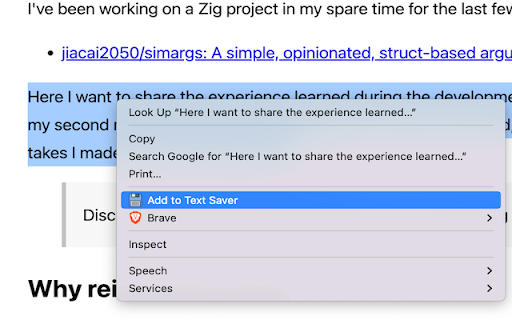

Tired of losing valuable snippets of text you find while browsing? Text Saver is your simple and efficient solution! With just a quick highlight and a click, this handy browser extension allows you to effortlessly save any selected text for later review. Whether it's a key quote, important information, or just something you want to remember, Text Saver makes it easy to collect and keep track of the text that matters most to you. Say goodbye to copy-pasting into various documents – streamline your information gathering with Text Saver today!

Web Text Expander: Text Shortcuts & Snippets
Work smarter and type faster with text shortcuts! Use text expander to turn text snippets into words or sentences anywhere online Elevate Your Productivity with Web Text Expander: Text Shortcuts & Snippets! Are you tired of repetitive typing while browsing the web? Our Web Text Expander Chrome extension is here to make your daily tasks smoother and more efficient. This extension is your ultimate companion for quick access to text snippets and effortless text expansion. A text expander is a powerful and efficient extension that simplifies typing tasks. It allows you to create shortcuts or abbreviations for frequently used words, phrases, or whole paragraphs. When you type these shortcuts, the text expansion tool automatically changes them into the full content, saving you time. Whether you're responding to emails, filling out forms, or working on various web-based tasks, our free text expander Chrome extension streamlines your workflow, making your digital life more efficient and productive. 1. Install our text expander in Chrome. 2. Create your shortcut and enter the corresponding expanded message in the dashboard 3. When you need to use the snippet, just type your shortcut, and the message will expand automatically. 4. Open the extension to quickly add, edit, and delete text shortcuts. - Text snippets - Instant shortcut expansion - Filtering by tags - Current date placeholders - Caret position control - Quick add - Quick search - Insertion of the current date/time - Designed for Chrome browser - Gmail snippets integration - User-friendly - Private and secure 💡 Unleash the Power of Text Snippets Seamlessly create, manage, and utilize text shortcuts. Say goodbye to typing out the same phrases or addresses repeatedly. With shortcuts, your frequently used phrases are at your fingertips. This feature alone can save you hours! Works like magic: automatically detects your pre-defined snippet, instantly inserting your message. No delays. No additional actions. Whether you're composing emails, filling out forms, or updating social media, Web Text Expander is ready to assist. It seamlessly integrates into your Chrome browser, providing a consistent and user-friendly experience across most websites. Efficiently organize and manage your text snippets with our filtering by tags feature. Assign tags to your snippets for easy categorization, allowing you to quickly find the right snippet when you need it. Whether you have hundreds of snippets or just a few, tags make it simple to keep everything organized and accessible. 💡 Insertion of the Current Date/Time Save time on routine tasks with the ability to insert the current date and time into your snippets automatically. Perfect for time-stamping emails, forms, or logs, this feature ensures that you always have up-to-date information without manually typing it out. Just create a snippet with the date/time placeholder, and let the extension do the rest. 💡 Control of the caret position after expansion Position the caret precisely where you need it once a snippet is expanded. Using a special placeholder within your snippet, the extension will automatically place the cursor at the designated spot, allowing you to start typing right where it matters. This feature eliminates the need to reposition your cursor manually, enabling faster and more efficient workflows. Easily locate the shortcuts and expanded texts you need with the intuitive quick search box. Simply type a keyword, and the extension will instantly surface matching snippets, ensuring you find the right one in seconds. Insert the snippet seamlessly with a single button press. Quickly fill in custom details using Placeholders before expanding. This feature lets you tailor your text with names, numbers, or notes in the moment, so your messages stay personal without slowing you down. Add a shortcut instantly from any webpage with just a right-click. This feature lets you create text expander shortcuts on the fly, so you never lose your flow. Integrate your Gmail snippets into our Chrome extension. Speed up your email communication and enhance your productivity while using Gmail. No need to spend hours learning complex software. You'll be up and running in just a few clicks, saving precious time. 💡 Privacy and Security We take your privacy seriously. Your data is stored securely and never shared with third parties. 🖍 Use Cases: Unlock the Potential of Text Shortcuts Web Text Expander isn't just a convenient tool; it's a game-changer for various scenarios in your digital life. Here are some real-world examples of how you can leverage this Chrome extension for maximum efficiency: In professional life, quick and accurate email responses are crucial. You can set shortcuts for frequently used email templates, signatures, or responses. No more copying and pasting – just a few keystrokes, and your message is ready. 📌 Managing Prompts for LLMs If you often work with AI tools like ChatGPT or Gemini, text shortcuts can make prompt management much easier. You can save your best-performing prompts, style guides, or structured queries as shortcuts. Instead of rewriting the same context every time you start a new chat, just type a few characters and your full prompt appears instantly. This keeps your workflow consistent across different AI platforms and saves time. 📌 Online Forms and Surveys Filling out online forms and surveys can be tedious, especially when they ask for the same information repeatedly. Use shortcuts to input your name, address, or other details. 📌 Code and Programming Web developers and programmers can streamline their workflow using shortcuts for frequently used code snippets. This minimizes the chances of errors and accelerates the coding process. Whether you're a social media professional or an avid user, craft consistent and engaging messages across various platforms (LinkedIn, Facebook, WhatsApp Web, and others) with snippets for hashtags, replies, or product promotions. Students and researchers can create text shortcuts for complex terminology or commonly used phrases. It's a valuable aid for maintaining consistency in academic writing. Customer support agents can improve response times and accuracy by creating shortcuts for canned responses to frequently asked questions. Provide top-notch service without the repetitive typing. 📌 Blogging and Content Creation Bloggers and content creators can maintain a consistent writing style and save time using shortcuts for standard introductions, conclusions, or product recommendations. Streamline your note-taking during meetings using shortcuts for common phrases like "action items," "follow-ups," or meeting agendas. 🚀 Unlock Your Potential with Web Text Expander No matter your digital activities, you should work smarter, not harder. These use cases are just the beginning. With a bit of creativity and customization, you can adapt Web Text Expander to your specific needs, making it an invaluable tool in your daily online life. Say goodbye to unnecessary typing and hello to a more streamlined and productive browsing experience. If you’re looking for an efficient free text expander to make your life easier, install Web Text Expander today and start saving time with every keystroke! Do you have questions, suggestions, or feature requests? Feel free to send a message to info@webtextexpander.com anytime. Let us know what you think! Thank you.

BeeSave Web Clipper
Save, organize and reuse text from any web page. Tags, voice typing, PDF/TXT export BeeSave Web Clipper is a lightweight tool for saving and organizing text from web pages. Select any text, save it in one click, sort it into categories, and reuse or export it later. Everything is stored locally in your browser — no account or sign-up required. It is built for people who read, research and write online and need a simple way to keep useful text without losing track of where it came from. You can save selected text in three ways: • Keyboard shortcut — Ctrl+Shift+Y (⌘+Shift+Y on Mac). • Right-click menu — "Add to BeeSave", where you can choose the category at the moment you save. • Ctrl+C — optional, turned off by default and enabled in Settings. A microphone button next to "Add clip" lets you dictate text instead of typing it. The dictated text becomes a regular text clip that you can edit, organize and export like any other. Speech recognition runs entirely on your device — audio is never sent to a server or stored online. You choose the recognition language in Settings, and the first use downloads an on-device language pack for that language. Requires Chrome 139 or newer. CATEGORIES AND FILTERING Each clip is assigned one of five categories: General, Favorite, Priority, To-Do or Ideas. You can filter your collection by category, show only clips from the page you are currently on, or view all clips at once. The number of clips in each category is shown on the filter chips. A search box above the list filters your clips as you type. Search applies to the visible list, the combined text editor and the export, so you work with exactly the clips you are looking for. EDITING, REORDERING AND MERGING • Edit any clip inline — changes are saved automatically. • Move clips up or down to change their order. • Merge neighbouring clips into a single block — useful for assembling notes or summaries from several sources. • Undo the last few delete and merge actions if you change your mind. Right-click inside a text field on any website to insert a saved clip — or a whole merged block — without searching and copying again. Each clip automatically keeps its save date and a link to the page it was saved from, which is useful for citations and checking sources later. Export the selected category or all clips to a PDF or a plain text (.txt) file, named by date (for example, BeeSave_2026-06-03). You can optionally include save dates and source links in the export. PDF export supports full Unicode text, including accented Latin, Cyrillic and Greek characters, so notes in those scripts render correctly. WHO IT IS FOR • Students and Learners — gather materials for papers and academic research. • Researchers and Analysts — systematize data, quotes, and sources. • Content Managers and Marketers — save examples, article ideas, trends. • Developers and IT Professionals — clip useful code snippets, docs, and solutions. • Journalists and Bloggers — collect quotes, facts, statistics for publications. • Copywriters and Writers — build a library of ideas and inspiration. • Project Managers — save requirements, task details, and web-based info. • Editors and Proofreaders — keep style rules, phrasing, and examples. • Anyone who works with information online — make BeeSave your productivity companion. Your clips are stored only in your browser — there is no account, no cloud sync and no server holding your notes. BeeSave works offline and is free. Speech recognition runs on your device. The extension collects only anonymous, optional usage statistics to help improve it — never your clips, your text or the pages you visit — and these can be turned off in Settings. • Light, Dark and Auto themes. • Available in 31 interface languages. • Two views: individual clips, or a single combined text editor.

Scribble - Automatic Text Saver & Backup
Scribble automatically saves what you type in web text editors, in case your browser crashes or you accidentally close a page. Scribble automatically saves text you type in web text editors, ensuring you have a backup if your browser crashes or you accidentally close a page. Never again lose that long email draft, detailed forum post, or important text! Scribble monitors text fields (textareas and contenteditable divs) and periodically saves your content locally within your browser. Nothing is sent for processing. ✓ You can turn it on/off whenever you want. ✓ Works on most websites. Feedback is appreciated where it does not work. ✓ Data is stored locally for your privacy. ✓ Blocklist so it's enabled only where you want. ✓ Fill in text areas from a right click.

Notebook Web Clipper – Sticky Notes & Save Articles
Clear the clutter. Clip the web. Save to Notebook. Introducing 'Meeting Notes'. Taking notes during an online meeting is now a breeze with Notebook extension on Chrome. When you're on an online meeting using Zoom, Cisco Webex , Zoho Meeting, and Zoho Showtime, you can see a a popped out Notebook icon which helps you to take quick notes. If you have not logged into your Zoho account in the browser, you can export your meeting notes as a .txt file. You can choose a notebook and associate tags before you save your meeting notes to Zoho Notebook. Notebook Web Clipper Clip content from the web to your Notebook with Web Clipper. Clipped content, saved as Note Cards, are immediately synced across your devices. Please download Notebook apps from Google PlayStore(https://play.google.com/store/apps/details?id=com.zoho.notebook) or Apple AppStore(https://itunes.apple.com/us/app/notebook-take-notes-sync-across-devices/id973801089?ls=1&mt=8). You can also view your notes from https://notebook.zoho.com. What can you clip? * Be it a new recipe you want to try or the next place you want to visit, clip text, images, or links into a note card, and save to a specific notebook. * Want to save an article for future reference? With Clean View, you can save the entire article as a note card, minus the ads. * Need to quickly grab a screenshot of a web page? The 'Screenshot’ option quickly saves the screenshot as a Photo Card. * Convert any link to Smart Cards. Refer https://www.zoho.com/notebook/smart-card.html for more details on Smart Cards. * Annotate images / screenshots before you add those in Notebook. We've added a complete annotation tool to edit your images. * Use Meeting Notes to take quick notes on an online meeting using Zoom, Cisco Webex, Zoho Meeting and Zoho Showtime. Web Clipper can also be used to create note cards. Have a quick thought you want to note without leaving your browser? Create a quick note from scratch right from your browser. You can also add photos directly from your computer to Web Clipper. Write your feedback to support@zohonotebook.com zoho.com/notebook
