
eefedolmcildfckjamddopaplfiiankl
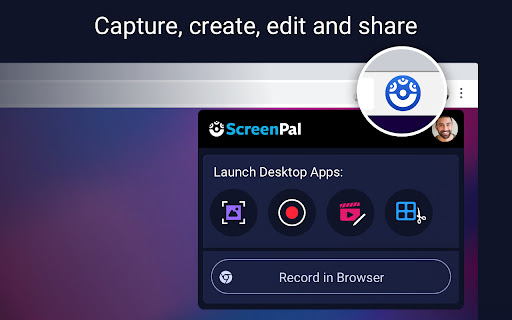

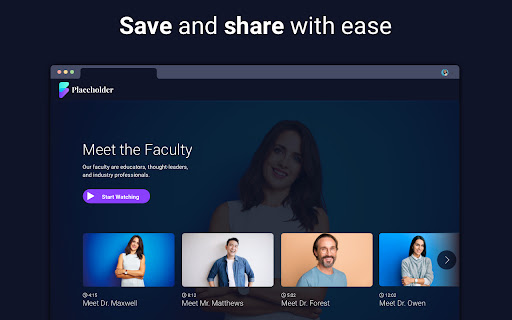


Record your screen & webcam, take screenshots, edit videos & images - easy & free! Get the all-in-one tool that lets you capture any part of your screen with webcam and narration, easily edit your recordings and screenshots, and then share your content securely with a click. Say goodbye to multiple apps and extensions, and say hello to ScreenPal – making your workday easier, more efficient, and fun! Easily record your screen & webcam directly in your browser or quickly launch ScreenPal's free desktop screen recorder, screenshot tool, and video & image editor. Capture, edit, and share screencast recordings and videos with just one click. Capture your screen, add a webcam, and use drawing tools and effects to customize your video. It’s a fast, free, and easy-to-use video maker. 🚀 CAPTURE YOUR SCREEN AND WEBCAM Launch the desktop screen recorder or record through your browser. Record your screen, webcam, or both for picture-in-picture effect. Easily capture your entire desktop, single tab, or application window. Capture any area of your computer screen with the desktop recorder, or easily crop your browser recording to any area. Screen Recording Features: ▸ Recorded an unlimited number of videos for free. ▸ Annotate with easy drawing tools during your recording. ▸ Record voice narration from any microphone. Additional Desktop Recording Features: ▸ Blur, remove, or replace your background. ▸ Zoom in and out while recording. ▸ Annotate with additional highlight and drawing tools. ▸ Editable cursor highlight and mouse click tracking. ▸ Add stock music to engage your audience. ▸ Import a captions file for free or upgrade for AI speech-to-text. 📽️ RECORD VIDEO MESSAGES Save time and improve collaboration with seamless, asynchronous communication through video messaging. Quickly record video messages in your browser and share with a secure link. Click in any text field or comment box in your favorite browser-based apps, record your message, and share. ScreenPal automatically embeds your video message with an animated GIF preview! Reduce back-and-forth, communicate clearly, and build better connections—all without leaving your browser. 📸 TAKE AND EDIT SCREENSHOTS Launch the free screenshot tool to capture your full screen, active app or window, or any part of your screen, then quickly paste to share or easily annotate to communicate clearly with images. Screenshot Features: ▸ Capture full screen or single window with a click. ▸ Click and drag to capture any part of your screen. ▸ Screenshots are automatically copied to your clipboard! ▸ Open in the image editor to add easy annotations and text. ▸ Highlight any area to focus attention. ▸ Document processes with easy sequential steps. ✂️ EASY VIDEO EDITING Create engaging, accessible videos with our easy video editing software. Upgrade to any subscription to create videos with interactive storyboards, combine multiple video clips, and make any video accessible with automated speech-to-text captions. Video Editing Features: ▸ Mix and match content and import videos from multiple devices. ▸ Add video effects, including green screen. ▸ Use engaging transition effects in your video clips. ▸ Enhance any video with overlay tools and add text, images, shapes, and more! ▸ Add images and videos from the ScreenPal Stock Library. ▸ Control the speed of your video and use slow motion to tell your story. ▸ Import your own music, or add from our extensive stock music library. ▸ Type in your own captions or use speech-to-text technology to add captions to your videos. 🎬 CREATE VIDEOS FROM STORYBOARDS Start your video from an interactive storyboard, drag and drop content into your video sections from anywhere, easily rearrange to tell your story your way, polish in the video editor, add music, and share! Video Storyboard Features: ▸ Start your video from a storyboard or script mode ▸ Import Google Slides or PDFs to create easy presentation videos ▸ Drag and drop videos and images to build your video ▸ Add narration with the easy teleprompter feature ▸ Add transitions, audio, and background music ▸ Easily edit any section of your storyboard ▸ Automatically turn your script into captions ⬆️ QUICKLY SAVE AND SHARE It's easy to save and share videos and images with your audience! With just a few simple clicks, you can download your video to your device, easily publish it to YouTube, Vimeo, and Google Drive, and upload to ScreenPal to share with a link or on social media. Download images in common formats or copy to your clipboard to share. 📺 WATCH VIDEOS IN CONTEXT Hover over any ScreenPal video link or thumbnail to preview and watch the video where you are, without any need to click through. Or open the full-page video to watch, engage, and collaborate with text and video comments. ☁️ HOSTING MANAGEMENT TOOLS Hosting allows you to manage, protect, and personalize your video and image content. Hosting Features ▸ Organize videos and images into folders and channels. ▸ Share content to individuals, your team, or company-wide with easy sharing capabilities. ▸ Set the privacy of your videos and images, and use password protection for extra security. ▸ Personalize the video experience with custom links or embed codes. ▸ Customize the video player. ▸ Use custom thumbnails. ▸ Set a publish or expiration date.

Video editor OpenShot online
Create and edit videos with OpenShot online The OpenShot video editor is a Chrome extension that allows to create and edit videos online. It is an integration with an OpenShot instance, which is a free and open-source video editor . It supports commonly used video codecs that are supported by FFmpeg like WebM (VP9), AVCHD (libx264), HEVC (libx265) and audio codecs like mp3 (libmp3lame) and aac (libfaac). The program can render MPEG4, ogv, Blu-ray and DVD video, and Full HD videos for uploading to the internet video websites. It is a video editor integrated with our file manager to manage only video file types with this desktop app. OpenShot main features are - Support for many video, audio, and image formats (based on FFmpeg). - Unlimited tracks / layers. - Clip resizing, scaling, trimming, snapping, rotation, and cutting. - Video transitions with real-time previews. - Compositing, image overlays, watermarks. - Title templates, title creation, sub-titles. - Scrolling motion picture credits. - Solid color clips (including alpha compositing). - Support for Rotoscoping / Image sequences. - Advanced Timeline (including Drag & drop, scrolling, panning, zooming, and snapping). - Video encoding (based on FFmpeg). - Digital zooming of video clips. - Time-mapping and Speed changes on clips (slow/fast, forward/backward, etc...) - Custom transition lumas and masks. - Audio mixing and editing. - Digital video effects, including brightness, gamma, hue, greyscale, chroma key. (bluescreen / greenscreen) , and many more. In order to handle the video compositions this extension includes the following functionality over the files used by this extension: - Personal files and directories in the Cloud. - Operations with files and folders: copy, move, upload, create folder/file, etc - Search for files. This is not a video player, it is a video editor, so do not expect great quality when playing video or audio. Download locally the video composed by OpenShot to play it with the right quality. This OpenShot Video Editor extension uses the platform http://www.offidocs.com. It is available for free online users but it also allows the integration with premium users and on-premises OffiDocs deployments where the OffiDocs OpenShot video editor is installed. IMPORTANT: This extension scans the URLs browsed in order to detect video files. The video files detected appear in a file list located in the extension popup that are retrieved from our servers. The scanning is performed from our servers so your URL are reported to our system. No personal data is collected. This scan can be disabled with a checkbox that appears in the extension popup. If you disable this scanning, this functionality is not available so then the extension functionality is very limited.

Movie maker MovieStudio video editor
Movie maker online to create, edit and record videos, and adding videos, audios, images and texts MovieStudio is an extension to make movies, record videos, edit videos, modify them using another videos you can import. MovieStudio also allows to add audios, images, and texts into your movies and videos. Moreover, it scans and collects the webpages you browse in the Internet. These webpages are uploaded to our servers in order to know if they contain MP4 files that can be edited using our extension integrated with our online app. Its main features are: * Record any video and import them in your project: - MovieStudio provides a button that capture videos from your camera. The video recorded are imported in your Gallery along with other objects that can be used to make your movie. - After importing your recorded video in your Gallery, drag your video from the Media Gallery to the timeline. Drag it to Layer 0 or any other layer. - Refer to the following section in order to know what to do with any of your video. * Add and modify MP4 or WEBM videos included in your project: - You can import videos from the Internet by pasting in the link, or uploading a local video. Once you have found a MP4 or WEBM video you like, copy the link by right-clicking on the Video link and selecting Copy Link Address from the context menu. Then paste the link into your VideoStudio project and click on Get Media. - Drag your video from the Media Gallery to the timeline. Drag it to Layer 0 or any other layer. Once you have dragged your video to the timeline, you will enter in an editor from which you can extend the video time or shorten it, you can turn the video portion of your clip off; and you can do the same thing with the audio, as well as turn the volume down. - You assemble your project in layers. Layers with lower numbers appear above layers with a higher number. So layer one appears on top of layer two. * Add any MP3 audio file in your project taking into account that adding MP3 audio files is similar to adding video files: - Once the MP3 audio files are imported you can drag your audio from the Media Gallery to the timeline from which an editor is open. - The audio editor allows to extend the audio time or shorten it, and select only a portion of your audio if you would like. * Include texts into your movie. In the Events tab there is an option to add some text to your video. MovieStudio provides an editor for this text integration. It allows to change the time when your text starts and ends, move it around on the canvas, and change the way it transitions on and off the page. It also allows to change the font and color. * Include images into your movie or video. In the Events tab there is an option to add some images to your video. The formats supported are PNG, JPG and GIF. MovieStudio provides an editor for this images integration. It allows to change the time when your image appears in your video. * Create your MP4 movie or video file. In the Project tab there is a button to create a MP4 file with your composition of videos, audios, images and texts. This MP4 creation uses the open source software FFMPEG. MovieStudio is an enhancement of our VideoStudio but with more capacity and features. It is also based on Mozilla Popcorn Maker. Popcorn Maker could handle sound or video that could come from a number of places like videos from YouTube, Vimeo, or SoundCloud. VideoStudio has removed any feature related to YouTube, Vimeo, or SoundCloud in order to be compliance with YouTube, Vimeo and SoundCloud service terms.

Screen Recorder
Record your computer's screen with just one click! Screen Recorder extension helps you record video from the computer's screen. To work with this addon, please click on the toolbar button. Once the recorder interface appears, please adjust desired options, and then click the - Start - button. The video source could be your screen, window, or tab. The audio source can be the system's audio, microphone, mixed, or no audio at all. When you click the start button, a popup will appear within the interface. This popup window allows you to select the desired screen, tab, or window. To start recording please click on the - Share - button. When you are done recording the screen, please press the toolbar button (or the stop button on the app interface) to stop the recording process. The recorded video will be download to your computer automatically (on the default download location). By default, recorded media is in - webm - format. To get more information about webm video format, please visit this Wikipedia page (https://en.wikipedia.org/wiki/WebM). If you want to change this format to a different one, please use a different software. Moreover, to switch the interface theme to dark, please press the moon icon in the right toolbar. To report bugs, please fill out the bug report form on the addon's homepage (https://mybrowseraddon.com/screen-recorder.html).

ApowerREC Screen Recorder
One-click to start your unlimited recordings! ApowerREC Screen Recorder is a lightweight screen recording software providing a bunch of amazing features. With its high flexibility, you can customize the whole screen, browser window, or tab exclusively. More so, if you desire include the audio, sure it can! Multifunctional Screen Recorder ▶ Microphone & System sound recorder Record system sound, microphone, or both audio sources at the same time. ▶ Browser Recorder Screen record a selected browser tab. ▶ Desktop Recorder Record all the desktop activities. ▶ Webcam Recorder Include webcam screen into the recording. ▶ Application window Recorder Record designated application interface. Contact Us ☛ Customer Service: support@apowersoft.com ☛ Desktop Program: https://www.apowersoft.com/record-all-screen
