
eclbecdgdoahkliaijlpkigldlkojjdn
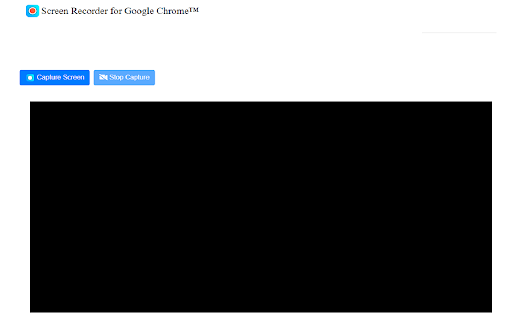
Screen Recorder is a software that allows you to capture and record your computer screen right in the browser! Use this free screen recorder software to make video recordings / screen recordings directly from the Chrome browser and share these video recordings with your friends/colleagues. To begin using the software Screen Recorder for Google Chrome™, simply click on "Start Capture" to begin recording your computer screen. Once you have finished recording your video, click on "Stop capture" to stop the video. You can save the video you made onto your computer/Google Drive. Its simple and easy to use Screen recorder to make video tutorials/software help videos etc and much more. Disclaimer: Please note this extension is NOT made by Google and is made by an independent development team. All copyrights belong to their respective owners. Google doesn’t endorse or sponsor this Chrome extension. Screen Recorder for Google Chrome™ is not owned by, is not licensed by and is not a subsidiary of Google Inc.

Запись экрана
Данное расширение позволяет записывать экран и выводит видео в формате webm Обновление 5.1: Исправлено отображение индикатора продолжительности видео! Данное расширение позволить буквально в пару кликов записать видео вашего экрана ПК. Здесь поддерживается запись экрана отдельных программ операционной системы, вкладок браузера и всего в совокупности! На выходе вы получаете видео в формате webm. Процесс работы с расширением занимает всего несколько этапов: 1. Нажимаете синюю кнопку со значком play в правом верхнем углу браузера 2. В сплывающем окне выбираете режим записи(всего их три), после того как будет нажата кнопка 'Поделится' начинается запись экрана. Значок play меняется на stop и появляется таймер записи. 3. Нажимаете на значок stop тем самым прекращая запись и попадаете на страницу предварительного просмотра записи 4. На странице предварительного просмотра есть кнопка скачать, нажимаете ее и получаете свое видео в формате webm.

Screen Recorder
Record your computer's screen with just one click! Screen Recorder extension helps you record video from the computer's screen. To work with this addon, please click on the toolbar button. Once the recorder interface appears, please adjust desired options, and then click the - Start - button. The video source could be your screen, window, or tab. The audio source can be the system's audio, microphone, mixed, or no audio at all. When you click the start button, a popup will appear within the interface. This popup window allows you to select the desired screen, tab, or window. To start recording please click on the - Share - button. When you are done recording the screen, please press the toolbar button (or the stop button on the app interface) to stop the recording process. The recorded video will be download to your computer automatically (on the default download location). By default, recorded media is in - webm - format. To get more information about webm video format, please visit this Wikipedia page (https://en.wikipedia.org/wiki/WebM). If you want to change this format to a different one, please use a different software. Moreover, to switch the interface theme to dark, please press the moon icon in the right toolbar. To report bugs, please fill out the bug report form on the addon's homepage (https://mybrowseraddon.com/screen-recorder.html).

Desktop Screen Recorder
Record the computer's screen, entire application or a single browser tab with audio support Desktop Screen Record is a powerful recording tool that captures the screen for sharing content. This extension has three modes: 1. Capture the entire screen. This mode supports monitor selection if more than one display is detected. 2. Application window capturing. It only captures one application's window, and the video size would be equal to the application's window size. 3. Browser tab mode. The extension captures the content of one browser tab only. You can optionally switch to a different tab during the recording This extension can record in HD quality if the recording is placed on a high-quality LCD monitor. Also, it supports audio recording. The user can either ask the extension to record the system sound (whatever is playing in the background) or use the user's microphone device for recording. The output format of the media files is the WebM format, which is the best choice for media sharing due to its compression level and real-time rendering. Features: 1. It is possible to use this extension to record long screen captures since it directly writes chunks to the disk while recording. 2. Recover recordings in case of a browser crash. 3. Use a built-in tool to draw or write during the presentation 4. Record audio from speaker, microphone, or both 5. Adjust video quality (HD, Medium, Low, or Default) 6. Define global shortcuts to pause, resume, or stop recording. 7. Record as long as you need. There is no watermark on the recording 8. Writes the stream directly to the disk. There is no need for recovery after a possible browser crash.

ApowerREC Screen Recorder
One-click to start your unlimited recordings! ApowerREC Screen Recorder is a lightweight screen recording software providing a bunch of amazing features. With its high flexibility, you can customize the whole screen, browser window, or tab exclusively. More so, if you desire include the audio, sure it can! Multifunctional Screen Recorder ▶ Microphone & System sound recorder Record system sound, microphone, or both audio sources at the same time. ▶ Browser Recorder Screen record a selected browser tab. ▶ Desktop Recorder Record all the desktop activities. ▶ Webcam Recorder Include webcam screen into the recording. ▶ Application window Recorder Record designated application interface. Contact Us ☛ Customer Service: support@apowersoft.com ☛ Desktop Program: https://www.apowersoft.com/record-all-screen
