
ecafbbbagbilgmcjpngaagjglmmkdpla
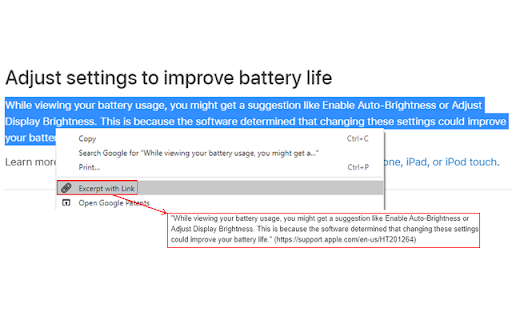
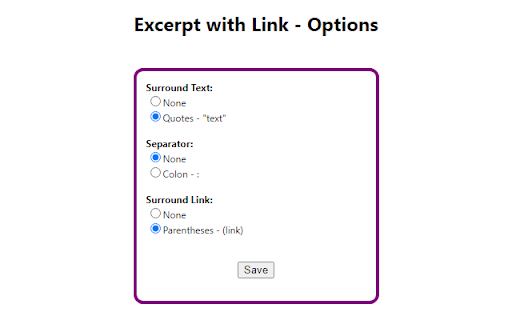
Copies selected text and associated link (URL). The "Excerpt with Link" extension copies selected text and the associated webpage link (URL) to the clipboard. This provides a quick and simple way to cite website text. Select desired text, then open the context menu and select "Excerpt with Link" from the menu. You can normally open the context menu by right-clicking. Please let me know of any issues you experience before writing a review -- I'm happy to continue to improve the solution. The extension is provided 'As-Is' without any express or implied warranty of any kind. Note that I do not collect any information from the extension -- all handling is done at your local browser. I hope you find this extension to be helpful. (The extension icon has been designed using resources from Flaticon.com) --- Updates: v1.4: Updated to comply with Chrome manifest v3 v1.3: Improved text copy (selected text wasn't always copied for some websites).

CopyTabTitleUrl
Copy the title and URL to the clipboard. You can customize the extension from setting options. You can perform actions the following. + Copy the title and URL + Copy the title + Copy the URL + Copy the format (Example: Markdown, Hyperlink, etc) You can perform actions on the following tabs. + Current tab + Multiple selected tabs + Current window tabs + All tabs You can perform actions from the following operations. + Browser action (popup, click) + Context menu (all, page, browser action) + Keyboard shortcut You can perform actions in combination with the following functions. + Decode the URL + Decode the Punycode Please refer to following URL for details on options. https://github.com/k08045kk/CopyTabTitleUrl/wiki/Options

Copy Highlighted Links
Copy Highlighted Links is a lightweight, privacy-focused extension that makes collecting URLs from web pages effortless. Simply highlight any text containing links, right-click, and select "Copy Selected Links" to copy all URLs to your clipboard. Perfect for: • Researchers collecting multiple reference links • Students gathering study resources • Professionals compiling lists of relevant websites • Anyone who needs to quickly grab multiple URLs Key Features: ✓ One-click URL copying from highlighted text ✓ Works on any webpage ✓ Clean, minimal interface ✓ No ads or tracking ✓ Minimal permissions required ✓ Open source ✓ No cloud services, no network, everything stays on YOUR computer How to Use: 1. Select (highlight) any text containing links 2. Right-click on the selection 3. Choose "Copy Selected Links" 4. Paste your collected URLs anywhere Privacy First: This extension only requests essential permissions and doesn't collect any user data. It only activates when you explicitly use it, and it only accesses the current tab when you highlight text and use the context menu. You can read our privacy policy here: https://github.com/CraftedIntuition/copy-highlighted-links/blob/main/PRIVACY.md Required Permissions Explained: • activeTab - Only used when you interact with the extension • clipboardWrite - Needed to copy URLs to your clipboard • contextMenus - Adds the right-click menu option • scripting - Needed to discover currently highlighted links • notifications - Show you the result of copy actions Open Source: The complete source code is available on GitHub for transparency and community contributions. Support: For issues or suggestions, please visit our GitHub repository https://github.com/CraftedIntuition/copy-highlighted-links

Copy Rich Link
Copy the page title and URL as rich text. Copy the page title and URL as rich text. Useful for pasting links to Slack, Google Docs, etc. Click the extension icon or execute the keyboard shortcut to copy the link to the page as rich text. The default keyboard shortcut is Ctrl + Shift + L, and Command + Shift + L on Mac. This can be changed from the browser's extension settings. As a fallback, we also copy in plain text format in the form `"{title}" {url}`, so that if you paste where rich text is not available or paste explicitly as plain text (Ctrl + Shift + V on Windows), this plain text format will be pasted.

Pabbly Connect Web Clipper
The "Pabbly Connect Web Clipper" extension allows users to effortlessly send selected text from any webpage and send it to a Pabbly Connect workflow webhook URL. It simplifies the process of collecting and transferring data directly from web pages to your Pabbly Connect workflows, making it a valuable tool for automating data-driven tasks and enhancing productivity. Users should install the "Pabbly Connect Web Clipper" extension to easily do data collection and integration with their Pabbly Connect workflows. This extension is beneficial for users who rely on Pabbly Connect for automating workflows across various applications. Key Features of the Extensions Include: 1. Manage Multiple Webhooks: Add and manage multiple webhook URLs directly from the extension's options page and send clipped text to any Pabbly Connect workflow. 2. Context Menu Integration: Simply right-click on selected text to send it to your configured webhook, making it intuitive and user-friendly. 3. Secure Data Sending: Ensures data is sent securely over HTTPS to designated webhook URLs, with validation checks for allowed domains. 4. Flexible Webhook Management: Easily edit or delete webhooks to keep your setup current and relevant to your needs. This extension is ideal for professionals and businesses that leverage Pabbly Connect for automation. It is particularly beneficial for digital marketers, sales teams, and data analysts who frequently gather data from the web and require a streamlined process to input this data into their automation workflows. Use-Case 1: Content Curation for a Blog Automate the process of gathering content for blog posts or newsletters. A. You are researching topics for your blog or newsletter. B. Visit various websites and find valuable insights or statistics. C. Select the relevant text, right-click, and send it to a Pabbly Connect workflow. D. The workflow compiles all the clipped content into a Google Document. E. Use AI tools like ChatGPT to summarize the content or generate insights based on the collected data. F. Automatically format the document and send it to your team for review or directly publish it to your blog platform. Benefit: Saves time by automating content gathering and ensures that you don’t miss critical insights while researching. Use-Case 2: Lead Generation and Follow-Up Objective: Streamline the process of capturing leads and initiating follow-ups. A. Browse LinkedIn or business directories to find potential leads. B. Select contact information or other relevant details, right-click, and send it to your Pabbly Connect workflow. C. The workflow automatically populates a CRM like Salesforce or HubSpot with the lead's information. D. Use Pabbly Connect to trigger an automated email follow-up or add the lead to an email nurturing sequence. E. Monitor lead engagement through analytics tools, and update the CRM based on interactions. Benefit: Reduces manual data entry, ensures quick follow-up, and improves lead conversion rates by keeping leads engaged. Use-Case 3: Research and Development Objective: Efficiently compile research data and insights for R&D purposes. A. Researchers visit multiple academic journals, news sites, and forums for information. B. Highlight and clip important research data, findings, or quotes. C. Send the selected text to a Pabbly Connect workflow. D. The workflow organizes the data into structured formats like Excel or a database. E. Use tools like natural language processing to analyze trends or generate reports. Benefit: Speeds up the research process, helps maintain organized records, and aids in discovering new insights quickly. Use-Case 4: Customer Support Automation Objective: Automate the collection of customer issues for faster resolution. A. A support agent browses forums or social media for customer complaints or queries. Selects the relevant text, right-clicks, and sends it to a Pabbly Connect workflow. B. The workflow logs the issue in a ticketing system like Zendesk or Freshdesk. C. Use AI to suggest possible solutions or tag issues for priority handling. D. Automatically follow up with customers or assign tickets to the appropriate team members. E. Benefit: Enhances customer support efficiency, reduces manual logging, and ensures timely resolution of customer issues. Use-Case 5: Marketing Campaign Tracking Objective: Gather feedback and data from multiple sources for marketing analysis. A. Marketing teams browse social media, blogs, or review sites to gather feedback about a product or campaign. B. Highlight relevant comments or feedback, right-click, and send it to a Pabbly Connect workflow. C. The workflow aggregates feedback and creates visual reports or dashboards. D. Analyze sentiment and trends using tools like Google Analytics or Power BI. E. Use insights to adjust marketing strategies or create targeted campaigns. Benefit: Provides real-time insights into customer perceptions and enables data-driven marketing decisions. Use-Case 6: Academic Collaboration Objective: Facilitate collaboration among researchers and educators. A. Researchers and educators browse academic resources or online lectures. B. Highlight key information, right-click, and send it to a shared Pabbly Connect workflow. C. The workflow consolidates data into a shared platform like Google Drive or Notion. D. Collaborators receive notifications and can discuss insights or provide feedback. E. Automate the creation of collaborative documents or presentation slides. Benefit: Enhances collaboration, ensures easy access to research data, and fosters knowledge sharing among peers. Use-Case 7: Project Management Objective: Streamline project data collection and task management. A. Project managers browse different resources for project-related data or updates. B. Highlight and clip relevant information, right-click, and send it to a Pabbly Connect workflow. C. The workflow updates project management tools like Trello, Asana, or Jira. D. Assign tasks to team members based on the clipped data and set deadlines. E. Monitor project progress with automated reports and notifications. Benefit: Improves project management efficiency, reduces manual data entry, and ensures that project teams are aligned. Use-Case 8: Competitive Analysis Objective: Automate the process of gathering and analyzing competitor information. A. Analysts visit competitors' websites or online platforms. B. Highlight product details, pricing information, or marketing strategies, right-click, and send the data to a Pabbly Connect workflow. C. The workflow organizes the data into competitive analysis tools or databases. D. Generate reports comparing your product offerings with competitors. E. Use insights to adjust your product strategy or pricing models. Benefit: Speeds up competitive analysis, ensures accurate data collection, and provides actionable insights for strategic planning.
