
ebopmphlcknnclpifoaadpigdapiclon
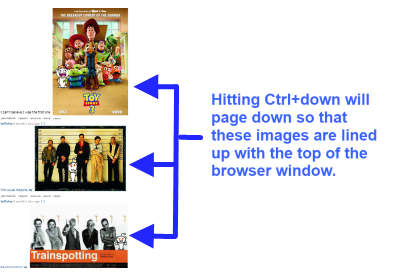


Hit Ctrl+Down to scroll the page so the next image is aligned to the top of the window. This extension adds keyboard shortcuts to scroll the page to the next large image (100+ pixel height) on the page. This is useful when looking at a page with a lot of images, because using PgDn or PgUp will rarely line up the images with the top of the window, causing them to get out of sync with the browser window. Notes: Ctrl + down arrow will scroll to the next image. Ctrl + up arrow moves to the previous image. 0.5.0 Re-worked code, because it wasn't working on some newer sites. There's logic to deal with the situation where there are images lined up across, and it was failing. I hope this doesn't break existing sites, but on the ones I tested, it now works the same or better. 0.4.1: New feature/bugfix - the webpage now scrolls down even if there are is a grid of pictures. Before it would go image-by-image, which kept the scroll position the same if there were several images on the same row. Now it keeps checking until your scroll position actually changes. 0.3.0: A small update so that it now works when new images are dynamically added to a page (if there is a "show more images" type link that doesn't refresh the whole page, for example).

URL Incrementer - A Next Page Incrementer
Increment a URL or go to the next page. Supports auto, multi, and advanced incrementing functions. Important I want you to be 100% happy with URLI! If something isn't working right, or if there's a feature you think is missing, please open an issue on GitHub and give me a chance to help before leaving a review: https://github.com/sixcious/url-incrementer/issues About URL Incrementer can let you increment URLs and can get to the next page in a variety of ways using four different actions. URLI supports customizable shortcuts including keyboard shortcuts, mouse shortcuts, and context menu shortcuts. It can also try and auto detect the next link on the page for you using two unique algorithms. Features • 4 Actions: Increment URL, Next Link, Click Element, and URL List • 3 Types of Shortcuts: Keyboard, Mouse (Multi-Click & Rocker) and Context Menu • Advanced Incrementing: Multi Incrementing, Date Time, Custom Base (Base 2-36), and Error Skipping • Auto Incrementing with Pause, Resume, and Slideshow capabilities • Auto Detect Algorithms: Features two unique algorithms to help try and find the next link (Pattern and Keyword) • Shuffle URLs: Make it fun and randomize the next pages you see • Element Picker (Powered by ElemPick): To help you find the next link or click element, pick an element on the page and generate its Selector or XPath expression automatically or use the EP's buttons to traverse the DOM in any direction (May not work on complex websites) • Save settings for your favorite URLs • Toolkit: Generate Links, Open Tabs, and Crawl URLs (Requires Special Mode) • User Interface: A simple UI made with Material Design and Lit Permissions Justification "Read and change all your data on the websites you visit" - URLI needs to request this permission so that its content script can auto-activate on any URL you want to increment or have it work on. Privacy Policy URL Incrementer does not track you. It does not use analytic services. It does not collect any data from your device or computer. All your data is stored locally on your device. Your data is *your* data.

Fast Page Scroll
Quickly scroll to the top or bottom of any page without using the mouse wheel. There are many "Scroll to top" extensions out there, but they all add a button to the page or browser's interface. That's ugly and bad user experience. How about clicking anywhere on the top or bottom right corner of the page (where there is usually no content) and scroll automagically? That's exactly what this extension will do. This is a feature I encountered at Basecamp, so the credit goes to 37signals. I liked it so much that I developed the extension to be able to use it everywhere. I think it will be useful for everyone. No icon is added to the browser. Go to Chrome Options - Tools - Extensions menu and look for Fast Page Scroll.

Right Click Tab Navigation
Adds these useful tab navigation options to the right click context menu:

Image Autosizer
Customize how images are displayed and controlled within your browser. Image Autosizer provides control over how image files are displayed in the browser window. Features: - Several display modes, changing how the image scales to the window - Smooth/inertial panning - Custom background color - Optional checkerboard-background - Option to close image on long mouse press Usage: - First, open up an image file - Click image to toggle the size - Double click to fill image to window - Press 'c' to temporarily change background color There is a quick guide in the preferences with some additional details. Q & A ======== Q: This extension does not work! A: Go to the extension's preferences and read through the quick guide. If it doesn't work only on certain pages, make sure you have enabled the extension for secure pages if you are surfing on one. Also remember that this extension only takes effect if an image file is opened. It does not do anything to images located inside an html-document.
