
djbjejcpegcimjdappppobfhaafbmjpf
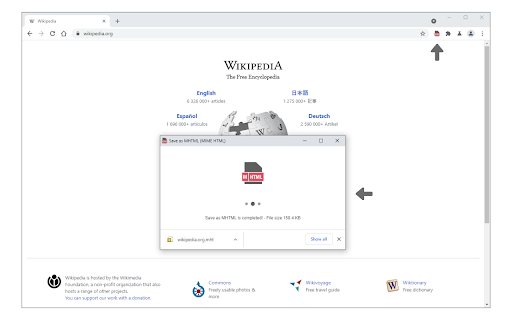
Save a page content & incorporate all resources (i.e. images) in a single file! Save as MHTML is an extension that lets you save any webpage in a single file with the ".mhtml" file extension. MHTML document is a new file format designed to capsulate all contents in a website to a single file; it is a short form for - MIME HTML. To work with this addon, click on the toolbar button or right-click, and then select - Save as MHTML - item from the context menu. Please note that this addon has no settings or options to adjust. If you found a bug or have a feature request in mind, please fill out the bug report form on the addon's homepage (https://mybrowseraddon.com/save-as-mhtml.html).

FullDownload
Full download JS/CSS/HTML A simple tool to download IMG/JS/CSS/HTML. 一个可以下载页面引用的JS/CSS/HTML的小工具.

Tab Manager
Easily organize all your open tabs in multiple windows from toolbar popup! This extension is designed to organize tabs from the toolbar popup. The UI for the extension can also be opened in a standalone popup window or a new tab (choose an item from the toolbar button context-menu). Tab Manager add-on supports multi-window and incognito mode. To work with this addon, just open the extension UI and start managing your tabs. Within the UI you can see a search bar at the bottom. Above that, there is the list of open tabs for window #1 (a new section is added for each new window). Within each row (tab item) in the list, there are several buttons. The first is the pin button which can be used to pin a desired tab(s). Next is the HTTP/HTTPS sign which shows if a website supports SSL protocol or not. The third icon is the tab icon which updates automatically depending on the tab URL. You can see the tab title right after the tab icon. There are also two buttons on the right side for editing or removing the current item. Please note that within the extension interface, all tab items are draggable. Once you drag an item, the actual tab will be re-positioned as well. Note: The extension interface supports dark mode. To switch the interface theme to dark, please press the moon icon in the bottom-right toolbar. To report bugs, please fill out the bug report form on the addon's homepage (https://mybrowseraddon.com/tab-manager.html).

online / offline Bookmark Manager
I am a software developer and this is a project that I created as part of my profile. I update this from time to time - as I learn new skills. I also fix reported bugs. This extension does not upload any data online - neither does it fetch / download anything. Feature summary: - 1. USE SHORTCUT - Ctrl+Shift+F - it is default for this extension (set shortcut in chrome if it not working). To open a link in new tab, hold Ctrl key while clicking on the link. 2. This is just an editor - it doesn't mess up your data or store it anywhere - nothing is uploaded online. Turn on sync in your browser if you want to see your mobile bookmarks here. 3. You can change theme using icons on top left - you can also CREATE a new one from there. You can only edit the themes you yourself create. 4. Hover on icons for tips. 5. Interface is easy to understand and support drag/drop. You can go into edit mode (by clicking pencil icon on top right) - then you can select multiple things and then drag drop them at the same time. 6. You can drop folders on left panel / menu - then you can open them in full view as shown in screenshots. Then you can also move things into those folders using drag / drop or you can set a home folder. 7. Use right click options - you can rename, hide names to show only icons on bookmark bar. 8. No undo yet - you can undo anything by going to chrome's bookmark manager and then using Ctrl + Z. Will maybe add undo sometime in late 2024. 9. Please report bugs and share any feedback. Some detailed explanations: - The extension is mostly useful if you have a lot of bookmarks. I appreciate feedback (especially positive ones) - I do get to things eventually. Please report bugs - via comments/emails. BASIC IDEA: To view and manage bookmarks on full screen. It shows and edits in chrome bookmarks - move / rename / delete etc in a full tab view like a website. HOW I USE THIS: I personally use it to view my mobile and other bookmarks occasionally and to hide some of their names so that they show as simply icons on the bookmarks bar(use right click). Also I have pined a few folder onto side - then I just DRAG and DROP bookmarks onto the pinned one - to quickly move things. Also when searching for some projects, I tend to create its separate folder. Pin it to side and set it as home. Whenever if I have to check links later, just press shortcut and all the links show up on screen in full page. SYNC DATA across devices: It does not interfere with chrome's built-in data synch-up process. So you can bookmark something on phone and after google syncs your data it will show up in the extension. GROUP: To show folders together and bookmarks sorted alphabetically (by url). It has a button on top right. DUPLICATES: Button on top-left side to check if you have any. RIGHT CLICK: things such as rename, delete, hide name in bookmark bar, show in parent folder (can be useful when clicking something you found through search). DRAG/DROP: You can use it to move bookmarks/folders to another folder. Or pin a folder to side bar (maybe set it as home later - right click). ROW-WISE / COLUMN-WISE: Button in top right. Its used to switch the direction in which the bookmarks are arranged. Whether the rows are filled first or are the columns filled first. Tips: 1. Use Ctrl + F (chrome's feature) to find bookmarks from time to time. 2. Use Right click menus. They have features like show in folder (in search). 3. Edit Mode : Button in top right. It just allows you to select and apply simple operations - move, delete - to multiple bookmarks/folders at once.

Save Page as MHTML
Save a page's content and combine all of the resources into one file! A straightforward add-on called Save Page as MHTML allows you to save any webpage as a single MHTML file. A new file format called MHTML document was created to consolidate all of a website's contents into a single file. Only the Google Chrome browser currently supports this abbreviation for MIME HTML. An MHTML file is a local file that renders exactly like the original web page when opened in a browser. Due to the relative youth of this technology, there may be glitches or problems when saving online material. The Save Page as MHTML addon has a number of significant features, some of which are listed below. An overview of this addon follows this. A few words are used in this overview to describe the add-purpose on's and characteristics. The FAQ section follows, which is helpful for learning more about how this add-on functions in your browser. If you couldn't find the solution you were looking for, please fill out the contact form on the homepage or the bug report form on this page to let us know. The form for bug reports is located after the FAQ. It is intended to gather user comments and bugs regarding this add-on. Through this form, users can also request changes or new features.
