
dgoaeahpciglgomkbmfblkcfanpfckhb
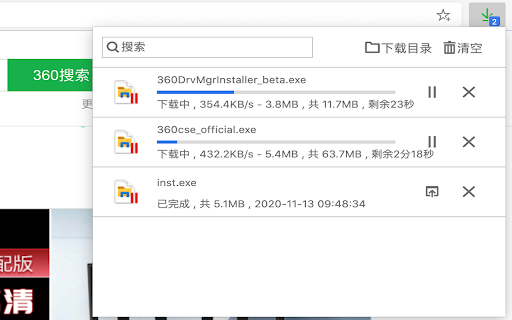


Used to take over the download function that comes with the browser, eliminating the trouble of opening the download page to view… it make you easily to get downloads information,include file's name,process,speed,size and so on.

Card Bookmarks
Card bookmark is a browser bookmark tool. The original bookmark bar will occupy the space of the webpage, while the card bookmark is displayed in a pop-up way, which disappears when it is used up. At the same time, it provides more space to display frequently used bookmarks. In order to make it easier to use, search and set-top functions have been added in succession. Now the latest version is to add cloud services to facilitate data synchronization. This major update: 1. Add a switch icon to the right of the title (bookmark data classification) in the upper left corner; 2. Further optimize the loading speed of bookmarks when opening; 3. Optimize the search experience, faster; Some usage tips: 1. When searching for bookmarks, click the bookmark icon to open the bookmark folder and scroll to the current bookmark location; 2. Double-click the search box to search for the previous input again; 3. When the bookmark (folder) is right-clicked, a dashed box is added to the unselected list to prompt that multiple selections are supported;

Extension Manager
Manage extensions, Quickly enable/disable, Support batching operation, Smart sorting. Fast, Simple and Secure. 1. One Key fast enable/disable extension 2. Lightning Group: Quickly enable/disable extension groups according to the scene (except for locked or theme class extensions) 3. Smart Sort: intelligent sorting according to your frequency of use (default sort by name) 4. Right-click Menu: provides shortcut functions such as lock, uninstall, option configuration, home page, APP running, etc. 5. Smart Search: Quickly find the extension you need with keywords or phrases 6. Reminder: display the extended status in real time, remind reset after use, reduce resource consumption (except for locked or theme class extension) 7. View Selection: Provide list view and grid view, in line with user habits 8. Group management: general group and fixed group, flexible management 9. Extension Naming: Give your extension an alias you like 10. Automatic matching: You can turn extensions on and off according to different websites 11.Support dark mode

ContextSearch web-ext
Add search engines easily and search from the context menu and convenient popup The most powerful, most complete search enhancement for Firefox comes to Chrome This Add-on was written as a Firefox 57+ web-extensions compatible replacement for Ben Basson's popular Context Search Add-on but has grown into much more. * Access search engines from the Context Menu * Manage search engines using subfolders and separators * Access search engines from a popup menu (QuickMenu) * Compatible with all search engines using POST or GET requests * International character-set support * Reverse-image search * Site search compatible * Add new search engines simply with a right-click * Edit search engine parameters and icons * Access bookmarklets from the context menu * Toolbar Search * Set hotkeys for each search engine * and much more

PhotoShow
Hover to zoom and view high-definition images. Instantly enlarge visuals, crafted for all your favorite websites—and for you. PhotoShow is a tool for browsing and downloading high-definition images by hovering mouse on image thumbnails, working on most websites and carefully crafted for over 400 popular ones of your daily use, including Amazon, Facebook, Google, Instagram, YouTube, etc. - Viewer control: Esc: Close viewer X: Suspend viewer while held Space: Switch to reading mode while held A / F / L / M / P: Switch view mode V: Toggle between last two used view modes - Image control: Shift + Ctrl + ← / →: Rotate image counterclockwise/clockwise Alt + Ctrl + ← / → / ↑ / ↓: Flip image horizontally/vertically ← / → / ↑ / ↓: Scroll image left/right/up/down PgUp / PgDn: Scroll image up/down by page Home / End: Scroll image to the top/bottom - Image actions: Tab: Open HD image in new tab S: Save HD image C: Copy HD image Alt + C: Copy HD image address Shift + C: Copy image caption PhotoShow comes with a rich set of settings designed to adapt to your browsing needs, from customizing how the image viewer appears, to adjusting controls, shortcuts, and behaviors. Whether you prefer a clean, distraction-free interface or a feature-packed experience, PhotoShow lets you fine-tune the viewer to suit your style. - Whitelist Mode: Disable PhotoShow globally, then enable per site with its popup toggle. - Viewer Trigger: Require an assist key press to show the viewer. - Thumbnail Types & Viewer Exceptions: Control which thumbnails trigger the viewer. - Viewer Positions: Default is beside the thumbnail, but you can allow fullscreen by choosing "center". - Image Info Display: Show captions, dimensions, formats, or file sizes. - New Tab Opening Behavior: Choose whether new image tabs open in the foreground or background. - Transition Animation: Smooth animations, or reduce/disable them. - Viewer Color Scheme: Choose either "light" or "dark" theme for the viewer. - Keyboard Shortcuts: Enable/disable specific shortcuts. - Image Download: Customize filenames with placeholders (e.g. "my images//"). - Assistance & Enhancements: Extra tools like marking viewed images or enabling/disabling context menu items. - Settings Management: Export/import your settings to transfer between devices, or reset either global or site-specific settings. For more information, please refer to the Options page (global settings) and PhotoShow’s popup window (site-specific settings).
