
delinpnhfdkcjeifmapikhinioghdeia


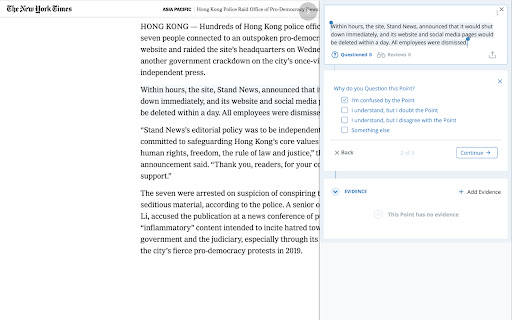
AverPoint chrome extension AverPoint helps students improve their reading, writing, and critical thinking. We turn media literacy into a dynamic, daily practice on real websites. Through daily practice, you can develop the skills, knowledge, and personal drive to apply media literacy in the real world. Our most popular product is the News Challenge. Every Sunday, we send you reading and critical thinking goals. Our extension measures your progress. If you meet your goals, you go up a level the next week. If you miss your goals, you go down a level. Over time, we help you improve your reading diet: the range of sources, topics, and geographies you read about. We also help you improve your critical thinking through two features. We add a credibility layer on top of text, allowing you to question, review, save, and add evidence to claims in real newspapers. We also show you a quiz at the end of the article that tests your comprehension, library science, and metacognition. Our 2nd most popular product is Classroom. This integrated reading, research, and writing platform enhances existing courses. You can use it with any text: newspapers, academic papers, literature, etc. Our extension measures your reading progress, and lets you interact with claims. After you save claims, you can organize them in our web app. You can then add this text as footnotes or block quotes in AverPoint Writer, our writing editor. We’ve also recently introduced a third product, Words. This vocabulary builder helps you naturally learn over 1,000 words that appear on standardized tests like the SATs. When you are reading for pleasure or for class, Words will highlight the words you should master. You can see flashcards, take quizzes, and keep track of your word lists over time. We designed our browser extension to help you develop your cognitive media literacy. This approach to media literacy goes beyond footnotes and sources, and helps students build autonomy over two things: 1) The media they consume and 2) the meaning they make from media messages. In a free republic, it's crucial each person has the skills, knowledge, and personal drive to maintain this autonomy.

Thymeline
Add events to your timeline the easy way Keep track of everything important about your projects all in one place. Meet Thymeline, the free Chrome extension that will magically transform your project chaos into an organized masterpiece. Created for Project Managers. Here is how Thymeline saves you time. No APIs. No integrations. As simple as copy & paste. Easily copy relevant information from any of your existing tools or apps without any hassle. Once you download the chrome extension... Step 1: Visit any website. Step 2: Highlight any text. Step 3: Click on the Thymeline Chrome extension Step 4: Add to existing Thymelines. That’s it! Thymeline can handle as many projects as you’re juggling. Create as many Thymelines as you need! Multiple projects, multiple Thymelines, we can handle it. Keep track of it all in a simple interface. Share with others Share your Thymelines with others on your team with view or edit privileges, keeping everyone on the same page. Want to keep it private? You can do that too.

The Big Gift List
Easily add items to your 'The Big Gift List' lists Help friends and family take the guesswork out of buying you gifts with The Big Gift List. When it comes to a birthday, Christmas, wedding or any other special occasion, with your gift list you can show your friends and family what you really want, so they don't need to guess. Use the official browser extension to add items to your gift lists directly from any website.

Salesforce Shortcuts
Quickly open the most used URLs in your Salesforce Orgs. How to use it: 1) Open the extension using the "Alt + S" keyboard shortcut ("Option + S" on macOS). 2) Select your Salesforce Org with up and down arrows 3) Press "Control + 1" to open its Home page 3.a) use "Control + 2" to open Setup, or "Control + 3" to open Developer Console You can change the default "Alt + S" shortcut by opening the following URL in your browser: chrome://extensions/shortcuts 100% safe and private. No tracking and no permissions required to run. Also, completely free. There is also a version of this plugin that allows changing the colour of Salesforce Favicons: https://chromewebstore.google.com/detail/salesforce-shortcuts-with/pegpfhbecbiefakehnmehoaembjmican Features: - Allow exporting and importing of settings Improvements: - Ask for a review on 200th usage Features: - It is now possible to configure the plugin to search through all the orgs even if a tag is selected Improvements: - Minor styling improvements in Help page Fixes: - Fixed the issue where the Alt keyboard shortcuts are ignored when not using the Numeric Pad Fixes: - Fixed the issue where the Alt keyboard shortcuts sometimes didn't execute the correct shortcut Improvements: - New "Help" page with basic instructions on how to use the plugin - New "Settings" page where a different shortcut activation key can be selected (Control vs Alt/Option) Improvements: - Width of the Name cell will remain constant independent of the Name length - Improved spelling in some labels Improvements: - Reduced the size of the drop down icon in Tag selector - Added more robust handling of Salesforce domains to prevent adding duplicate orgs Features: - Orgs can now be assigned different colors - Holding down "CTRL" will show shortcut numbers instead of icons for easier use of keyboard shortcuts Improvements: - 12 new icons are available for custom shortcuts - When 7 or more shortcuts are displayed in the home page they are now not as narrow as before Improvements: - Explanation for "System" theme is provided Fixes: - Fixed the scrollbar look in Dark mode Improvements: - Moved "Delete Org" button to Reordering screen to prevent accidental deletions - Display plugin version in Settings - Added "Arrow Up" and "Arrow Down" icons for Custom Shortcuts - Added help text next to "Shortcut URL" field to make it more clear how it functions Fixes: - Fix the flickering when opening pages - Focused buttons couldn't be executed when pressing "Enter" key before. Now they can, but in order to open the selected Org "Ctrl + Enter" has to be pressed. Features: - Allow adding custom shortcuts that are applied across all Orgs - When Org is selected, pressing the "Enter" key will execute the first action - Allow reordering of Orgs

Add to LinkJoin
Organize and automatically open virtual meetings. Keep all of your links in one central location where they can be sorted, searched for, and opened from any device with just a click. Receive reminders up to 30 minutes before a meeting and automatically opens it when the time comes. LinkJoin Bookmarks store links for access from any device at any time. Add to LinkJoin streamlines this process into a two-click process in your browser. Add to LinkJoin operates in the background so you can open links or open Zoom meetings automatically without any tabs running. Share links and bookmarks with others via the LinkJoin website, transferring your saved information to them as well.
